



Combining photos on a Mac is useful when you want to create a collage, compare images side by side, or merge multiple pictures into a single file. macOS includes built-in tools that handle basic image editing well, and there are also advanced options for users who want more control.
At the time of writing, all methods below work on current versions of macOS and do not require paid software. Each approach fits a different skill level, from beginners to advanced users.
Use Preview To Combine Photos On Mac
Preview is the default image viewer on macOS and offers enough flexibility to manually combine images. This method works best when you want precise control over image placement.
- Open Finder and locate the photos you want to combine.
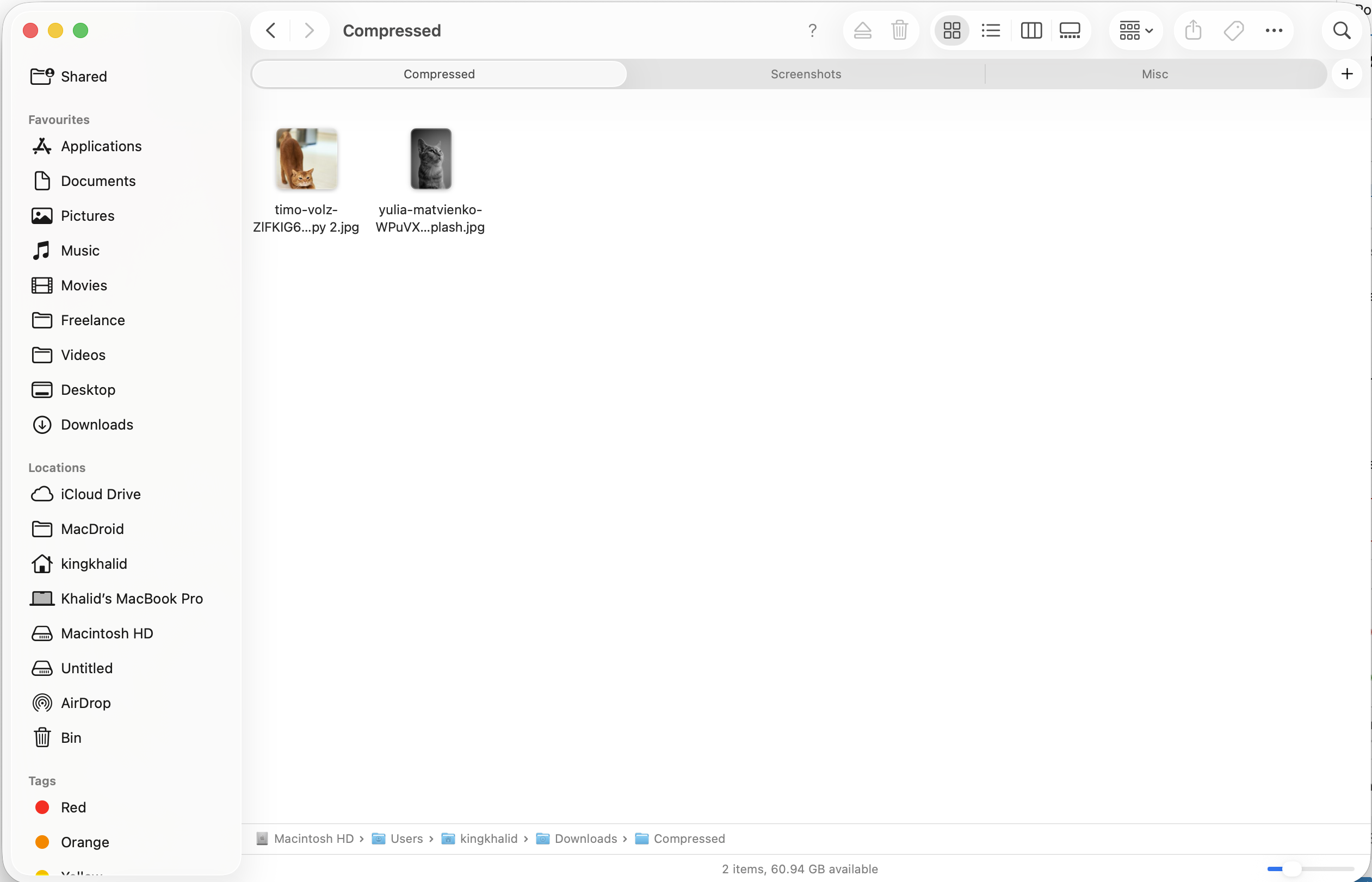
- Duplicate one image and open it in Preview.
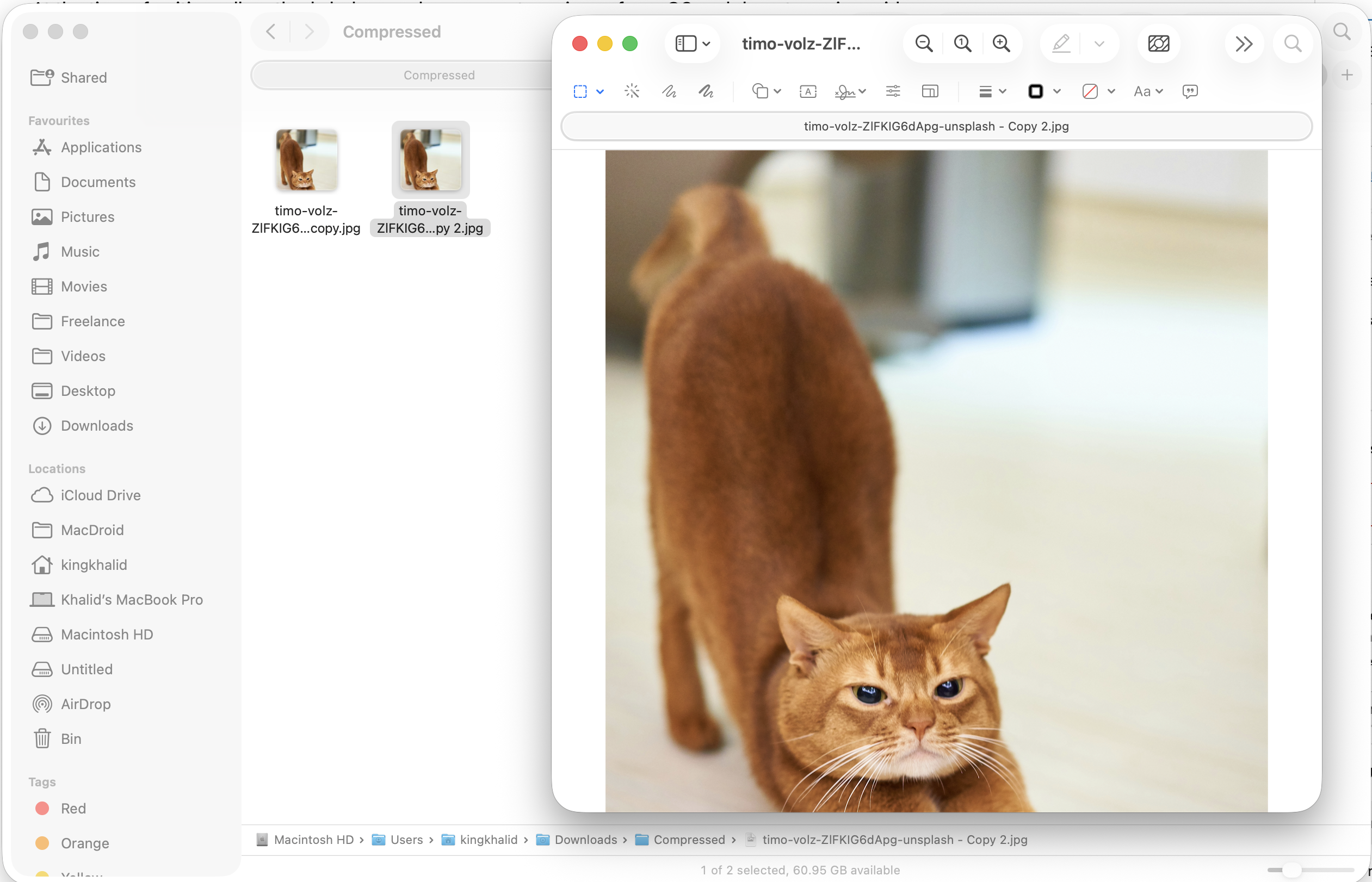
- Select the image, cut it, then resize the canvas to fit all images.
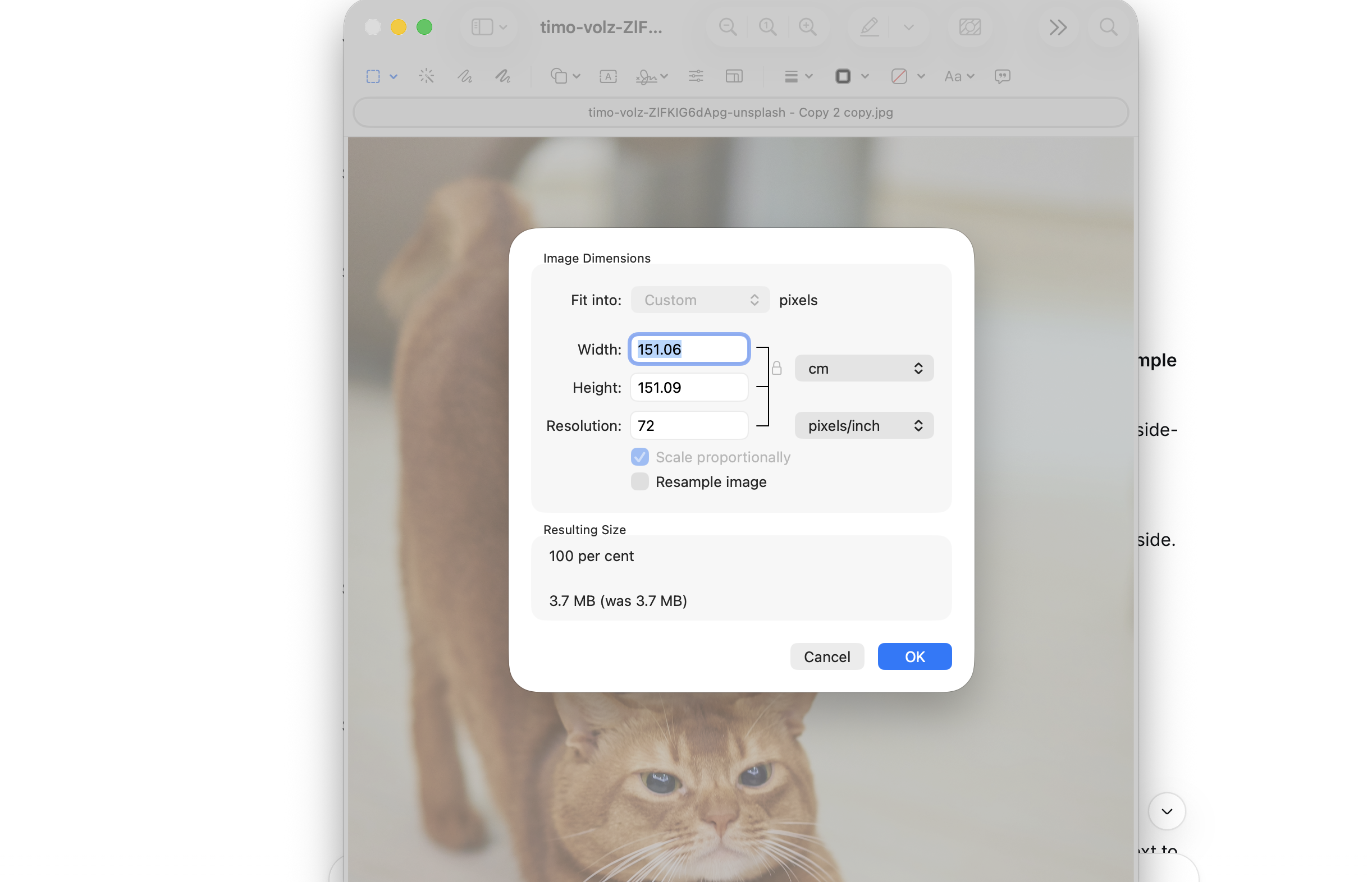
- Paste each additional image into the canvas and position them.
- Save or export the final combined image.
Combine Images On Mac Using Shortcuts
The Shortcuts app allows you to automate image merging with minimal effort. This method is ideal if you combine photos often and want consistent layouts.
- Open Shortcuts and add a Combine Images workflow.
- Select multiple images in Finder.
- Right-click and choose Quick Actions then Combine Images.
- Choose horizontal, vertical, or grid layout.
- Save the combined image when prompted.
Use Terminal Tools To Combine Photos On Mac
Command-line tools like ImageMagick let you combine images quickly with simple commands. This option suits users comfortable working in Terminal.
- Install ImageMagick using a package manager.
- Place all images in the same folder.
- Open Terminal and navigate to that folder.
- Use append commands to merge images horizontally or vertically.
- Find the combined image saved in the same directory.
Combine Images On Mac Using Dedicated Apps
Third-party image apps provide templates, spacing controls, and export options. These tools work well for collages and creative layouts.
- Install a photo collage or image editor app.
- Import your images into the app.
- Select a layout or canvas size.
- Adjust spacing, borders, and alignment.
- Export the combined photo.
Troubleshooting Common Problems
- If images appear blurry, export using a higher resolution or original size.
- If Preview converts files to PNG, export manually to JPG if needed.
- If Shortcuts does not appear, enable Finder Quick Actions.
- If Terminal commands fail, confirm file names and extensions match.
Tips
- Use Preview for quick one-time edits.
- Use Shortcuts if you merge photos frequently.
- Match image sizes before combining for cleaner results.
- Keep originals untouched by working on duplicates.
- Choose horizontal or vertical layouts based on final use.
FAQ
Can I combine photos on Mac without installing apps?
Yes. Preview and Shortcuts are built into macOS and handle most basic image merging needs.
Can I join images side by side on Mac?
Yes. Preview, Shortcuts, and Terminal tools all support horizontal image merging.
Does combining images reduce quality?
Quality depends on export settings. Using original resolution preserves image clarity.
Summary
- Mac offers multiple built-in ways to combine photos.
- Preview gives manual control for simple merges.
- Shortcuts automate image combination.
- Terminal and apps offer advanced flexibility.
Conclusion
Combining photos on a Mac does not require expensive software or advanced skills. Whether you prefer manual control, automation, or visual tools, macOS provides reliable options to merge images efficiently.


Discussion (0)
Be the first to comment.