




Combining photos on an Android phone takes only a few taps if you know where to look. Most phones include built-in tools for collages and photo merges, while third-party apps unlock more control when you need custom layouts or higher quality exports.
This guide shows the fastest native methods first, then covers app-based options, quality tips, and common fixes.
Table of contents
Combine photos using built-in Android tools
Native tools work best for speed, privacy, and simplicity. Start here before installing anything.
Use Google Photos to create a collage
Google Photos includes a collage feature on most Android phones.
- Open the Google Photos app.
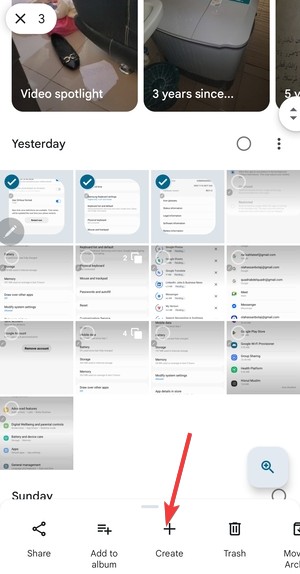
- Long-press to select two or more photos.
- Tap the + icon at the bottom.

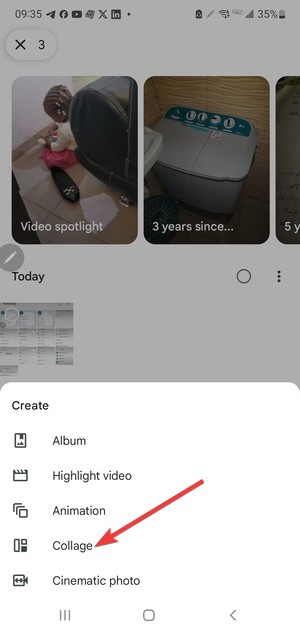
- Select Collage and choose a layout.

- Save the combined image to your library.
This method works well for quick collages and keeps everything inside your existing photo library.
Combine photos using the Samsung Gallery app
Samsung phones offer one of the strongest native collage tools.
- Open Gallery.
- Select multiple photos.
- Tap Create.
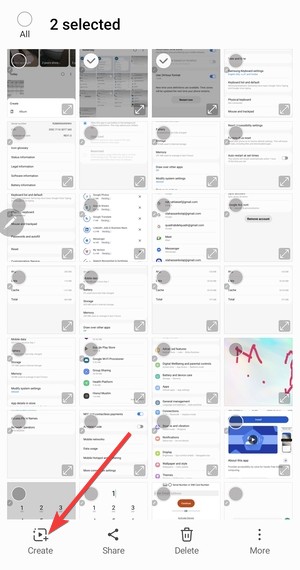

- Next, select Collage.

- Choose a layout, spacing, and background.
- Save the final image.
If you have moved your photos from from Google Photos to gallery, you can use this option. Samsung Gallery supports more layout options and basic editing before export.
Combine photos on Pixel and stock Android phones
Pixel phones rely on Google Photos for collages. If the collage option does not appear, update the app and retry multi-selecting images from the main Photos tab rather than Albums.
Combine photos using third-party apps
Apps help when you need text, stickers, frames, or precise layouts.
Best apps for merging photos on Android
Popular choices include Canva, PhotoGrid, PicsArt, and Layout from Instagram. These apps support templates, drag-and-drop placement, and social-ready formats.
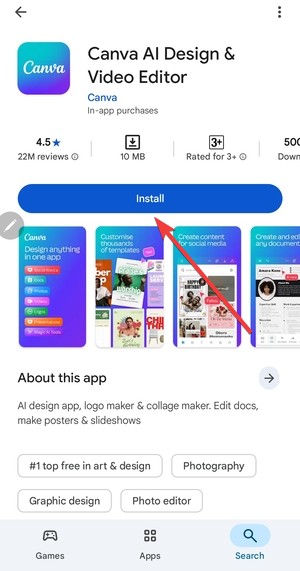
Use apps when you want creative freedom or consistent designs across multiple collages.
What to look for in a photo-merging app
Check export resolution limits, watermark rules, and offline support. Avoid apps that demand excessive permissions or force cloud uploads.
Control image quality and layout
Many guides skip quality settings, which leads to blurry results.
Choose the right layout and orientation
Side-by-side layouts work best for comparisons. Vertical stacks fit stories and reels. Grids suit social posts with square formats.
Pick the layout before exporting to avoid cropping later.
Export settings that preserve quality
Always export at the highest resolution available. Choose PNG for sharp images and JPG for smaller file sizes. Disable extra compression if the app allows it.
Fix common problems when combining photos on Android
- Collage option missing in Google Photos: Update Google Photos from the Play Store. Select photos from the Photos view, not Library, then tap the + icon again.
- Photos won’t load or combine: Check storage space and app permissions. Restart the phone if the app freezes during export.
- Combined image looks blurry or cropped: Edit each photo first, then combine them. Avoid resizing after export since that degrades quality.
Privacy and storage considerations
Native tools store combined photos locally unless cloud backup is enabled. Third-party apps may upload images for processing, so review privacy settings before use.
Tips for faster photo combining on Android
- Use multi-select gestures to save time
- Edit photos before combining them
- Reuse templates in supported apps
Summary
- Use Google Photos or Samsung Gallery for the fastest results.
- Install third-party apps only for advanced layouts or text.
- Export at maximum resolution to avoid quality loss.
- Fix missing collage options by updating apps and permissions.
Most Android phones already include everything you need to combine photos quickly and safely. Built-in tools handle everyday collages without extra apps, while third-party editors work best for creative or branded designs. Start with native features, control export quality, and switch to apps only when you need more flexibility.

Discussion (0)
Be the first to comment.