




Google Photos stores every picture you back up, but many users want a full offline copy. You can download your entire library to a Windows PC or Mac with Google Takeout. You can also download albums or selected photos when you want smaller batches. This guide walks you through every method and shows how to fix stuck or corrupted downloads.
1) Download your entire Google Photos library with Google Takeout
Google Takeout lets you export every photo, video, and metadata file in one archive. It works on any computer and supports large libraries.
Go to the official Takeout website and deselect all services. Next, scroll to Google Photos, check it, and select Next. Now, set the delivery method, file type, file size, and click Create export.
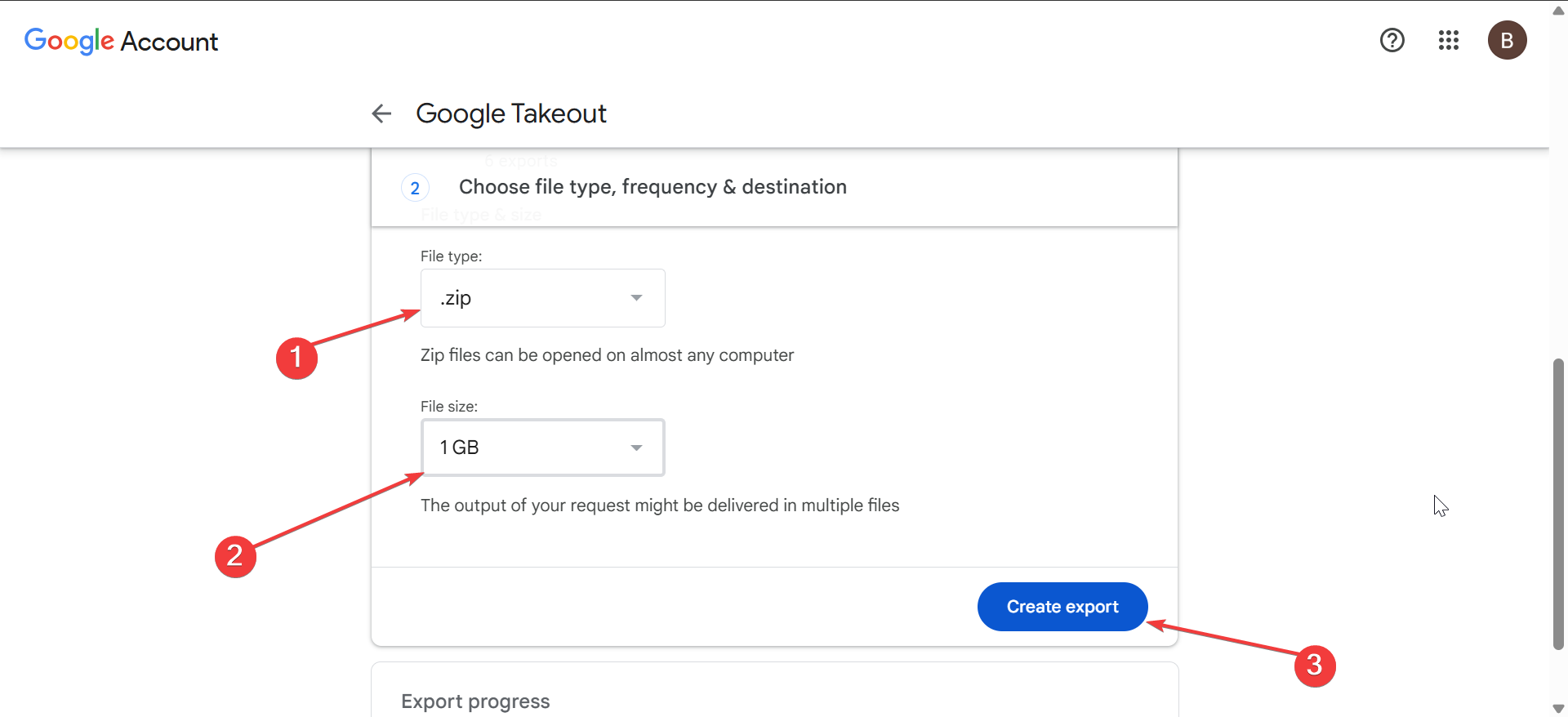
A smaller split size creates more ZIP files but prevents download failures. This helps when your library contains thousands of files.
2) Extract your Google Photos ZIP files on Windows and macOS
Your photos stay compressed until you extract them. Extraction gives you full access to every image and folder.
Unzip files on Windows 10/11
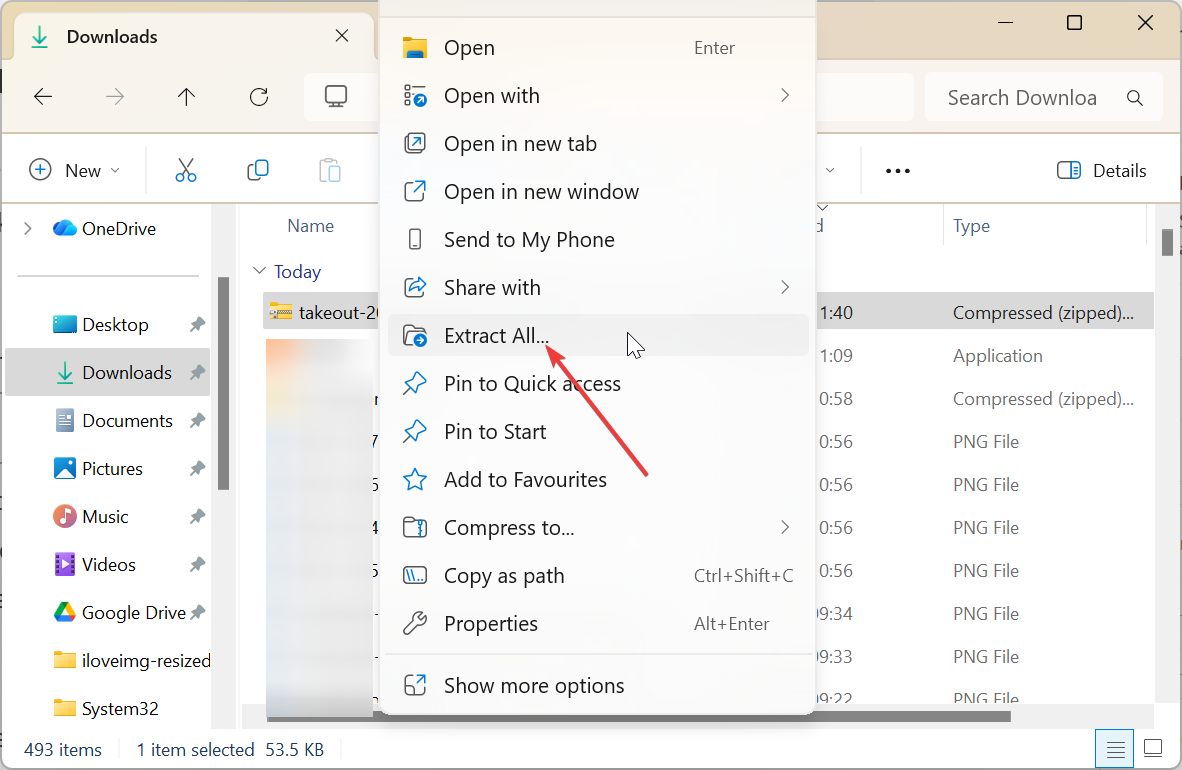
Right-click each ZIP file and select Extract All. Choose a destination folder and complete the process. Repeat this for all ZIP files.
Unzip files on macOS
Double-click each ZIP to extract it with Archive Utility. macOS automatically creates output folders in the same directory.
3) Download selected albums instead of your full library
Albums offer a smaller, cleaner way to download groups of photos. This method works well for curated sets.
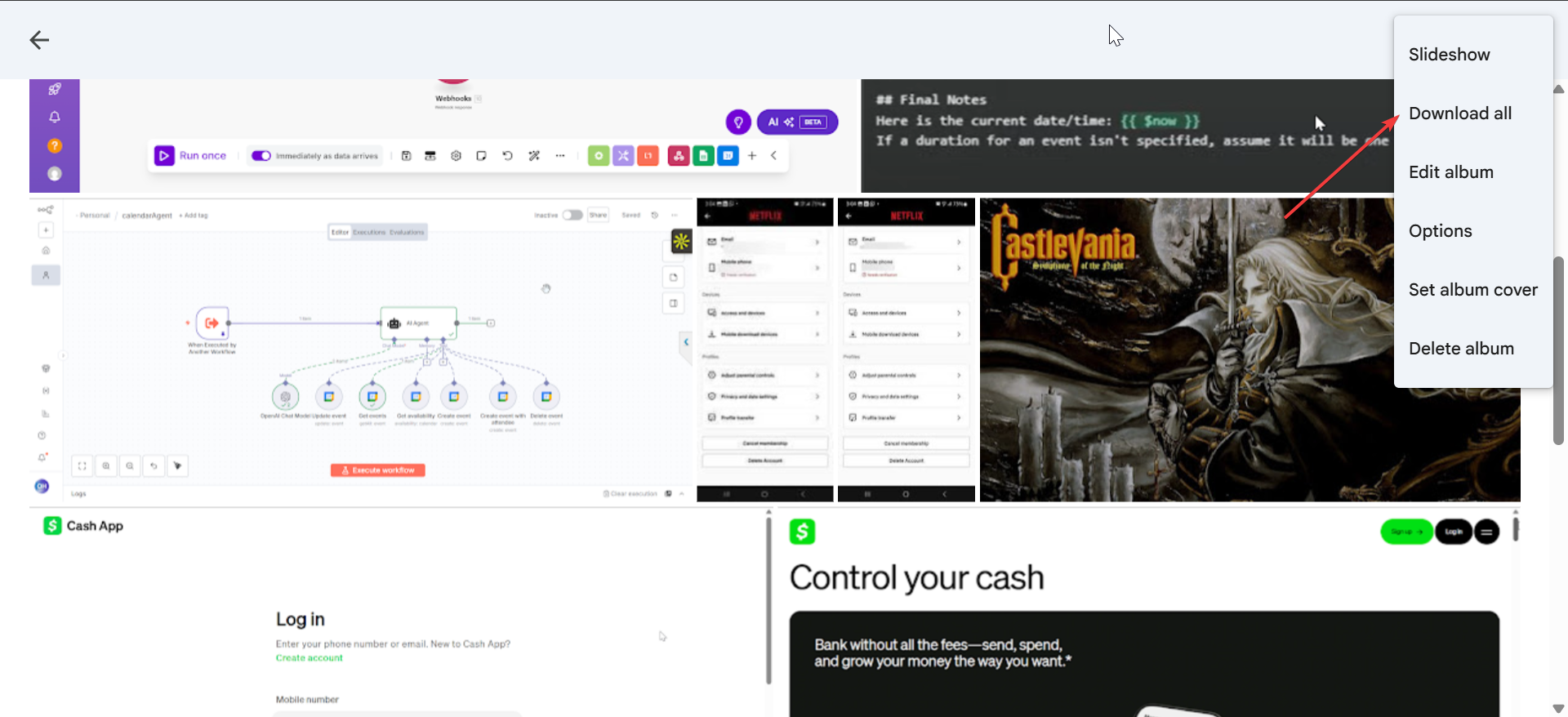
Go to the official Google Photos website, open the album you want download, and select the three-dot menu. Choose Download All to save the album as a ZIP file.
4) Download individual Google Photos to your computer
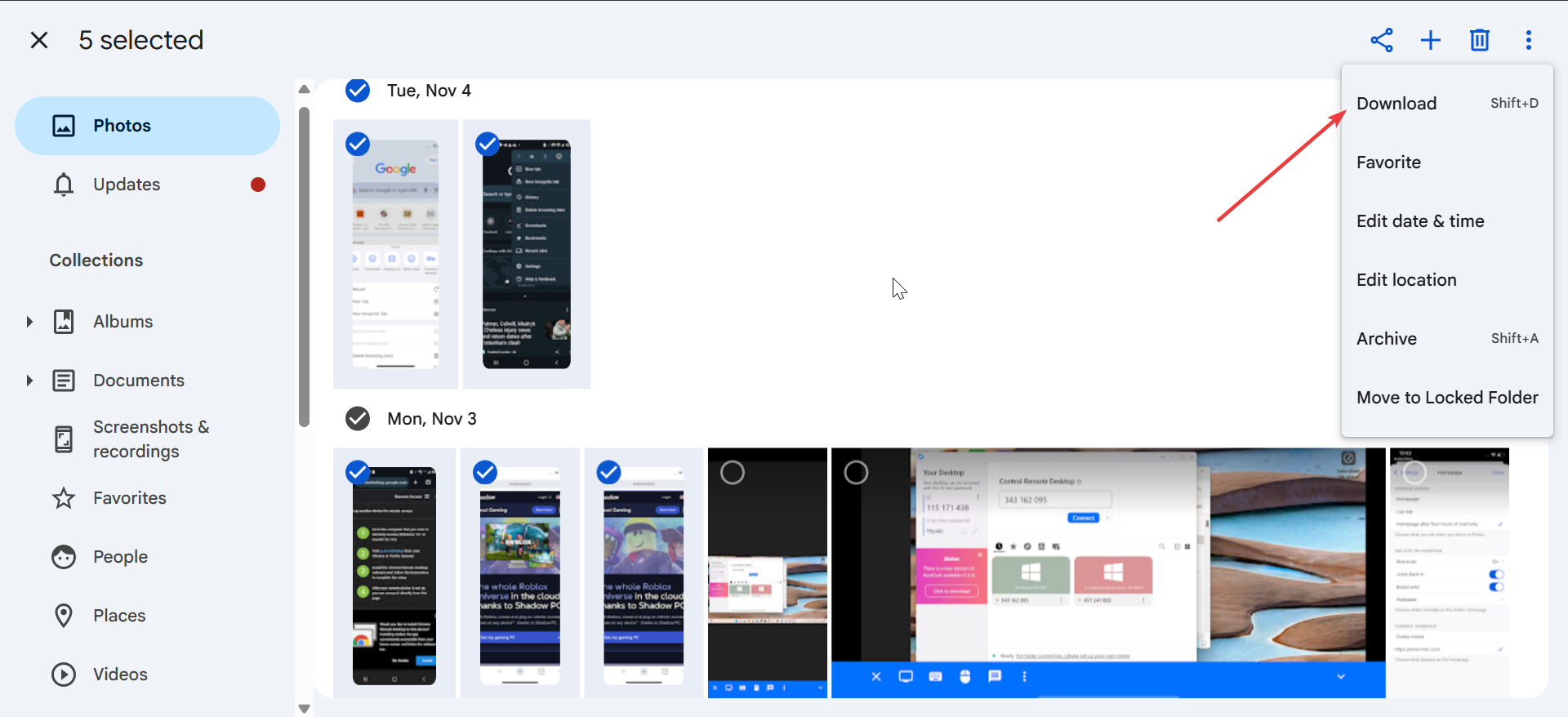
If you only need a few photos, you can download them from the Google Photos website. Just open the photo you want to download, select the menu (three vertical dots in the right corner), and click Download. Your browser saves it to your Downloads folder.
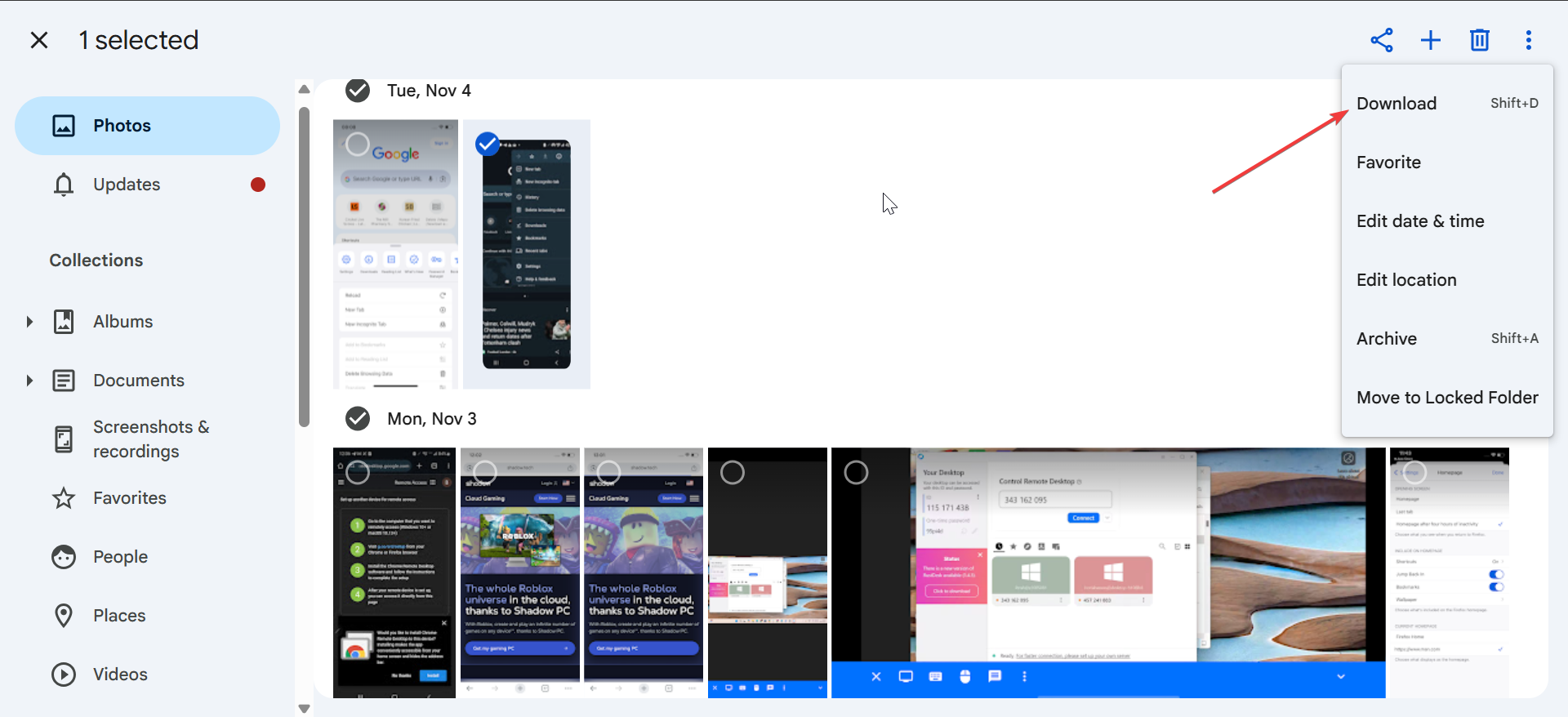
To download multiple selected photos,hold Shift or Ctrl to select multiple images. Now, Choose Download to save them all in a ZIP file.
5) Manage storage and file organization after downloading
Your archive arrives in multiple folders with Google’s naming structure. Organizing everything makes future access easier.
Google creates date-based folders and sometimes metadata JSON files. These help preserve edits and timestamp info.
To keep your photos organized, merge folders and sort files by date. Move all photos into one master directory and sort the folder by date to create a chronological library.
Troubleshoot download issues and failed Google Photos exports
- Google Takeout stuck on “Preparing archive”: Reduce the export size by choosing a smaller split size. Remove videos temporarily if they slow processing. Restart the export to clear stalled requests.
- ZIP file corruption or “Cannot open” errors: Check the ZIP file size to confirm it fully downloaded. Rename incomplete files or redownload them to replace corrupted data.
- Slow downloads or incomplete exports: Switch browsers or pause other network activity. Use a wired connection if possible to speed up large file transfers.
Tips for downloading Google Photos
- Keep at least 2–3x your library size free on your computer.
- Choose smaller ZIP sizes if your internet connection drops often.
- Back up the extracted archive to an external drive for long-term safety.
- Use your photos app on Windows or macOS to organize your final library.
FAQs
Why does Google split my photos into multiple ZIP files? The export system limits each file to a selected size to prevent failed downloads.
Do the downloaded photos keep metadata? Yes. Google includes JSON files with your photo information.
How long does a full export take? Small libraries export within minutes; large libraries might take hours.
Can I download only videos? Yes. Select only the Videos section inside Google Photos when starting an export.
Summary
- Open Google Takeout and select Google Photos.
- Choose export settings and create the archive.
- Download every ZIP file to your computer.
- Extract the files on Windows or macOS.
- Organize your folders and fix any download issues.
You now have clear steps to download your entire Google Photos library and keep everything organized on your computer. All you need to do now is follow the steps in this guide, and you should have all the photos you desire.

Discussion (0)
Be the first to comment.