




Google Photos is great for backing up your memories, but sometimes you need a full offline copy. Whether you’re freeing cloud space, moving to another service, or just creating a local backup, it’s easy to download everything to your PC. Here’s how to get all your photos and videos at once without losing important data.
1) Use Google Takeout to export your entire library
Go to the Google Takeout page and sign in with your account on the login page or create a Google account. Deselect all services, then scroll to Google Photos, select it, and click the Next step button at the bottom of the page. This ensures you only export photos and videos.
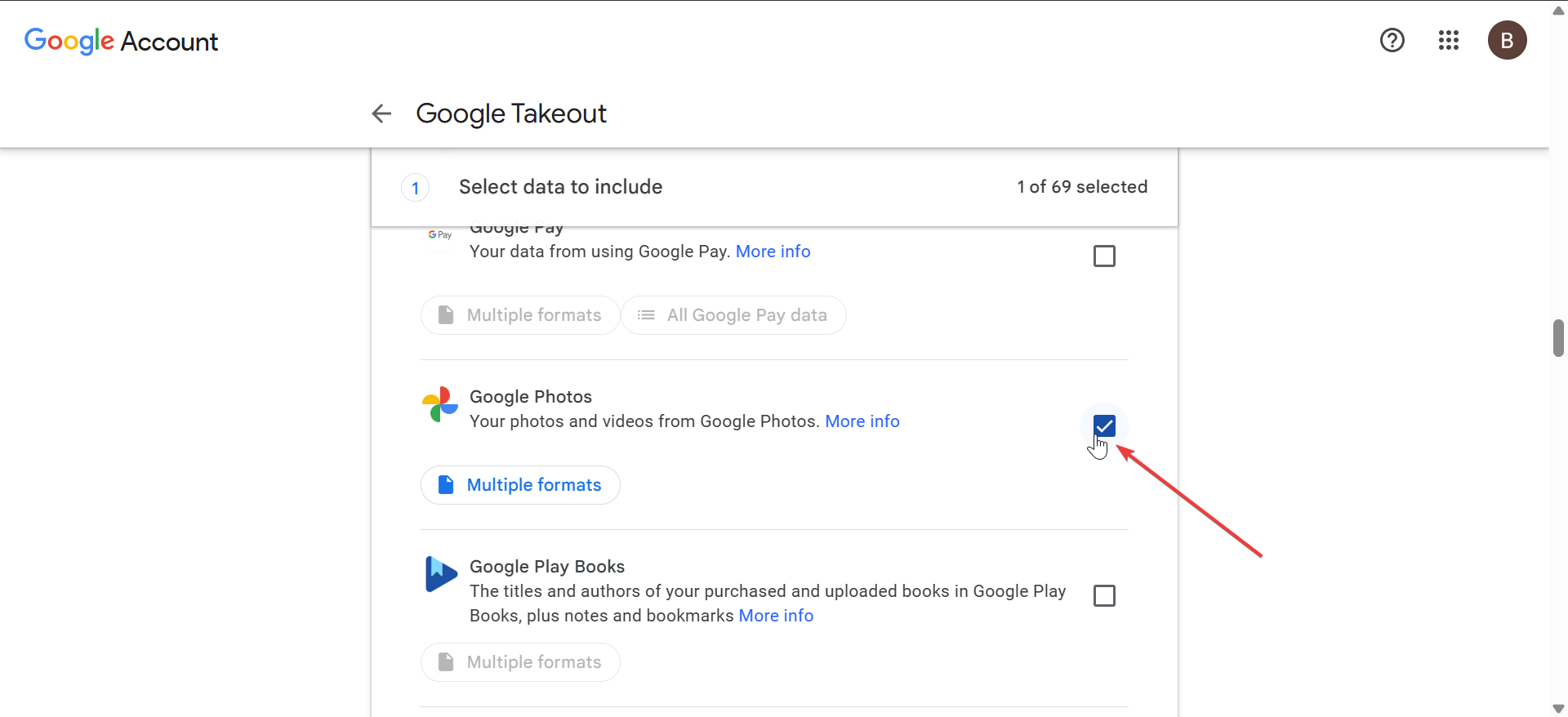
Next, choose .zip as the format for easy extraction on Windows. Pick an archive size, such as 2 GB, 10 GB, or 50 GB. From here, click 'Create export' and wait until you receive an email that your export is ready.

Download each archive to your PC and save them in one folder for easy management. Now, right-click each downloaded archive and select Extract All. Place the folders somewhere easy to access, like your Pictures directory or an external drive. You can organize them by year, event, or location for easier browsing later.
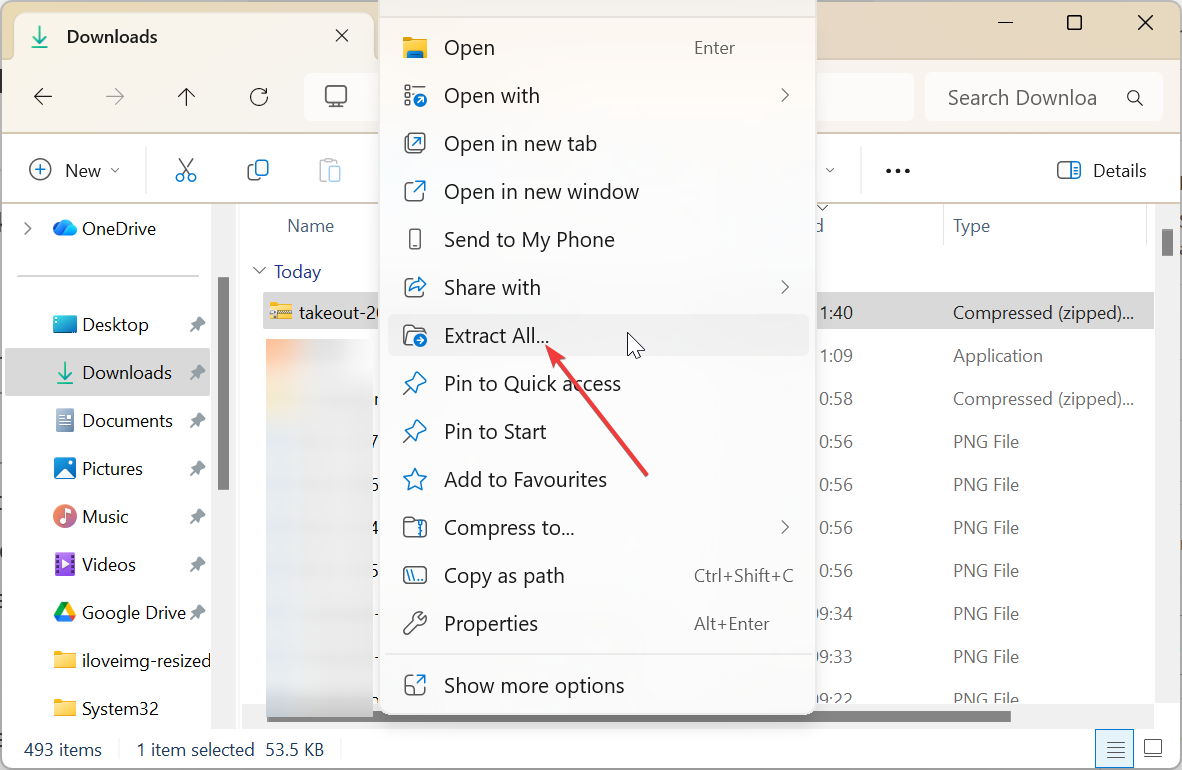
Tip: For large libraries, select smaller archive sizes (10 GB or 50 GB) and use a stable wired internet connection. Download files one batch at a time to avoid interruptions.
2) Download albums manually (Alternative)
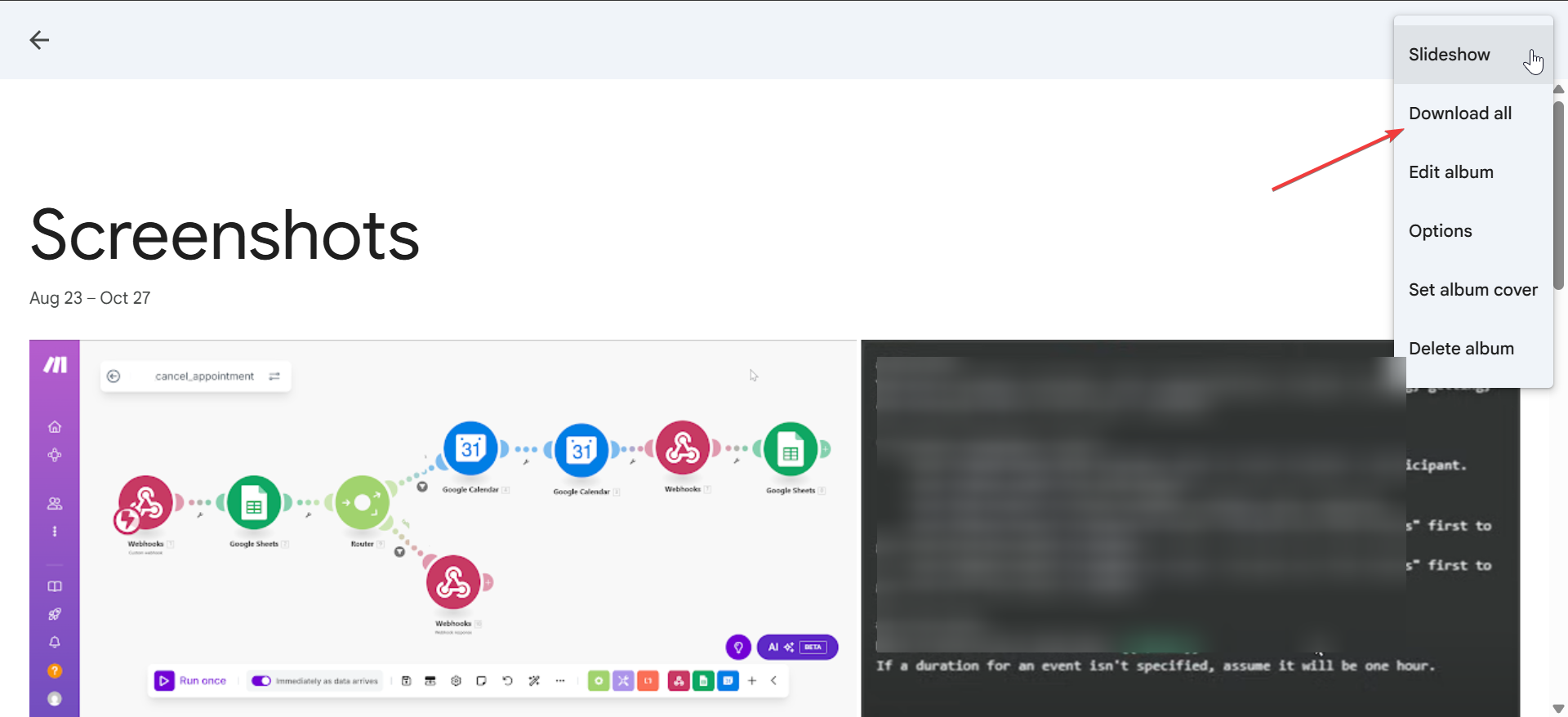
If you don’t need your full library, open an album in Google Photos, click the three-dot menu, and choose Download all. This method is faster for small collections but less efficient for large archives.
3). Preserve metadata and album details
Google Takeout includes EXIF data such as capture dates and camera info. However, album names and photo captions appear in JSON files. You can use these files to restore metadata if needed or rename folders manually for clarity.
4) Troubleshooting common problems
- Download interrupted or fails: If your download stops, switch to a wired connection or try another browser. Temporarily disable antivirus or firewall tools that might block downloads.
- Cannot extract large zip files: Windows may fail to unzip very large files. Install 7-Zip or WinRAR to extract multi-part archives without errors. Always verify file counts after extraction.
- Missing shared albums: Shared albums don’t always appear in Takeout exports. Download them manually from the Google Photos interface using the Download all option in each shared album.
Tips for Safer Backups
- Keep one backup offline (external drive) and one in the cloud.
- Verify your archive before deleting photos from Google Photos.
- Encrypt folders containing personal or sensitive images.
- It’s good practice to repeat exports every few months to keep your local copy up to date. Advanced users can automate this using tools like rclone or local backup utilities.
FAQs
Can I download all photos without Google Takeout? No. Google Takeout is the only supported way to download your entire photo library. Manual downloads only work for individual albums.
Will my metadata remain intact? Yes, EXIF information such as date, time, and camera data is preserved. Album names and captions can be restored from the included JSON files if needed.
How long does the export take? It depends on your library size. Small exports complete within minutes, while terabyte-sized collections may take several hours to generate and download.
Can I automate Google Photos backups? Yes. Tools like rclone or other sync utilities can mirror your Photos library periodically. However, Google Takeout is safest for non-technical users.
Summary
- Use Google Takeout to export all photos and videos.
- Select .zip format and set archive size.
- Download and extract all archives on Windows.
- Organize and back up to external drives.
- Repeat exports regularly to stay current.
Conclusion
Backing up your Google Photos to your PC is one of the best ways to protect your memories and free up cloud space. Using Google Takeout makes the process simple and secure, ensuring that every photo and video is safely stored offline. Once you’ve completed the download, organize your files, check the metadata, and keep at least one external copy for extra protection.
With your entire photo library on your computer, you’ll have peace of mind knowing your memories are safe, accessible, and fully under your control - no internet required.

Discussion (0)
Be the first to comment.