




Mac users often avoid Terminal because it looks intimidating. In reality, a small set of useful Mac commands can save time, solve problems faster, and reduce reliance on Finder menus. Learning a few safe commands gives you more control over everyday tasks without advanced technical knowledge.
Table of contents
- Before you start using Terminal on Mac
- Useful Mac commands for everyday tasks
- Useful Mac commands for productivity
- Useful Mac commands for system information
- Useful Mac commands for networking and troubleshooting
- Useful Mac commands for power users
- Tips for learning and using Mac commands effectively
- Frequently asked questions about Mac commands
- Summary
Before you start using Terminal on Mac
Terminal lets you interact directly with macOS using text commands. Most everyday commands are safe and read-only, as long as you avoid administrator-level actions.
How to open Terminal on macOS
You can open Terminal in seconds using built-in shortcuts. Press Command + Space, type Terminal, and press Enter. You can also find it in Applications > Utilities.
Basic safety rules to avoid breaking macOS
Start with commands that only display information. Avoid using sudo until you understand what a command does. Always double-check paths before deleting files.
Useful Mac commands for everyday tasks
These commands replace common Finder actions and speed up file management.
List files and folders quickly
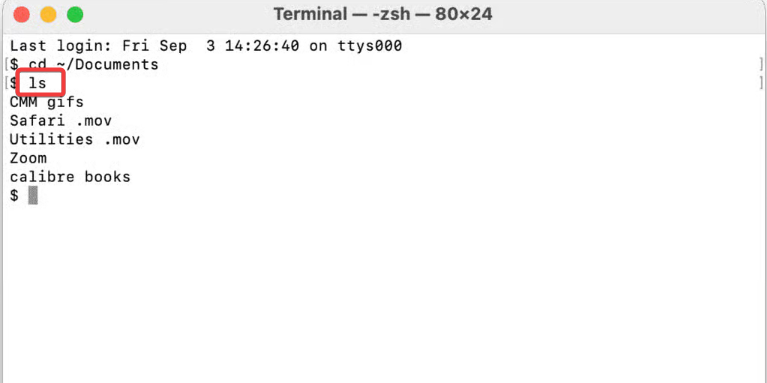
The ls command shows files and folders in the current directory. Add -la to view hidden files and detailed information. This helps you inspect folders without opening Finder windows.
Navigate between folders
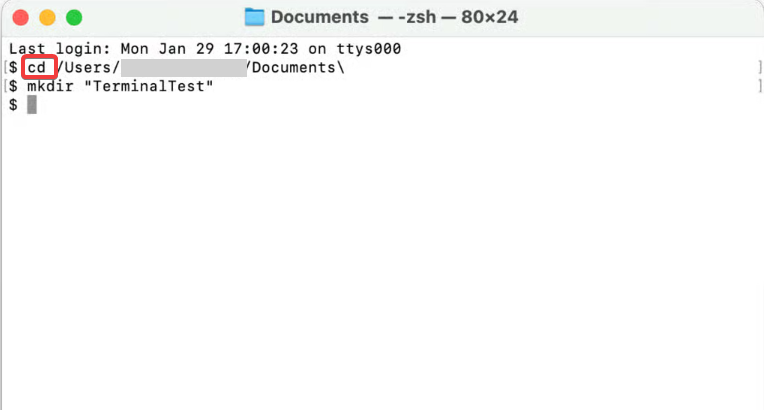
Use cd to move between directories. Typing cd Documents jumps directly into your Documents folder. This approach saves time when working across nested folders.
Create, copy, move, and delete files
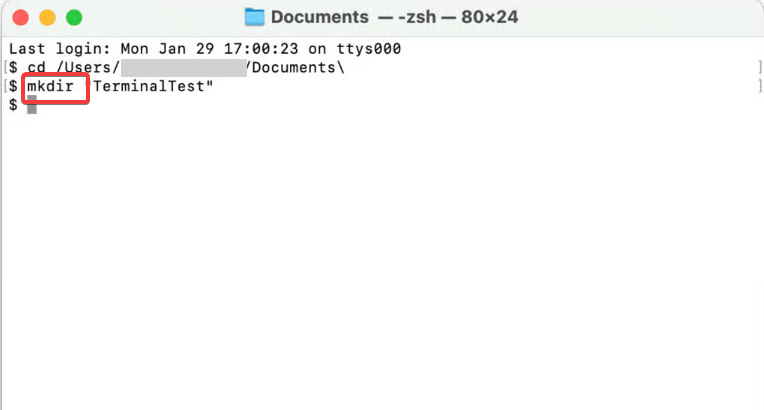
Commands like mkdir, cp, mv, and rm can copy, paste, and move files on Mac. These commands work faster than drag-and-drop and support batch operations.
Useful Mac commands for productivity
Terminal excels at launching items and handling repetitive tasks.
Open apps, files, and folders instantly
The open command launches apps, files, or folders directly. For example, open . opens the current folder in Finder. This removes unnecessary navigation steps.
Search files and content from Terminal
Use find to locate files by name or type. This method works even when Spotlight fails or indexing is disabled. It also searches hidden system locations.
Clipboard and text output commands
The pbcopy command sends output straight to your clipboard. You can copy command results and paste them into emails, notes, or documents instantly.
Useful Mac commands for system information
These commands help you understand how your Mac performs.
Check disk space and storage usage
Use df -h to see available disk space in readable units. This command helps identify low storage issues quickly.
Monitor running processes
The top command displays active processes and resource usage in real time. You can spot apps that consume excessive CPU or memory.
Get macOS version and hardware details
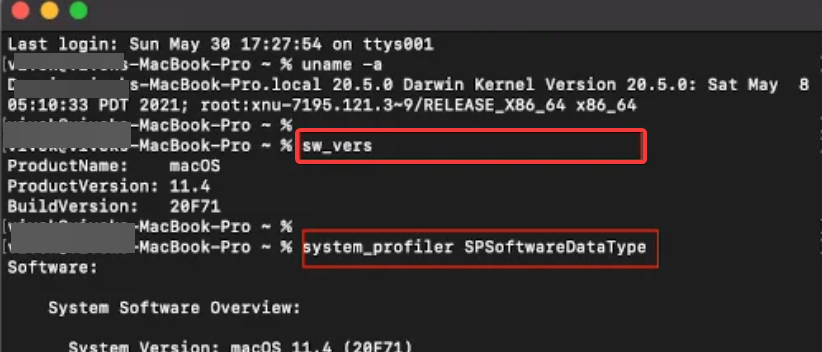
Commands like sw_vers and system_profiler show macOS version and hardware specs. These details help during troubleshooting or support requests.
Useful Mac commands for networking and troubleshooting
You can diagnose many network problems without extra tools.
Check internet connectivity
The ping command tests whether your Mac can reach another server. It helps identify connection drops or latency issues.
Find your IP address
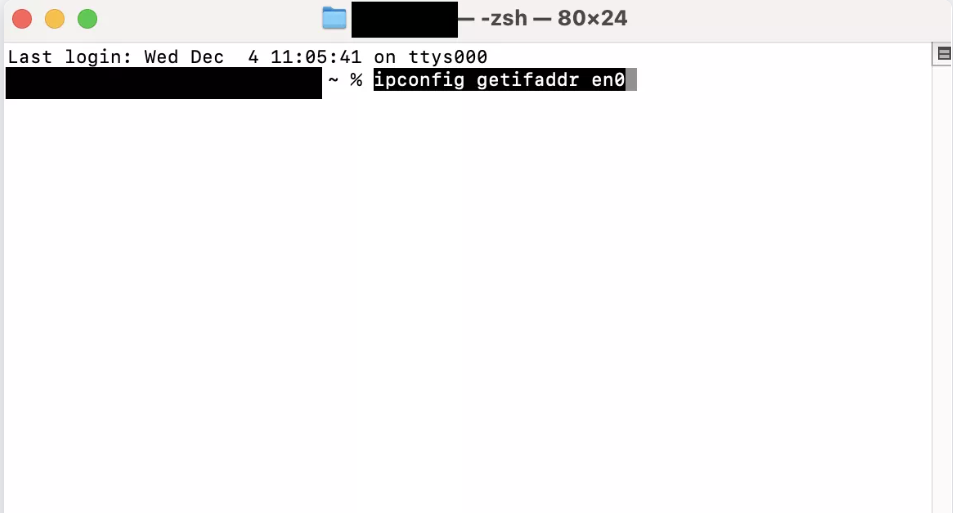
Use ifconfig or ipconfig getifaddr en0 to view your local IP address. This proves useful for router setup or remote connections.
Flush DNS cache
Running dscacheutil -flushcache clears cached DNS records. This fix often resolves website loading problems after network changes.
Useful Mac commands for power users
These commands offer deeper control and require careful use.
Run commands with administrator privileges
The sudo command allows system-level changes. Use it only when necessary and understand each command before running it.
Manage permissions and ownership
Commands like chmod and chown fix access errors. These tools help resolve permission issues without reinstalling apps.
Chain commands and automate tasks
You can combine commands using && or pipes. This technique automates repetitive workflows and reduces manual effort.
Tips for learning and using Mac commands effectively
- Start with read-only commands before modifying files
- Paste commands instead of typing to avoid errors
- Keep a personal cheat sheet for frequent tasks
Frequently asked questions about Mac commands
Why should I use Terminal instead of Finder?
Terminal completes many tasks faster and supports automation.
Are Mac commands the same as Linux commands?
Most commands are similar because macOS uses a Unix-based system.
Can Terminal commands damage my Mac?
Unsafe commands can cause issues, but basic commands remain safe.
How do I undo a command?
Most commands cannot be undone, so review them before running.
Summary
- Terminal helps you work faster with simple Mac commands.
- Everyday commands cover file management, productivity, and system checks.
- Advanced commands offer more control when used carefully.
Learning useful Mac commands turns Terminal into a practical daily tool. Start with basic commands, build confidence gradually, and expand into advanced workflows only when needed.

Discussion (0)
Be the first to comment.