



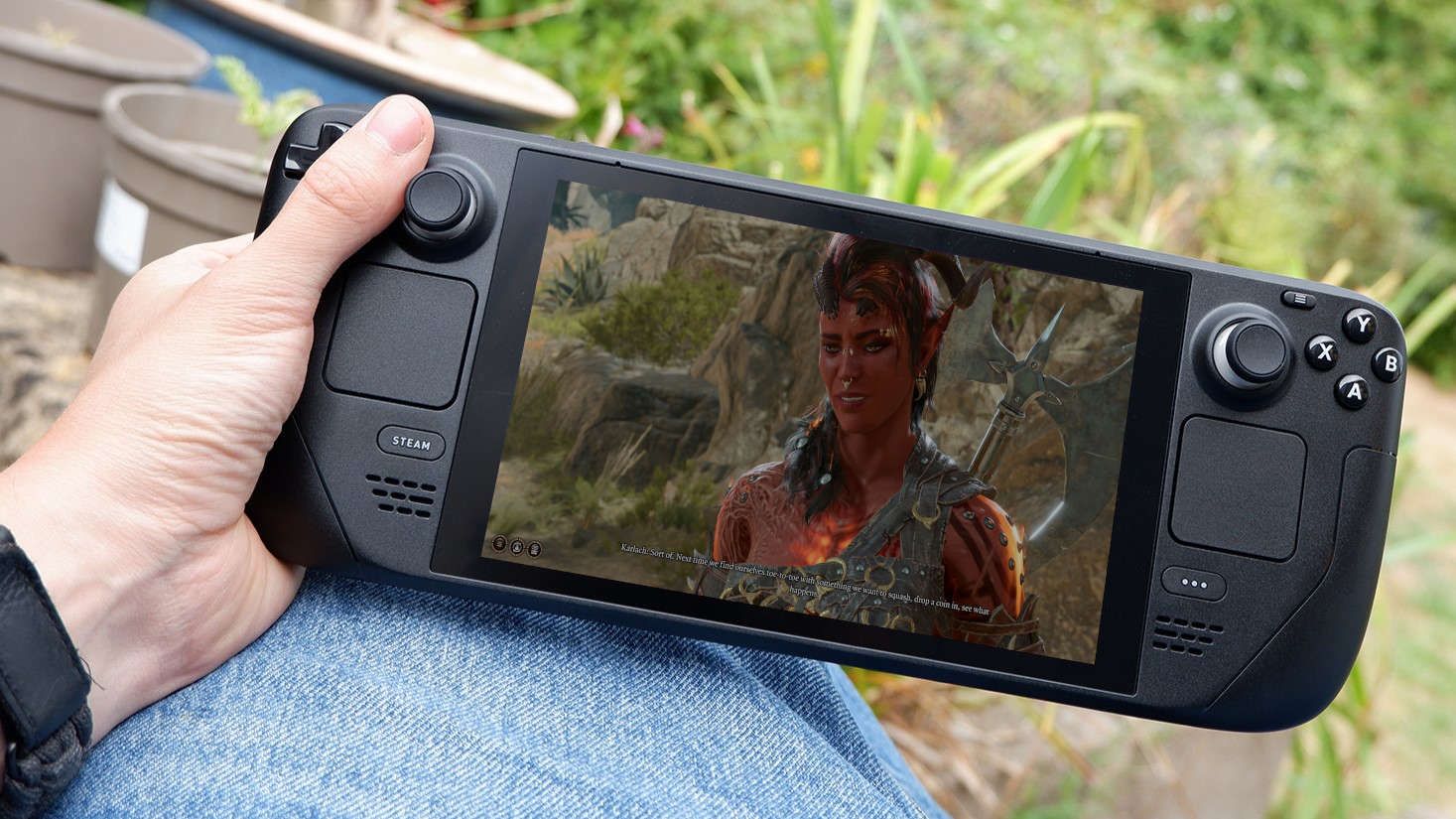
Daimon Blades has received a Steam Deck compatibility update that significantly improves performance and gives the game a Playable rating, although its default handheld graphics configuration still creates serious visibility issues.
The first person action RPG can now remain above 30 FPS for most of the experience, with large portions reportedly reaching around 40 FPS. This is a substantial improvement over its launch performance, when the game could struggle to maintain 30 FPS even at its lowest settings.
Valve classifies the game as Playable rather than Verified because it requires a community controller layout, includes small text, and sometimes needs the Steam Deck’s virtual keyboard to be opened manually.
Performance is no longer the main concern. The dedicated Steam Deck preset removes access to graphics options, uses mostly low quality settings, and makes some areas extremely dark. Enemies and incoming attacks can become difficult to see, affecting combat and making certain encounters harder than intended.
Steam Deck performance has improved considerably
The recent update appears to have addressed many of the performance problems that affected Daimon Blades when it first launched.
| Steam Deck area | Current result |
|---|---|
| Typical frame rate | 30 FPS or higher |
| Best observed performance | Around 40 FPS in many areas |
| Valve rating | Playable |
| Controller support | Community layout recommended |
| Text readability | Some text is too small |
| Virtual keyboard | Must sometimes be opened manually |
| Graphics settings | Hidden under the default Deck preset |
| Main visual problem | Lighting can be too dark |
Maintaining at least 30 FPS makes the game far more practical on Valve’s handheld. The higher performance also gives players the option of targeting a 30 FPS cap for consistency or using a 40Hz refresh rate when the game can sustain it.
Daimon Blades combines first person combat with RPG progression and a dark fantasy setting. Its connection to E.Y.E: Divine Cybermancy has attracted interest from players familiar with the developer’s earlier work.
The default Steam Deck preset is too dark
The automatic Steam Deck configuration improves performance by lowering visual quality, but it also removes the normal graphics menu.
Most settings appear to be placed at low quality, producing a softer and blurrier image. The more disruptive issue is the lighting, which can make large parts of the environment difficult to read.
Darkness is expected to be part of the game’s atmosphere, but the handheld preset reportedly reduces visibility to the point where players may not see nearby enemies or projectiles. This can lead to unexpected deaths, particularly during crowded battles.
Because the settings menu is hidden, players cannot simply increase lighting quality or adjust other graphical options while the game detects a Steam Deck.
A launch command restores the graphics settings
A practical workaround is available through Steam’s launch options.
Adding the following command makes Daimon Blades behave as though it is running on a regular PC rather than a Steam Deck:
SteamDeck=0 %command%
Once this option is active, the standard graphics settings become available again. The game’s automatic configuration tool can then select a more balanced setup that offers clearer visuals without causing a major performance loss.
| Configuration | Advantages | Disadvantages |
|---|---|---|
| Default Steam Deck preset | Better initial performance and no setup | Very dark image, low quality visuals, no graphics menu |
SteamDeck=0 %command% | Restores settings and improves visibility | Requires manual launch option |
| Automatic PC settings | Similar performance with clearer visuals | Results may vary between areas |
| Manual settings | Greater control over quality and frame rate | Requires additional testing |
The workaround reportedly delivers performance similar to the official handheld preset while making environments much easier to see.
How to apply the launch option
Open Daimon Blades in your Steam library and enter its Properties menu. Under the General section, locate the Launch Options field and enter:
SteamDeck=0 %command%
After restarting the game, the graphics menu should return. You can use the automatic configuration tool as a starting point before making further adjustments.
A 30 FPS cap may provide the most stable experience in demanding areas. Players who prefer smoother motion can test 40 FPS with the display set to 40Hz, although heavier battles may still fall below that target.
Some handheld limitations remain
The improved performance and restored graphics settings make Daimon Blades more practical on Steam Deck, but the experience is not fully polished.
Small interface text can remain difficult to read, and the need for a community controller layout means the default controls may not cover every command properly. Manual keyboard input may also be necessary in some situations.
These issues explain why the game has received a Playable badge rather than full Verified status.
The recent update is still an important step forward. Daimon Blades now performs much better than it did at launch, and the SteamDeck=0 %command% workaround addresses the most serious problem with the official preset. Further optimisation, larger text options, and better default lighting could eventually make it a stronger handheld experience.
Discussion (0)
Be the first to comment.