




If your iPhone shows the error “iMessage needs to be enabled to send this message,” iOS cannot use Apple’s messaging service for that conversation. The issue usually comes from a disabled setting, an activation problem, or a carrier-related block, and you can fix it in minutes by following the steps below.
Table of contents
- Why this error appears on iPhone
- Check if iMessage is turned on
- Confirm your phone number and Apple ID
- Restart Messages activation
- Check cellular data and SMS support
- Sign out and back into Apple ID
- Reset network settings
- Check iOS version and Apple system status
- When to wait vs when to troubleshoot
- When the error affects only one contact
- What to do if nothing works
- Tips
- FAQs
- Summary
Why this error appears on iPhone
This message appears when your iPhone tries to send an iMessage but cannot confirm that iMessage is active. The problem often starts after setting up a new iPhone, changing SIM cards, updating iOS, or signing in with a different Apple ID.
Check if iMessage is turned on
Start with the fastest and most common fix. Many users resolve the issue by simply re-enabling iMessage.
Turn on iMessage from Settings
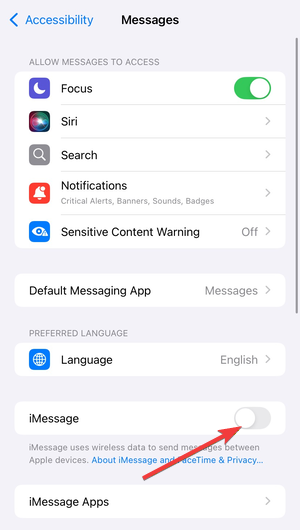
Open Settings → Apps → Messages and turn on iMessage. Wait up to one minute and try sending the message again.
Confirm your phone number and Apple ID
iMessage can stay enabled but fail if it uses the wrong sending identity. This step ensures Apple links your number correctly.
Select the correct Send & Receive options
Go to Settings → Messages → Send & Receive. Make sure your phone number appears checked under “You can send and receive iMessages to and from.”
Restart Messages activation
Activation can freeze during setup or after network changes. Restarting the process often clears the error.
Turn iMessage off and back on
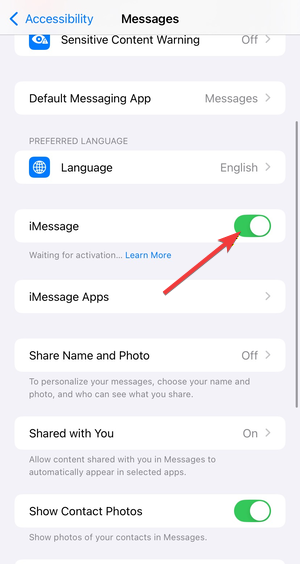
Disable iMessage, wait 30 seconds, then turn it back on. Keep cellular data enabled during this step.
Check cellular data and SMS support
iMessage activation requires both data access and SMS capability. Even Wi-Fi users still need SMS working.
Verify SMS sending works
Send a regular text message to any contact. If SMS fails, contact your carrier to check billing status or message blocks.
Sign out and back into Apple ID
Account sync issues can block iMessage even when settings look correct.
Reauthenticate your Apple ID
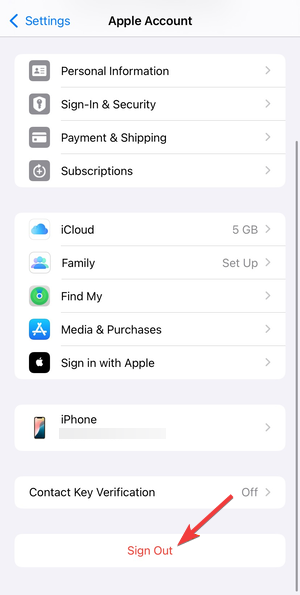
Open Settings → your name → Sign Out. Restart your iPhone, sign back in, then re-enable iMessage.
Reset network settings
Network conflicts can silently block Apple services. This reset does not erase personal data.
Reset Wi-Fi, cellular, and APN configs
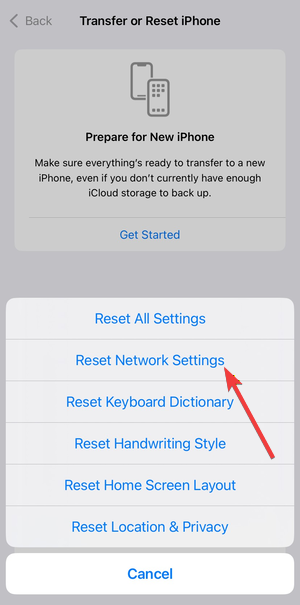
Go to Settings → General → Transfer or Reset iPhone → Reset → Reset Network Settings. Reconnect to Wi-Fi and test iMessage again.
Check iOS version and Apple system status
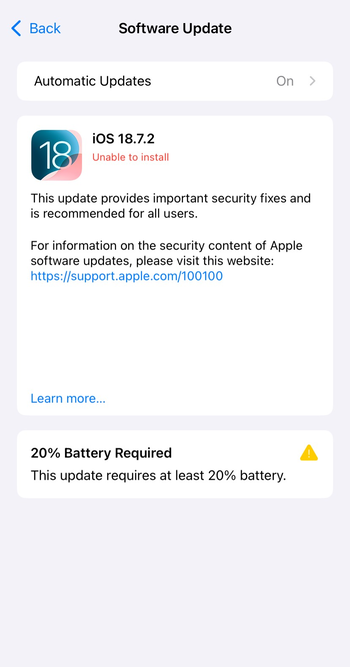
Software bugs or outages can trigger this error temporarily. So make sure you update your iPhone's software.
Update iOS if available
Open Settings → General → Software Update and install any available update.
When to wait vs when to troubleshoot
iMessage activation can take several minutes, and sometimes up to 24 hours, after a SIM change or number port. If activation started recently, waiting may solve the issue without further steps.
When the error affects only one contact
If iMessage works with others, the issue usually sits at the contact level.
Recreate the contact entry
Delete the contact, restart your iPhone, then add the number again using the full country code. This forces Messages to reassess the delivery method.
What to do if nothing works
At this stage, the issue usually sits outside the device itself.
Contact Apple or your carrier
Apple handles Apple ID and iMessage activation issues, while carriers handle SMS and number provisioning. Contact the one that matches your symptoms to avoid delays.
Tips
- Keep cellular data enabled during iMessage activation.
- Avoid VPNs while troubleshooting Apple services.
- Use your phone number instead of email for iMessage when possible.
- Restart your iPhone after major setting changes.
FAQs
Why does iMessage say it needs to be enabled when it already is?
Activation can fail in the background even when the toggle stays on, especially after SIM or account changes.
Can I ignore this error and use SMS instead?
Yes, but iOS will keep prompting the message until iMessage activates or you disable it entirely.
Does this error mean Apple servers are down?
Sometimes. Checking Apple’s system status helps confirm whether the issue affects many users.
Will resetting network settings delete my data?
No. This reset only removes saved Wi-Fi networks, passwords, and cellular settings.
Summary
- Turn on iMessage and confirm Send & Receive settings.
- Restart iMessage activation and verify SMS works.
- Sign out of Apple ID or reset network settings if needed.
- Update iOS and check for activation delays.
- Contact Apple or your carrier as a final step.
Once iMessage activates correctly, the error disappears immediately and messages send normally. If the issue returns after a SIM or account change, repeat the activation steps before trying deeper resets.


Discussion (0)
Be the first to comment.