




If your iPhone, iPad, or Mac shows cannot connect to App Store, the issue rarely means something is broken. In most cases, Apple servers are down, your network blocks the connection, or your Apple ID fails to sync properly.
This guide fixes the problem in the exact order that works. Start with fast checks that take seconds, then move to deeper fixes only if needed, with clear steps for iPhone, iPad, and Mac.
Table of contents
- Check if the App Store is down
- Restart your device and the App Store app
- Verify your internet connection
- Check date, time, and region settings
- Sign out and back into your Apple ID
- Review Screen Time and content restrictions
- Reset network settings
- Update iOS, iPadOS, or macOS
- Fix App Store issues on Mac specifically
- When the error appears only on one network
- What to do if nothing works
- Tips to avoid App Store connection problems
- FAQs about App Store connection errors
- Summary
Check if the App Store is down
Before changing any settings, confirm that Apple services work properly.
Steps
- Open a browser and visit Apple’s System Status page.
- Look for App Store, Apple ID, and iCloud.


- If any show an outage, wait until Apple restores service.
If Apple servers are down, no local fix will work.
Restart your device and the App Store app
Temporary system or network glitches often block App Store connections.
Steps
- Swipe up from the bottom and pause to open the app switcher.
- Swipe App Store up to close it completely.


- Restart your iPhone, iPad, or Mac.
- Open the App Store again.
If the error persists, continue below.
Verify your internet connection
Switch between Wi-Fi and mobile data
This test isolates network-related problems.
Steps
- Turn off Wi-Fi.


- Enable mobile data.
- Open the App Store.
- If it works, the issue is your Wi-Fi network.
If it fails on both, continue troubleshooting.
Disable VPNs, proxies, and private DNS
VPNs and DNS filters frequently block Apple services.
Steps on iPhone or iPad
- Open Settings > General.
- Tap VPN & Device Management.


- Turn off any active VPN.
- Go to Settings > Wi-Fi.
- Tap the i icon next to your network.


- Set Configure DNS to Automatic.
Steps on Mac
- Open System Settings.
- Go to Network > VPN and disconnect any VPN.
- Open Network > Wi-Fi > Details > DNS.
- Remove custom DNS entries.
Check date, time, and region settings
Incorrect time or region breaks Apple’s secure connections.
Steps
- Open Settings.
- Go to General > Date & Time.
- Enable Set Automatically.
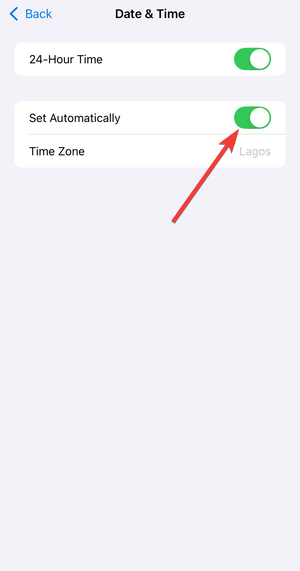

- Go to General > Language & Region.
- Confirm your region matches your actual location.
Restart the device after changing these settings.
Sign out and back into your Apple ID
Apple ID sync errors commonly trigger App Store connection failures.
Steps on iPhone or iPad
- Open Settings.
- Tap your Apple ID name at the top.


- Scroll down and tap Sign Out.
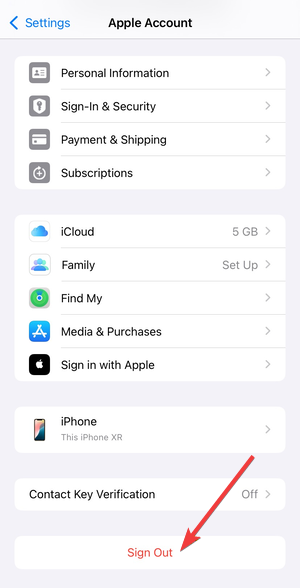

- Restart the device.
- Sign back in using the same Apple ID.
Steps on Mac
- Open System Settings.
- Click your Apple ID.
- Select Sign Out.
- Restart the Mac.
- Sign back in.
Review Screen Time and content restrictions
Screen Time can block the App Store without showing an obvious error.
Steps
- Open Settings.
- Go to Screen Time.
- Tap Content & Privacy Restrictions.
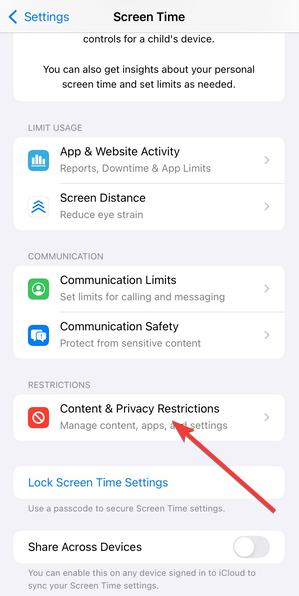

- Enable Content & Privacy Restrictions if disabled.
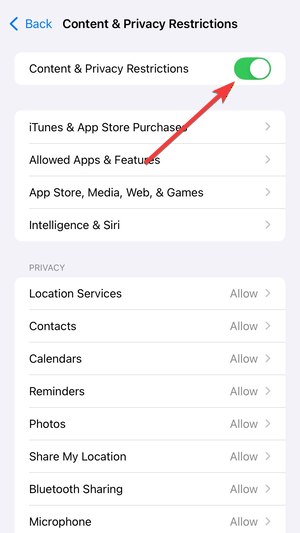

- Tap iTunes & App Store Purchases.
- Set Installing Apps to Allow.
If the device belongs to a family group, check the organizer’s settings.
Reset network settings
This clears broken Wi-Fi profiles, DNS entries, and cellular configs.
Steps
- Open Settings.
- Go to General > Transfer or Reset iPhone.
- Tap Reset.
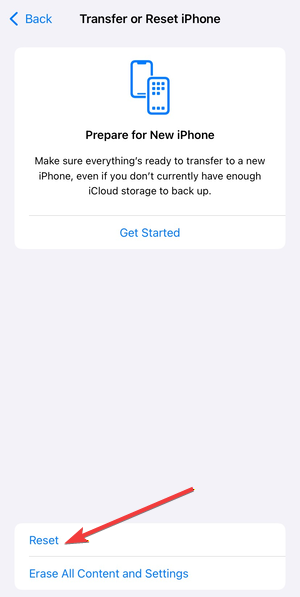

- Select Reset Network Settings.
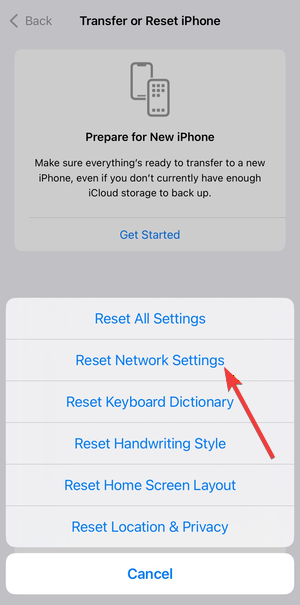

- Enter your passcode and confirm.
Reconnect to Wi-Fi and test the App Store again.
Update iOS, iPadOS, or macOS
Older versions can lose compatibility with App Store services.
Steps
- Open Settings (or System Settings on Mac).
- Go to General > Software Update.


- Install any available update.
- Restart after the update finishes.
Fix App Store issues on Mac specifically
Mac-specific settings can block only the Mac App Store.
Steps
- Open System Settings.
- Go to Network > Firewall.
- Temporarily turn the firewall off.
- Test the App Store.
- If it works, re-enable the firewall and allow App Store traffic.
Also check Network > Proxies and disable all proxy options.
When the error appears only on one network
Some networks block Apple services at the router or ISP level.
Common causes include:
- Captive portals on public Wi-Fi
- Office or school firewalls
- ISP-level DNS filtering
Switching networks confirms this instantly.
What to do if nothing works
At this point, the issue likely affects your Apple ID or Apple’s backend.
Prepare the following before contacting Apple Support:
- Device model
- OS version
- Apple ID region
- Exact error message
Tips to avoid App Store connection problems
- Disable VPNs before opening the App Store
- Keep automatic date and time enabled
- Avoid custom DNS unless necessary
- Update your device regularly
FAQs about App Store connection errors
Why does the App Store load forever without an error message?
Network filters or DNS issues usually cause this behavior.
Can changing Apple ID region break the App Store?
Yes. Region mismatches often require signing out and back in.
Does resetting network settings erase personal data?
No. It only removes saved networks and VPN profiles.
Summary
- Check Apple server status first.
- Restart the device and App Store.
- Disable VPNs and test networks.
- Refresh Apple ID and Screen Time settings.
Most Store issues can be frustrating, especially when you know you can cannot just delete and download App Store on your iPhone. Fortunately, these issues resolve once the correct settings are reset. When the store loads normally again, you can stop troubleshooting and use it as usual.



Discussion (0)
Be the first to comment.