



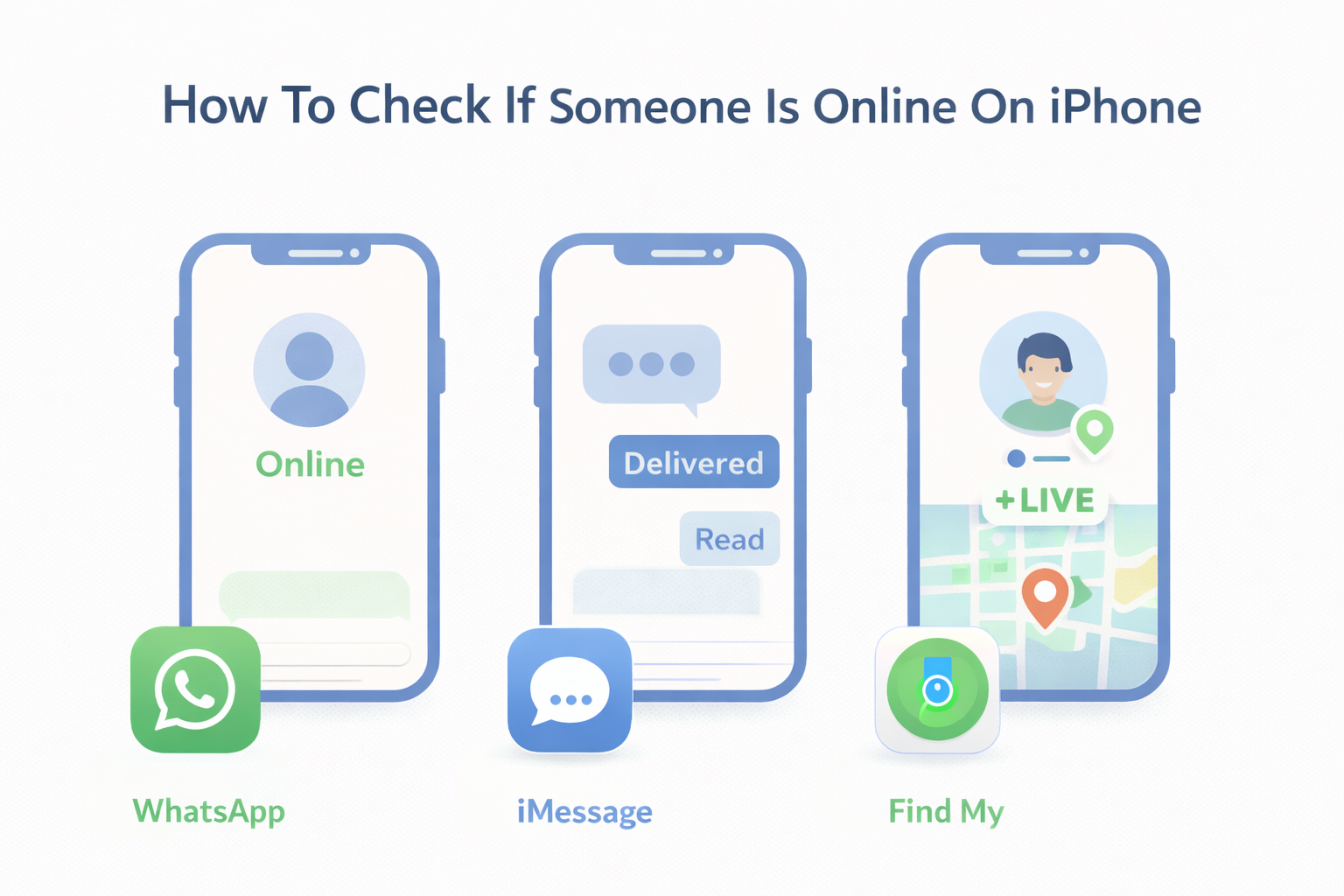
iPhones do not include a system-wide online status indicator. Apple avoids this feature for privacy reasons, which means there is no direct way to see if someone is online at the operating system level.
At the time of writing, the only reliable way to check if someone is online on an iPhone is through apps and services that show activity indicators. These include messaging apps, social platforms, and Apple’s location-sharing tools.
Check Online Status Using Messaging Apps
Messaging apps provide the most consistent indicators of online or recent activity. Availability depends on privacy settings controlled by the other person.
- Open the messaging app you both use
- Open the chat with the person
- Look for labels such as Online, Active Now, or Last Seen
If no status appears, the person may have disabled activity sharing.
Use WhatsApp To Check Online Or Last Seen Status
WhatsApp clearly shows when a user is online or when they were last active, unless the feature is disabled.
- Save the person’s phone number
- Open WhatsApp
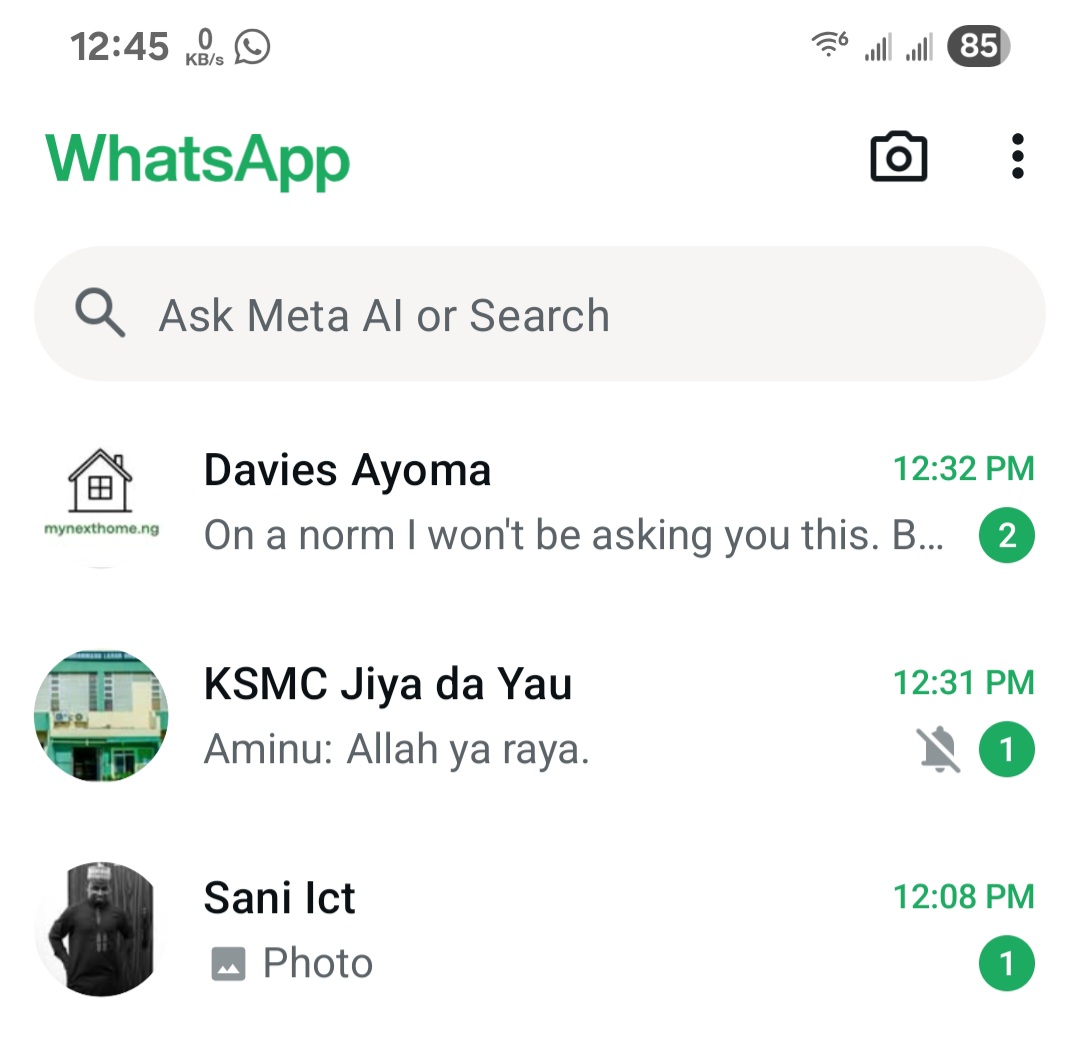
- Open the chat with that contact

- Check the status under their name
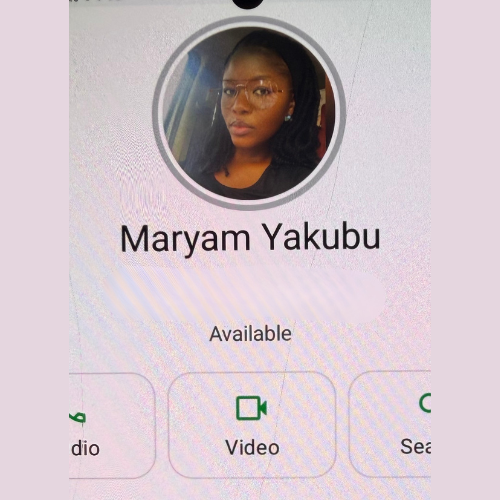
If nothing appears, their privacy settings may block visibility.
Check Activity Status On Instagram
Instagram shows activity status only when both users follow each other and have activity status enabled.
- Open Instagram
- Tap the messages icon
- Open the conversation
- Look for Active Now or a recent activity label
If the status is hidden, Instagram does not display any indicators.
Use iMessage Delivery And Read Indicators
iMessage does not show online status, but message indicators offer indirect clues.
- Send a message in iMessage
- Check for a Delivered label
- Look for a Read receipt if enabled
A read receipt confirms the person was online at that moment.
Check Telegram Online Or Last Seen Status
Telegram displays online and last seen information by default unless restricted.
- Open Telegram
- Search for the contact
- Open the chat
- Check the status below their name
Statuses vary from exact times to general ranges such as recently.
Use Find My To Check Device Activity
Apple’s Find My does not show online status, but it confirms whether a device is connected to the internet.
- Open the Find My app
- Tap People
- Select the contact sharing location
- Check the last updated location
This method requires location sharing consent.
Troubleshooting Common Problems
If no activity appears, the person may have disabled status sharing or restricted visibility. App updates can also reset privacy settings.
Blocked or restricted accounts do not display online indicators.
Tips
- Use multiple apps to confirm activity
- Respect privacy settings and boundaries
- Enable your own activity status where required
- Do not rely on a single indicator
FAQ
Does iPhone show online status by default?
No. iOS does not include a built-in online status feature.
Can I check if someone is online without apps?
No. App-based indicators are required.
Does delivered mean someone is online?
It means the device is connected, not necessarily active.
Can someone hide their online status?
Yes. Most apps allow disabling activity indicators.
Summary
- iPhones do not offer a system-level online status
- Messaging apps provide the best indicators
- Privacy settings control visibility
- Find My shows connectivity, not presence
Conclusion
There is no direct way to check if someone is online on iPhone. Apple prioritizes privacy, which limits system-wide activity tracking.
By using messaging apps and location-sharing tools responsibly, you can get useful clues without invading privacy.


Discussion (0)
Be the first to comment.