




If WhatsApp media is not downloading on your phone, the issue usually ties back to storage limits, missing permissions, or network problems. At the time of writing, these causes remain the most common reasons WhatsApp fails to download photos, videos, documents, or audio files on Android and iPhone.
You may see messages like “Download failed” or notice media stuck with a loading icon. The steps below walk through proven fixes that restore WhatsApp media downloads without risking your chat history.
Check Your Internet Connection
A weak or unstable connection often prevents WhatsApp from downloading media files. Before changing app settings, confirm your internet works correctly across other apps.
- Switch between Wi-Fi and mobile data.
- Turn Airplane Mode on, then off.
- Restart your router if you are on Wi-Fi.
If other apps load normally, move on to the next fix.
Force Close WhatsApp And Reopen It
Background app glitches can interrupt media downloads. Force closing WhatsApp refreshes the app session and clears temporary issues.
- On Android, open Settings, go to Apps, select WhatsApp, then tap Force Stop.
- On iPhone, open the app switcher and swipe WhatsApp off the screen.
Reopen WhatsApp and try downloading the media again.
Check WhatsApp Storage And Photos Permissions
WhatsApp cannot save media files if storage or photo permissions are blocked. This is a frequent cause of WhatsApp images and videos not downloading.
- On Android, open Settings, go to Apps, select WhatsApp, then allow Files and media access.
- On iPhone, open Settings, tap Privacy and Security, select Photos, then set WhatsApp to All Photos.
Once permissions are enabled, retry the download.
Make Sure Your Phone Has Enough Storage Space
Low storage prevents WhatsApp from saving incoming media, especially when auto-download is enabled. This affects both Android and iOS devices.
- Check available storage in your phone settings.
- Delete unused apps, videos, or large files.
- Clear old WhatsApp media you no longer need.
Freeing space often resolves WhatsApp media download issues immediately.
Clear WhatsApp Cache On Android
Corrupted cache files can interfere with downloads. Clearing cache does not delete chats or media.
- Open Settings and go to Apps.
- Select WhatsApp, then tap Storage.
- Tap Clear cache.
This step applies only to Android devices.
Set The Correct Date And Time
Incorrect date and time settings can break secure connections, which stops WhatsApp from downloading media files.
- On Android, open Settings, go to Date and time, and enable automatic time.
- On iPhone, open Settings, tap General, then Date and Time, and enable Set Automatically.
Restart WhatsApp after adjusting the settings.
Update WhatsApp To The Latest Version
Outdated app versions may contain bugs that affect downloads. Installing updates often fixes WhatsApp media not downloading issues.
- Open the App Store or Play Store.
- Search for WhatsApp.
- Install any available updates.
If no update appears, continue with the next fix.
Reset Network Settings
Network configuration errors can block media downloads even when internet access seems normal.
- On Android, open Settings, go to Reset options.
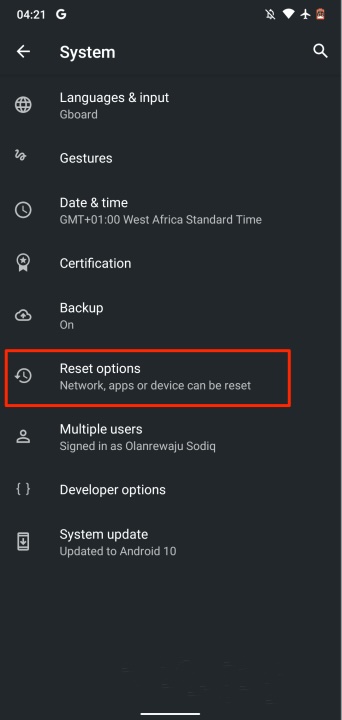
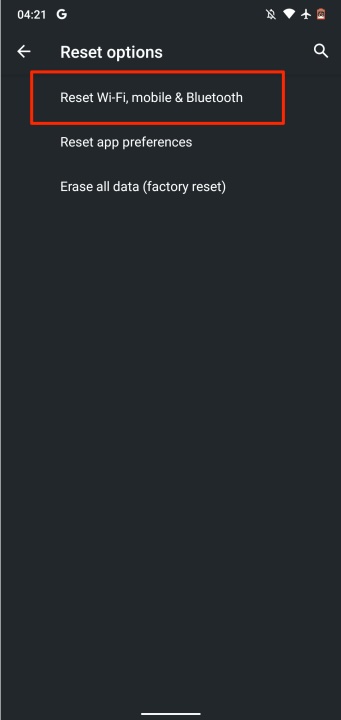
- Reset Wi-Fi, mobile, and Bluetooth.
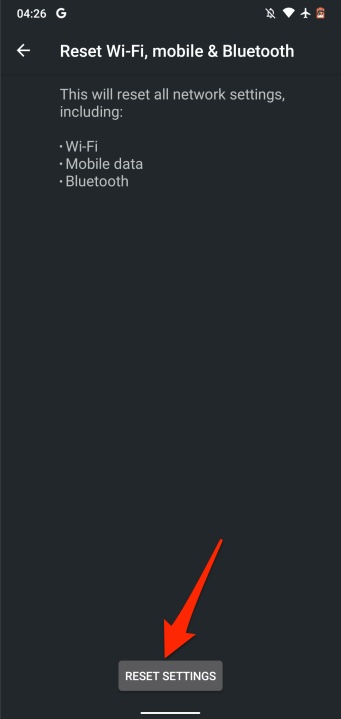
- Tap Reset Settings.
- On iPhone, open Settings, tap General, select Transfer or Reset iPhone, then Reset Network Settings.
This removes saved Wi-Fi passwords but often fixes stubborn download problems.
Use WhatsApp Web To Download Important Media
If you need access to media immediately, WhatsApp Web allows downloads even when the mobile app struggles.
- Open WhatsApp Web on a computer.
- Link your phone using the QR code.
- Open the chat and download the media directly.
This method helps preserve important files before deeper troubleshooting.
Reinstall WhatsApp As A Last Resort
If none of the fixes work, reinstalling WhatsApp usually restores media downloading. Always back up chats before uninstalling.
- Back up WhatsApp chats to cloud storage.
- Uninstall WhatsApp.
- Reinstall and restore your backup.
Troubleshooting Common Problems
If media downloads stall only on Wi-Fi, your router or DNS settings may be blocking downloads. Switching networks often confirms this.
If old WhatsApp photos are not downloading, the original files may no longer exist on the sender’s device or server.
Tips
- Disable auto-download if storage runs low frequently.
- Restart your phone after major system updates.
- Avoid battery saver modes that restrict background data.
- Keep WhatsApp and your phone OS up to date.
FAQ
Why is WhatsApp media not downloading on Wi-Fi?
Router restrictions, DNS issues, or incorrect date and time settings often cause this problem.
Why do WhatsApp videos fail to download but photos work?
Large video files require more storage and a stable connection, which photos may not.
Can WhatsApp media fail due to SD card issues?
Yes. Corrupted or full SD cards can block media downloads on Android devices.
Summary
- Storage, permissions, and network issues cause most WhatsApp media download problems.
- Clearing cache and updating the app fixes many cases.
- Resetting network settings resolves deeper connectivity errors.
- Reinstall WhatsApp only after backing up your data.
Conclusion
When WhatsApp media is not downloading, the fix rarely requires drastic steps. In most cases, checking permissions, storage, and network settings restores full download functionality and prevents the issue from returning.

Discussion (0)
Be the first to comment.