




Reading long articles on a phone often feels exhausting. Ads, pop-ups, and cluttered layouts break focus fast. Chrome for Android includes a hidden Reader mode called Simplified View, and you can enable it with a few quick steps.
Table of contents
- What is Chrome Reader mode on Android?
- How to enable Chrome Reader mode (simplified view)
- How to use Reader mode on supported pages
- When Chrome Reader mode works and when it doesn’t
- Fixes if Chrome Reader mode is not showing
- Best alternatives to Chrome Reader mode on Android
- Tips for distraction-free reading on Android
- FAQs
- Summary
What is Chrome Reader mode on Android?
Chrome Reader mode, labeled Simplified View on Android, strips away ads, sidebars, and unnecessary page elements. It leaves you with clean text, images, and basic formatting for easier reading.
Chrome on Android does not show Reader mode by default. Google treats it as experimental and keeps it behind Chrome flags.
Why Google hides Simplified View by default
Google hides Simplified View because it does not work consistently on every website. Some pages rely on scripts and dynamic layouts that break when Chrome tries to simplify them.
Chrome flags let Google keep unstable features optional. You still get access when you enable the right flag.
How to enable Chrome Reader mode (simplified view)
You can enable Reader mode through the Chrome settings. Follow the steps in order so Chrome can start offering Simplified View on supported pages.
Enable Simplified View using Chrome flags
- Open Chrome on your Android phone.
- Next, click the three vertical dots in the top right corner and select Settings.
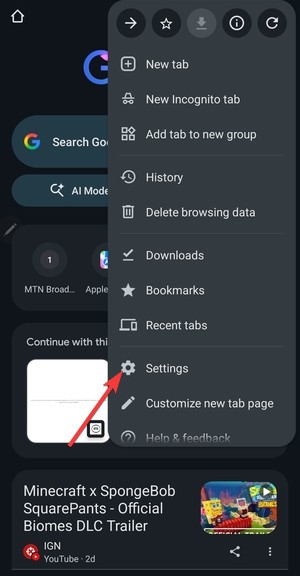

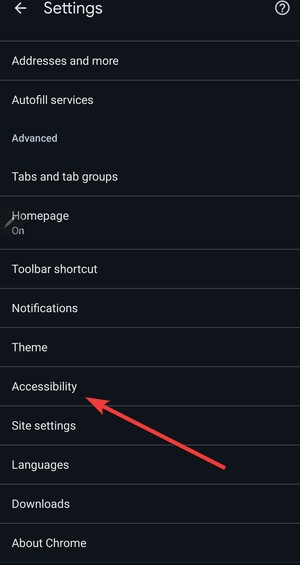
- Scroll down and select Accessibility.

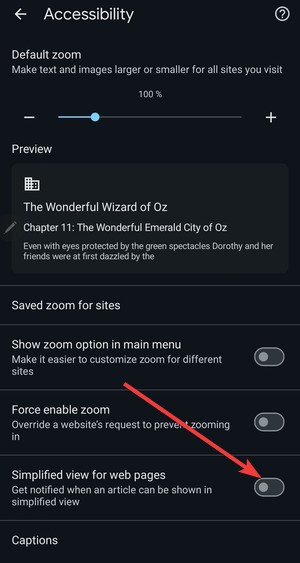
- Now, toggle the switch for Simplified view for web pages for ward to enable it.

- Finally, restart Chrome to effect the changes.
This setting unlocks Reader mode support, but Chrome will only show it on pages it can safely simplify.
How to use Reader mode on supported pages
Reader mode does not toggle on for every page. Chrome only offers it when it detects an article layout that it can distill into a clean reading view.
What the Simplified View prompt looks like
When Chrome detects a supported page, a banner appears near the bottom of the screen. You may see wording like Show simplified view, Reading mode, or a similar prompt.
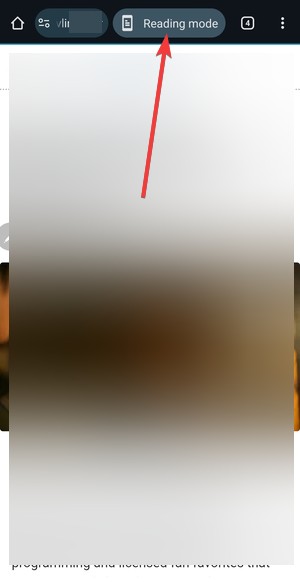
Tap the banner or reader icon and Chrome reloads the page in Reader mode. You should see fewer distractions, cleaner spacing, and easier-to-read text.
When Chrome Reader mode works and when it doesn’t
Simplified View works best on text-heavy pages with clear paragraphs and headings. It often fails on pages built around interactive elements, heavy scripts, or shopping features.
Supported pages and content types
Reader mode usually triggers on news articles, blog posts, long guides, and documentation pages. It also tends to work better when the site uses a straightforward layout without endless widgets.
Why Reader mode may never appear
Chrome may not offer Simplified View on JavaScript-heavy pages, pages with infinite scrolling, or pages that load the main content inside embedded containers. Some sites also block distillation on purpose.
If you never see the banner on a specific site, that site likely falls outside Chrome’s Reader mode criteria.
Fixes if Chrome Reader mode is not showing
Update Chrome and clear cache
- Open the Play Store and update Chrome if an update exists.
- Open Settings on Android, then tap Apps.
- Tap Chrome - then tap Storage.
- Tap Clear cache, then reopen Chrome and test an article again.
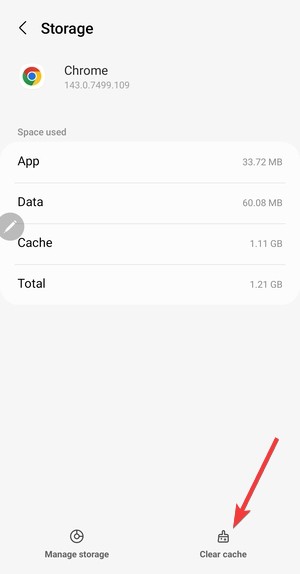

Updates can change how Chrome triggers simplified pages. Clearing cache removes corrupted data that can block the prompt.
Best alternatives to Chrome Reader mode on Android
If Chrome Reader mode feels inconsistent, try a browser with a dedicated Reader control. These options often work on more sites and offer better readability tools.
Samsung Internet Reader mode
Samsung Internet includes a built-in Reader mode that shows up more reliably on article pages. It also gives you controls for readability, including text sizing and contrast.
Firefox Reader View
Firefox shows a Reader icon in the address bar when it detects an article layout. It tends to activate faster than Chrome’s banner and offers simple reading tweaks.
Tips for distraction-free reading on Android
- Turn on dark mode to reduce eye strain in low light.
- Increase text size in your browser for long sessions.
- Use Do Not Disturb while reading to limit interruptions.
- Bookmark the page before you try Reader mode, so you can return fast if it reloads oddly.
FAQs
Does Chrome still have Reader mode on Android? Yes, but Chrome labels it Simplified View and keeps it hidden behind flags on many devices. Chrome only offers it on pages it can simplify safely.
Why does the Show simplified view banner not appear? Chrome may not detect the page as an article, or the site may rely on scripts that block distillation. Try a different article page, reset flags, and update Chrome.
Can I force Reader mode on every website? Chrome does not provide a reliable “always on” Reader mode on Android. Simplified View depends on page structure, so it will never work on every site.
Which browser has the most reliable Reader mode on Android? Firefox and Samsung Internet usually deliver more consistent Reader experiences than Chrome. They expose Reader controls more clearly and trigger them on more article pages.
Summary
- Chrome Reader mode on Android appears as Simplified View and stays hidden by default.
- You can enable it using chrome://flags and a browser restart.
- Reader mode only works on supported article-style pages.
- Resetting flags or updating Chrome often fixes missing Reader mode prompts.
Chrome Reader mode works best when you understand its limits. Enable Simplified View for cleaner reading on supported pages, then keep Firefox or Samsung Internet ready for sites where Chrome fails.

Discussion (0)
Be the first to comment.