




If Chrome downloads keep failing or pausing, the problem usually comes from network instability, storage limits, browser settings, or security software. At the time of writing, these remain the most common reasons for Google Chrome download errors across Windows, macOS, and ChromeOS.
You may see messages like “Download failed,” “Network error,” or downloads stuck in a paused state. The steps below walk through reliable fixes, starting with quick checks and moving toward deeper troubleshooting only when needed.
Check Your Internet Connection
An unstable or interrupted connection is the most frequent cause of Chrome downloads failing. Even brief dropouts can pause or cancel large file downloads.
- Switch between Wi-Fi and mobile hotspot if available.
- Restart your router or modem.
- Pause other bandwidth-heavy activities like streaming or cloud sync.
Once the connection stabilizes, resume or restart the download.
Confirm There Is Enough Storage Space
Chrome cannot complete downloads if the destination drive runs out of space. This often triggers errors like “Disk full” or silent pauses.
- Check free space on the drive where Chrome saves downloads.
- Delete unused files or move them to external storage.
- Change the download location if another drive has more space.
After freeing space, restart Chrome and retry the download.
Pause Other Downloads And Background Tasks
Multiple active downloads or background updates can overwhelm your connection and cause Chrome downloads to pause.
- Pause other browser or app downloads.
- Temporarily stop cloud backups or software updates.
- Retry the download with fewer background processes running.
Clear Chrome Cache And Browsing Data
Corrupted cache files can interfere with Chrome’s download manager. Clearing cached data often resolves repeated failures.
- Open Chrome Settings.
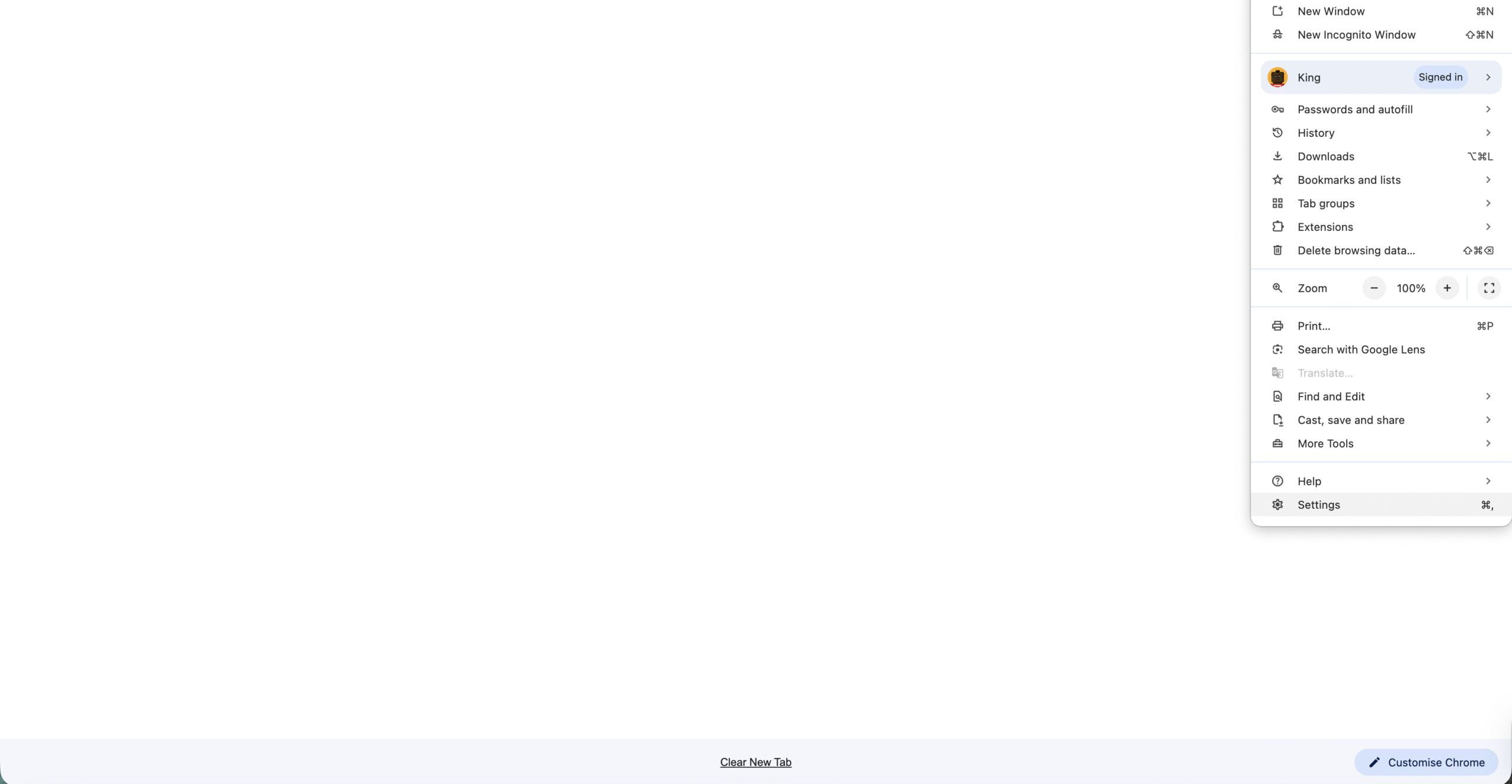
- Go to Privacy And Security.
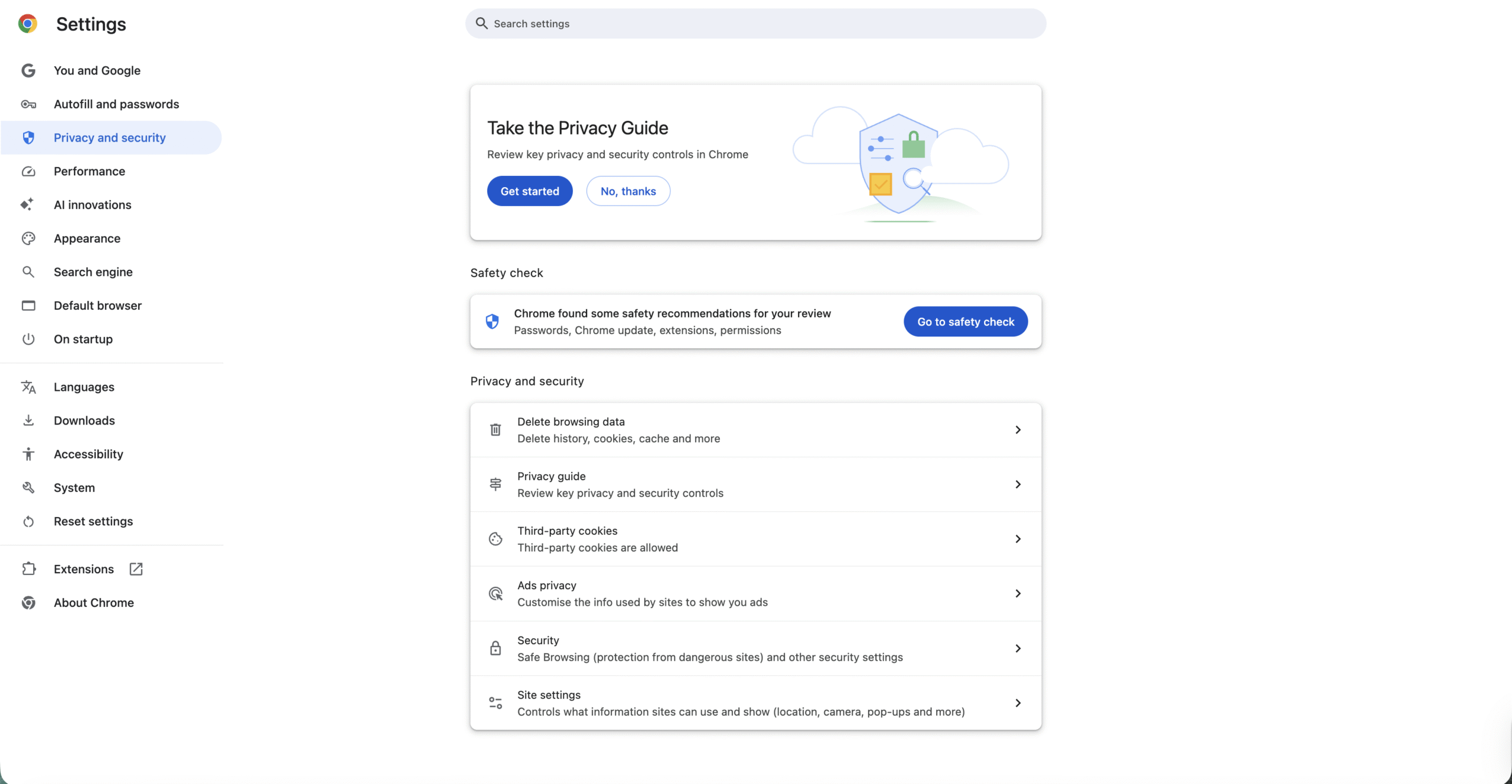
- Select Clear Browsing Data.
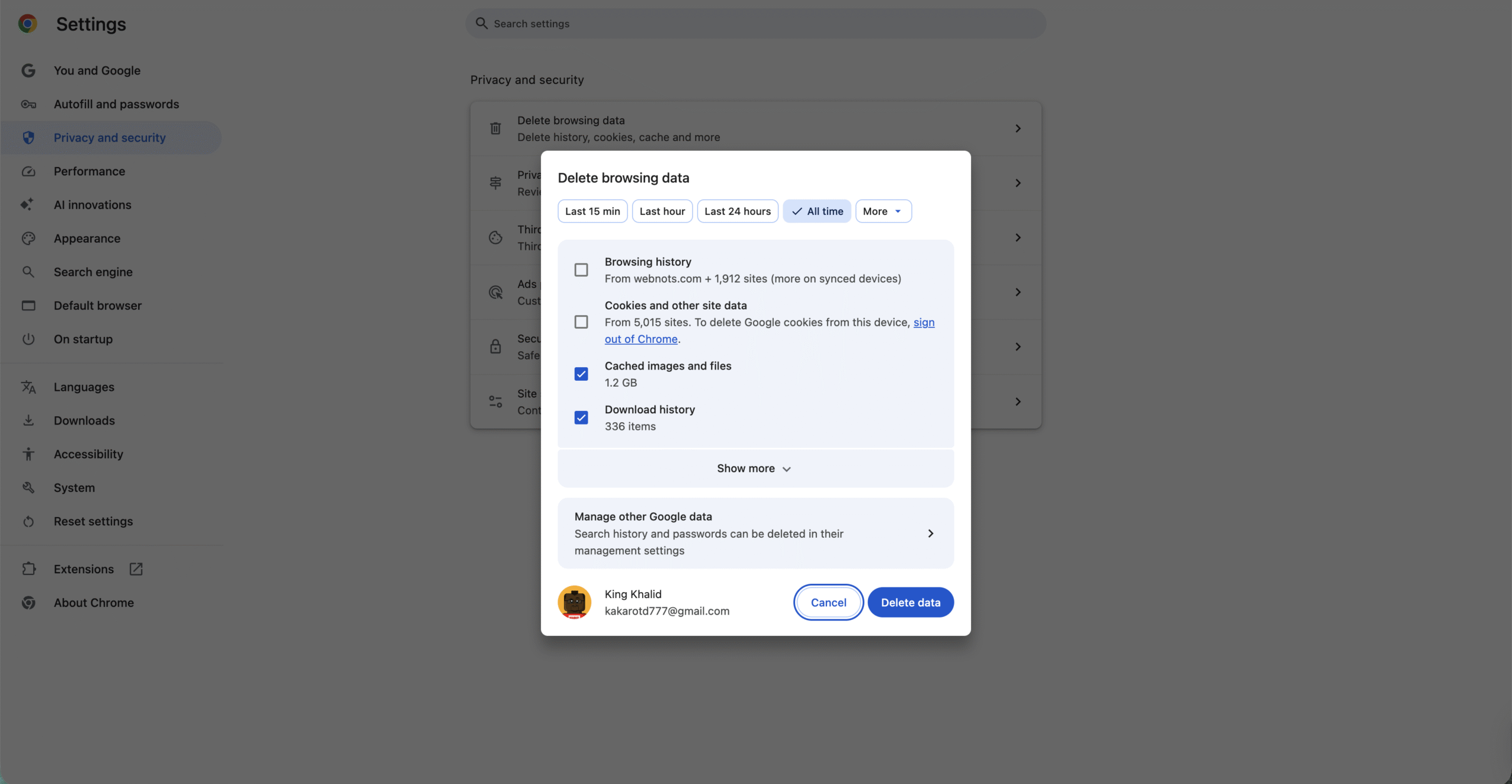
- Clear cached images and files.
This may sign you out of websites but does not delete saved passwords.
Try Downloading In Incognito Mode
Extensions and profile settings sometimes block downloads. Incognito mode runs Chrome without most extensions enabled.
- Open a new Incognito window.
- Navigate to the download page.
- Start the download again.
If the file downloads successfully, an extension or profile setting is likely the cause.
Change The Default Download Location
A restricted or corrupted folder can prevent Chrome from saving files. Changing the download location helps bypass permission issues.
- Open Chrome Settings.
- Go to Downloads.
- Select Change next to Location.
- Choose a different folder.
Temporarily Disable Antivirus Or Firewall Software
Security software may block downloads it flags as suspicious, even when files are safe. This commonly causes Chrome download errors.
- Pause antivirus protection briefly.
- Retry the download.
- Re-enable protection immediately after.
You can also add the file or site to your antivirus whitelist instead of disabling protection entirely.
Disable Chrome Extensions
VPNs, download managers, and security extensions often interfere with Chrome downloads.
- Open Chrome and go to Extensions.
- Disable extensions one at a time.
- Retry the download after each change.
If disabling all extensions fixes the issue, re-enable them selectively to find the culprit.
Reset Chrome Settings Or Reinstall Chrome
If Chrome downloads still fail, browser settings may be corrupted. Resetting Chrome restores default behavior without deleting bookmarks.
- Open Chrome Settings.
- Go to Reset And Clean Up.
- Select Restore Settings To Their Original Defaults.
If problems persist, uninstall and reinstall the latest version of Google Chrome.
Troubleshooting Common Problems
If downloads fail only on specific websites, the issue likely comes from the server hosting the file. Trying again later or using another source often helps.
If downloads pause when your device sleeps, disable sleep mode temporarily during large downloads.
Tips
- Use a wired connection for large or important downloads.
- Keep Chrome and your operating system updated.
- Avoid downloading multiple large files at the same time.
- Restart Chrome after system updates.
FAQ
Why do Chrome downloads keep pausing randomly?
Network drops, antivirus scans, or background tasks usually cause pauses.
Can Chrome Safe Browsing block legitimate downloads?
Yes. You can temporarily allow the file, then re-enable protection.
Do extensions affect Chrome downloads?
Yes. VPN and security extensions are common causes.
Are download managers better for large files?
Yes. They handle interruptions more reliably than browsers.
Summary
- Internet instability is the most common cause of Chrome download failures.
- Low storage and permission issues can stop downloads mid-way.
- Extensions and antivirus software often block files.
- Resetting or reinstalling Chrome fixes persistent issues.
Conclusion
When Chrome downloads keep failing or pausing, the solution usually lies in basic checks like network stability, storage space, or browser settings. By following these steps in order, you can restore reliable downloads without resorting to drastic system changes.

Discussion (0)
Be the first to comment.