




Chrome does not include a built-in option for downloading YouTube videos, and most extensions that previously worked no longer appear in the Chrome Web Store. You can still save videos safely using a mix of browser tools, online converters, and desktop apps.
This guide walks you through each reliable method and explains which option fits different needs.
Table of contents
- Method 1: Download videos with Chrome using online tools
- Method 2: Download YouTube videos with Chrome Developer Tools
- Method 3: Use a desktop video downloader alongside Chrome
- Choosing the right download method
- Comparison table: Chrome YouTube download methods
- Troubleshooting YouTube download issues in Chrome
- Tips: Safety and legal considerations
- FAQs
- Summary
Method 1: Download videos with Chrome using online tools
Online downloaders offer the fastest no-install method. You only paste a link, pick a format, and save the file directly.
Steps to use a reputable online video downloader
- Open the YouTube video in Chrome.
- Copy the video’s URL from the address bar.
- Paste the link into an online downloader.


- Choose a format such as MP4 or MP3.
- Select a resolution and download the file.
Pros and limitations of online tools
Online converters run quickly and require no setup. They may struggle with long videos, high-resolution files, or busy servers during peak hours.
Method 2: Download YouTube videos with Chrome Developer Tools
Chrome’s Developer Tools let you access video streams directly. This method works well on non-DRM content and embedded videos.
How to capture media files with the Network panel
- Open Chrome and play the YouTube video.
- Press Ctrl + Shift + I to open Developer Tools.
- Select the Network tab.
- Filter by Media to view video streams.
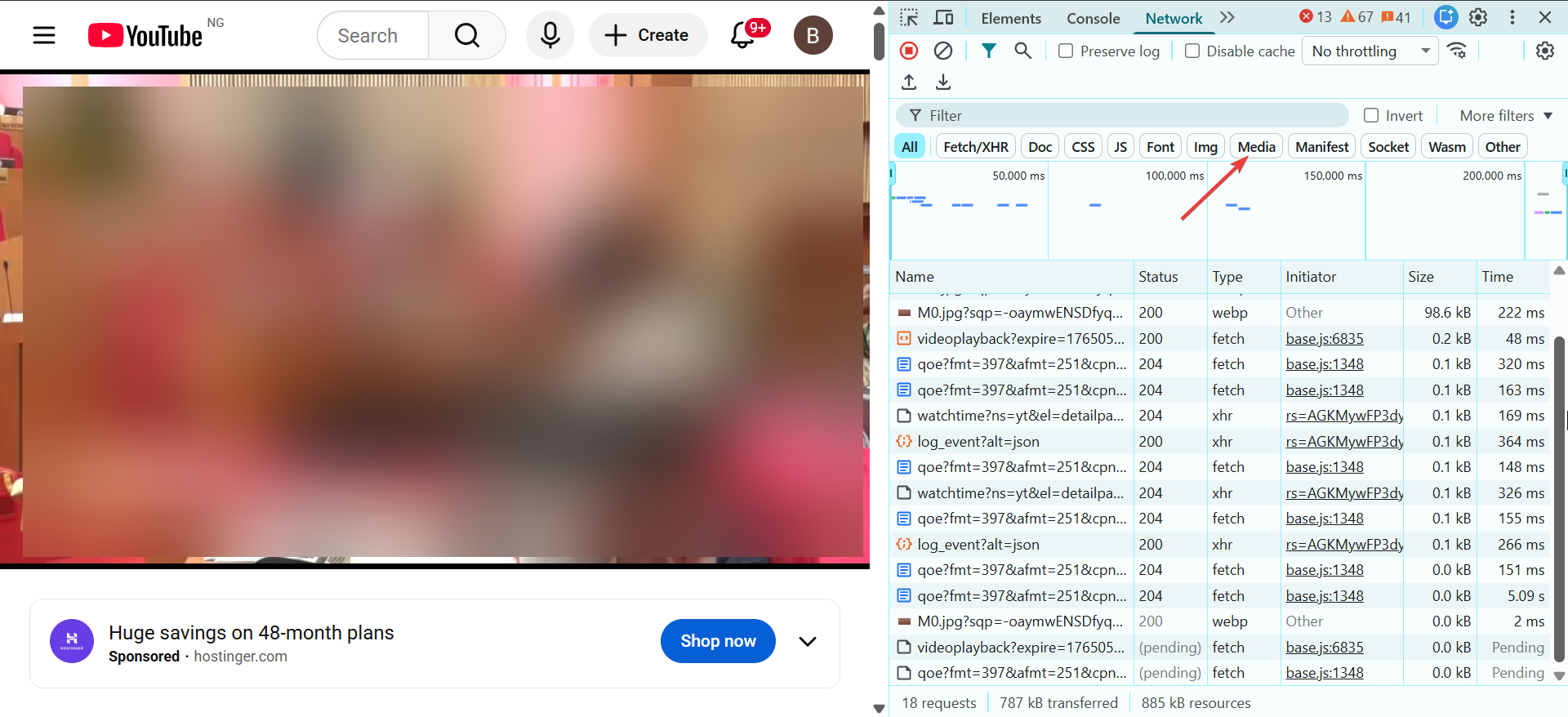
- Right-click a media file and choose Open in new tab.
- Save the file using Ctrl + S.
When the DevTools method works best
This method works on videos where streams load without protection. It helps when online tools fail or when file quality matters.
Method 3: Use a desktop video downloader alongside Chrome
Desktop downloaders offer stable performance, fast processing, and support for high-resolution formats. Below is a basic workflow with a desktop downloader
- Go to the Microsoft Store and download any YouTube downloader app of your choice.

- Copy the YouTube link from Chrome.
- Paste it into a downloader tool.
- Select a video resolution and output format.
- Download the file to your computer.
- Check the saved file in your Downloads folder.
Choosing the right download method
Pick online converters for quick tasks, Developer Tools for manual access, and desktop apps for large or high-resolution downloads. This saves time and avoids unreliable tools.
Comparison table: Chrome YouTube download methods
| Method | Difficulty | Speed | Formats | Best For |
|---|---|---|---|---|
| Online tool | Easy | Medium | MP4/MP3 | Quick saves |
| Chrome DevTools | Medium | High | Raw streams | Manual downloads |
| Desktop downloader | Easy | High | MP4/WebM/Audio | Large or HD files |
| PWA downloader | Easy | Medium | MP4/MP3 | Frequent use |
Troubleshooting YouTube download issues in Chrome
- Downloads split into audio and video: YouTube uses DASH streaming, which separates audio and video. You may need a tool that merges tracks automatically or a desktop downloader that combines them during processing.
- Chrome warnings or blocked downloads: Chrome may flag downloads for security reasons. Clear the warning only when you trust the source and ensure the site behaves normally.
- Slow or stalled downloads: Clear Chrome’s cache, switch to a different tool, or restart your connection.
Tips: Safety and legal considerations
- Save videos only for personal offline viewing when allowed.
- Avoid unfamiliar extensions or websites that request unnecessary permissions or downloads.
- Only use trusted apps for downloads
FAQs
Can I download videos with a Chrome extension? Most extensions no longer work due to Chrome Web Store restrictions.
Why do my downloads appear as separate audio and video files? This happens because YouTube streams these tracks separately using the DASH format.
Why do some videos fail to download? Some content includes restrictions or DRM, which blocks download tools.
What’s the quickest method? Downloading YouTube videos online provide the fastest workflow for short, standard-resolution videos.
Summary
- Online downloaders offer the fastest and simplest option.
- Chrome Developer Tools let you access media files manually.
- Desktop apps handle large and high-quality downloads reliably.
- PWAs provide a lightweight option for frequent downloads.
- Troubleshooting steps resolve issues like split tracks or blocked downloads.
Chrome offers several safe ways to save YouTube videos without relying on extensions. Pick the method that matches your file size, quality needs, and reliability expectations.


Discussion (0)
Be the first to comment.