



Knowing how to download an entire YouTube playlist helps you save whole series of videos for offline viewing, studying, or travel. Whether you want to back up your own uploads, build an offline music mix, or keep a training course on your laptop, you can use a few safe methods to download a full YouTube playlist instead of grabbing each clip one by one.
At the time of writing, YouTube still limits direct downloads in the browser, but YouTube Premium, first-party tools, and reputable desktop apps give you legal ways to save playlists for personal use. This guide explains how to download a YouTube playlist on desktop and mobile, what works best for your own content, and what to avoid so you do not break YouTube’s terms or run into malware when using a YouTube playlist downloader.
Before you download a YouTube playlist, you should understand the rules and limits. YouTube only allows downloads when it provides a download button (such as with YouTube Premium or official offline features), or when you download your own videos. For any public content, you should only use a playlist downloader for videos you own, have permission to use, or that are clearly licensed for offline reuse.
This matters even more when you download an entire YouTube playlist, because saving dozens of copyrighted videos for redistribution can break both copyright law and YouTube’s terms. The methods in this article focus on backing up your own videos, saving playlists for personal offline viewing, and using trusted tools instead of risky “free YouTube download” sites that often bundle adware.
Method 1: Download A YouTube Playlist For Offline Use With YouTube Premium
The safest way to download a YouTube playlist for offline viewing is YouTube Premium. Premium lets you tap a single button to download a full playlist inside the official YouTube app on your phone or tablet. You cannot export those clips as MP4 files, but this option works well when you want to watch an entire YouTube playlist offline on mobile.
To download an entire YouTube playlist with YouTube Premium on mobile:
- Open the YouTube app and sign in to the account with your YouTube Premium subscription.
- Search for the playlist you want, or open it from Library > Playlists.
- Tap the Download button that appears near the top of the playlist page, above the list of videos.
- Choose a video quality that fits your storage and data plan.
- Wait for the download icon beside each video to turn into a filled check mark, which means the playlist is saved.
- Go to Library > Downloads to watch the entire YouTube playlist offline.
This method works well for long podcast feeds, workout mixes, and educational playlists you want to stream without using data. It also keeps you inside the YouTube app, so you do not need a third-party YouTube playlist downloader.
Method 2: Download Your Own YouTube Playlist From YouTube Studio
If you created a playlist made from your own uploads, you can download those videos from YouTube Studio. This lets you back up an entire YouTube playlist in full quality without using unofficial tools. It is not a one-click playlist download, but you keep everything inside Google’s ecosystem.
To download your own YouTube videos that live inside a playlist:
- Open a browser on your PC or Mac and go to studio.youtube.com, then sign in with your channel account.
- In the left sidebar, select Content to see your uploaded videos.
- Use the filters or search box to match the videos in your playlist by title, tag, or series name.
- Click the Options (three dots) next to each video you want and choose Download.
- Repeat for each video in the playlist until you have a local copy of the full series.
- Optionally, organize the downloaded files into a folder named after the original YouTube playlist.
This method works best when you need the highest available quality and want to keep control of your YouTube content across editing projects, backup drives, or a local media server.
Method 3: Use Desktop Software To Download An Entire YouTube Playlist (For Legal Content Only)
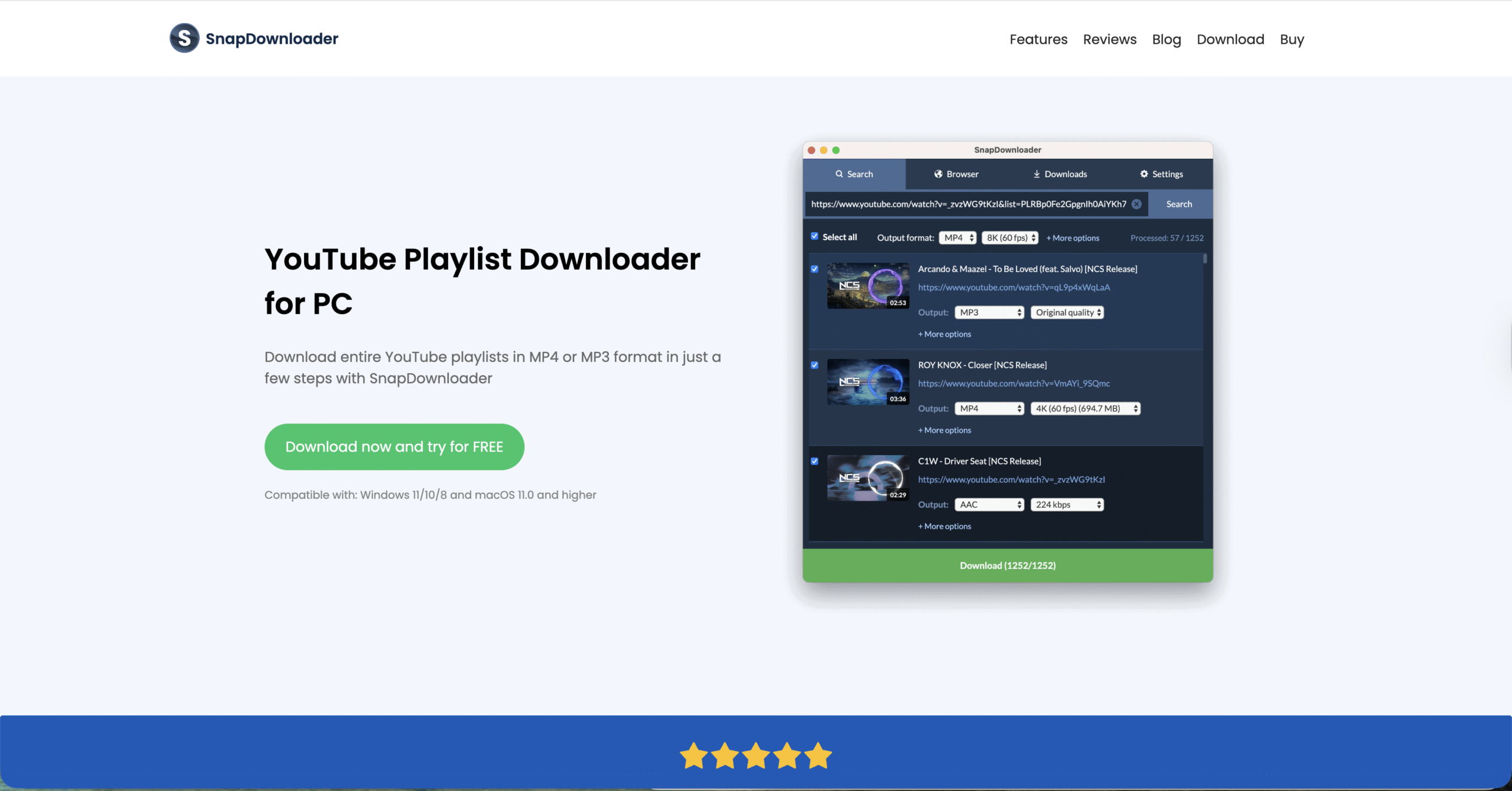
When you want a full YouTube playlist as MP4 or MP3 files on your computer, a trusted desktop app usually works better than browser extensions or random websites. Modern YouTube playlist downloader apps support entire playlists, let you choose resolution, and can convert videos to different formats. You should only use these tools with your own uploads, copyright-free playlists, or content where the owner explicitly allows downloads.
To download an entire YouTube playlist with desktop software in a safer way:
- Install a reputable YouTube playlist downloader for Windows or macOS from the developer’s official website, not from mirror sites or pop-up ads.
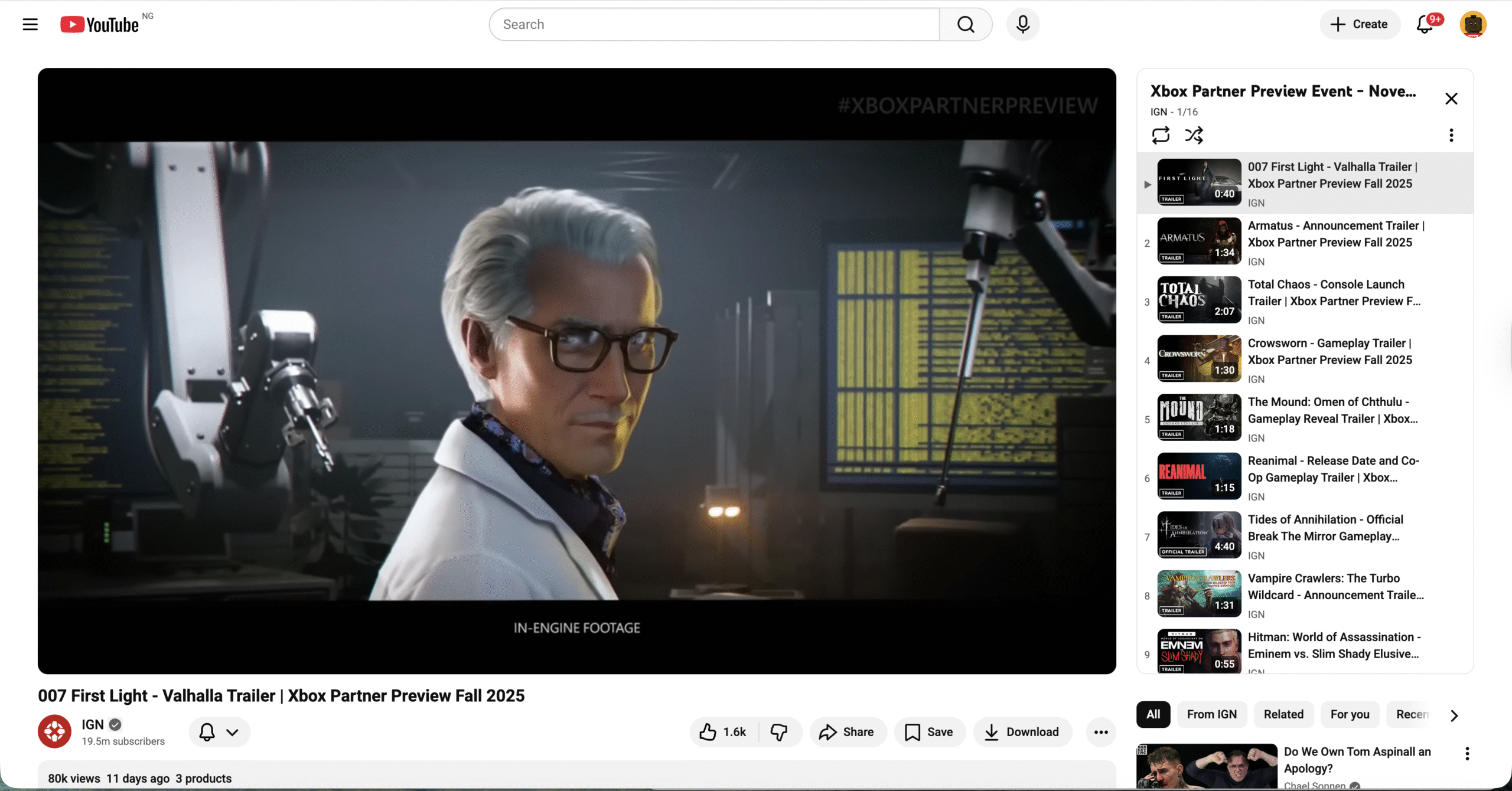
- Copy the playlist URL from the address bar in your browser while the YouTube playlist page is open.
- Open the downloader and look for a Paste Link or Add Playlist option.
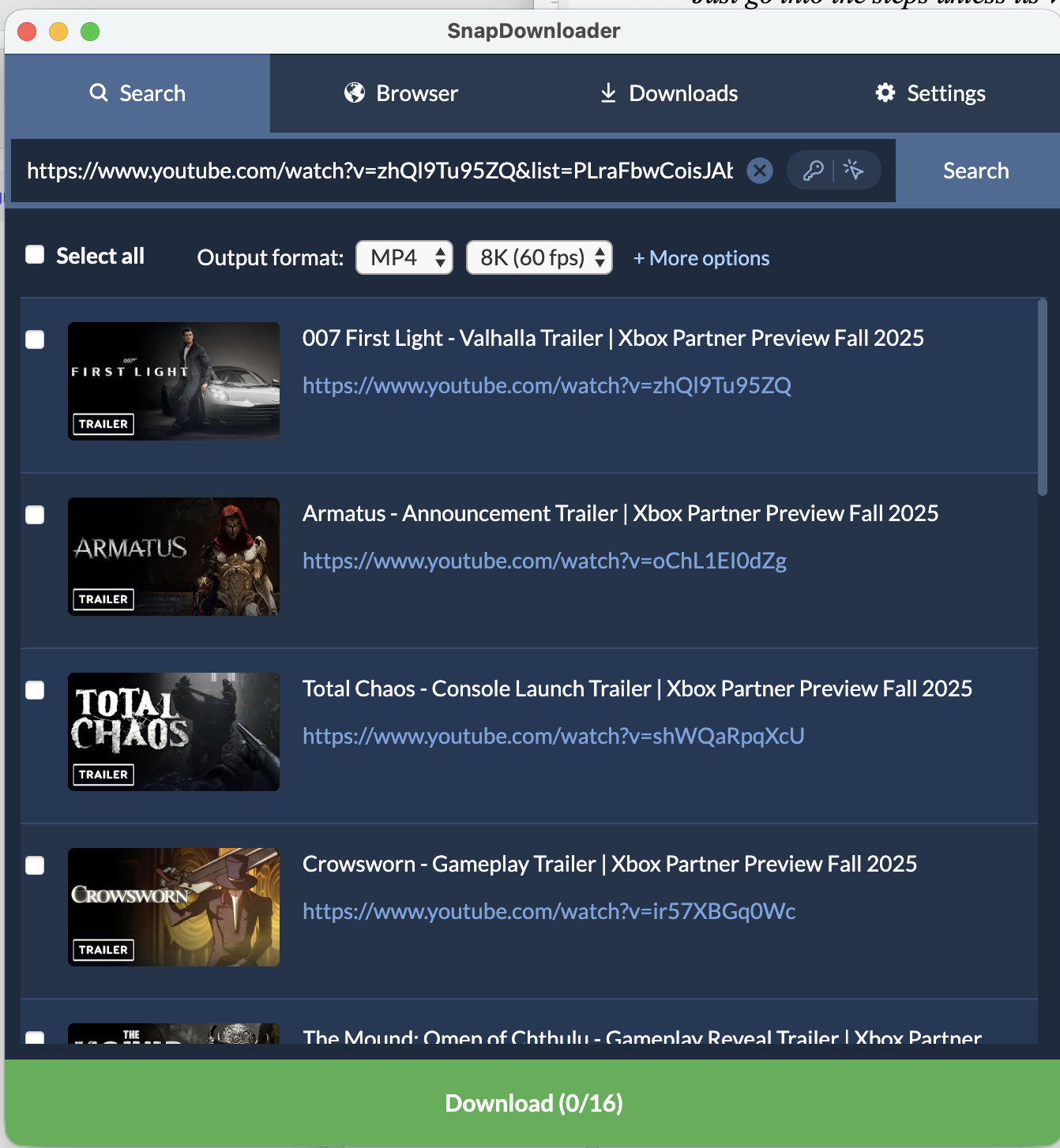
- Paste the URL so the app can detect that it is a full YouTube playlist and list the videos.
- Select the videos you want, choose your output format (for example MP4 or MP3) and quality (such as 1080p), and pick a download folder.
- Start the download and wait while the app processes every item in the playlist.
This approach is the most flexible way to download a YouTube playlist to a PC for offline viewing, test environments, or editing. Just remember that using it on copyrighted playlists you do not own can violate the site’s rules, even if your YouTube playlist downloader makes the process easy.
Method 4: Download An Entire YouTube Playlist As Audio Only
Sometimes you only care about the audio from a YouTube playlist, such as lectures, podcasts, or music mixes. Many modern tools that can download a full YouTube playlist also let you convert those videos to audio files. This saves space and makes the playlist easier to use on phones, smart speakers, or media players.
To save a YouTube playlist as audio for offline listening:
- Follow the same steps you would use for a desktop YouTube playlist downloader, but switch the output format to MP3, M4A, or another audio format the app supports.
- Set a bitrate that balances quality and file size; for most YouTube playlists, 128 kbps or 192 kbps works fine.
- Turn on any option that lets the tool create separate files for each playlist item so you can skip tracks later.
- After the download finishes, sync the audio files to your phone or upload them to your preferred music app for offline listening.
This method is a handy way to keep an entire YouTube playlist of study material or music on low-storage devices while still staying under your data cap.
Troubleshooting Common Problems
Even when you follow the steps correctly, you can run into problems while you download an entire YouTube playlist. Most issues relate to account permissions, YouTube changes, or network problems. Use these quick checks when your YouTube playlist downloader or Premium download fails.
- The playlist will not download in the YouTube app. Make sure your YouTube Premium subscription is active on the same Google account you use in the app. Check that the playlist owner has not restricted the videos, since private or rented videos cannot be saved offline.
- The desktop downloader only grabs the first video. Confirm that you pasted the full YouTube playlist URL, not a single video link. Some tools require a setting that explicitly tells them to treat the link as a playlist instead of a single clip.
- Downloads stop partway through. Check your internet connection and free disk space. Large playlists with 1080p or 4K files fill storage quickly. Switching to a lower resolution can help complete the full YouTube playlist download.
- Audio and video are out of sync. This usually points to a bad conversion profile. Try a different output format (for example MP4 instead of MKV) or update your YouTube playlist downloader to the latest version.
- The app shows “playlist not supported.” Some tools do not handle YouTube Mixes, private playlists, or age-restricted content. Test with a different public playlist or try a downloader that explicitly advertises playlist support.
Tips
- Download large YouTube playlists overnight or during off-peak hours to avoid saturating your home network.
- Stick to well-known, actively maintained YouTube playlist downloader apps instead of random free sites that may include adware or trackers.
- Keep a separate folder for each playlist and include the playlist name in the folder title so you can quickly find the right series later.
- When possible, download a YouTube playlist in 720p instead of 1080p or 4K; the visual difference is small on laptops, but file sizes drop sharply.
- For long learning playlists, rename downloaded files with a lesson number in front of the title so your file explorer keeps them in order.
- Periodically delete old downloaded playlists you no longer watch to free storage for new YouTube playlist downloads.
FAQ
Can I Download An Entire YouTube Playlist Legally?
You can legally download an entire YouTube playlist when you use YouTube’s own offline features, such as YouTube Premium, or when you download your own uploads. For other playlists, you should only download videos that are clearly licensed for reuse or where the owner gives explicit permission.
How Do I Download A YouTube Playlist To My PC?
On a PC, you cannot use the standard YouTube website to download an entire playlist as files. Instead, you can download your own videos from YouTube Studio one by one, or use a trusted YouTube playlist downloader app for personal, legal use. These tools read a playlist URL, then save each item to your hard drive in the format and quality you choose.
Can I Download A YouTube Playlist As MP3 Files?
Many desktop apps that handle YouTube playlist downloads also convert the audio to MP3 or M4A. This option works well for podcasts, talks, or music mixes you want to keep in a standard audio player, but you should still follow copyright rules and use it only where downloads are allowed.
Why Does My YouTube Playlist Downloader Fail On Some Videos?
Playlist downloads can fail on private, region-locked, age-restricted, or rented videos, even if other items in the same YouTube playlist download correctly. In those cases, the app often skips the problem videos or stops with an error until you deselect those clips.
Is It Safer To Use A Browser Extension Or A Desktop App?
Modern browsers limit what extensions can do, and many video-download extensions break when YouTube changes its code. A dedicated desktop YouTube playlist downloader from a trusted developer is usually safer and more reliable than a random extension from an unknown publisher.
Summary
- YouTube Premium gives you the easiest way to download an entire YouTube playlist for offline viewing in the official mobile apps.
- YouTube Studio lets you download your own uploads that are part of a playlist, which is ideal for backups and editing workflows.
- Trusted desktop software can download a full YouTube playlist as MP4 or audio files on your PC when you use it for legal, personal content.
- Most download problems come from account issues, unsupported playlist types, or network and storage limits, not from the playlist itself.
- Sticking to reputable tools, moderate quality settings, and clear folder organization keeps your offline YouTube playlists easy to manage.
Conclusion
Downloading an entire YouTube playlist is a practical way to keep long series of videos close at hand, especially when you travel, commute, or work in places with poor connectivity. Between YouTube Premium, YouTube Studio, and carefully chosen desktop software, you can save playlists for offline use without juggling individual video links.
As you build your offline library, keep YouTube’s rules and copyright limits in mind and reserve bulk downloads for content you own or have a clear right to store. With that in place, the methods in this guide give you flexible ways to download YouTube playlists to your phone or PC, so your favorite series stays available even when the internet is not.


Discussion (0)
Be the first to comment.