



If your Chromebook freezes or becomes unresponsive, the issue usually comes down to overloaded system resources, a buggy Chrome extension, or a temporary ChromeOS glitch. A frozen Chromebook can appear completely stuck, or it may still respond slowly to clicks and keyboard input.
The good news is that most Chromebook freezing issues can be fixed in minutes without losing data. The steps below cover both fully frozen Chromebooks and devices that are only partially responsive.
How To Fix A Frozen Chromebook
Before diving into deeper fixes, it helps to identify whether your Chromebook is fully frozen or still partially responsive. A fully frozen Chromebook does not react to the keyboard, touchpad, or touchscreen, while a partially frozen one may still let you move the cursor or switch tabs.
Start with the simplest actions and work your way down only if the problem continues.
Force Restart Your Chromebook
A force restart is the fastest way to unfreeze a Chromebook that is completely unresponsive. This cuts power to the system and reloads ChromeOS.
- Press and hold the Power button until the Chromebook shuts down
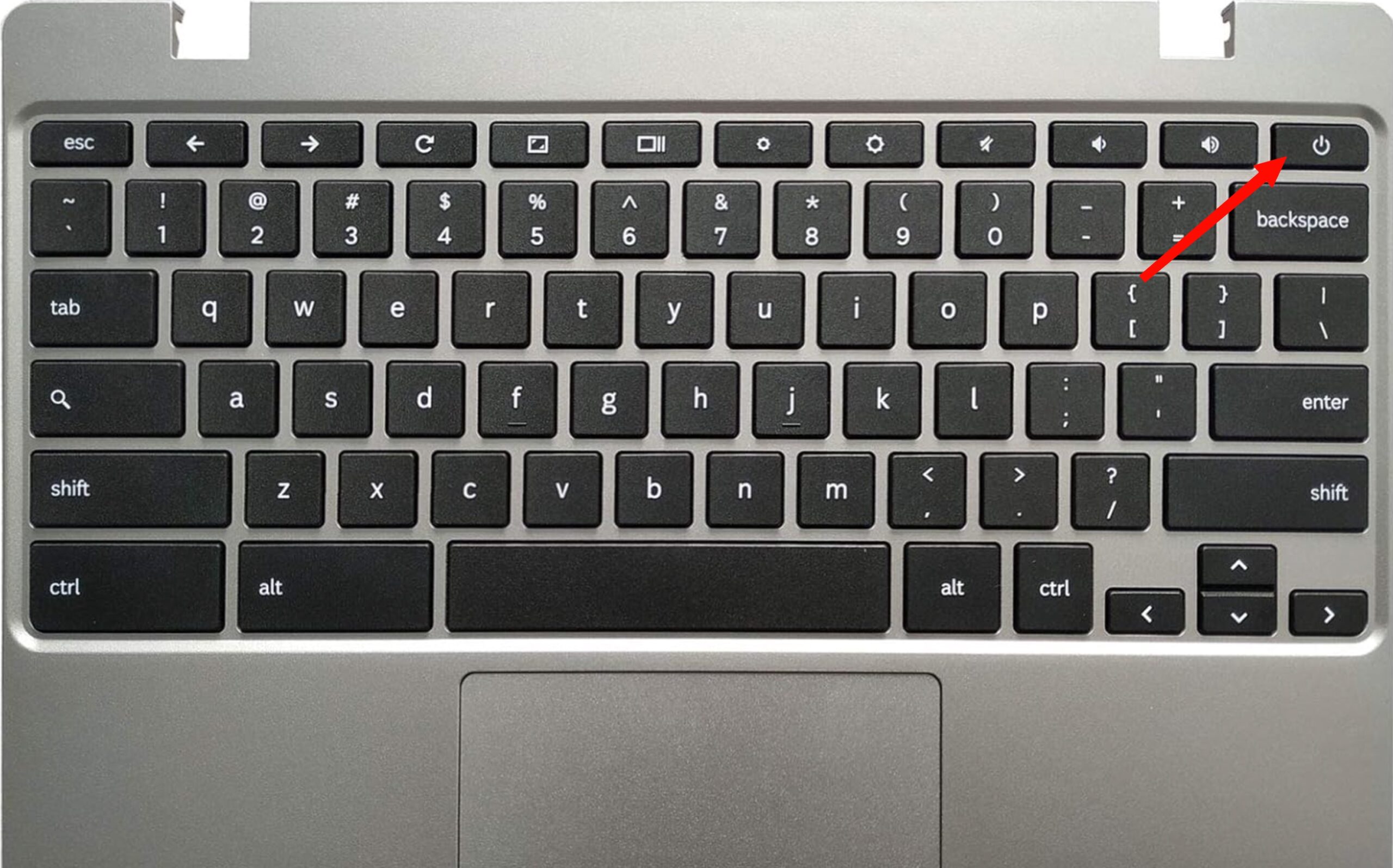
- Wait a few seconds
- Press the Power button again to turn it back on
Any unsaved work will be lost, but this step resolves most frozen Chromebook cases.
Disconnect External Devices
Faulty USB devices, external monitors, or hubs can cause ChromeOS to freeze during normal use.
- Unplug all external devices from your Chromebook
- Force restart the device
- Reconnect accessories one at a time after startup
If the Chromebook freezes again after reconnecting a specific device, that accessory is likely the cause.
Hard Reset Your Chromebook
A hard reset refreshes Chromebook hardware components without deleting personal data. This often fixes repeated freezing issues.
- Press and hold the Refresh key
- Tap the Power button once
- Release both buttons when the Chromebook restarts
This method helps with frozen touchpads, keyboard issues, and system hangs.
Wait For The Battery To Fully Drain
If your Chromebook will not shut down or restart at all, letting the battery drain completely can force a shutdown.
- Leave the Chromebook unplugged until it powers off
- Plug it in after shutdown
- Turn it back on normally
This is slow, but effective when no other shutdown method works.
Close Unresponsive Apps Or Tabs
If your Chromebook still responds, a single app or Chrome tab may be causing the freeze.
- Press Search + Esc to open Task Manager
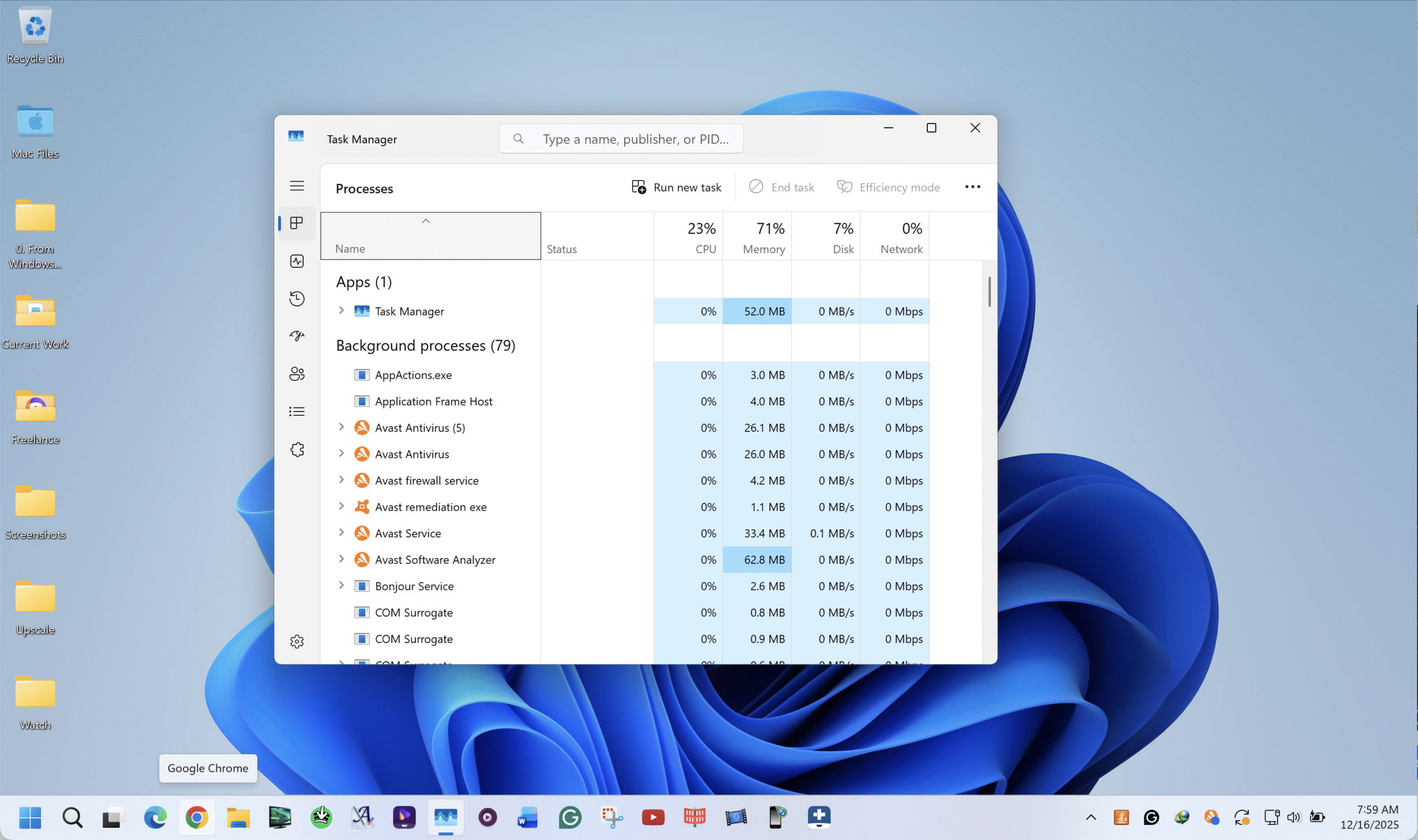
- Select the unresponsive app or tab
- Click End Process
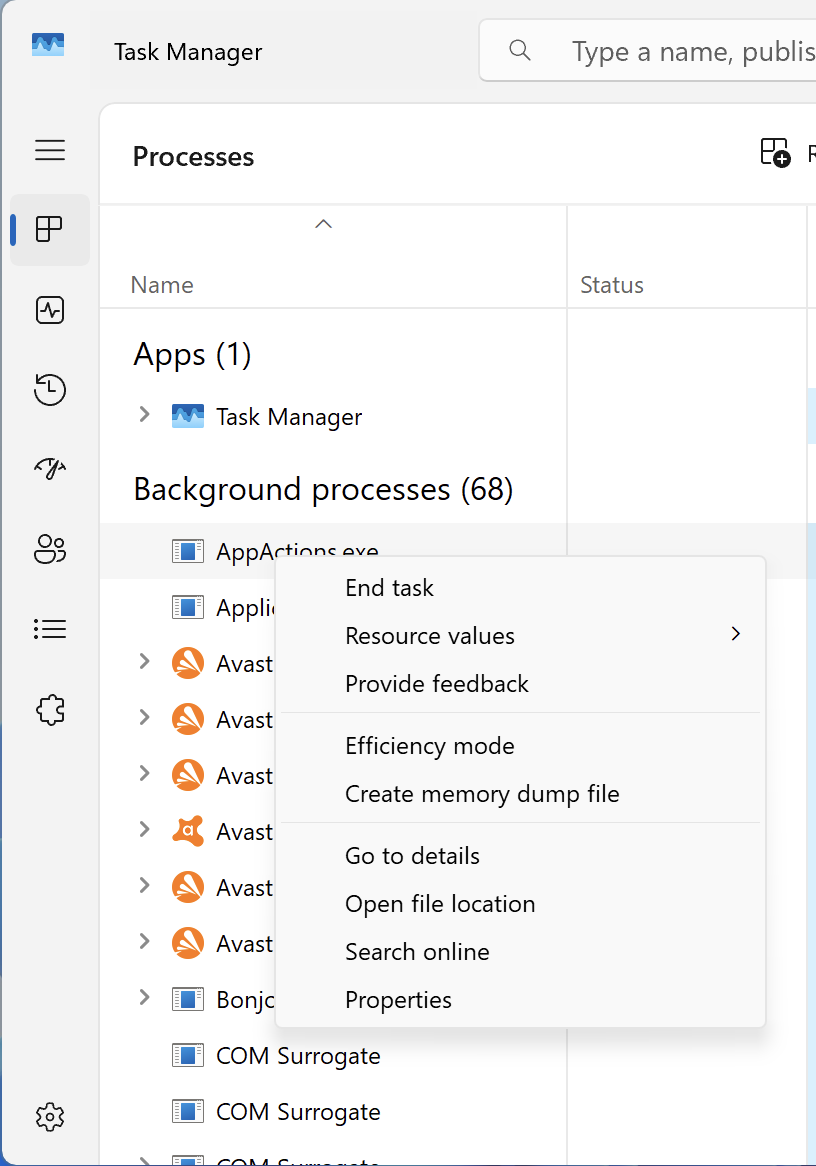
Closing memory-heavy tabs often restores performance immediately.
Disable Chrome Extensions
Problematic Chrome extensions are a common cause of Chromebook freezing and slowdowns.
- Open Chrome and click the three-dot menu
- Select Extensions
- Disable extensions one by one
Restart Chrome after disabling extensions to see which one caused the issue.
Free Up Chromebook Storage Space
Low storage can cause ChromeOS to freeze, especially during updates or multitasking.
- Open Settings
- Go to System and then Storage Management
- Delete unused files and uninstall apps you no longer need
Keep at least ten percent of storage free for stable performance.
Update ChromeOS
Outdated ChromeOS versions may include bugs that cause freezing or crashes.
- Open Settings
- Select About ChromeOS
- Install any available updates
- Restart when prompted
Updates often resolve freezing caused by known system issues.
Powerwash Your Chromebook
If none of the above steps work, a factory reset may be necessary. Powerwashing removes all local data and restores ChromeOS to default settings.
- Sign out of your Chromebook account
- Press Ctrl + Alt + Shift + R
- Select Powerwash and continue
Back up important files before performing a factory reset.
Troubleshooting Common Problems
If your Chromebook freezes only during video playback, extension conflicts or outdated graphics drivers may be responsible. Freezing during startup often points to ChromeOS update issues or storage shortages.
Repeated freezing after a Powerwash may indicate a hardware fault, such as failing memory or storage.
Tips
- Limit the number of Chrome tabs open at once
- Remove extensions you no longer use
- Restart your Chromebook weekly
- Keep ChromeOS updated at all times
FAQ
Why does my Chromebook keep freezing?
Most freezes are caused by low memory, too many tabs, buggy extensions, or outdated ChromeOS software.
Will a hard reset delete my files?
No, a hard reset only restarts hardware components and does not erase data.
Is Powerwash safe?
Yes, but it deletes all local files and settings. Back up your data first.
Can a Chromebook freeze due to hardware failure?
Yes. If freezing continues after reinstalling ChromeOS, hardware issues are possible.
Summary
- Force restart fixes most frozen Chromebook issues
- Chrome extensions and low storage commonly cause freezing
- Hard resets and updates resolve recurring problems
- Powerwash is the last software-based fix
Conclusion
A frozen Chromebook rarely means permanent damage. In most cases, a force restart, closing unresponsive apps, or disabling extensions restores normal performance. Keeping ChromeOS updated and storage free helps prevent future freezes and keeps your Chromebook running smoothly.


Discussion (0)
Be the first to comment.