



If your Chromebook keeps dropping Wi-Fi, the cause usually comes down to power saving, network switching, or router compatibility. The fixes below stop disconnects during sleep, idle time, and normal use on modern ChromeOS builds.
Table of contents
- Why Chromebooks keep disconnecting from Wi-Fi
- Quick checks before changing advanced settings
- Stop Wi-Fi drops caused by sleep and power settings
- Prevent Chromebook network switching issues
- Fix router settings that cause Chromebook Wi-Fi drops
- Advanced ChromeOS fixes for persistent Wi-Fi disconnects
- How to confirm your Chromebook Wi-Fi fix worked
- Tips to keep Chromebook Wi-Fi stable long term
- FAQs
- Summary
Why Chromebooks keep disconnecting from Wi-Fi
Understanding the cause saves time and helps you skip unnecessary changes. Most Chromebook Wi-Fi drops follow predictable patterns tied to ChromeOS behavior or router settings.
Aggressive power-saving and sleep behavior
ChromeOS reduces power usage by limiting background networking. This behavior often disables Wi-Fi when the lid closes or the device idles.
Network switching and signal handoff
Chromebooks often switch between saved networks or Wi-Fi bands. That switching can trigger brief but frequent disconnects.
Router compatibility and security settings
Some router features conflict with ChromeOS networking. Band steering and outdated encryption often cause instability.
Quick checks before changing advanced settings
Start here to rule out simple issues. These checks fix many Wi-Fi drops without deeper troubleshooting.
Restart the Chromebook and router
- Restart your Chromebook from the power menu.
- Unplug the router for 30 seconds, then power it back on.
This clears temporary network states that cause random disconnects.
Update ChromeOS to the latest version
- Open Settings.
- Select About ChromeOS.
- Select Check for updates.
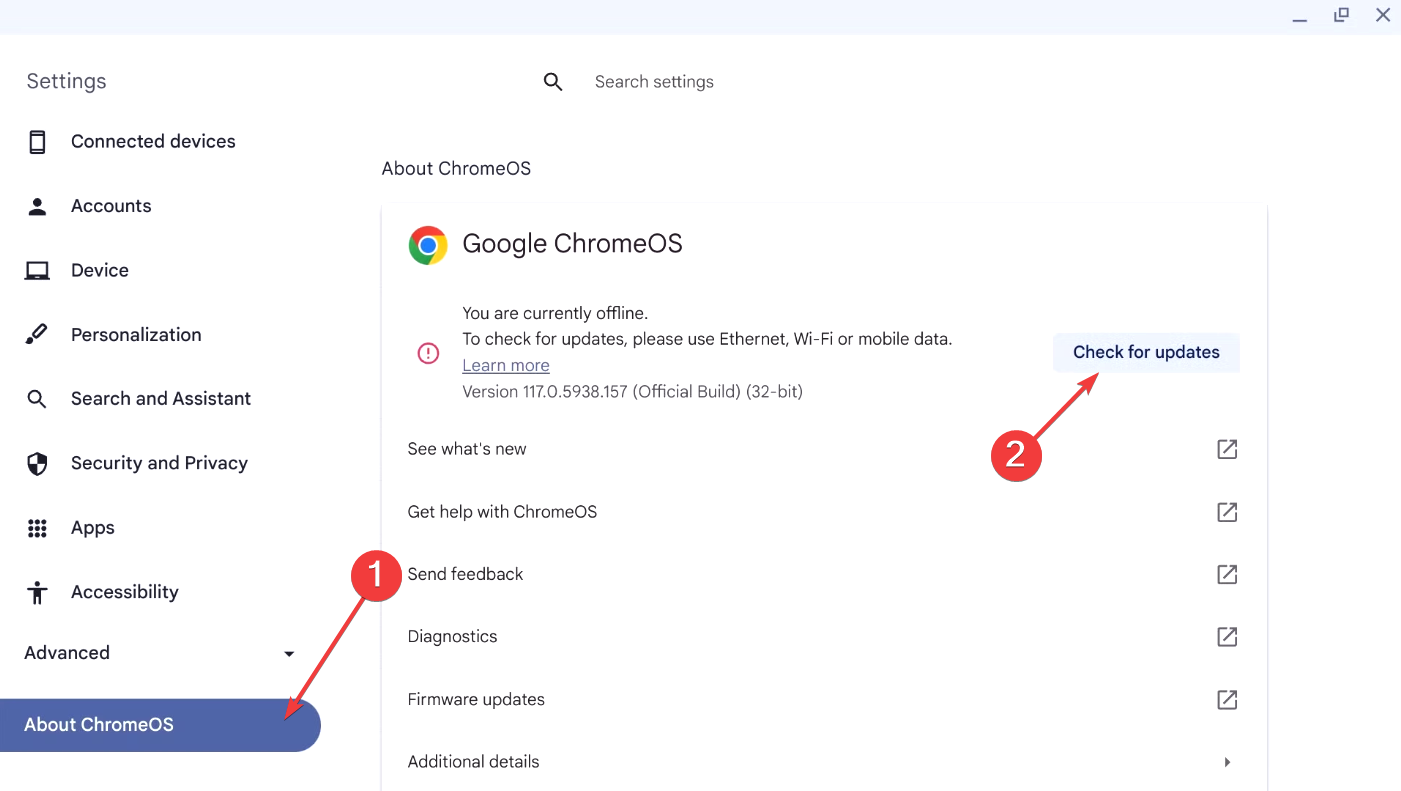

ChromeOS updates often include Wi-Fi stability fixes.
Stop Wi-Fi drops caused by sleep and power settings
Sleep behavior causes many Chromebook Wi-Fi problems. Adjusting these settings often improves stability right away.
Keep Wi-Fi active during sleep
- Open Settings.
- Select Device.
- Open Power.
- Turn off options that disable connectivity during sleep.
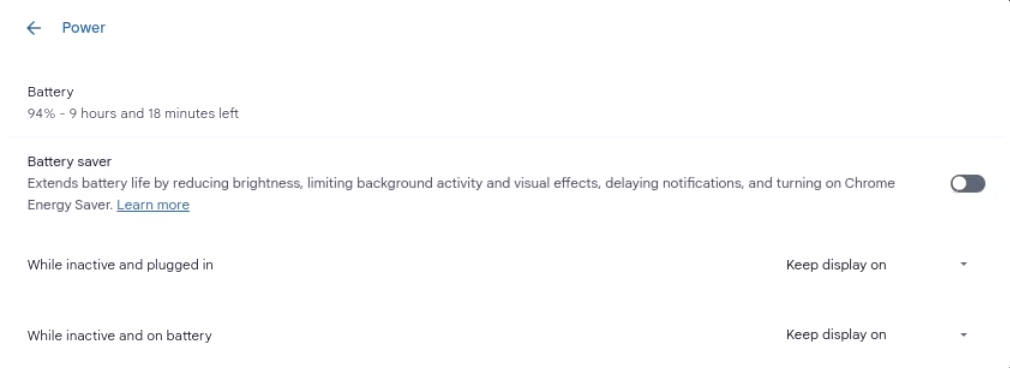

This helps Wi-Fi stay available after you close and open the lid.
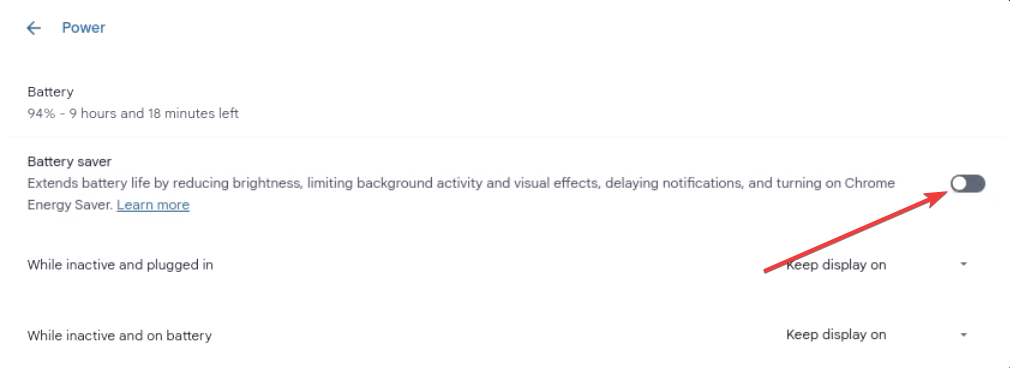
Disable battery saving features that affect networking
Battery saver modes can throttle background connections and trigger drops. Turn them off to prioritize stability over battery life.
Prevent Chromebook network switching issues
Reducing automatic switching helps your Chromebook stay connected to the strongest, most consistent signal.
Forget unused or weak Wi-Fi networks
- Open Settings.
- Select Network.
- Select Wi-Fi.
- Select a saved network you do not use, then choose Forget.
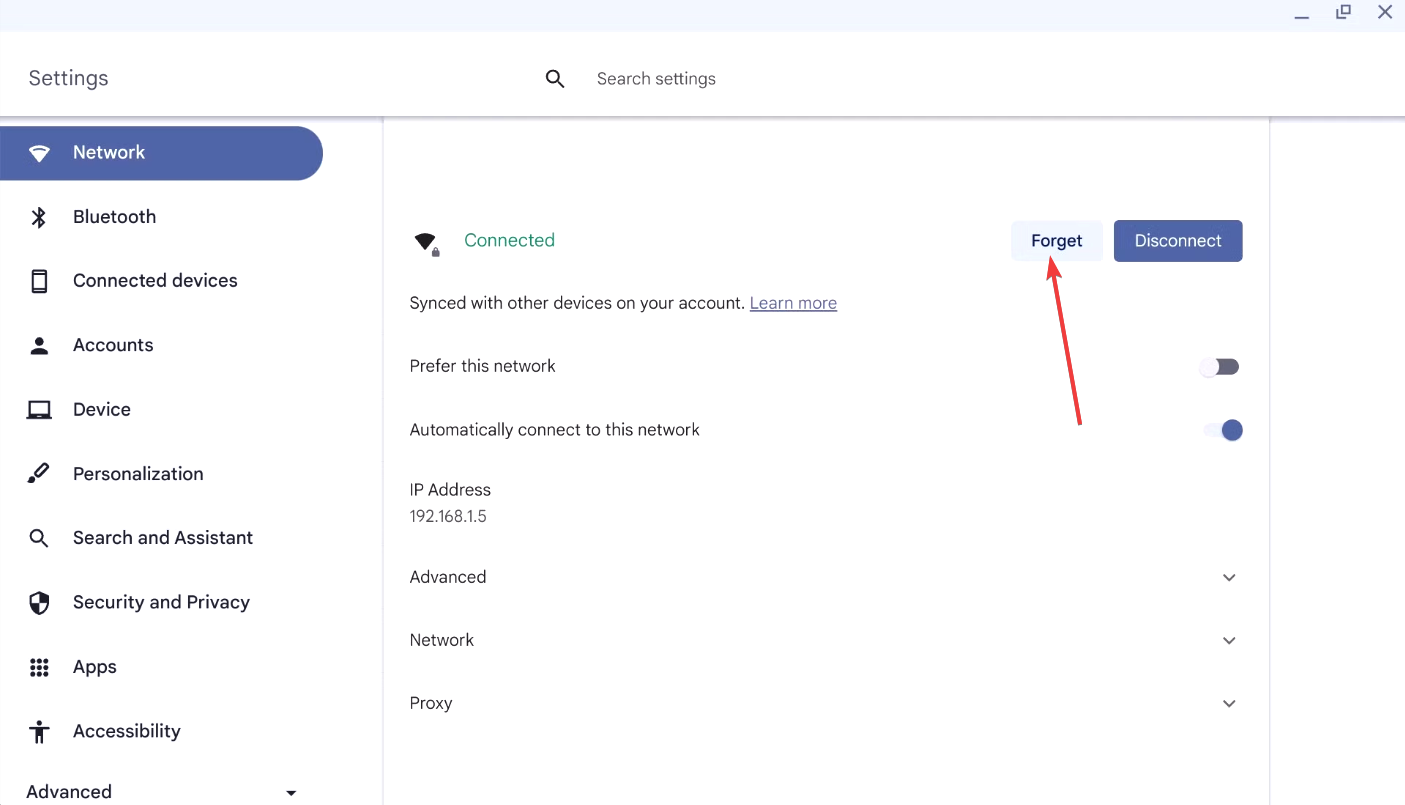

This prevents ChromeOS from jumping to weaker networks you saved in the past.
Lock the Chromebook to a single Wi-Fi band
Using either 2.4 GHz or 5 GHz consistently avoids band-hopping disconnects. If your router supports it, split bands into separate network names and connect to only one.
Fix router settings that cause Chromebook Wi-Fi drops
- Use a supported Wi-Fi security mode: Set your router to WPA2 or WPA3 with AES encryption. Avoid mixed legacy modes if your Chromebook disconnects often.
- Change Wi-Fi channels and disable band steering: Pick a less crowded channel to reduce interference. Turn off band steering if your Chromebook keeps bouncing between 2.4 GHz and 5 GHz.
Advanced ChromeOS fixes for persistent Wi-Fi disconnects
Use these steps when basic fixes do not stop the drops. They reset networking components and help you spot hardware problems.
Reset ChromeOS network settings
- Open Settings.
- Select Network.
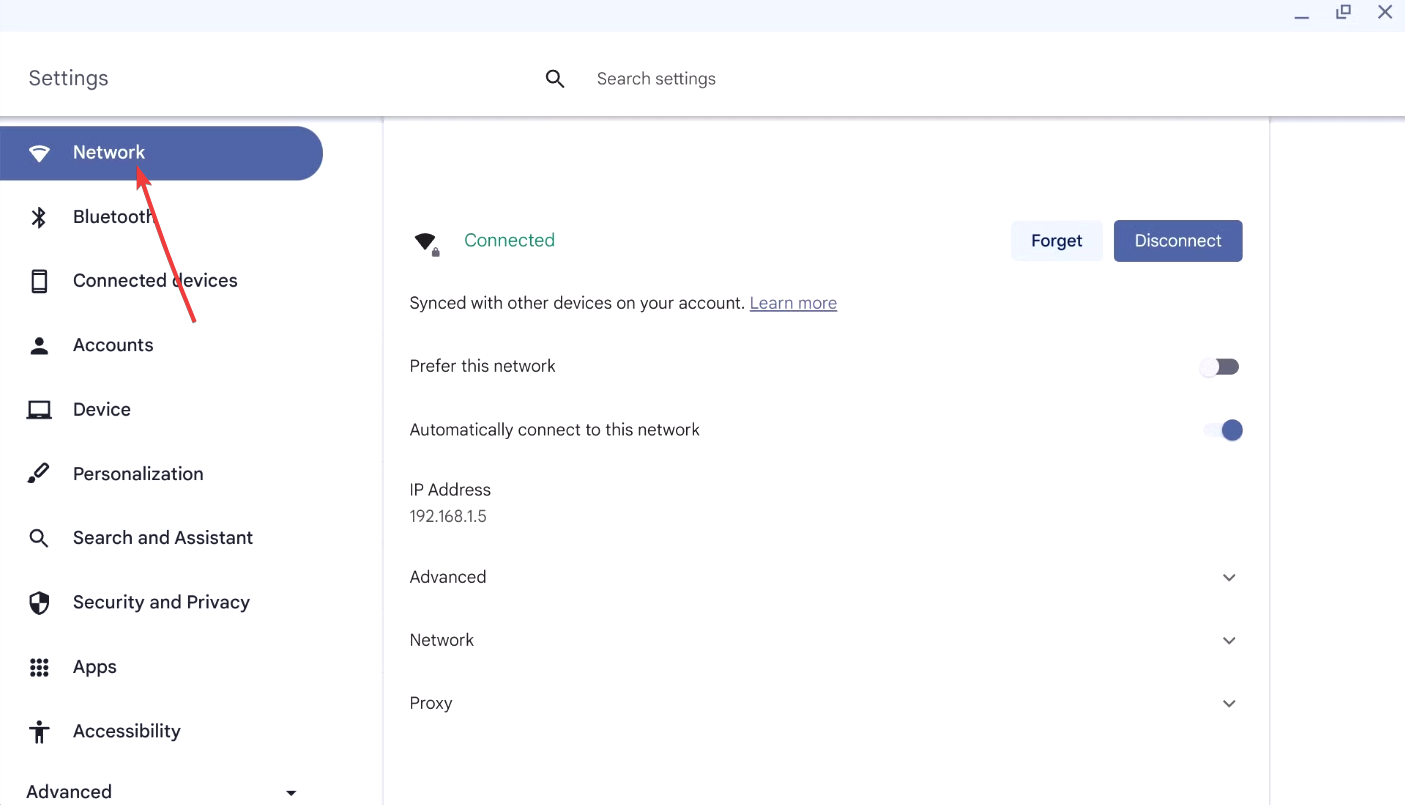
- Look for a Reset or Reset settings option for networking, then run it if available.
This removes corrupted network profiles and forces ChromeOS to rebuild your Wi-Fi configuration.
Check ChromeOS diagnostics and logs
Run the built-in diagnostics to check Wi-Fi health and stability. If you see repeated failures across different networks, your Wi-Fi hardware may be failing.
How to confirm your Chromebook Wi-Fi fix worked
Verification helps you confirm the cause and avoid repeat troubleshooting. Test the exact scenario that triggered the disconnects.
Test idle, sleep, and wake behavior
Close the lid for several minutes, then reopen it. Wi-Fi should reconnect quickly and stay stable.
Monitor connection uptime
Use your normal workload for a few hours and watch for drops. Consistent uptime signals you fixed the root cause.
Tips to keep Chromebook Wi-Fi stable long term
- Keep ChromeOS updated
- Remove old saved networks you no longer use
- Keep the router away from microwaves, thick walls, and metal surfaces
- Restart the router monthly
FAQs
Why does my Chromebook lose Wi-Fi only after sleep? ChromeOS may shut down networking during sleep to save power, which can trigger reconnect issues on wake.
Does ChromeOS handle Wi-Fi differently than Windows or macOS? Yes. ChromeOS prioritizes power efficiency and fast network switching, which can reduce stability on some routers.
Can a Chromebook have faulty Wi-Fi hardware? Yes. If your Chromebook drops Wi-Fi on multiple networks after these fixes, suspect the Wi-Fi adapter.
Should I reset my router or replace it? Reset it first. Replace it only if multiple devices still disconnect after you apply security and channel fixes.
Summary
- Identify whether power saving, network switching, or router settings cause the issue.
- Adjust ChromeOS sleep, Wi-Fi, and saved network behavior.
- Optimize router security, channels, and band usage.
- Confirm stability with sleep testing and uptime monitoring.
Once Wi-Fi stays stable through sleep and idle time, you can stop troubleshooting. If drops continue after every fix, treat it as a likely hardware issue and consider repair or replacement.


Discussion (0)
Be the first to comment.