




Downloading videos for offline viewing can help when you want to save tutorials, public-domain clips, or your own uploads from various platforms. Google Chrome gives you several legal ways to save videos, but the right method depends on how the website delivers the file. Many websites block direct downloads, so this guide focuses on safe, browser-friendly methods that still work at the time of writing. After understanding how Chrome handles media, you can use extensions, online tools, and built-in browser features to quickly save compatible videos.
Keep in mind that this guide covers legal downloading only. Chrome cannot bypass DRM or site protections, so the methods here apply to videos you own or content that is allowed for download. With those limits in place, you can still download many MP4 files, embedded videos, and personal uploads using a set of reliable Chrome-friendly tools.
Use A Chrome Video Downloader Extension
Chrome video downloader extensions remain the most convenient online downloader options for saving compatible videos from open websites. They work best on direct MP4 files, news sites, and platforms that do not block extension access. The right extension adds a download button directly inside Chrome, making it simple to save videos without copying links.
- Open the Chrome Web Store and search for a video downloader extension.
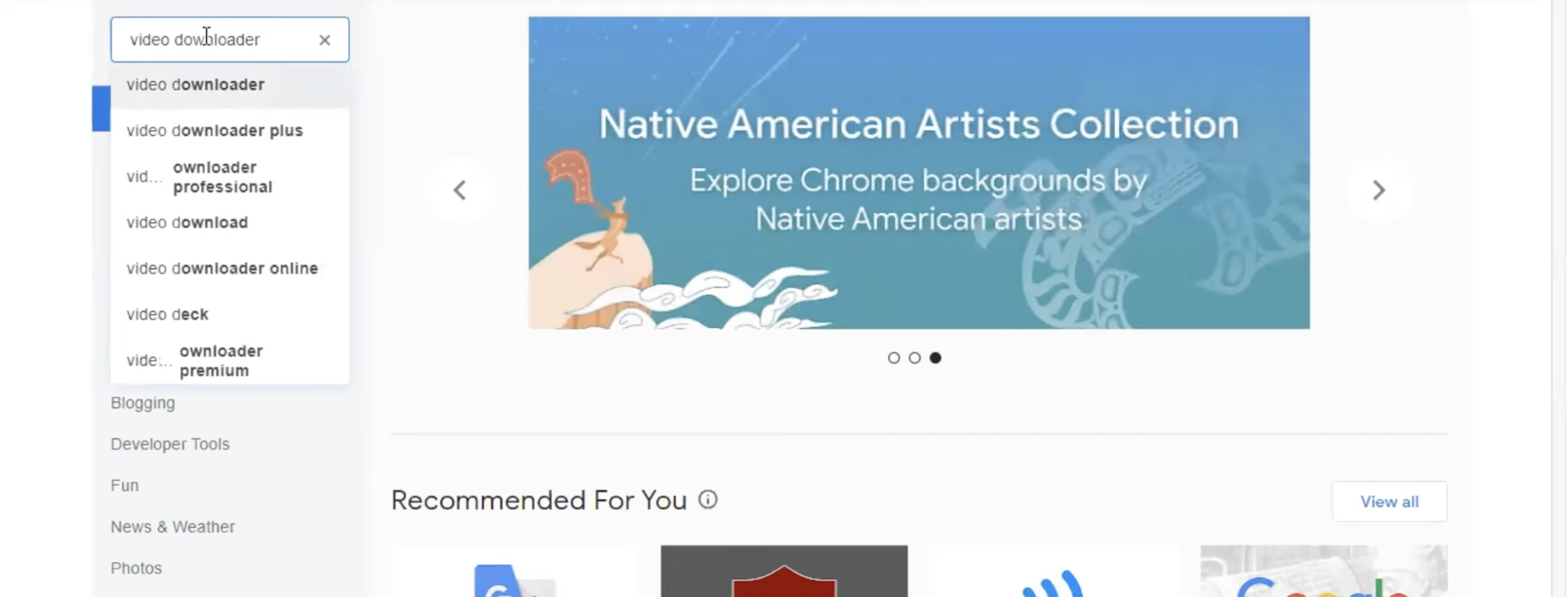
- Choose an extension with strong reviews and active updates.
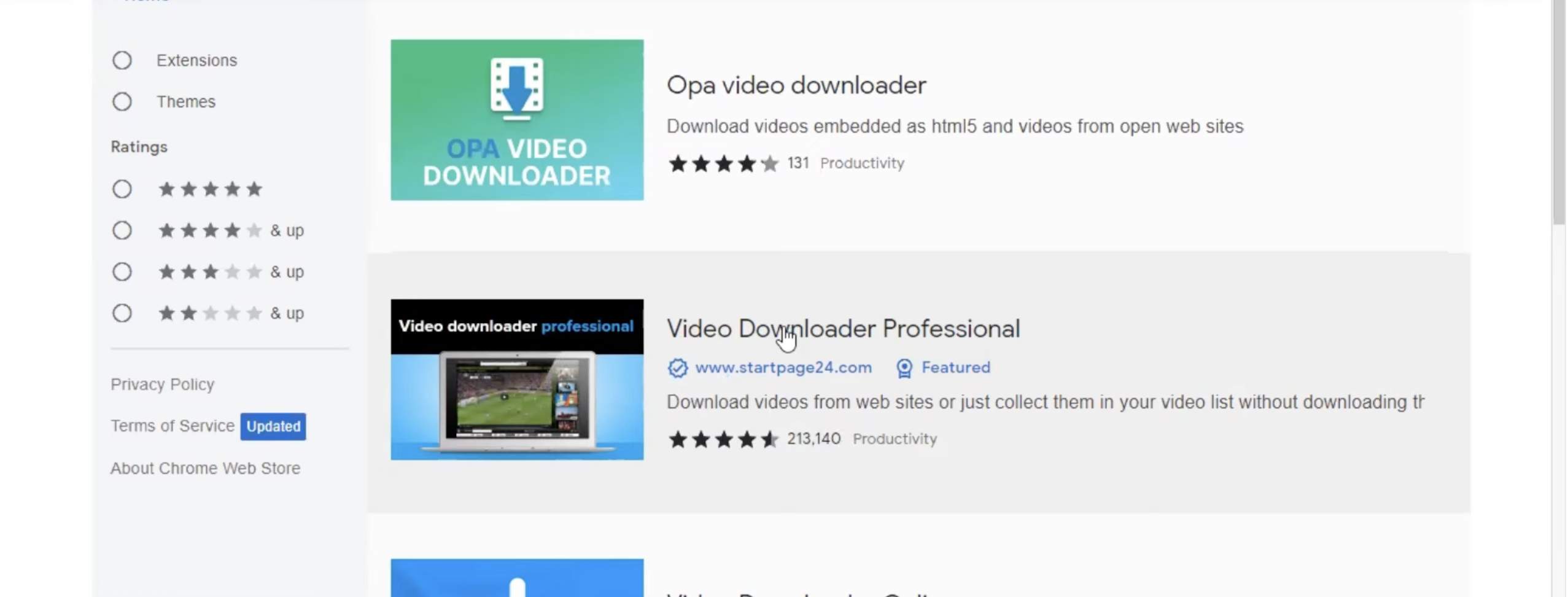
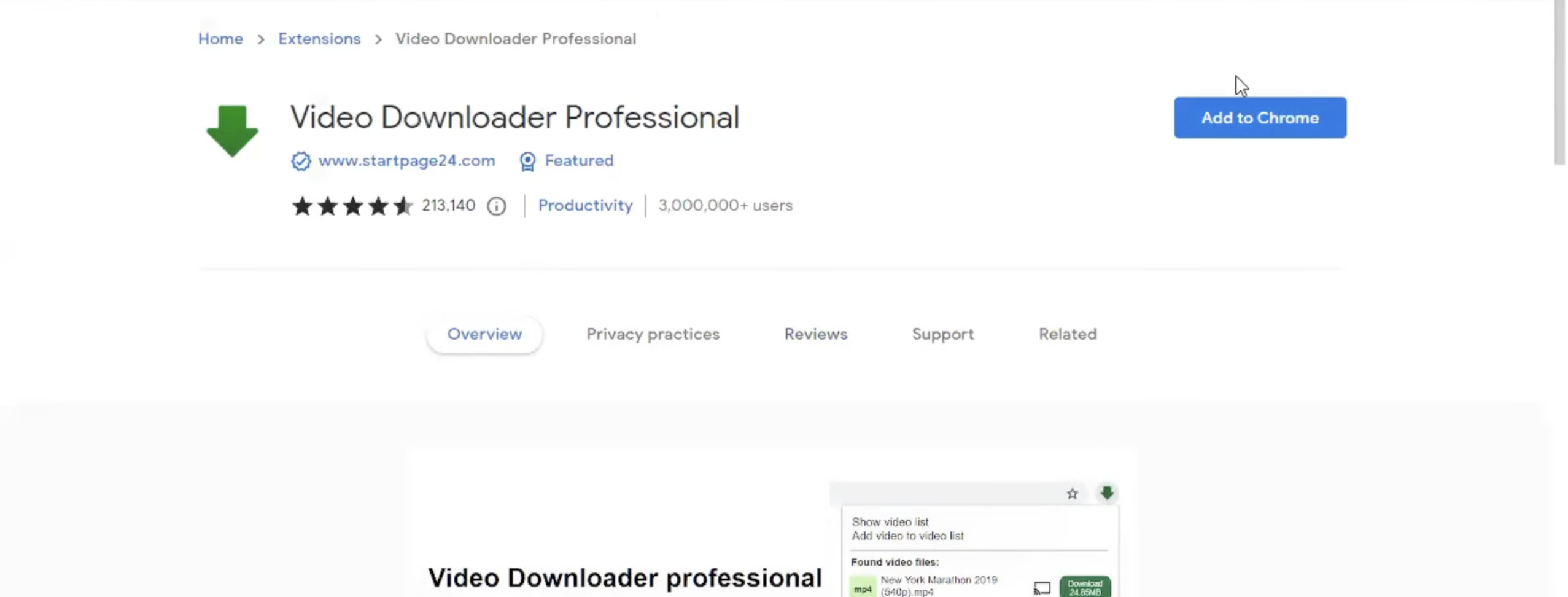
- Add the extension to Chrome and allow the necessary permissions.
- Visit the website hosting the video you want to save.
- Play the video so the extension can detect it.
- Click the extension icon and select your preferred video quality.
- Download the file and check your Chrome downloads folder.
This method works well for many sites, but not for services with strict streaming protections. If an extension cannot detect the video, move on to the next method.
Use An Online Video Downloader
Online video downloaders let you save videos without installing anything in Chrome. These tools work best for public-domain content, direct video URLs, social media clips, and website-hosted MP4s. They are useful when an extension fails or when you prefer a quicker copy-paste workflow.
- Copy the URL of the page containing the video.
- Paste the link into a trusted online downloader.
- Select the video format and resolution.
- Download the processed file when the link appears.
- Save the MP4 to your device.
Online tools change frequently, so always choose a reputable site to avoid security risks. Do not use unsafe services that request extra downloads or browser notifications.
Use Chrome’s Built-In Developer Tools
Chrome DevTools can help you locate a direct MP4 file when a website streams video through a simple link. This technique works well on training sites, small blogs, and platforms that serve media without complex protections. You can then download the raw file directly from the browser.
- Open the page hosting the video.
- Right-click anywhere and select Inspect to open Chrome DevTools.
- Go to the Network tab and play the video.
- Filter the Network results for “media,” “video,” or “mp4.”
- Look for a direct MP4 file request as the video plays.
- Right-click the file and choose Open In New Tab.
- Download the MP4 from the new tab.
This method requires a clear file source, so it may not work on platforms that rely on DRM or segmented streaming formats.
Download Your Own Videos From YouTube
YouTube restricts downloads for copyrighted content, but you can legally download your own uploaded videos through YouTube Studio. This gives you a clean MP4 copy without relying on external tools or unsafe downloaders.
- Open YouTube Studio in Chrome.
- Go to the Content section.
- Find your uploaded video and click the options menu.
- Select Download to save the MP4 file.
This is the only YouTube-approved method to save videos and meets Google’s copyright and usage guidelines.
Save Videos Using Built-In Download Buttons
Some websites offer a native download button for MP4 versions of the video. This is the most reliable, safe, and stable method since the website explicitly allows downloading. These buttons usually appear on educational sites, newsrooms, company portals, training platforms, and public-domain video libraries.
- Look for a Download, Save, or Export button below or near the video.
- Select the video quality you prefer, if available.
- Download the file directly to your device.
Native downloads are always the recommended choice when available because they avoid compatibility issues and respect the site’s usage policies.
Troubleshooting Common Problems
- The video downloader extension does not detect the file: Reload the page, play the full video, or try another extension.
- The online downloader shows an error: Try a fresh link, remove tracking parameters, or switch to a different tool.
- Chrome DevTools does not show an MP4 file: The site may use DRM, segmented video, or advanced streaming formats.
- The downloaded video has no audio: Some sites separate audio and video streams; try a different method.
- The download is extremely slow: Check your internet speed, disable VPNs, or retry during off-peak hours.
Tips
- Use reputable Chrome extensions with frequent updates.
- Avoid websites that force extra downloads or installers.
- Keep Chrome updated to avoid compatibility issues.
- Use DevTools when extensions fail to detect the video.
- Save only videos that are allowed for download to avoid copyright issues.
FAQ
- Can Chrome download any video from any website? No. Chrome cannot download DRM-protected or restricted streaming videos.
- Are Chrome video downloader extensions safe? Yes, if you choose reputable extensions with verified developers.
- Can I download YouTube videos in Chrome? You can only download videos you personally uploaded using YouTube Studio.
- Why does an online downloader say the link is unsupported? Some sites block video extraction methods or use encrypted streaming formats.
Summary
- Chrome allows several safe ways to download compatible videos.
- Extensions help detect and download many open-format videos.
- Online downloaders support public-domain and direct-link content.
- DevTools can reveal MP4 sources when available.
- YouTube videos can only be downloaded if you uploaded them yourself.
Downloading videos from websites in Google Chrome is straightforward when the site uses open formats or allows saving media files. Extensions, online tools, DevTools, and built-in download buttons cover most valid scenarios, and each method works best for different types of content. Always download videos responsibly and avoid platforms that use DRM or restrict copying. With the right tools and approaches, Chrome remains one of the most flexible browsers for saving videos you are legally allowed to download.


Discussion (0)
Be the first to comment.