



Chrome flags unlock experimental features that can speed up Chrome, improve multitasking, and add ChromeOS extras that do not show up in standard settings. Because these features can change or disappear after updates, treat them like toggles you test one at a time, not permanent “set and forget” upgrades.
If a flag causes glitches, set it back to Default and relaunch. If you cannot remember what you changed, you can reset all flags in one click.
How To Enable Or Disable Chrome Flags On A Chromebook
- Open Chrome.
- Type chrome://flags in the address bar, then press Enter.
- Use the search box to find a flag by name (example: parallel downloading).
- Open the drop-down menu and choose Enabled, Disabled, or Default.
- Select Relaunch to restart Chrome and apply the change.
Boost Performance And Speed
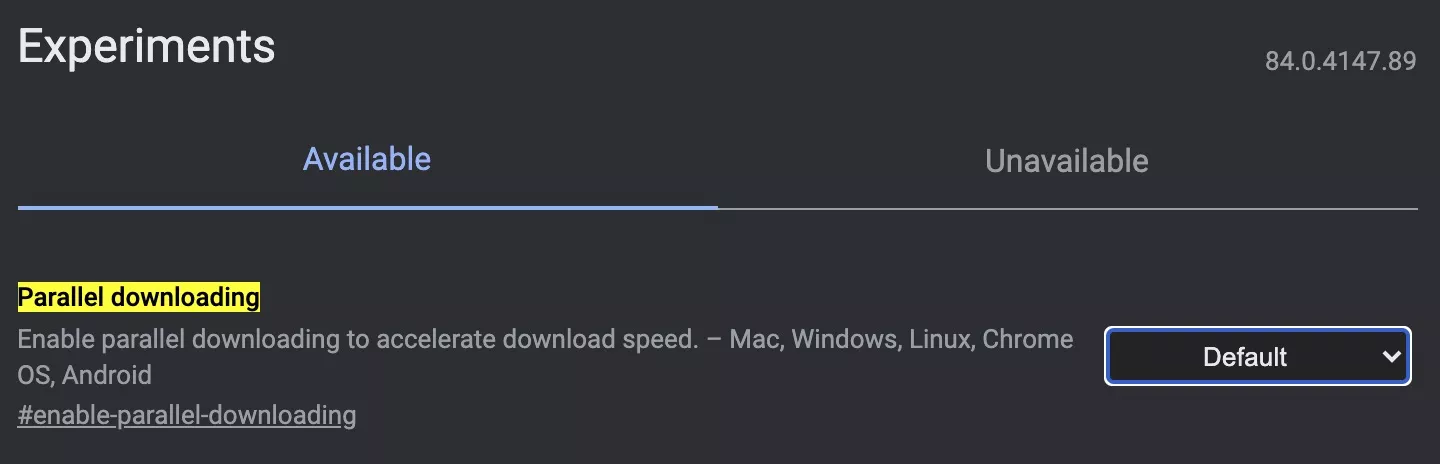
Parallel Downloading
If you download big files often, this flag can speed things up by splitting downloads into multiple connections. You will notice the biggest gains on fast connections and on servers that support it.
- Open chrome://flags.
- Search Parallel downloading.
- Set it to Enabled, then select Relaunch.
GPU Rasterization
This flag pushes some page rendering work to your GPU, which can make modern, heavy sites feel smoother. Older Chromebooks may see smaller gains, so test it with your usual tabs.
- Open chrome://flags.
- Search GPU rasterization.
- Set it to Enabled, then select Relaunch.
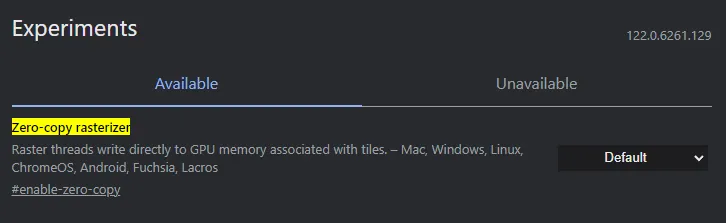
Zero-Copy Rasterizer
This flag aims to reduce copy overhead during rendering, which can improve responsiveness and efficiency. It pairs well with GPU Rasterization when your Chromebook stays stable.
- Open chrome://flags.
- Search Zero-copy rasterizer.
- Set it to Enabled, then select Relaunch.
Override Software Rendering List
This flag forces GPU acceleration on devices Chrome normally restricts. It can improve performance, but it can also trigger visual glitches, so flip it back if you see artifacts or crashes.
- Open chrome://flags.
- Search Override software rendering list (or GPU blocklist).
- Set it to Enabled, then select Relaunch.
Back-Forward Cache
This feature can make Back and Forward navigation feel instant by keeping page state in memory. If your Chromebook has limited RAM, you may prefer leaving it at Default.
- Open chrome://flags.
- Search Back-forward cache.
- Set it to Enabled, then select Relaunch.
Experimental QUIC Protocol
QUIC can reduce connection setup time on supported networks and sites, which may improve perceived speed. If you hit unusual site loading issues, switch it back to Default.
- Open chrome://flags.
- Search QUIC.
- Set it to Enabled, then select Relaunch.

Make Browsing And Multitasking Better
Force Dark Mode For Web Contents
This flag forces a dark theme on sites that do not offer one. Some pages may look odd, so treat it as a comfort feature, not a perfect visual fix.
- Open chrome://flags.
- Search Force Dark Mode for Web Contents.
- Set it to Enabled, then select Relaunch.
Smooth Scrolling
This flag can reduce choppy scrolling on long pages and busy feeds. If you prefer a “snappier” feel, switch it back to Default.
- Open chrome://flags.
- Search Smooth Scrolling.
- Set it to Enabled, then select Relaunch.

Scrollable Tabstrip
If you keep dozens of tabs open, this can make tab navigation less cramped. Chrome may change how this flag behaves over time, so consider it a “try and see” feature.
- Open chrome://flags.
- Search Scrollable Tabstrip.
- Set it to Enabled, then select Relaunch.
Touch UI Layout For ChromeOS
This flag can make buttons and spacing more touch-friendly on 2-in-1 Chromebooks. If Chrome starts feeling oversized on a mouse-and-keyboard setup, revert it.
- Open chrome://flags.
- Search Touch UI Layout.
- Set it to Enabled, then select Relaunch.

Desktop PWA Sub Apps
This helps some Progressive Web Apps behave more like “real” apps with separate entry points. It can make web-based workspaces feel cleaner on ChromeOS.
- Open chrome://flags.
- Search Desktop PWA Sub Apps.
- Set it to Enabled, then select Relaunch.
Add Useful ChromeOS Extras
Files Trash
If your Files app still lacks a reliable Trash experience, this flag can help reduce “oops” deletions. After you enable it, check the Files app sidebar for Trash.
- Open chrome://flags.
- Search Trash or Files Trash.
- Enable the Trash-related flag you see, then select Relaunch.
Keyboard Backlight Controls In Settings
Some Chromebooks let you manage keyboard backlighting through Settings when this feature appears. If your device does not support a backlit keyboard, you will not gain anything from enabling related flags.
- Open chrome://flags.
- Search Keyboard backlight.
- Set the related flag to Enabled, then select Relaunch.
Virtual Keyboard With A Physical Keyboard Connected
This helps when you use a touchscreen Chromebook but still want the on-screen keyboard available. It can also help with accessibility and kiosk-style workflows.
- Open chrome://flags.
- Search Virtual Keyboard.
- Set it to Enabled, then select Relaunch.
Mouse Keys
This feature lets you control the pointer using your keyboard, which can help when a touchpad acts up. It works best as a backup, not as a daily driver.
- Open chrome://flags.
- Search Mouse Keys.
- Set it to Enabled, then select Relaunch.
Disable Trackpad
If you dock your Chromebook with an external mouse, disabling the trackpad can prevent accidental cursor jumps. You will usually find the toggle later under Settings and Accessibility.
- Open chrome://flags.
- Search Disable Trackpad.
- Set it to Enabled, then select Relaunch.
Privacy and Security Flags Worth Testing
MAC Address Randomization
This helps reduce tracking risk on public Wi-Fi by randomizing your MAC address on unmanaged networks. Enterprise-managed Chromebooks may limit how this behaves.
- Open chrome://flags.
- Search MAC address randomization.
- Enable the related flag, then select Relaunch.
Password Manual Fallback
If Chrome autofill misses a login field, this can expose a manual “force autofill” style option. It can save time when password managers behave inconsistently on certain sites.
- Open chrome://flags.
- Search Password Manual Fallback.
- Set it to Enabled, then select Relaunch.
Optional: Built-In AI Flags You Might See
Prompt API For Gemini Nano
On some Chrome versions and channels, Chrome exposes built-in AI developer features behind flags, including Gemini Nano-related toggles. Availability varies, so do not worry if your Chromebook does not show these yet.
- Open chrome://flags.
- Search Gemini Nano or Prompt API.
- Enable the Gemini Nano-related flag you see, then select Relaunch.
Optimization Guide On-Device Model
This can appear alongside other on-device AI toggles and can support features that run locally. Chrome may require downloads in the background after you enable it.
- Open chrome://flags.
- Search Optimization Guide On-Device Model.
- Set it to Enabled, then select Relaunch.
Troubleshooting Common Problems
If Chrome feels unstable after you enable a flag, you can usually undo the change in under a minute. Start with the last flag you changed, then work backward.
- Open chrome://flags and set the last changed flag back to Default.
- Select Relaunch, then test the same site or task again.
- If you cannot pinpoint the cause, select Reset all at the top of the flags page, then relaunch.
- If the issue persists, open Chrome Settings and search Reset settings, then run the reset option.
- If a ChromeOS-only feature does not appear after enabling a flag, restart the Chromebook (not just Chrome).
Tips
- Change one flag at a time, then test your usual workflow for a few minutes.
- Write down the flags you touched so you can roll back fast.
- Prefer Default over Disabled when you simply want to undo a test.
- Skip “force GPU” flags on older Chromebooks if you see flickering or random tab crashes.
- Restart the Chromebook after ChromeOS feature flags if you do not see new toggles right away.
FAQ
Can I enable multiple Chrome flags at the same time?
You can, but you will troubleshoot faster if you enable one, relaunch, and test before you change another.
What is the safest way to undo a Chrome flag change?
Set the flag back to Default and relaunch. If you changed several flags, use Reset all on the flags page.
Why do some flags not show up on my Chromebook?
Chrome controls flag availability by device, Chrome version, and channel. Some flags only appear on Canary or Dev builds.
Will Chrome flags permanently speed up my Chromebook?
Some flags help specific workloads, but Chrome can remove or replace them at any time. Treat them as experiments you re-check after major updates.
Summary
- Open chrome://flags and enable one feature at a time.
- Start with performance wins like Parallel Downloading and Back-Forward Cache.
- Add comfort and productivity flags like Force Dark Mode and Smooth Scrolling.
- Use Reset all if Chrome gets unstable after testing.
Conclusion
Chrome flags can make a Chromebook feel faster and more personal when you pick the right experiments for your habits. Stick to small changes, keep notes, and roll back quickly when a flag causes instability.


Discussion (0)
Be the first to comment.