




If you are thinking about buying a Chromebook or already use one at work or school, you might wonder what operating system actually runs on it. Unlike most laptops that rely on Windows or macOS, Chromebooks use a different system called ChromeOS, designed by Google for speed, security, and cloud-based work.
Understanding what operating system a Chromebook uses helps you decide if it fits your workflow, which apps you can run, and what to expect from performance and storage. This guide explains what ChromeOS is, how it compares to Windows and macOS, and who it works best for, with simple examples and clear language.
What Is ChromeOS On A Chromebook?
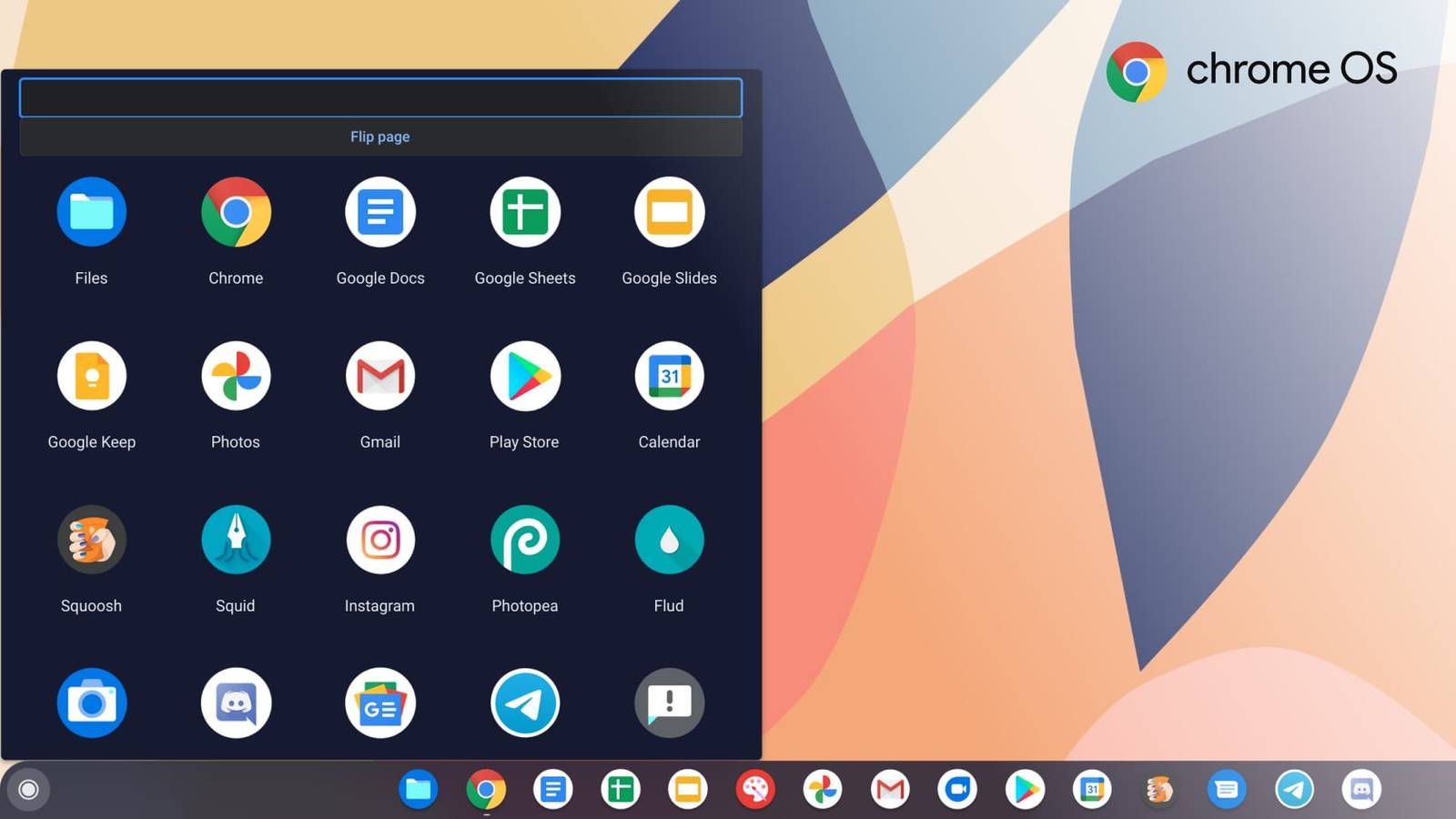
The short answer to what operating system does a Chromebook use is ChromeOS. ChromeOS is a lightweight operating system built by Google on top of the Linux kernel, optimized for the Chrome browser, web apps, and cloud storage instead of traditional desktop programs.
On a Chromebook, ChromeOS keeps most of your files and apps online, so the system can start quickly, update quietly in the background, and stay responsive even on modest hardware. You still get a desktop, a taskbar-style shelf, and a file manager, but the experience centers around the Chrome browser and web-based tools.
Because ChromeOS is cloud-first, a Chromebook works best when you stay connected, but it also supports offline work in many apps, including documents, email drafts, and media playback.
Core ChromeOS Features On Chromebooks
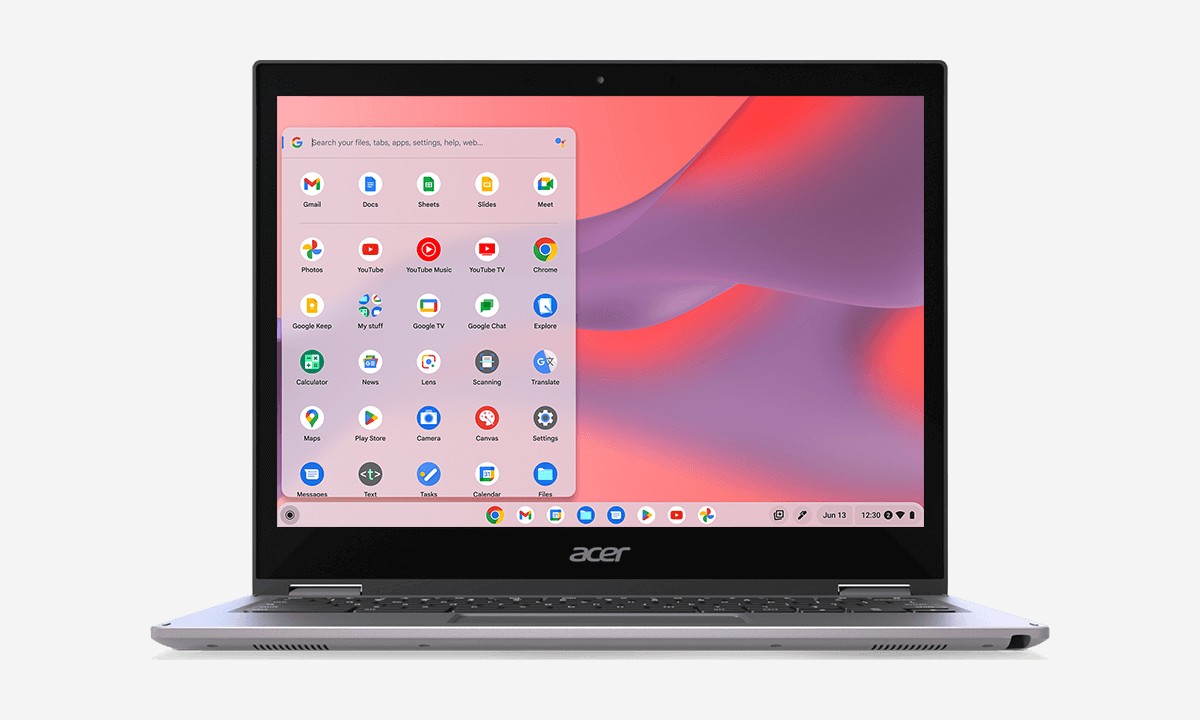
ChromeOS focuses on simplicity and security, which makes Chromebooks popular in schools, small businesses, and for personal use. Here are some of the key features you can expect from the Chromebook operating system.
- Fast Boot And Wake: Most Chromebooks start in seconds and wake almost instantly, so you can open the lid and get to work without long loading screens.
- Automatic Updates: ChromeOS downloads and installs system updates in the background, then switches to the new version after a reboot with minimal downtime.
- Built-in Security: Sandboxing, verified boot, and secure user profiles help protect against malware and tampering without extra antivirus tools.
- Cloud Storage Integration: ChromeOS tightly integrates with cloud storage, so your documents, photos, and downloads stay synced across devices when you sign in.
- Multiple User Profiles: Each person can sign in with their own account, keeping apps, settings, and files separate and secure.
For everyday browsing, streaming, email, and web apps, ChromeOS keeps the experience clean and low-maintenance while still offering powerful features for more advanced users.
ChromeOS Vs Windows and macOS
When you compare ChromeOS vs Windows and macOS, the biggest difference is how much each system depends on locally installed software. Windows and macOS still focus heavily on classic desktop apps, while ChromeOS leans toward web apps, Android apps, and cloud services.
- App Model: Windows and macOS run traditional desktop programs and games, while ChromeOS emphasizes browser-based tools and Play Store apps.
- Hardware Needs: ChromeOS runs well on lightweight hardware, so many Chromebooks cost less and still feel fast for web tasks.
- Maintenance: ChromeOS requires less manual maintenance because updates and security patches apply automatically with minimal user action.
- File Management: Windows and macOS encourage large local file libraries, while the Chrome OS encourages cloud-first storage.
If you rely on heavy desktop software, complex video editing, or niche Windows tools, a Chromebook might not replace your main machine. If your work happens mostly in a browser, ChromeOS can feel faster and simpler than traditional systems.
Android Apps On ChromeOS
Modern Chromebooks can run many Android apps from the Google Play Store, which makes ChromeOS more flexible than it used to be. This means you can install mobile versions of productivity apps, streaming services, note-taking tools, office suites, and casual games.
- Touch And Tablet Modes: On 2-in-1 Chromebooks with touchscreens, Android apps act like tablet apps and respond well to taps and gestures.
- Keyboard and Trackpad: Even on non-touch models, most Android apps still work with the keyboard and trackpad, which is helpful for typing-intensive apps.
- Offline Use: Many Android apps can store data locally, so you can keep working or playing without a constant internet connection.
This Android app support gives ChromeOS users a larger software library and helps cover gaps where a pure web app might not exist yet.
Linux Apps On Chromebooks
On many newer models, the Chromebook operating system also supports Linux apps in a container, sometimes called Linux (Beta) or the Linux development environment. This feature matters more for advanced users, developers, and tinkerers.
- Developer Tools: You can install Linux IDEs, compilers, and command-line utilities to write and test code directly on a Chromebook.
- Specialized Software: Some open source photo editors, database tools, and utilities run better as native Linux apps than as web apps.
- Is ChromeOS Linux?ChromeOS uses the Linux kernel underneath, but runs a custom Google interface. The Linux container adds a more traditional Linux environment on top.
Linux support turns ChromeOS into a more capable platform for side projects, coding, and technical workflows without losing its simple main interface.
How To Check Your ChromeOS Version
If you already use a Chromebook and want to know more about the exact ChromeOS version installed, you can check it in a few clicks. This helps when you troubleshoot issues or confirm that your device still receives updates.
- Click the Status Area (clock and Wi Fi) in the bottom right corner of your Chromebook.
- Select Settings from the panel that opens.
- Scroll down and click About ChromeOS on the left side or at the bottom of the page.
- Read the version number listed next to ChromeOS, along with the channel and update status.
- Click Check For Updates if you want to make sure your Chromebook uses the latest operating system version.
This small check tells you how current your Chromebook OS is and whether an update might fix any problems you notice.
Who Should Use A Chromebook With ChromeOS?
Now that you know what operating system a Chromebook uses, it helps to understand who ChromeOS suits best. Because it stays light, secure, and centered on the browser, ChromeOS fits some use cases perfectly and others less well.
- Students and Classrooms: Easy sign-in, strong security, and low cost make Chromebooks popular in schools and colleges.
- Remote and Hybrid Workers: If your job happens mostly in web tools and cloud services, a Chromebook operating system can be a low-friction option.
- Home and Casual Users: For browsing, streaming, email, and light document work, ChromeOS often feels faster and simpler than heavier systems.
- Developers and Power Users: With Android and Linux app support, advanced users can turn a Chromebook into a flexible secondary machine for coding and testing.
If you depend on high-end video editing, advanced 3D software, or certain Windows-only tools, ChromeOS works better as a companion device than as your only computer.
Troubleshooting Common Chromebook OS Problems
Even though ChromeOS stays simple, you can still run into issues like slow performance, network problems, or app glitches. Most common problems resolve quickly with a few basic checks.
Chromebook Feels Slow Or Unresponsive
- Close extra tabs or Android apps you are not using to free up memory.
- Restart the Chromebook to clear temporary files and reset background processes.
- Update ChromeOS from Settings > About ChromeOS > Check For Updates to fix bugs and improve performance.
Apps Will Not Install Or Open
- Confirm you are signed in with a Google account that has permission to install apps.
- Check that the Google Play Store or Linux (Beta) is enabled in Settings if you are using Android or Linux apps.
- Clear app data or reinstall the app from the Play Store if it crashes on launch.
Wi Fi Or Network Keeps Dropping
- Toggle Wi-Fi off and back on in the status area, then reconnect to your network.
- Restart your router and modem if other devices also drop or slow down.
- Forget the network in ChromeOS and add it again with the correct password.
Storage Space Is Running Low
- Open the Files app and delete large downloads, videos, or offline files you no longer need.
- Move rarely used content to cloud storage so it does not sit on local storage.
- Remove unused Android or Linux apps that take up extra disk space.
Tips For Getting More From ChromeOS
- Sign in on every Chromebook you use so your bookmarks, extensions, and settings follow you automatically.
- Pin your most used apps to the shelf so you can open them with a single click.
- Use virtual desks to separate school, work, and personal windows into cleaner spaces.
- Enable offline access in your document and email apps so you can keep working on flights or in low signal areas.
- Learn the basic ChromeOS keyboard shortcuts to switch windows, take screenshots, and search faster.
FAQ
What Operating System Does A Chromebook Use?
Every Chromebook uses ChromeOS, a lightweight operating system created by Google that focuses on the Chrome browser, web apps, and cloud services.
Is ChromeOS Just A Browser?
No. ChromeOS centers on the Chrome browser, but it also includes a desktop, file manager, settings app, Android app support, and optional Linux apps.
Can Chromebooks Run Windows Or macOS?
Chromebooks do not run Windows or macOS natively. Some advanced users use remote desktops or virtualization to access Windows apps, but ChromeOS stays the main operating system.
Are Chromebooks Good For Gaming?
Chromebooks work well for cloud gaming, Android games, and some web games. They are not designed for heavy local PC gaming that relies on high end graphics hardware.
Do Chromebooks Work Without Internet?
Yes, many ChromeOS apps support offline use, including documents, email drafts, and some media and Android apps. You still get the best experience when you reconnect and sync.
Summary
- Chromebooks use ChromeOS, a lightweight operating system built by Google around the Chrome browser and cloud services.
- ChromeOS focuses on speed, automatic updates, and strong security while keeping the interface simple and easy to learn.
- Support for Android and Linux apps expands what you can do beyond web browsing, especially for productivity and development.
- ChromeOS suits students, remote workers, and home users who live mostly in the browser more than heavy desktop software users.
- Basic troubleshooting steps and smart tips can keep your Chromebook running smoothly and help you get more from the operating system.
Conclusion
ChromeOS powers every Chromebook with a balance of simplicity, security, and modern app support that fits the way many people use computers today. If your daily work happens mostly online and you value low-maintenance hardware, the operating system a Chromebook uses can be an advantage instead of a limitation.


Discussion (0)
Be the first to comment.