




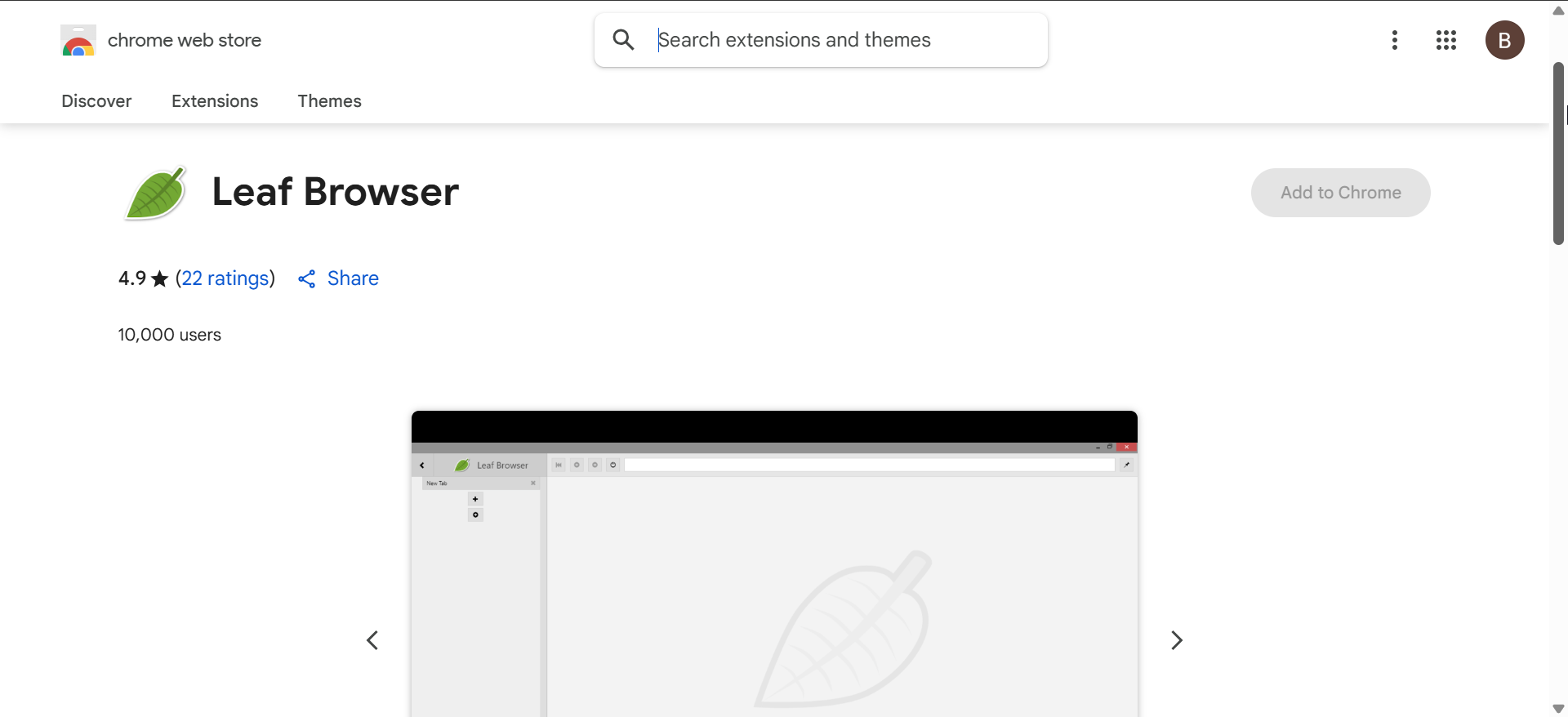
Leaf Browser became popular for its fast, multi-tab browsing and freedom to explore the web. On school Chromebooks, though, installing it isn’t always simple. Managed devices come with strict limits that block most third-party extensions. This guide explains how to safely check your Chromebook’s permissions, explore alternatives, and avoid breaking school policies.
1) Install Leaf Browser from a CRX source
If your device allows adding extensions manually, download the Leaf Browser CRX file. Open chrome://extensions, enable Developer Mode, and drag the file into the window to install. Only use verified sources and check version details before proceeding.
2) Use the Chrome Web Store if available
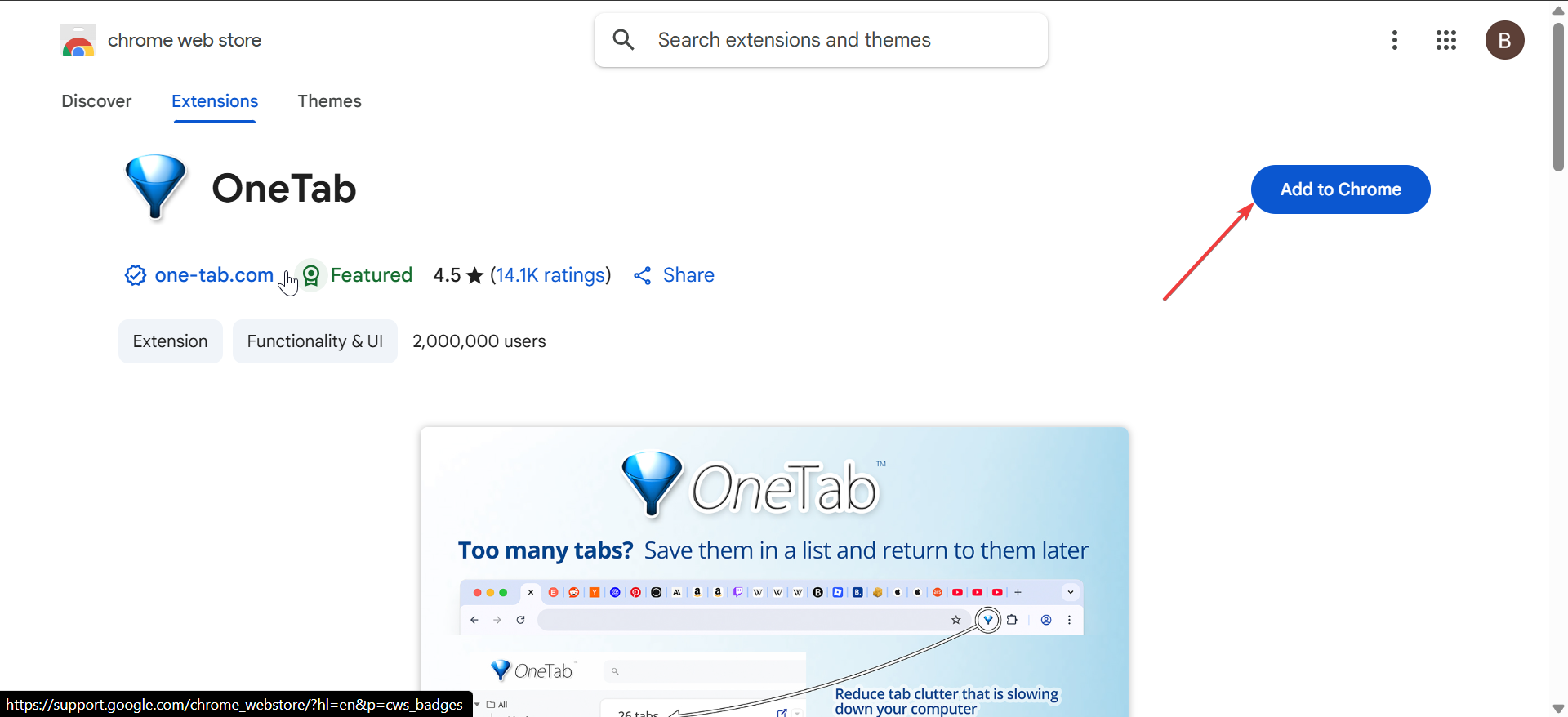
When the Chrome Web Store isn’t blocked, open it and search for Leaf Browser or similar clones. Select Add to Chrome to install it directly. If you see a restriction message, your admin controls are still active.
Request approval through your admin
Administrators can whitelist an extension for the entire class or group. Ask your teacher or IT team to review Leaf Browser and approve it if it supports learning or productivity goals.
Try approved browser alternatives
3) What to do if it’s blocked by your school
If Leaf Browser isn’t approved, look for Chrome extensions that provide similar features, such as tab grouping or multitasking. Tools like OneTab or Workona are often allowed on managed devices and help students stay organized.
Avoid risky bypass methods
Don’t enable Developer Mode or sideload apps without permission. Doing so can reset your Chromebook or trigger admin alerts. It’s better to stay within your school’s rules to avoid disciplinary issues.
4) Alternatives to Leaf Browser that work on managed devices
- OneTab – Combines open tabs into one list to save memory and reduce clutter.
- Workona – Organizes tabs by projects and syncs across sessions.
- Infinity New Tab – Offers visual bookmarking and custom dashboards.
These options are compatible with ChromeOS and usually permitted on education-managed accounts. They deliver similar convenience without policy conflicts.
Tips for using Leaf Browser safely
- Check permissions first
- Stick to verified sources
- Use your school account responsibly
- Try built-in Chrome features
- Keep ChromeOS updated
- Ask for approval
5) Troubleshooting installation issues
- Can’t open the Chrome Web Store: If you can’t reach the Chrome Web Store, your admin likely disabled it. Switch to a personal account or contact IT to confirm policy settings.
- Extension blocked by administrator message: This alert means your device policies prevent installing unapproved extensions. Only an administrator can unlock or approve it. Request authorization through your school’s IT channel.
FAQs about Leaf Browser on school Chromebooks
Is Leaf Browser still available in 2025? The original version is discontinued, but some clones remain online.
Can I use it without violating school policy? Only if your school approves it through the admin console.
What happens if I enable Developer Mode? It can reset your Chromebook and flag your device for administrators.
Are Leaf Browser clones safe to install? Many are unverified, so always scan for security risks and avoid suspicious sources.
Summary
- Leaf Browser is a discontinued Chrome extension known for lightweight tab management.
- Most school Chromebooks block unapproved extensions through admin policies.
- Check if your Chromebook is managed before trying to install any new browser tools.
- Use the Chrome Web Store or a verified CRX file only if your school allows it.
- Request admin approval or choose safe alternatives like OneTab or Workona.
Conclusion
Installing Leaf Browser on a school Chromebook depends entirely on your admin’s permissions. Check if your device is managed, request approval if possible, and consider safe alternatives like OneTab or Workona. Staying within school policy ensures smooth performance and no risk of losing access to your Chromebook.


Discussion (0)
Be the first to comment.