



Google Chrome blocks notification requests from some websites without always showing the usual permission prompt.
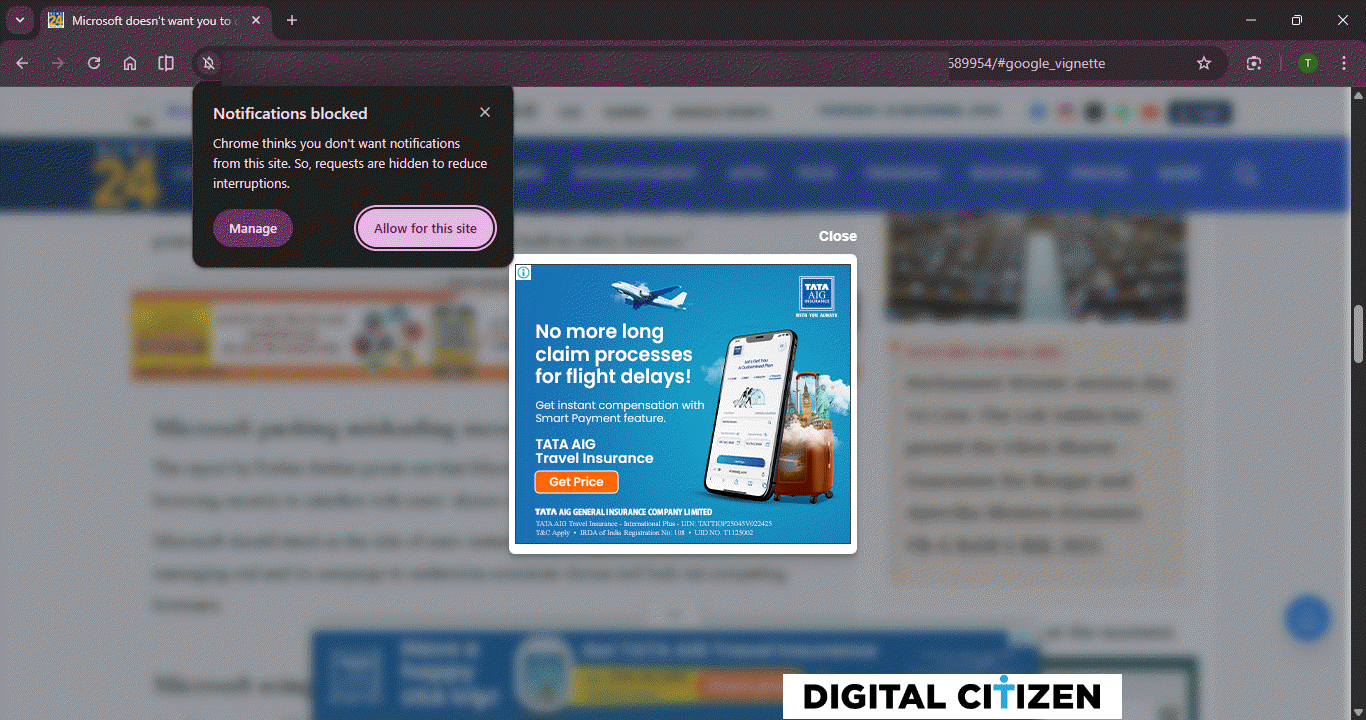
Instead of asking users to allow or block notifications, Chrome shows a message near the address bar. The message explains that the request was stopped. In some cases, it says, “Chrome thinks you don’t want notifications from this site.”
This stops certain websites from showing notification pop-ups right away. Chrome takes this step when it expects the request to be unwanted.
When this happens, Chrome skips the standard notification dialog. Users can click the crossed bell icon in the address bar to see a notice explaining that Chrome hid the notification request to avoid interruptions.
Users still have control. Chrome shows options to manage the setting or allow notifications for that site. The browser does not push the decision at the moment the page loads.
Why Chrome blocks notification requests automatically
Chrome applies this block to sites that show signs of unwanted notification behavior. This includes websites that ask for permission repeatedly, send many alerts, or receive very little interaction with their notifications.
Google has said that many sites misuse notifications to push spam or misleading alerts. Limiting these requests reduces interruptions and keeps notification controls available in site settings.
Chrome added quieter permission prompts and protections against abusive notification behavior around 2020. Those changes focused on how notification requests appear.
The newer behavior focuses on clarity and timing. Chrome now explains when it blocks or removes notification access. It also steps in more often after permission was already granted.
The block is not permanent. Users can open site settings from the address bar and allow notifications again for a trusted website.
For most users, this leads to fewer unwanted notification prompts and alerts from sites they rarely interact with.

Discussion (0)
Be the first to comment.