



Playing YouTube videos in the background on an iPhone lets you listen to music, podcasts, or long videos while using other apps or with the screen locked. By default, the YouTube app blocks background playback unless you subscribe to YouTube Premium, but there are still reliable workarounds that work at the time of writing.
Below, you’ll find the most effective ways to play YouTube in the background on your iPhone, starting with free Safari methods and ending with the official Premium option.
How To Play YouTube Videos In The Background On iPhone Using Safari
Safari allows background audio playback from YouTube when you use Picture-in-Picture or request the desktop site. This method works without signing in and does not require a paid subscription.
- Open Safari and go to the YouTube website.
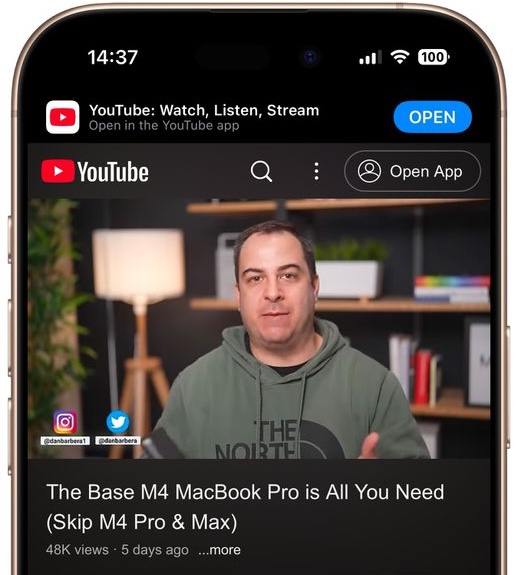
- Start playing the video you want to listen to.
- Tap the full-screen button on the video player.
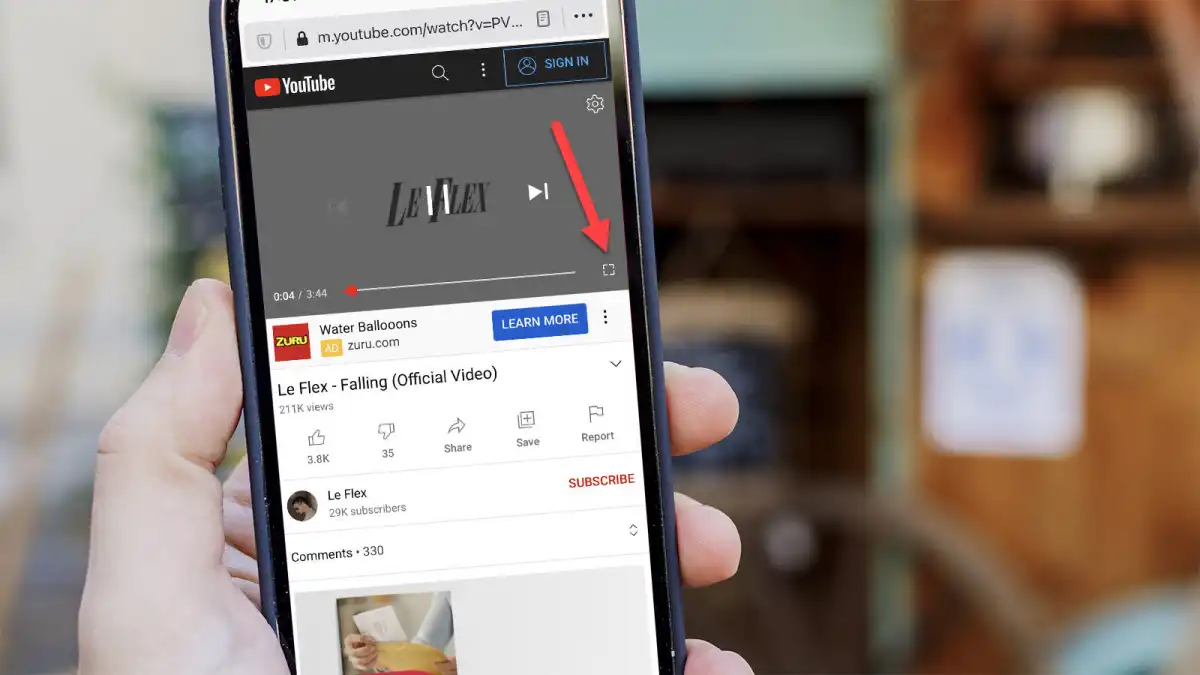
- Tap the Picture-in-Picture icon to minimize the video.
- Swipe up to go Home or lock your iPhone to continue audio playback.
If the video pauses after locking the screen, open Control Center or the Lock Screen and tap Play to resume audio.
- Alternatively, tap the aA icon in Safari.
- Select Request Desktop Website.
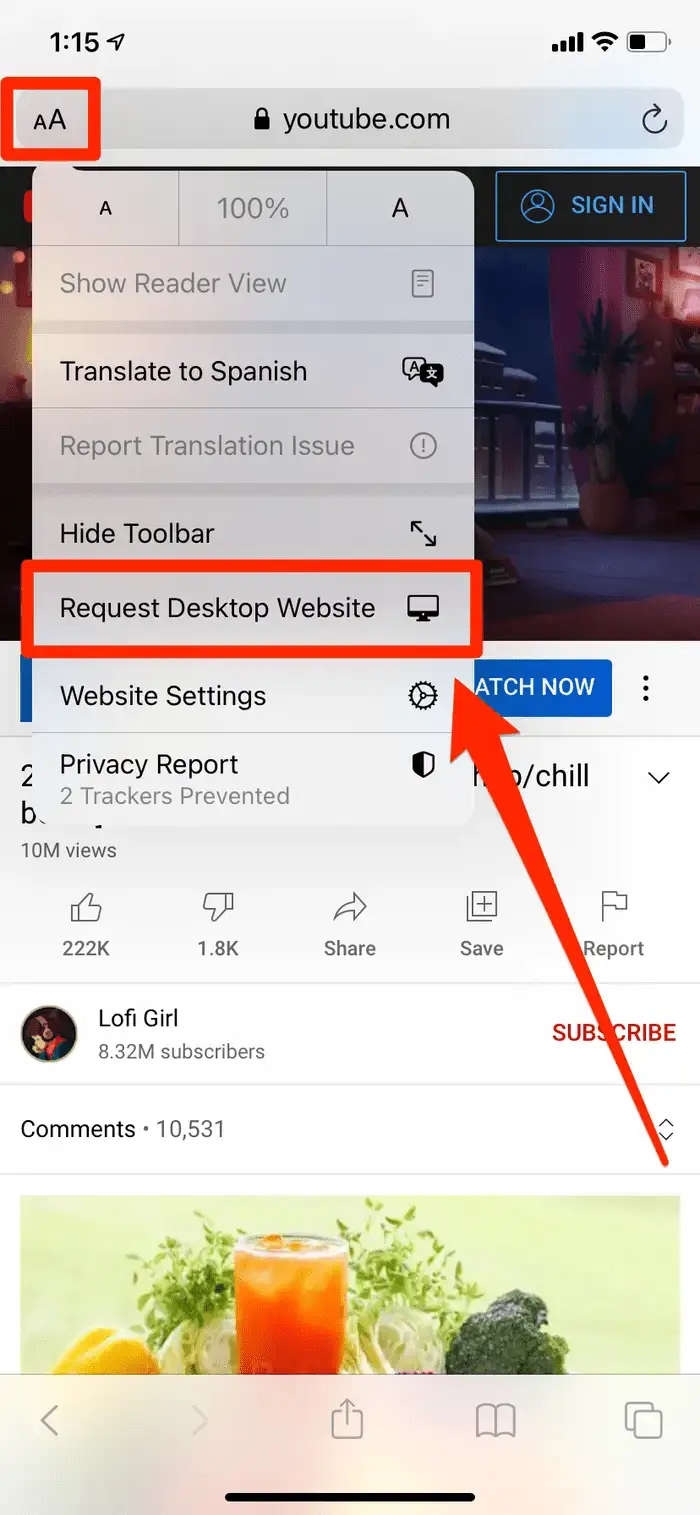
- Play the video again and lock your screen.
- Tap Play from the Lock Screen if needed.
How To Play YouTube In The Background On iPhone Using YouTube Premium
YouTube Premium offers the most consistent background playback experience and removes ads. Once enabled, videos continue playing even when you switch apps or lock your screen.
- Open the YouTube app.
- Tap your profile picture and go to Settings.
- Open General and enable Picture-in-Picture.
- Start a video and swipe up to return Home.
- Lock your screen and continue listening.
This method works across the system and does not require browser workarounds.
Troubleshooting Common Problems
If YouTube stops playing in the background, the issue is usually related to browser behavior, PiP settings, or system restrictions.
- Make sure Picture-in-Picture is enabled in iOS settings.
- Reload the video and re-enter PiP mode.
- Use Safari instead of private browsing modes.
- Disable Low Power Mode if playback pauses.
Tips
- Landscape mode makes the PiP icon easier to access.
- Locking the screen saves battery during long audio sessions.
- YouTube Premium is the only method that works without interruptions.
FAQ
Can you play YouTube videos in the background for free on iPhone?
Yes, Safari allows background audio using Picture-in-Picture or desktop mode.
Does background playback work with the YouTube app without Premium?
No, the official app blocks background playback unless you subscribe.
Will background playback drain battery faster?
No, locking the screen usually reduces battery usage.
Summary
- YouTube blocks background play by default on iPhone.
- Safari offers free workarounds using PiP and desktop mode.
- YouTube Premium provides the most reliable experience.
- Lock Screen playback saves battery and supports multitasking.
Conclusion
Playing YouTube videos in the background on an iPhone is possible with both free and paid methods. Safari workarounds work well for casual listening, while YouTube Premium delivers uninterrupted, system-wide background playback. Choose the option that best fits how often you listen without watching.


Discussion (0)
Be the first to comment.