




If YouTube keeps stopping videos with no warning or shows an “Are you still watching?” message, you’re dealing with auto pausing. This usually happens because of inactivity detection, background playback limits, battery restrictions, or browser interference. You can fix it by using the right steps for your device, as detailed in this guide.
Table of contents
- Why YouTube keeps auto pausing videos
- Fix YouTube auto pausing on desktop
- Fix YouTube auto pausing on Android
- Fix YouTube auto pausing on iPhone and iPad
- Fix YouTube auto pausing on smart TVs and consoles
- Why you can’t fully disable auto pause on YouTube
- Tips to prevent YouTube from pausing again
- FAQs
- Summary
Why YouTube keeps auto pausing videos
YouTube pauses playback for several reasons, and not all of them relate to buffering or slow internet. Identify the trigger first so you can pick the fastest fix.
“Are you still watching?” prompt
YouTube looks for interaction during long sessions. If videos run without clicks, scrolls, or mouse movement, YouTube may pause playback and ask you to confirm you’re still there.
Background playback restrictions
YouTube limits background playback on phones and tablets, especially without YouTube Premium. When you lock your screen or switch apps, playback may stop.
Battery and data optimization
Android and iOS can restrict YouTube to save power or data. These limits often pause video when your phone goes idle or when the screen turns off.
Browser or extension interference
Ad blockers, privacy tools, and outdated browsers can break scripts that keep YouTube playing. This can cause random pauses even on fast connections.
Fix YouTube auto pausing on desktop
Desktop browsers often trigger auto pausing because extensions, site data, or GPU settings interfere with playback. Start with extensions, then move to cache and browser settings.
Disable problematic browser extensions
- Open your browser’s extensions page.
- Turn off ad blockers, script blockers, and privacy extensions temporarily.
- Reload youtube.com and let a video run for 10 minutes.
If pauses stop, re-enable extensions one by one until you find the culprit.
Clear site data and cache for YouTube
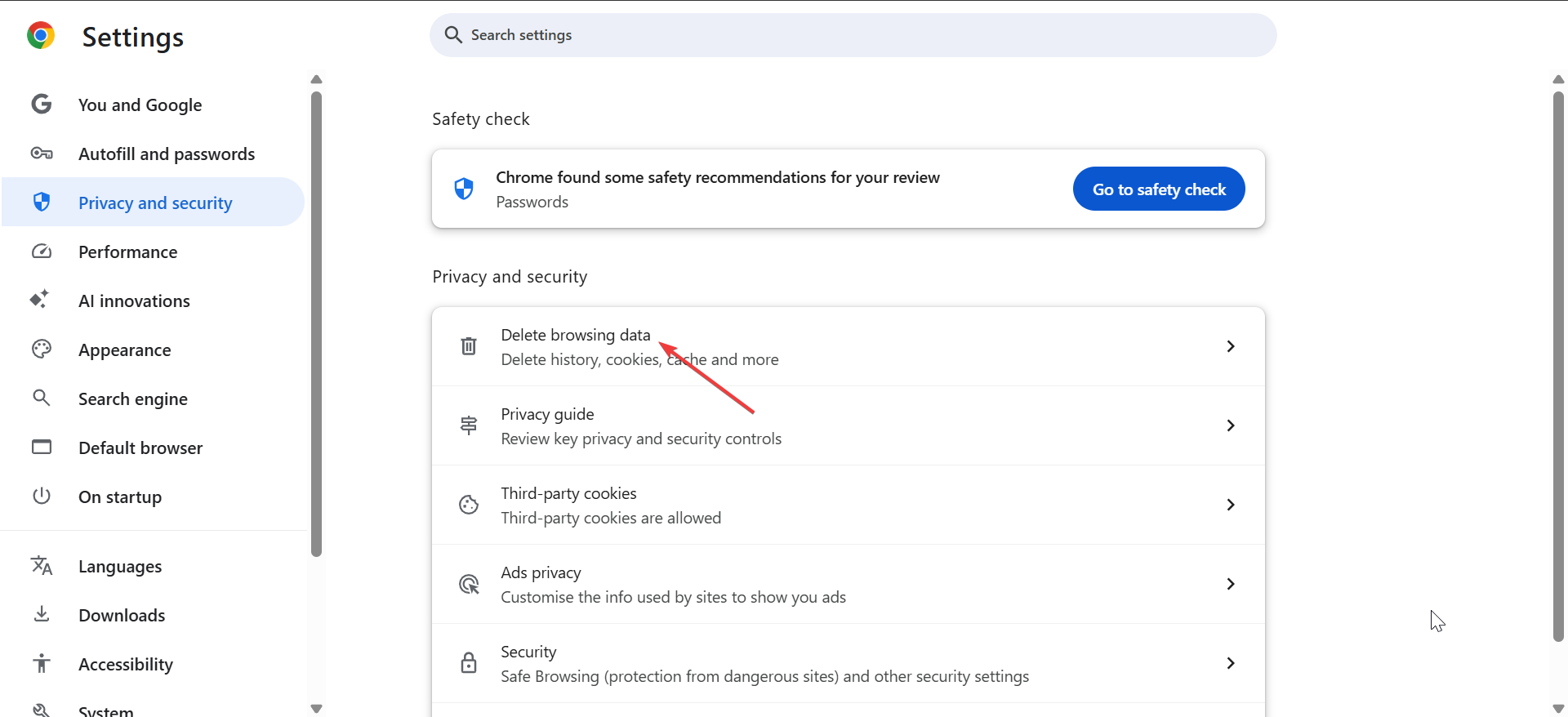
- Open your browser Settings.
- Go to Privacy and security.
- Now, click Delete browsing data.

- Next, check the boxes for Cookies and other site data and Cached images and files.
- Finally, click the Delete data button and confirm the action.
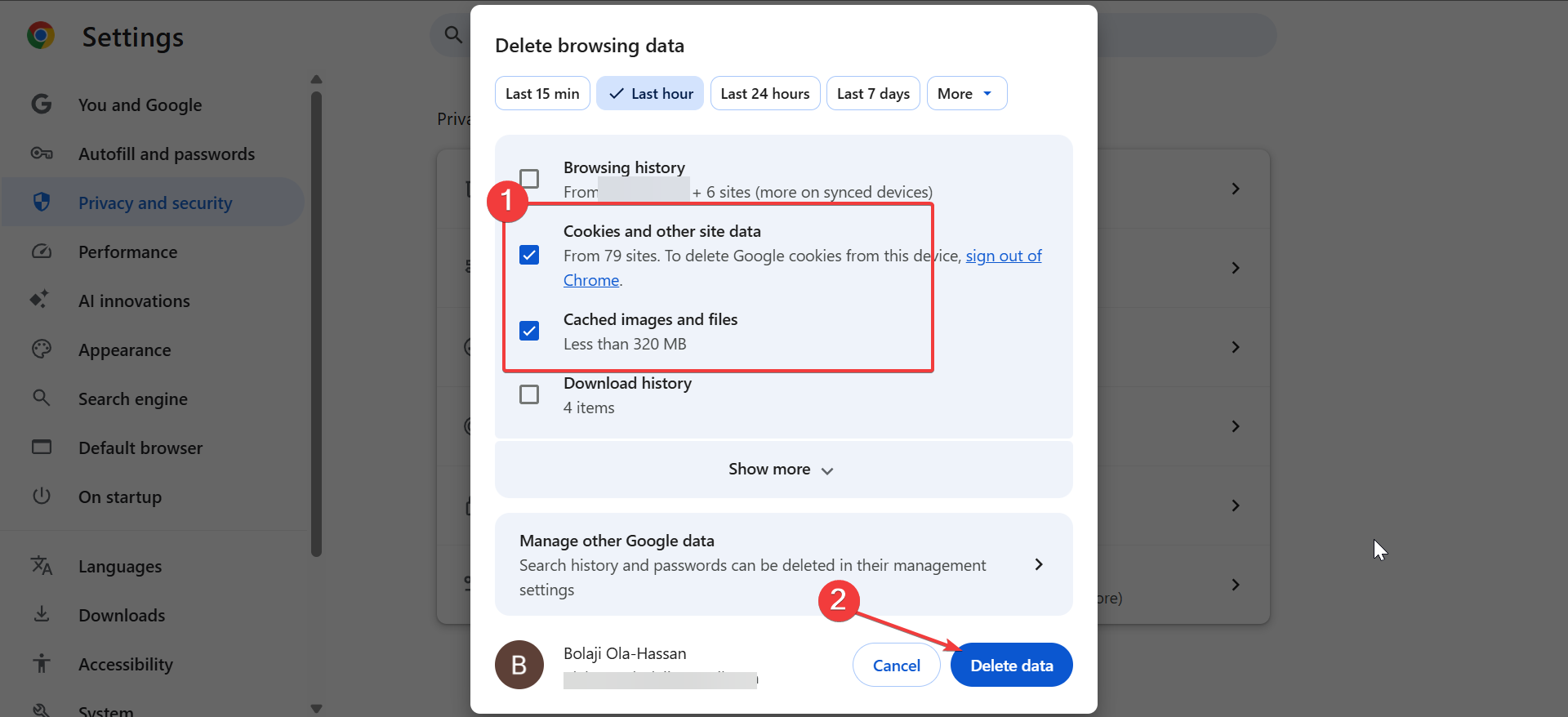
Broken cookies can loop the same playback interruptions until you clear them.
Turn off hardware acceleration
- Open your browser Settings.
- Open System.
- Turn off Use graphics acceleration when available.

- Click Relaunch or restart the browser.
If GPU decoding causes instability, disabling hardware acceleration often stops the pauses.
Update or reset the browser
- Update your browser to the latest version.

- If the issue continues, create a new browser profile.
- Test YouTube in the new profile before you reinstall extensions.
A fresh profile rules out broken settings and corrupted local data.
Fix YouTube auto pausing on Android
Android usually pauses YouTube because battery rules or background restrictions limit the app. Adjust YouTube’s power and data permissions first.
Disable battery optimization for YouTube
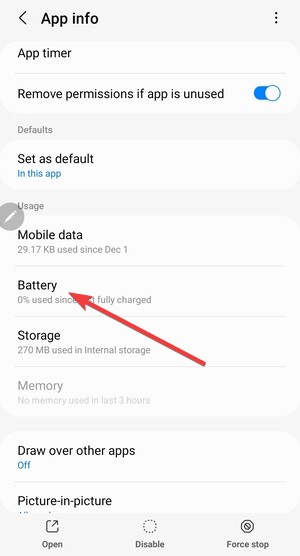
- Open Settings.
- Tap Apps > YouTube.
- Tap Battery.

- Select Unrestricted or enable Allow background usage.
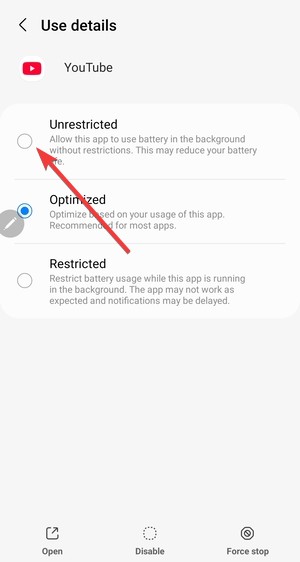

These settings stop Android from suspending YouTube during playback.
Allow background data and unrestricted usage
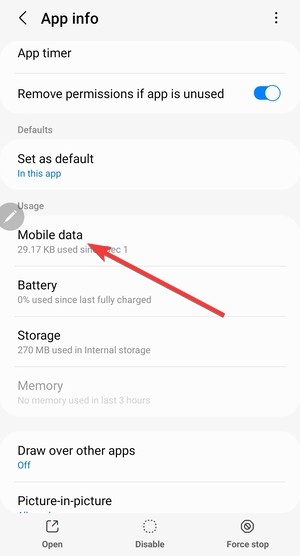
- Open Settings > Apps > YouTube.
- Tap Mobile data or Data usage.
- Turn on Allow background data usage.
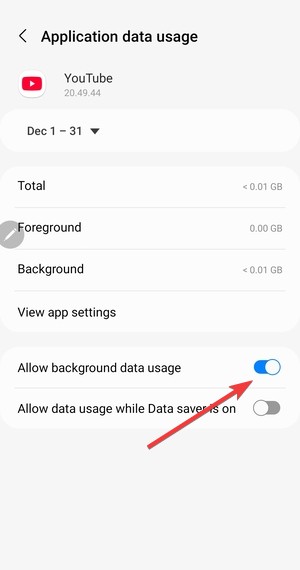

If Android blocks background data, YouTube may pause when you lock your screen or switch apps.
Check Picture-in-Picture and playback behavior
- Open Settings > Apps > YouTube.
- Tap Picture-in-picture.
- Turn on Allow picture-in-picture.


Picture-in-Picture can reduce pauses when you switch apps during playback.
Fix YouTube auto pausing on iPhone and iPad
iOS enforces stricter background playback behavior than Android. Start with system power settings, then confirm what YouTube can and can’t do on iOS.
Understand iOS background playback limits
Without YouTube Premium, iOS usually stops playback when YouTube goes into the background. iOS does not include a system setting that forces YouTube to keep playing when you lock your screen.
Disable Low Power Mode
- Open Settings.
- Tap Battery.
- Turn off Low Power Mode.
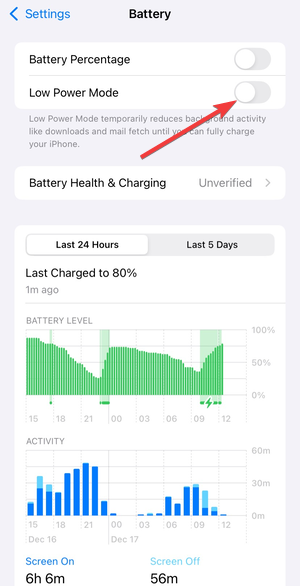

Low Power Mode can pause video apps to reduce background activity.
Update the YouTube app
- Open the App Store.
- Search for YouTube.
- Tap Update if you see it.
App updates often fix playback bugs that trigger random pauses.
Fix YouTube auto pausing on smart TVs and consoles
TV and console playback can pause because of app glitches, cache buildup, or device sleep timers. Fix the app first, then check system power settings.
Restart and update the YouTube app
- Close the YouTube app completely.
- Restart your TV or console.
- Open the app store on your device and install any YouTube updates.
App restarts and updates fix many random pause issues on living-room devices.
Disable power-saving and inactivity timers
- Open your TV or console Settings.
- Find Power, Sleep, or Energy-saving options.
- Increase the sleep timer or turn off idle shutdown while testing.
Some devices treat long playback as “idle” and stop apps anyway.
Why you can’t fully disable auto pause on YouTube
YouTube enforces some viewing limits on purpose. You can reduce interruptions, but you can’t always remove the pause prompt permanently.
YouTube policy limitations
YouTube uses “Continue watching?” prompts to avoid saving watch history inaccurately and to reduce data use when nobody watches. YouTube controls this behavior on web, mobile, and TV.
Why extensions and scripts stop working
YouTube changes its player and site code often. Many third-party workarounds stop working after updates, even if they worked last week.
Tips to prevent YouTube from pausing again
- Use one clean browser profile for YouTube.
- Keep only essential extensions enabled.
- Exclude YouTube from battery and data limits on mobile.
- Interact with the player during long sessions.
- Update your browser, the YouTube app, and your device OS regularly.
FAQs
Can I turn off “Are you still watching?” permanently?
No. YouTube does not provide a permanent toggle to disable it across devices.
Does YouTube Premium stop auto pausing?
Premium helps with background playback on mobile, but YouTube can still show inactivity prompts.
Why does YouTube pause when my screen turns off?
Battery optimization, Low Power Mode, or background playback limits usually cause this behavior.
Why does YouTube pause only on mobile data or only on Wi-Fi?
Data restrictions, VPN/proxy changes, or unstable network switching can interrupt playback and look like auto pausing.
Summary
- Identify whether inactivity prompts or system limits trigger the pause.
- Fix browser conflicts by disabling extensions and clearing site data.
- Remove mobile restrictions like battery optimization and background data limits.
- Adjust TV and console sleep timers if playback stops during long sessions.
YouTube auto pausing usually comes from inactivity checks, background playback limits, or system restrictions rather than a single bug. Once you match the fix to your device and remove battery, data, or browser interference, playback should stay uninterrupted.
If pauses return, recheck recent updates, extensions, or power settings, since YouTube and operating systems change behavior frequently.


Discussion (0)
Be the first to comment.