If you use YouTube on your Android device, iPhone, iPad, Windows PC or Mac, there is a way to reduce the battery consumption and protect your eyes from the intense white light of your screen. YouTube has introduced a dark mode for its app on all these platforms in the form of a Dark Theme, which looks good, and we like using. Here is how to turn on the Dark Theme in YouTube on Android, iOS, and Windows:
NOTE: We start with how to enable dark mode for YouTube on Android. The second section is dedicated to iPhone and iPad users and the last one to computers and devices with Windows or macOS. Scroll down to the section that interests you.
How do I enable dark mode on YouTube for Android?
Open the YouTube app on your Android smartphone, and tap on the user account button, in the top-right corner.
Tap the user account button in YouTube for Android
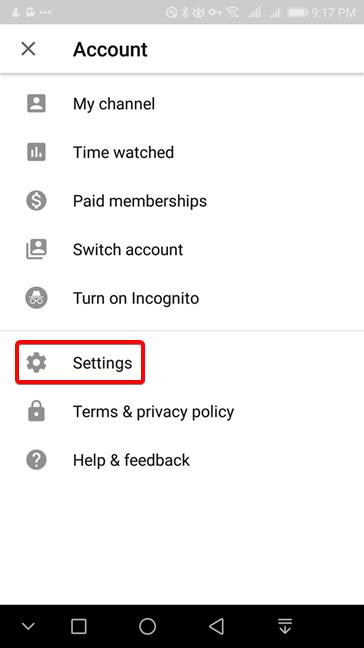
YouTube opens the Account menu. Go to Settings.
YouTube for Android - Tap Settings in the YouTube Account menu
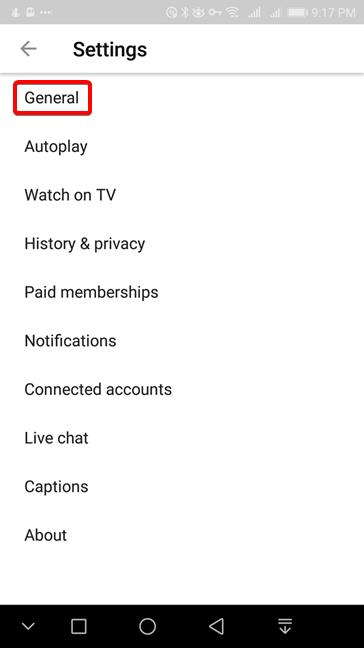
Tap General on the Settings screen.
YouTube for Android - Go to General settings
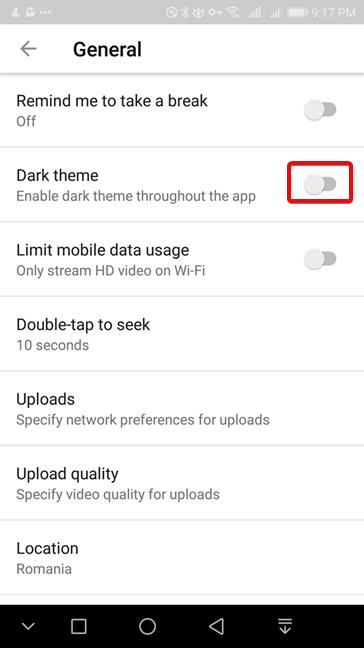
The Dark theme switch is the second in the list. Tap on it to turn on the dark mode in YouTube for Android.
Turn on the Dark mode for YouTube on Android
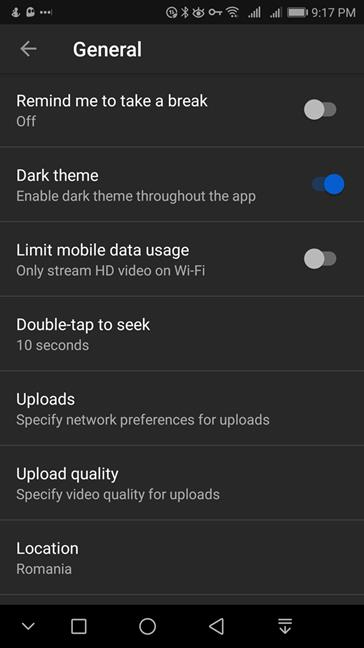
The effect of the Dark theme is immediate, and the General page is displayed black. Exit Settings by tapping a couple of times on the Back button.
Dark theme enabled in the YouTube settings
The YouTube app starts to use the Dark mode on all its screens.
The Dark theme in YouTube for Android
If you want to get rid of the Dark theme, follow the same steps as above and turn off the same switch in Settings. Keep in mind that this setting is device dependent. If you have a second smartphone or tablet, even if it is with Android, you have to repeat the setting if you want the Dark theme on another device.
How do I enable dark mode on YouTube for iOS?
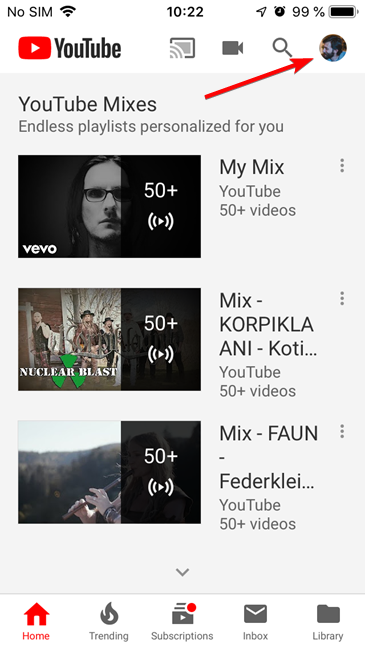
Open the YouTube app on your iPhone or iPad. Tap the user account button in the top-right corner (the button is there even if you are not logged into a Google account).
Tap the user account button in the YouTube app for iOS
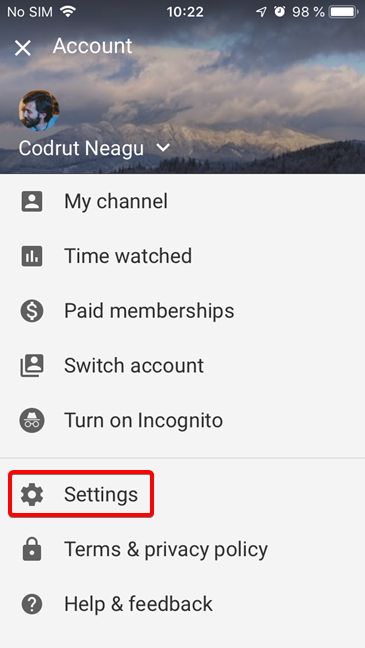
In the menu that opens, tap Settings.
Open Settings for the YouTube app for iOS
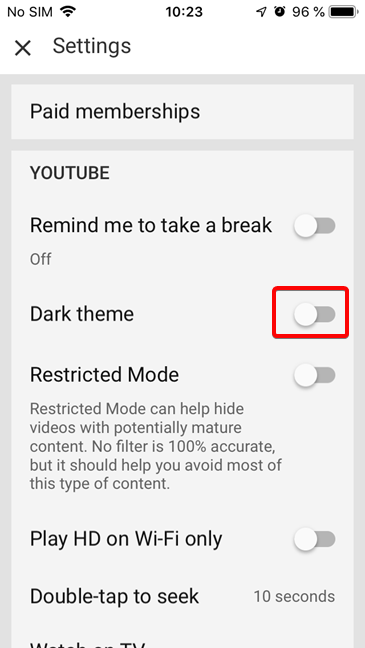
The Dark theme switch is the second in the list of settings. Tap the switch to turn on the dark mode for YouTube.
Turn on the Dark theme in YouTube for iOS
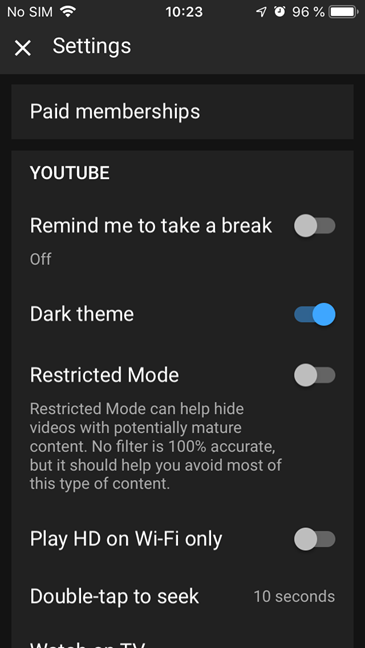
The Dark theme is applied instantly, and the Settings screen turns to a dark background with bright letters. Tap the X button in the top-left corner to exit the Settings, and return to the main screen.
The Dark theme in the Settings of the YouTube app for iOS
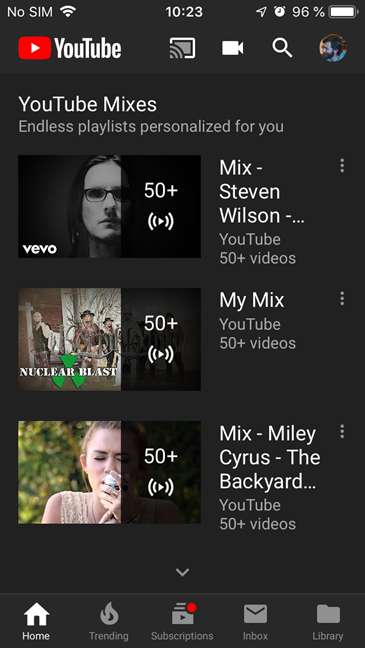
The Dark theme is now shown for every screen in the YouTube app.
The Dark theme for the YouTube app for iOS
Remember that this is a local setting for your device. If you have other iOS devices, or you use YouTube on any other platform, you need to turn the Dark theme on for each device, even if you sign in with the same Google account.
How do I enable dark mode on YouTube in a web browser for Windows or Mac?
Open YouTube using your favorite web browser in Windows or on your Mac. If you use YouTube in more than one browser, you have to repeat the procedure for each browser. In this section, we describe two procedures: the first one when you are logged in with a Google account and a second for when you are not. The second procedure also applies to private browsing too.
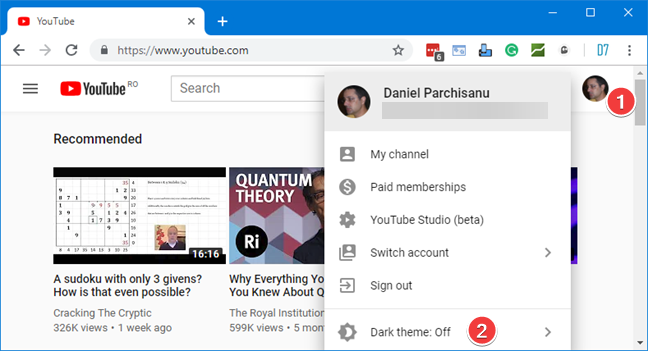
When you are signed in on YouTube, click or tap the user account button on the top-right corner, and then click or tap the Dark theme entry.
Open the Account menu for YouTube in your browser
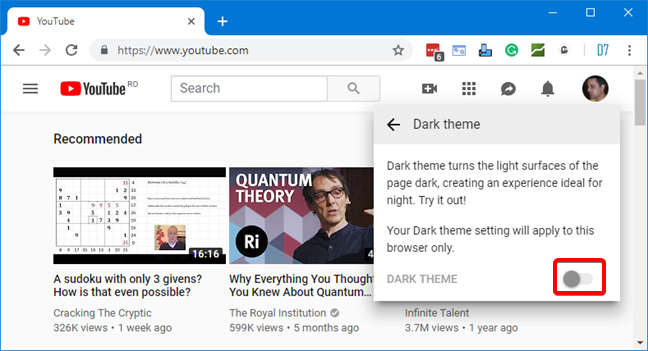
YouTube displays a Dark theme panel with a description of this feature and a single switch. Turn the switch on to enable the Dark theme.
Turn on the Dark Theme in YouTube, in your web browser
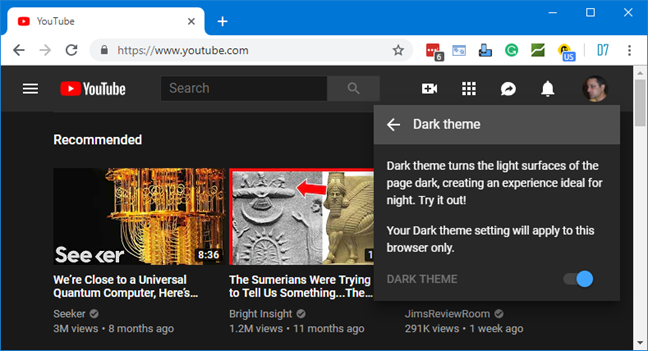
The Dark theme is applied instantly for both the menu as well as the entire YouTube site. Click or tap anywhere else on the page to close the Dark theme panel.
The Dark theme enabled for YouTube in a web browser
Keep in mind that the Dark theme setting is saved in a cookie in your browser. The setting does not affect the other browsers on your Windows computer, and it does not affect other installations of the same browser on other computers. If your cookies get deleted, YouTube reverts to the default setting which has the Dark theme off.
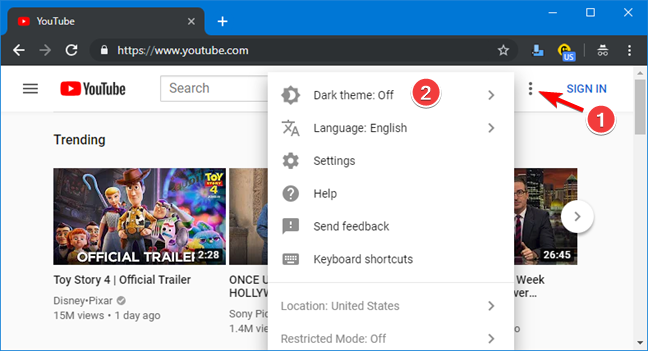
If you are not logged with a Google account on your web browser, YouTube shows a slightly different page. Look for a Settings button represented by three vertical dots, next to SIGN IN in the top-right corner. Click the Settings button, and then Dark theme in the menu.
Open Dark theme settings in YouTube, without signing in
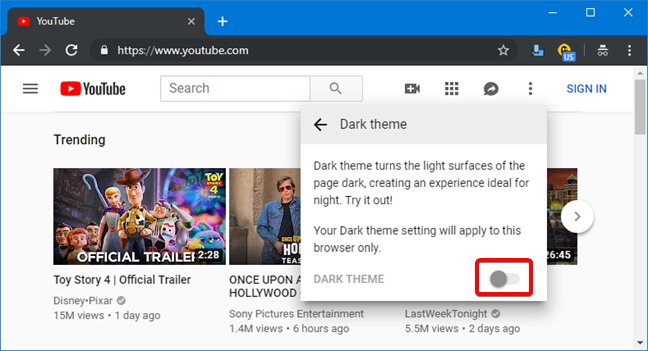
YouTube displays a panel with a description of the Dark theme and a single switch. Turn the switch on to enable the dark mode in your browser.
Turn on the Dark theme for YouTube in your web browser
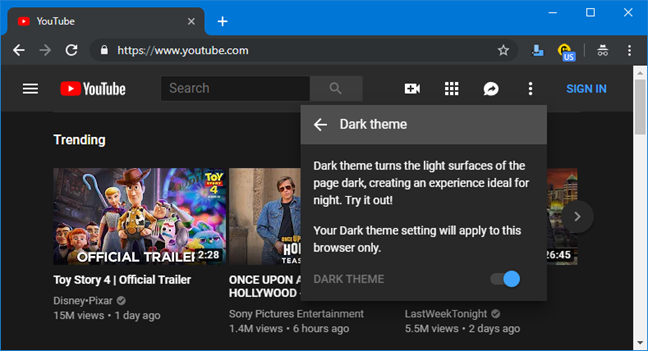
The Dark theme is applied immediately to the menu and the entire YouTube site. Click or tap anywhere else on the page to close the Dark theme panel.
The Dark theme enabled for YouTube
Remember that the Dark theme setting is saved as a cookie in your browser. If you sign in to your Google account, the Dark theme setting is preserved. Also, in a private browsing session, YouTube starts always with the Dark theme off because the private session has no access to the previous cookies. You can turn on the Dark theme for the current browsing session, but this setting is lost as soon as you close the private browsing window.
Do you use the dark mode for YouTube all the time?
The Dark theme can be used to save battery, to protect your eyes when you are in a dark environment or just for its aesthetics. I found that once I turned on the Dark theme on YouTube, I never went back to turn it off. How do you like the dark mode for YouTube? Do you intend to turn it off again or do you intend to keep it on all the time? Let us know in a comment below.
I Have iPhone 11 pro and I want to enable YouTube dark Mode on my phone but i’m not able to do it but after reading this article I hope it is very essay to do it Thanks for sharing such a nice Article












Discussion (3)
I Have iPhone 11 pro and I want to enable YouTube dark Mode on my phone but i’m not able to do it but after reading this article I hope it is very essay to do it Thanks for sharing such a nice Article
Thanks mate!
Happy to help. 😉