



If the YouTube app keeps crashing on your phone or tablet, the cause is usually a bad update, corrupted app data, or a system-level conflict. The steps below walk you through every proven fix, starting with the fastest checks and ending with last-resort solutions.
Table of contents
- Check if YouTube is down
- Restart your phone or tablet
- Update the YouTube app
- Clear YouTube cache and app data on Android
- Offload or reinstall YouTube on iPhone
- Update Android System WebView and Google Play Services
- Check for operating system updates
- Disable VPNs, ad blockers, or DNS apps
- Fix crashes after a YouTube update
- Fix YouTube crashing when opening videos or Shorts
- Fix YouTube crashing only on Wi-Fi or mobile data
- Reset app preferences on Android
- Factory reset as a last resort
- Tips to prevent YouTube crashes in the future
- FAQs
- Summary
Check if YouTube is down
Sometimes the app crashes because YouTube’s servers have issues, not because of your device.
- Open a browser on your phone or PC.
- Search for “YouTube down” or check a live outage tracker.
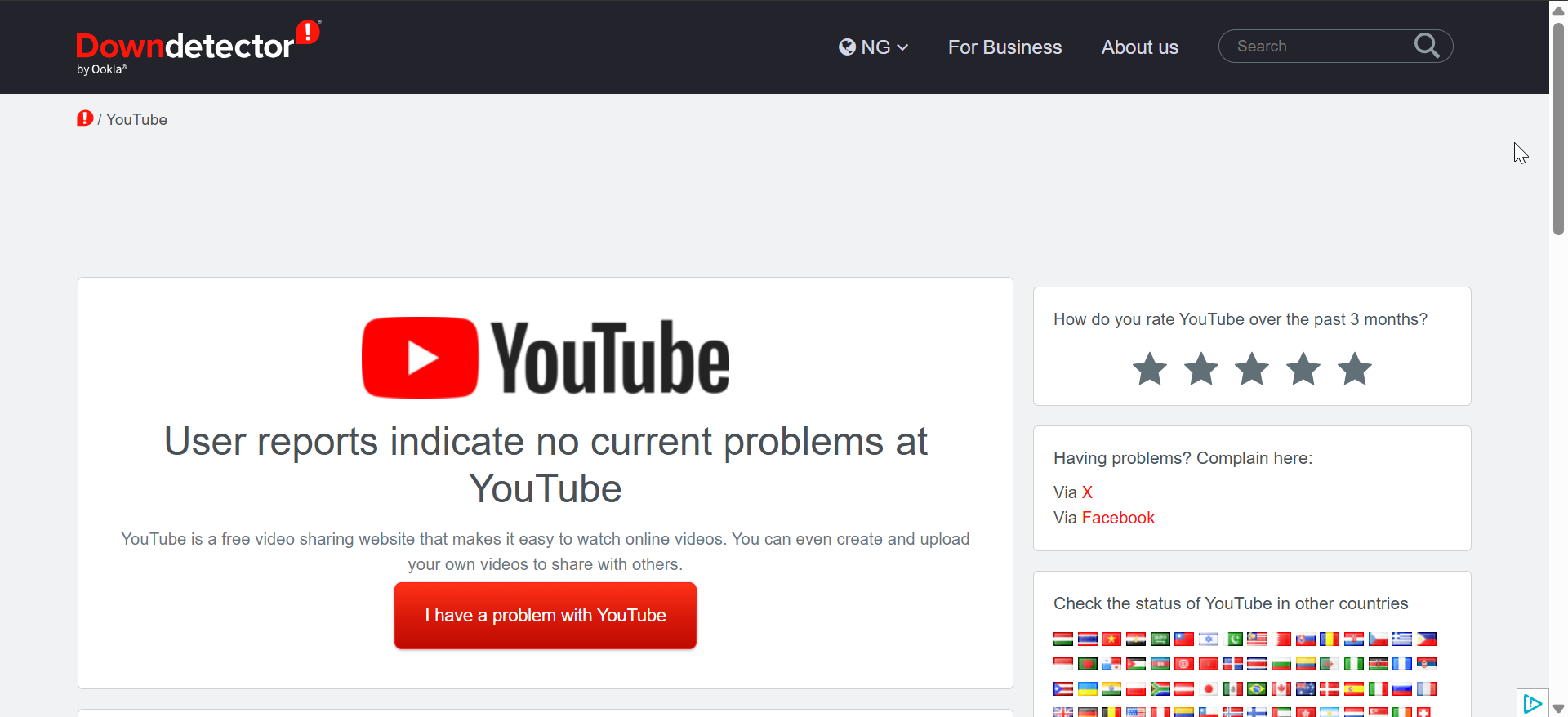

- Look for widespread reports in the last few minutes.
- If many users report problems, wait until Google resolves the outage.
Restart your phone or tablet
A restart clears temporary memory issues that often cause random app crashes.
- Press and hold the Power button.
- Tap Restart or Reboot.


- Wait for the device to fully power back on.
- Open YouTube and test again.
Update the YouTube app
Outdated or bugged versions of YouTube frequently crash, especially after OS updates.
Steps on Android
- Open the Google Play Store.
- Search for YouTube.
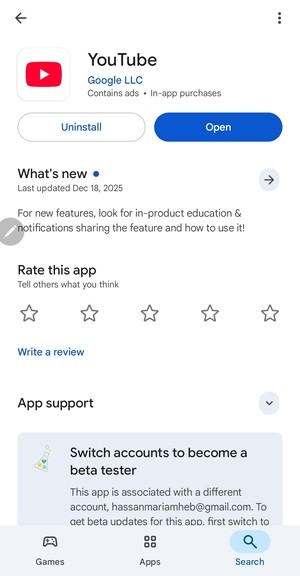

- Tap Update if available.
Steps on iPhone
- Open the App Store.
- Tap your profile icon.
- Find YouTube and tap Update.
Clear YouTube cache and app data on Android
Corrupted cache files are one of the most common reasons YouTube keeps crashing.
Clear cache only
This is the safest option and does not remove your account.
- Start by opening Android Settings.
- Tap Apps or Apps & notifications.
- Select YouTube.
- Now, tap Storage.
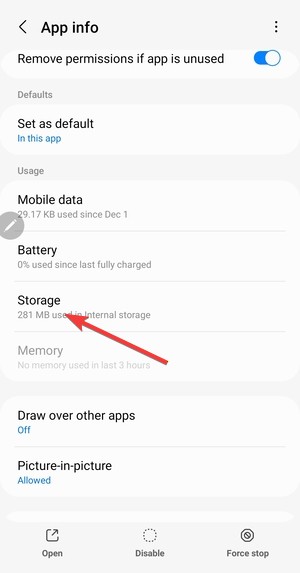

- Tap Clear cache.
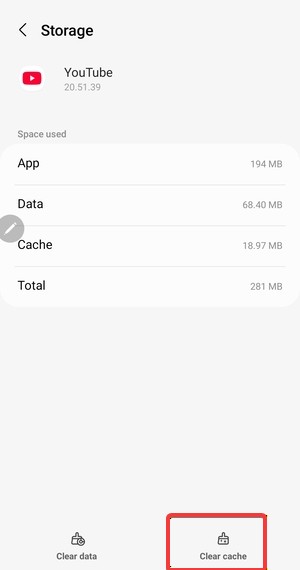

- Reopen YouTube and check if it still crashes.
Clear storage if the cache does not help
Use this if YouTube crashes immediately on launch.
- Open Settings.
- Go to Apps > YouTube.
- Next, tap Storage.
- Tap Clear storage or Clear data.

- Open YouTube and sign in again.
Offload or reinstall YouTube on iPhone
Reinstalling refreshes the app files and fixes crashes caused by corrupted installs.
- Open Settings.
- Tap General > iPhone Storage.
- Select YouTube.
- Tap Delete App and confirm.
- Open the App Store.
- Reinstall YouTube and sign in.
Update Android System WebView and Google Play Services
YouTube depends on these system components, and outdated versions often trigger crashes.
- Open the Google Play Store.
- Search for Android System WebView.
- Next, tap Update if available.
- Search for Google Play Services.
- Tap Update if available.


- Restart your phone and test YouTube.
Check for operating system updates
System bugs can break app compatibility and cause repeated crashes.
Steps on Android
- Open Settings.
- Tap System > Software update.


- Install any available updates.
Steps on iPhone
- Open Settings.
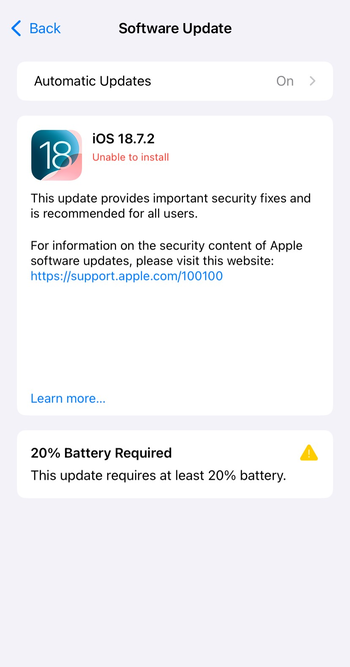
- Tap General > Software Update.
- Install the latest iOS version.

Disable VPNs, ad blockers, or DNS apps
Network-level apps can interrupt YouTube connections and force the app to close.
- Open Settings.
- Turn off any active VPN.
- Disable ad blockers or private DNS apps.
- Reopen YouTube and test video playback.
Fix crashes after a YouTube update
Some updates break compatibility on specific devices.
- Open the app store page for YouTube.
- Read recent reviews for similar crash reports.
- On Android, open Settings > Apps > YouTube.
- Tap Uninstall updates if you see it.
- Update YouTube again after Google releases a newer version.
Join or leave the YouTube beta program on Android
Switching versions can fix crashes caused by a bad stable or beta build.
- Open the YouTube page in the Play Store.
- Scroll to the beta section.
- Tap to Join or Leave the beta program.
- Update the app when prompted.
Fix YouTube crashing when opening videos or Shorts
Playback crashes often relate to decoding issues, background restrictions, or unstable connections.
- Turn off Battery saver or Power saving.
- Close other heavy apps running in the background.
- Open YouTube, start a video, then tap Settings > Quality.
- Select a lower resolution and test again.
Fix YouTube crashing only on Wi-Fi or mobile data
This helps you confirm whether a network setting triggers the crash.
- Switch from Wi-Fi to mobile data, or from mobile data to Wi-Fi.
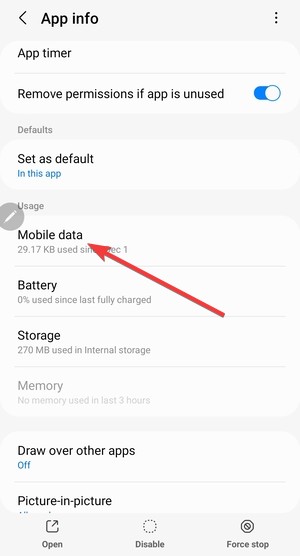

- Test YouTube on the new connection.
- If crashes happen only on Wi-Fi, restart your router.
- If crashes happen only on mobile data, toggle Airplane mode on and off.
- If the issue continues, reset network settings from your device settings.
Reset app preferences on Android
This restores default permissions and background rules without deleting your personal data.
- Open Settings.
- Tap Apps.
- Now, tap the three-dot menu.
- Next, tap Reset app preferences.


- Confirm, then reopen YouTube.
Factory reset as a last resort
Use this only when multiple apps crash, not just YouTube, because it erases your device.
- Back up your photos, files, and accounts.
- Open Settings.
- Tap System > Reset.
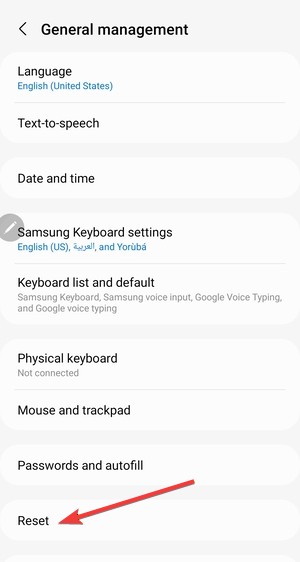

- Now, tap Factory data reset.


- Follow the prompts to finish the reset.
- Reinstall YouTube and test again.
Tips to prevent YouTube crashes in the future
- Keep YouTube and system apps updated.
- Exclude YouTube from aggressive battery optimization.
- Avoid running multiple VPN or ad-blocking apps at once.
- Restart your device weekly.
FAQs
Why does the YouTube app keep crashing after an update?
Updates can introduce bugs that affect specific devices or Android and iOS versions.
Can YouTube crashes affect my account?
No, crashes do not impact your account, subscriptions, or history.
Why does YouTube crash only when opening Shorts?
Shorts use different playback components that can fail when the cache or system services malfunction.
Summary
- Restart your device and update YouTube.
- Clear cache or reinstall the app.
- Update system components and the operating system.
- Disable VPNs and conflicting apps.
- Reset app preferences or factory reset only if needed.
Most YouTube app crashes resolve after clearing the cache or installing updates. If the issue started after a recent update, stability usually returns once Google releases a fixed version or you switch app builds.


Discussion (0)
Be the first to comment.