




YouTube TV lets you share a subscription through Family Sharing, but it ties every account to a single home area. That rule usually stops long-term use across different houses, even when everyone uses separate profiles.
Most confusion comes from mixing stream limits with location limits. You can stream on multiple devices, but YouTube TV still expects everyone to live in the same household.
Table of contents
- How YouTube TV family sharing actually works
- Can you use YouTube TV in two different houses?
- How to share YouTube TV account in different houses
- Common real-world scenarios explained
- What happens if YouTube TV detects account sharing abuse
- How to fix YouTube TV location and sharing issues
- What YouTube TV does not allow
- Best alternatives if you need TV in multiple houses
- Tips for sharing YouTube TV responsibly
- FAQs
- Summary
How YouTube TV family sharing actually works
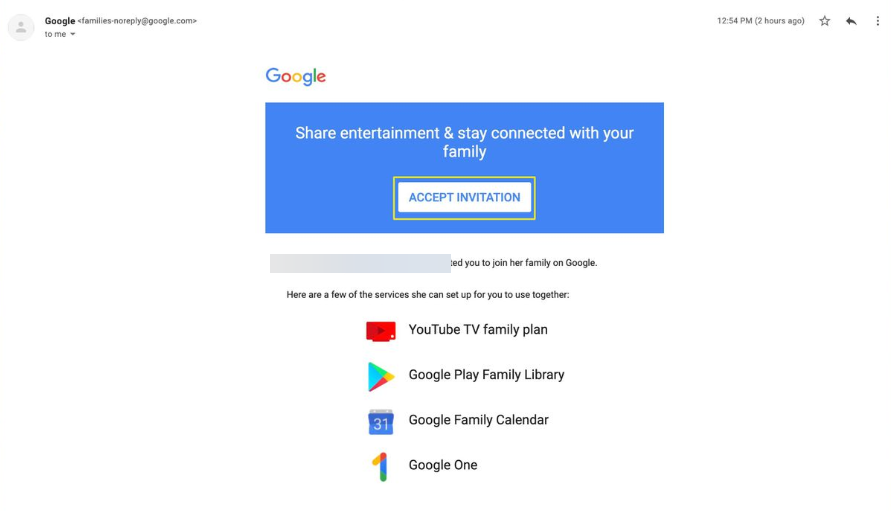
YouTube TV uses a Google Family Group so one subscription can support multiple profiles. Each person gets their own watch history and DVR space, but YouTube TV still treats everyone as part of one household.
What Google means by “home area”
The home area acts as the subscription’s primary location. YouTube TV uses it to decide which local networks you can watch and when it should ask a device to verify location.
Number of users vs number of locations
Your plan may allow multiple simultaneous streams, but location rules still apply. A device can stream fine for a while away from home, then lose access when YouTube TV asks for a home-area check-in.
Can you use YouTube TV in two different houses?
Yes, but only in limited situations, like short-term travel or temporary stays. YouTube TV may eventually require the account or affected users to confirm the home area again.
Primary home vs secondary locations
YouTube TV expects one primary home location for the family group. When a device stays away for too long, YouTube TV can block live TV until the user checks in again at the home area.
Why long-term sharing across houses fails
If someone lives in another house full-time, YouTube TV often treats that as a separate household. Even when sign-in works, location verification can interrupt playback later.
How to share YouTube TV account in different houses
These steps help in legitimate short-term situations, like travel or a temporary stay. They do not bypass YouTube TV’s location rules for permanent multi-house sharing.
- On the family manager’s device, connect to the home Wi-Fi and open YouTube TV.
- Open Settings and confirm your home area matches your current location.


- Go to Family sharing and invite up to five people using their Google accounts.
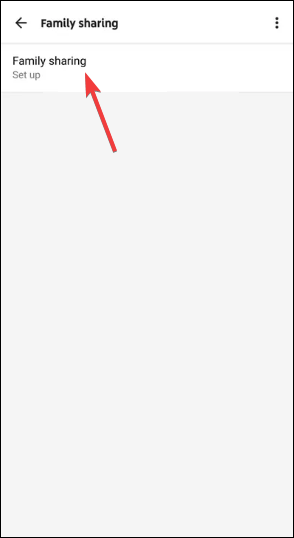

- Have each person accept the invite, then sign in to YouTube TV on their own device with their own profile.
- If YouTube TV blocks playback later, bring the affected device back to the home area and open YouTube TV to complete the check-in.
- If YouTube TV asks for location verification, enable Location on the device and allow location permissions for the YouTube TV app, then retry.
Common real-world scenarios explained
Sharing with family members in another house
This setup often works at first, then fails later when YouTube TV requests a home-area check-in. The remote user may see a location message and lose access to live TV until they verify at the home area.
College students or children living away from home
This can work if the student returns to the home area periodically and opens YouTube TV there. If they cannot check in for a long time, YouTube TV may require them to re-verify location or use their own subscription.
Vacation homes and frequent travel
Travel usage usually works until YouTube TV requests a location refresh. Long stays at a second home can trigger the same check-in problem as full-time sharing.
What happens if YouTube TV detects account sharing abuse
YouTube TV typically enforces household rules by limiting playback rather than immediately banning accounts. Still, repeated location conflicts can create constant interruptions and lockouts.
Playback blocks and location errors
YouTube TV may block live TV and show a message that asks you to confirm your location. A successful check-in at the home area usually restores access.
Account warnings or restrictions
If the account keeps bouncing between distant locations, YouTube TV may enforce stricter verification. You will spend more time troubleshooting instead of watching.
How to fix YouTube TV location and sharing issues
- Update the home area from the correct network: Connect to your home Wi-Fi, then open YouTube TV and check the home area setting. If YouTube TV offers an update option, use it only when you actually moved.
- Verify location on the device: Turn on Location and allow location permissions for YouTube TV, then reopen the app. This step often resolves verification prompts that appear while traveling.
- Sign out, remove unused devices, and try again: Sign out of YouTube TV on devices you no longer use, then sign back in on the device that fails. Fewer active devices can reduce weird location conflicts and profile mix-ups.
What YouTube TV does not allow
Permanent sharing across two houses
YouTube TV does not support two active households under one subscription long-term. Even if it works for a while, location verification can interrupt playback later.
Bypassing location rules
Attempts to defeat location checks can break playback, cause verification loops, and risk account issues. Stick to supported settings and legitimate travel usage.
Best alternatives if you need TV in multiple houses
Separate YouTube TV subscriptions
Two subscriptions eliminate home-area conflicts and keep each household stable. It costs more, but it also stops the location headaches.
Other live TV services with different household rules
Some streaming services enforce households differently, which can fit multi-home families better. Compare rules before you switch, since policies vary by provider and region.
Tips for sharing YouTube TV responsibly
- Keep your home area stable and avoid frequent changes.
- Expect location verification when someone stays away for an extended period.
- Use a device at the home area to complete check-ins when YouTube TV blocks playback.
- Enable location permissions for YouTube TV on phones and tablets to reduce verification issues.
- Buy a second subscription when you need reliable multi-house access.
FAQs
Can you share YouTube TV with someone in another house? YouTube TV may work temporarily, but the service expects all family members to check in at the same home area over time.
How many houses can one YouTube TV account support? One household works reliably long-term. A second house often triggers location verification and playback blocks.
Does YouTube TV track your location all the time? YouTube TV checks location periodically, especially for live TV and local channels. It may ask for verification when it detects extended use away from the home area.
Will YouTube TV ban your account for sharing? Bans are not the typical outcome, but playback blocks and repeated verification prompts are common when the service detects household conflicts.
Summary
- YouTube TV family sharing works best when everyone lives in one household.
- Sharing across different houses may work short-term, then fail due to home-area checks.
- Check-ins at the home area restore access when YouTube TV blocks playback.
- A second subscription gives the smoothest experience for two permanent households.
With YouTube TV now getting a major redesign, you might be eager to share access to the new look app in different households. This usually creates location headaches, even when you follow the rules.
If you need reliable access in two homes, a separate subscription or a service with looser household enforcement will feel far less frustrating.


Discussion (0)
Be the first to comment.