




YouTube TV does not offer true offline downloads, but you can save shows with its unlimited cloud DVR. This guide shows you how to record content, manage your Library, and use practical workarounds when you need access on the go.
Table of contents
- Why YouTube TV does not support offline downloads
- How to save shows with YouTube TV’s cloud DVR
- How to record live TV shows
- Device-specific recording and playback guides
- Managing your YouTube TV library effectively
- Alternatives that support offline downloads
- Troubleshooting when you cannot record shows
- Tips for managing playback and recordings
- FAQs about downloading and recording on YouTube TV
- Summary
Why YouTube TV does not support offline downloads
YouTube TV stores all recordings in the cloud, so the app never saves full video files on your device. Cloud DVR replaces traditional downloads and gives you unlimited recording capacity.
How cloud DVR works on YouTube TV
Cloud DVR saves every episode of a show you add to your Library. It records new episodes automatically and stores them for nine months. You can stream recordings on any supported device.
How to save shows with YouTube TV’s cloud DVR
Cloud DVR acts as the platform’s version of downloading. You add titles to your Library, and YouTube TV records them whenever they air.
Add shows to your library on mobile
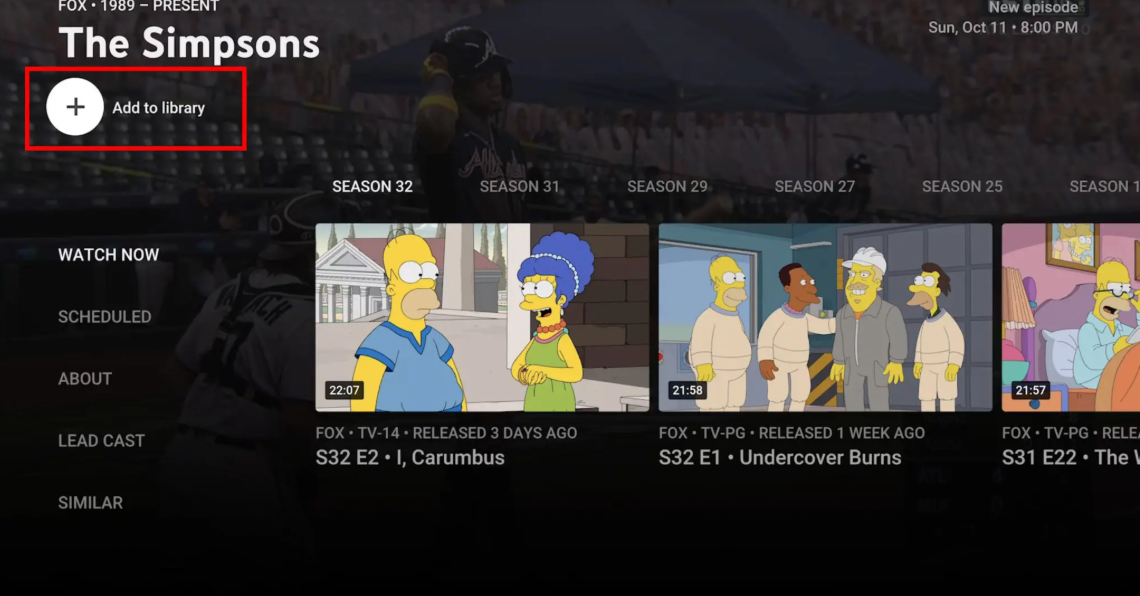
Open the YouTube TV app on Android or iOS and search for your show. Tap the show page and tap the Add to Library button. The app schedules recordings for all upcoming episodes.
Add shows to your library on smart TVs and streaming devices
Open YouTube TV on Roku, Fire TV, Apple TV, or another supported device. Search for the show and open its details page. Choose Add to Library to record the full series.
How to record live TV shows
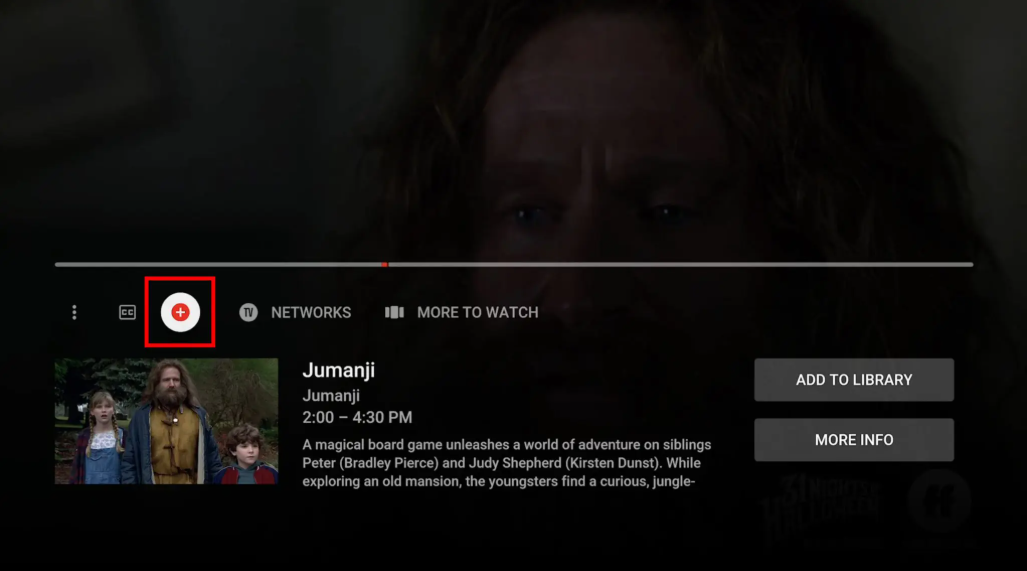
Open YouTube TV and click the Live tab at the top. Next, select a live program to start watching it. Now, pause the show and look for the plus sign. Finally, click the plus sign below the show title, and the video will start recording.
Device-specific recording and playback guides
Recording and playback behave consistently across devices, but each platform offers its own interface layout.
Android and iPhone/iPad
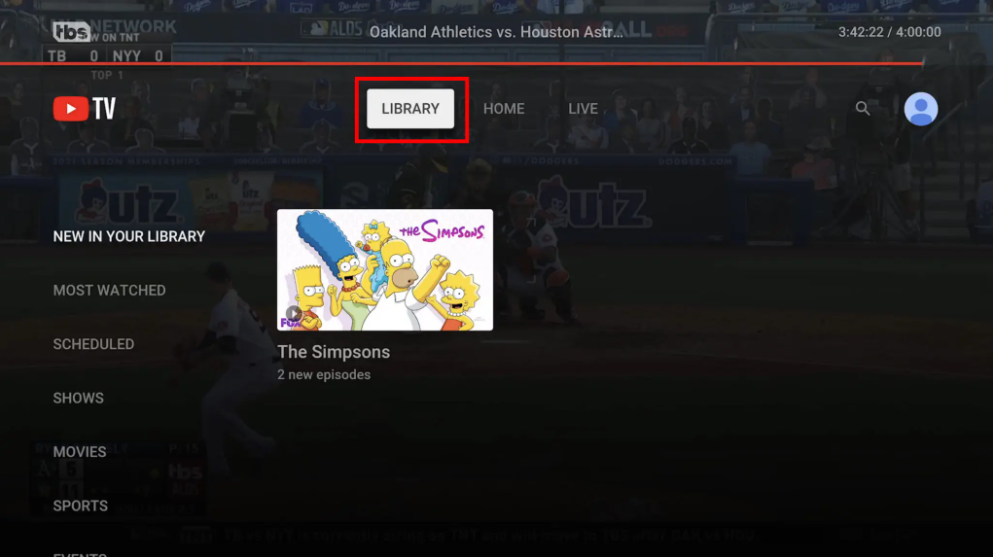
Open the app, tap Library, and select a show to manage recordings. Organize episodes, check new recordings, and start playback.
Roku, Fire TV, and Apple TV
Navigate to Library with your remote to browse recordings. You can switch profiles or reorder categories to improve navigation.
Web browser on Windows or Mac
Go to tv.youtube.com and sign in. Use the left menu to open Library and manage recordings from a single dashboard.
Managing your YouTube TV library effectively
A well-managed Library helps you find recordings quickly and prevents issues with partial episodes.
Extend sports recordings automatically
Sports events often run long, so YouTube TV extends recordings automatically when available. This prevents missing the final minutes of the game.
Prioritize series recordings and reruns
YouTube TV records every new episode and rerun when you add a series to the Library. This ensures you never miss an airing.
Remove unwanted recordings to simplify your library
You can remove shows from the Library to declutter the interface. The platform deletes upcoming scheduled recordings, but existing recordings remain until they expire.
Alternatives that support offline downloads
If offline viewing is essential, other services offer full downloads for mobile devices.
Hulu + Live TV and offline viewing rules
Hulu offers offline downloads for many on-demand shows with its ad-free plan. Some network titles remain restricted due to licensing.
Direct streaming services with offline support
Netflix, Prime Video, Max, and other services support offline downloads for most on-demand titles. These services work well when you need reliable offline access.
Troubleshooting when you cannot record shows
- “Add to Library” button missing: Some networks block recording for specific titles. Restart the app or switch profiles when the button disappears due to a temporary glitch.
- Recordings not appearing in library: Recordings may take a short time to sync across devices. Clear the app cache on mobile or refresh the web page if the Library does not update.
- Playback errors during recorded shows: Playback issues usually result from slow network speeds or corrupted app data. Restart the app and connect to stable Wi-Fi before trying again.
Tips for managing playback and recordings
- Update the YouTube TV app on every device.
- Use strong Wi-Fi for smoother DVR playback.
- Create separate profiles to keep recordings organized.
FAQs about downloading and recording on YouTube TV
Can you download DVR recordings to your phone? Just like when you download YouTube videos, you cannot save full DVR recordings to your phone. This is because YouTube TV stores them in the cloud.
How long does YouTube TV keep recordings? Recordings remain available for nine months. The timer resets when new episodes air.
Does YouTube Premium include YouTube TV downloads? YouTube Premium applies only to the regular YouTube app, not YouTube TV.
Can you use third-party apps to download YouTube TV shows? Unauthorized tools violate Google’s terms of service and can lead to account issues.
Summary
- YouTube TV does not support offline downloads.
- You can save shows with cloud DVR and stream them anytime.
- You can record on mobile, TV devices, or a browser.
- Alternatives provide true offline downloads when needed.
You can rely on YouTube TV’s cloud DVR for flexible recording even though the service does not offer offline downloads. Use the Library to save content, organize episodes, and stream recordings across devices. If you need portable offline access, choose services that offer full downloads for mobile viewing.



Discussion (0)
Be the first to comment.