




Incognito mode on YouTube helps you watch videos without adding anything to your search or watch history. It works inside the mobile app and gives you a cleaner, more private experience while browsing.
This guide shows how to enable the feature on Android and iOS. It also explains the desktop alternative and how to fix the option when it doesn’t appear.

Access content across the globe at the highest speed rate.
🔥 Save 81% + 2 bonus months! 🔥
70% of our readers choose Private Internet Access
70% of our readers choose Private Internet Access
2
Browse the web from multiple devices with industry-standard security protocols.
🔥 Save 73%! 🔥

Faster dedicated servers for specific actions (currently discounted)
🔥 Save 69%! 🔥
1) Turn on Incognito mode on Android
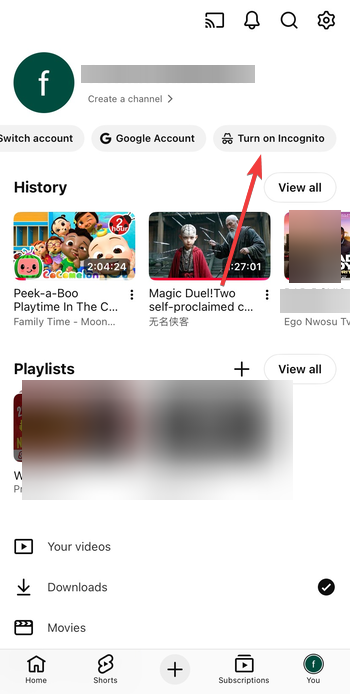
YouTube for Android places the Incognito toggle in the account menu. You can activate it in a few taps.
Open the YouTube app and tap your profile icon in the top right. Next, select Turn on Incognito, and the Setting should come into effect.

To be sure that you are now in incognito mode, YouTube replaces your profile icon with an Incognito badge. A dark notification bar appears at the bottom to confirm the change.
2) Turn on Incognito mode on iPhone or iPad
The iOS version uses the same account menu layout. Just open the YouTube app and tap your profile icon in the top right corner. Lastly, select Turn on Incognito.
3) Use YouTube Incognito on desktop or laptop
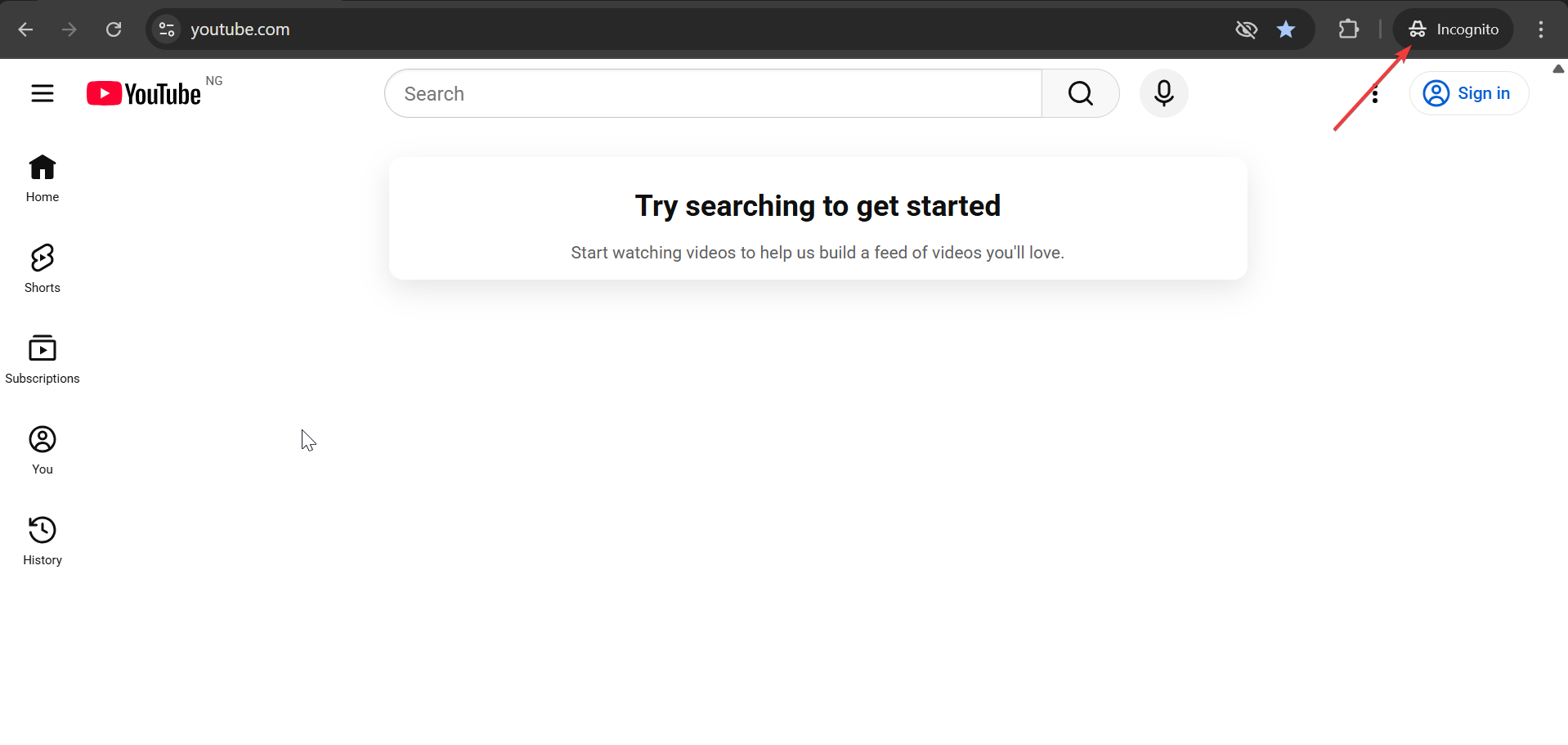
YouTube doesn’t include a built-in Incognito mode on the desktop site. Browser private windows offer the closest alternative for private viewing. So, you need to go incognito on browsers like Chrome, Firefox, or Edge to have a semblance of using YouTube in private mode.
On most browsers, you only need to click the menu icon, select New Incognito/private window, and visit the official YouTube website.
4) Turn off Incognito mode
YouTube switches back to your normal profile when you exit Incognito manually or after extended inactivity.
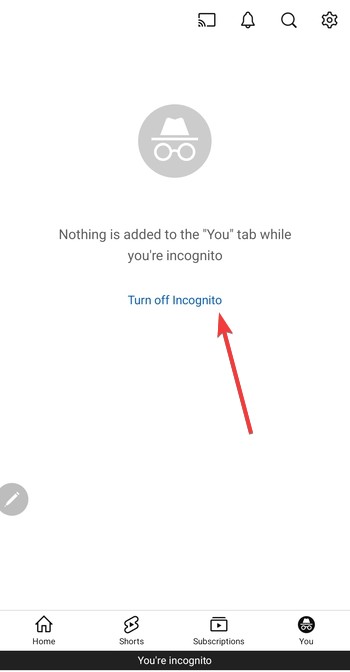
To leave the incognito mode, tap the Incognito icon, choose Turn off Incognito, and your profile icon returns. Also, YouTube resumes saving history.
5) What Incognito mode doesn’t hide
Incognito mode only affects saved YouTube history. It doesn’t conceal network-level activity.
Network and ISP visibility
Your internet provider, workplace, or school can still see that you visited YouTube.
Ads and recommendations after exit
YouTube resets your history only for the current session. Recommendations update again when you leave Incognito.
Troubleshooting YouTube Incognito mode not showing
- Update the YouTube app: Outdated versions sometimes hide or move the settings. Install the latest update to restore the toggle.
- Check for supervised or restricted accounts: Child accounts, school accounts, and supervised family profiles block Incognito mode to maintain restrictions.
- Sign in with a standard Google account: YouTube only enables Incognito for regular personal accounts. Switching accounts usually restores it.
Tips: Clear activity after using Incognito
- Delete watch and search history: YouTube settings let you clear any saved searches or videos. Doing this resets your recommendations even further.
- Pause history as a longer-term option: Pausing watch and search history works as a permanent privacy setting when you don’t want recommendations to update.
FAQs
Why doesn’t Incognito mode appear on my account? Supervised, school, or restricted accounts can’t use the feature. Update the app or switch to a standard Google account.
Does Incognito mode hide my identity online? It only pauses history on your device. Your network provider still sees your traffic.
Can I use Incognito on my PC? The YouTube website doesn’t offer it. You need a browser private window instead.
Does Incognito stop ads? No. YouTube still shows ads based on general activity and region.
Summary
- YouTube’s Incognito mode pauses watch and search history on mobile.
- Android and iOS users enable it from the profile menu.
- Desktop users must use a browser private window instead.
- The feature disappears on supervised or restricted accounts.
Conclusion
YouTube’s Incognito mode offers a fast way to browse without saving activity to your account. It works best on the mobile app and gives you a temporary private session until you turn it off.
If the option doesn’t appear, switching accounts or updating the app usually fixes it. Desktop users get similar privacy by watching through a private browser window.


Discussion (0)
Be the first to comment.