




Although we tend to like the OneDrive service, and we use it on our Windows computers, there are a few quirks that we have trouble with. One of them is that, sometimes, we’re facing issues with OneDrive not syncing. Another one is knowing when it performed the last synchronization to get an idea of whether it has synchronized the latest files we have added. Here is how to sync OneDrive by force and how to check when your files were last synced by it in Windows 11 and Windows 10:
NOTE: Because things are mostly the same in Windows 11 and Windows 10, we are primarily using screenshots from Windows 11 to illustrate the instructions for these two operating systems.

 OneDrive icon from Windows 11's taskbar
This action opens a window where OneDrive shows the last actions it performed. For each synced file, you can see how far back in time that happened.
OneDrive icon from Windows 11's taskbar
This action opens a window where OneDrive shows the last actions it performed. For each synced file, you can see how far back in time that happened.
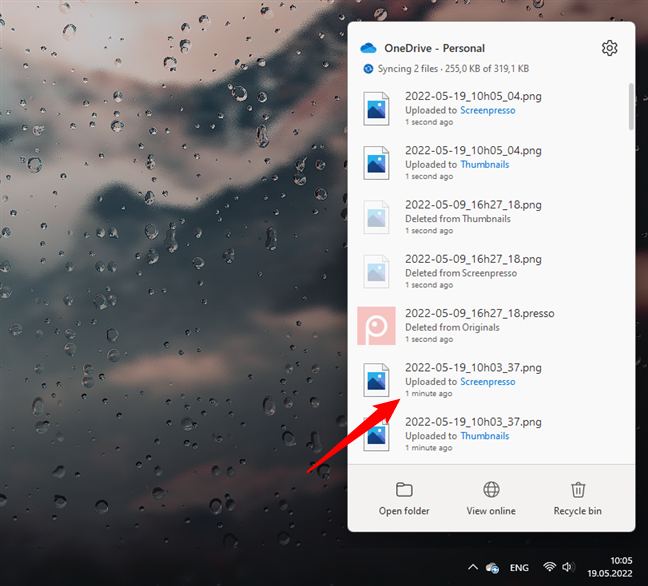
 Last sync times shown by OneDrive in Windows 11
The OneDrive app for Windows 10 is identical to the one in Windows 11, as you can see in the screenshot below.
Last sync times shown by OneDrive in Windows 11
The OneDrive app for Windows 10 is identical to the one in Windows 11, as you can see in the screenshot below.
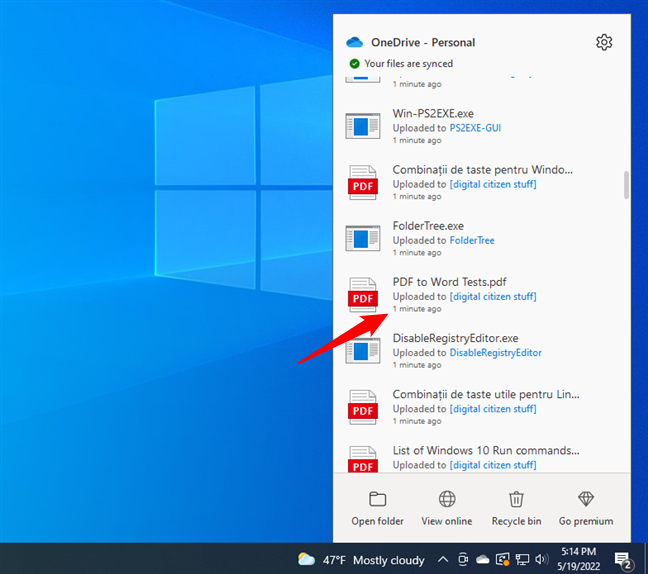
 Last sync times shown by OneDrive in Windows 10
Note that, as far as we know, this is the only way to find out when OneDrive last synchronized your files in either Windows 11 or Windows 10.
There’s also a OneDrive app in the Microsoft Store, which is different from the desktop application. However, the app from the Microsoft Store doesn’t offer any information regarding the last sync time.
Last sync times shown by OneDrive in Windows 10
Note that, as far as we know, this is the only way to find out when OneDrive last synchronized your files in either Windows 11 or Windows 10.
There’s also a OneDrive app in the Microsoft Store, which is different from the desktop application. However, the app from the Microsoft Store doesn’t offer any information regarding the last sync time.
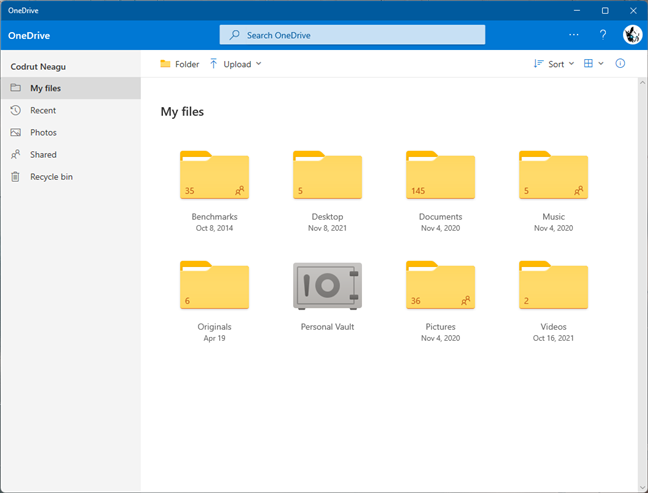
 Microsoft Store OneDrive app for Windows 11
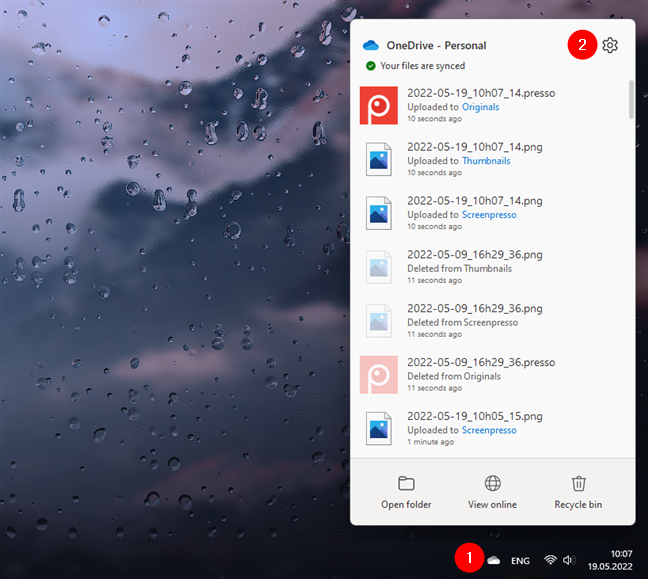
 Opening Help & Settings in OneDrive's app
The previous action opens OneDrive’s menu. On it, click or tap on “Pause syncing” and select “2 hours” or any of the other options available.
Opening Help & Settings in OneDrive's app
The previous action opens OneDrive’s menu. On it, click or tap on “Pause syncing” and select “2 hours” or any of the other options available.
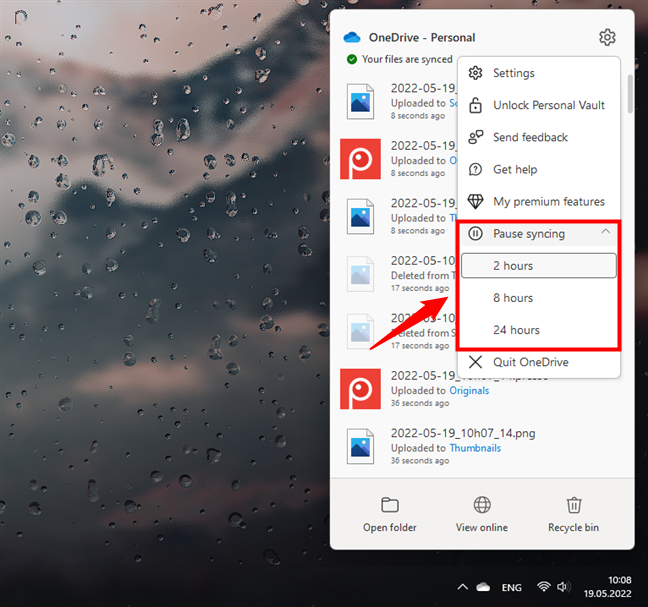
 Pause syncing for OneDrive
OneDrive immediately stops syncing your files for the time you selected. In its popup window, it tells you about the syncing pause, just like in the screenshot below.
Pause syncing for OneDrive
OneDrive immediately stops syncing your files for the time you selected. In its popup window, it tells you about the syncing pause, just like in the screenshot below.
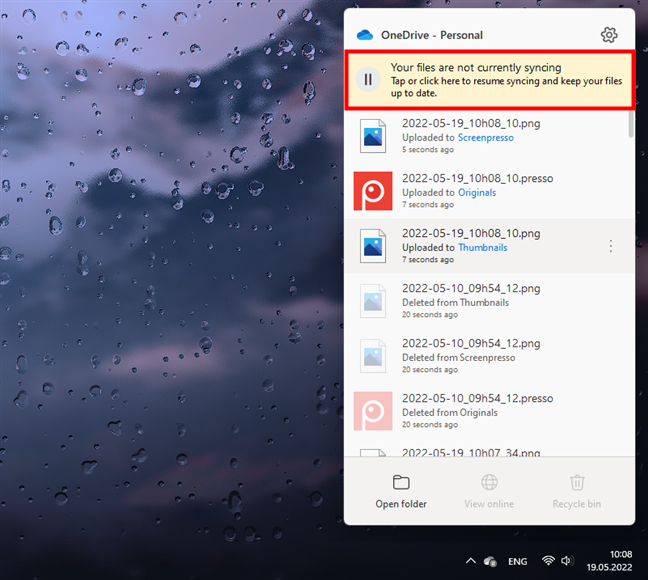
 OneDrive: Your files are not currently syncing
To force OneDrive to sync, there’s only one thing left to do. Open OneDrive’s window again, and click or tap on the Pause button from the top.
OneDrive: Your files are not currently syncing
To force OneDrive to sync, there’s only one thing left to do. Open OneDrive’s window again, and click or tap on the Pause button from the top.
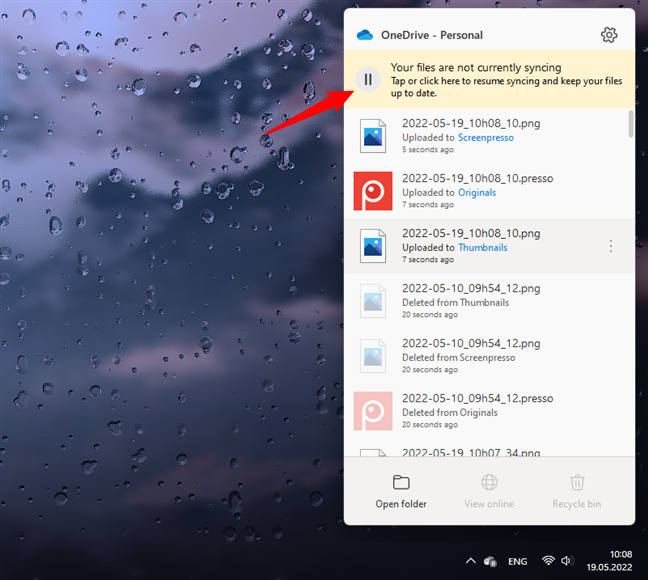 Resume syncing in OneDrive
Alternatively, you can also press the “Resume syncing” option from its menu.
Resume syncing in OneDrive
Alternatively, you can also press the “Resume syncing” option from its menu.
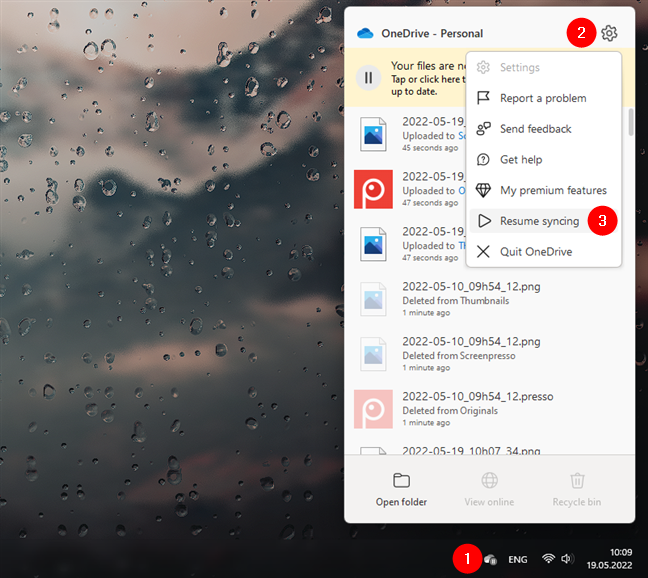
 Resume syncing for OneDrive from its menu
This action makes OneDrive sync the latest data right now.
TIP: If you also use OneDrive on your Android devices or your iPhone, read How to force OneDrive to sync on Android and iPhone.
Resume syncing for OneDrive from its menu
This action makes OneDrive sync the latest data right now.
TIP: If you also use OneDrive on your Android devices or your iPhone, read How to force OneDrive to sync on Android and iPhone.
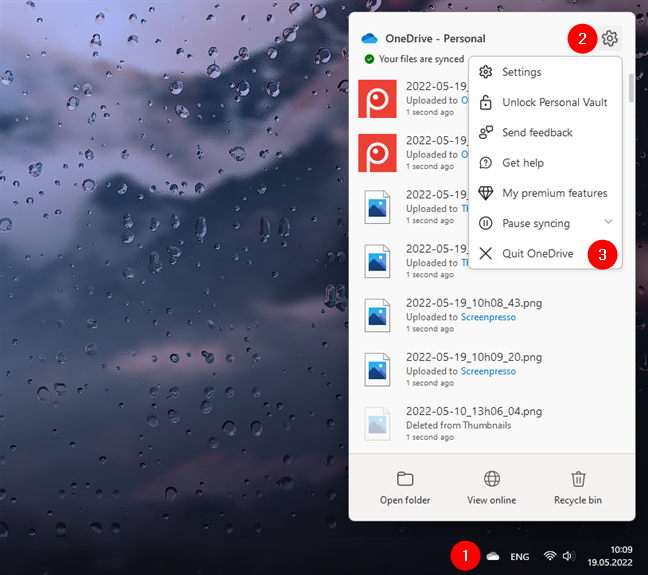
 OneDrive force sync: Close OneDrive
Then, start OneDrive again. Both in Windows 11 and Windows 10, a quick way to do it is to look for the OneDrive shortcut in the Start Menu and click or tap on it.
OneDrive force sync: Close OneDrive
Then, start OneDrive again. Both in Windows 11 and Windows 10, a quick way to do it is to look for the OneDrive shortcut in the Start Menu and click or tap on it.
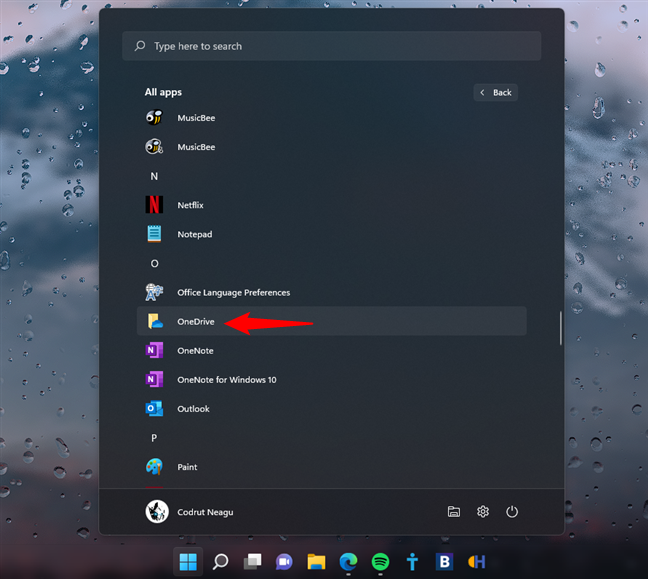 Force OneDrive to sync: Restart the OneDrive app
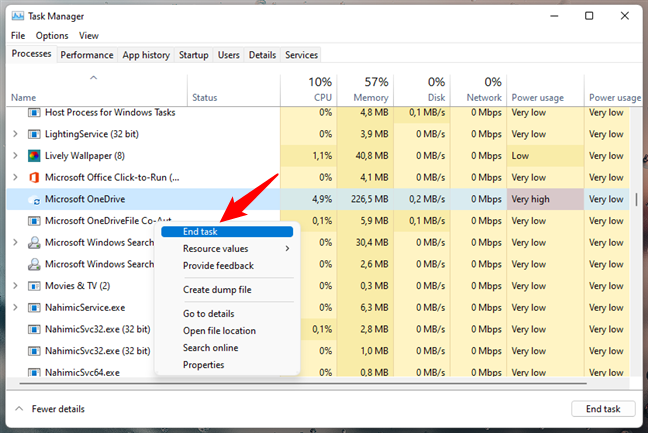
 Ending the OneDrive task
In the same Task Manager window, open the File menu and click or tap on Run new task.
Ending the OneDrive task
In the same Task Manager window, open the File menu and click or tap on Run new task.
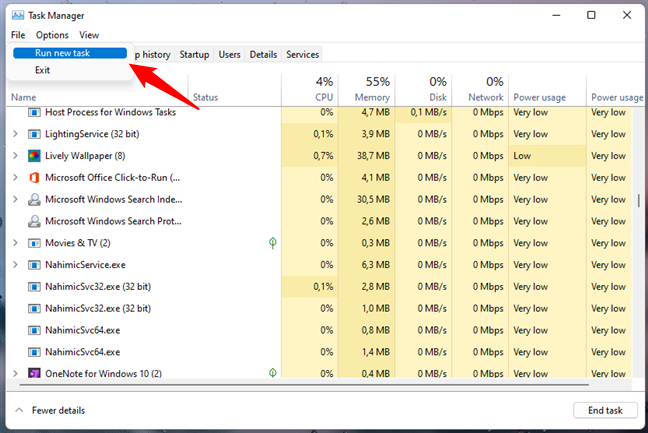 Using Task Manager to Run new task
Task Manager now launches a new window called “Create new task.” In the Open field, if you use Windows 11, type this path:
Using Task Manager to Run new task
Task Manager now launches a new window called “Create new task.” In the Open field, if you use Windows 11, type this path:
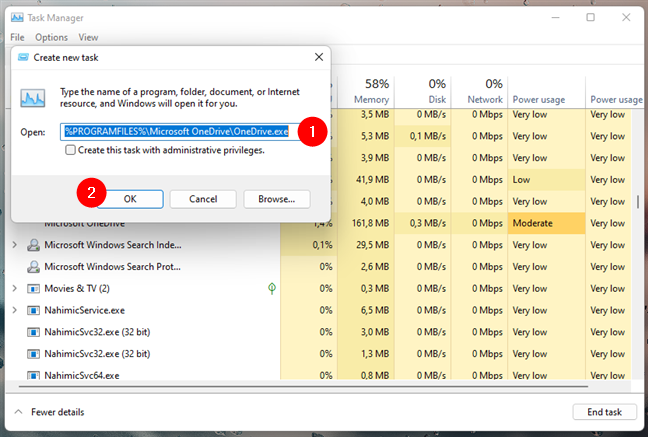
 Start OneDrive from Windows 11's Task Manager
If you use Windows 10, use this path instead:
Start OneDrive from Windows 11's Task Manager
If you use Windows 10, use this path instead:
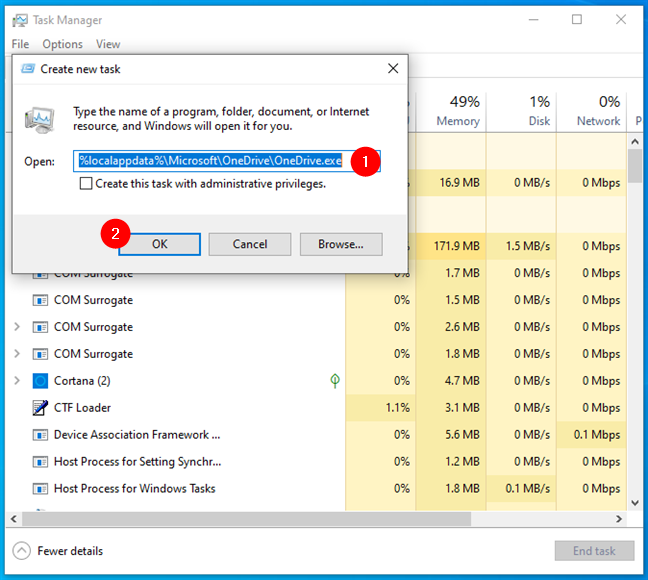 Start OneDrive from Windows 10's Task Manager
In either case, after you’ve entered the proper path, click or tap on OK or press Enter on your keyboard. OneDrive's process should now start again. Once it’s launched, it automatically triggers a file check, and if any change is detected, it also starts syncing your files.
Start OneDrive from Windows 10's Task Manager
In either case, after you’ve entered the proper path, click or tap on OK or press Enter on your keyboard. OneDrive's process should now start again. Once it’s launched, it automatically triggers a file check, and if any change is detected, it also starts syncing your files.
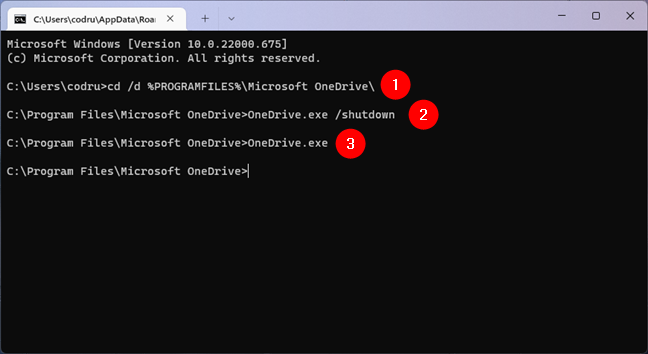
 OneDrive force sync using commands in Command Prompt
If you’re using Windows 10, run these commands:
OneDrive force sync using commands in Command Prompt
If you’re using Windows 10, run these commands:
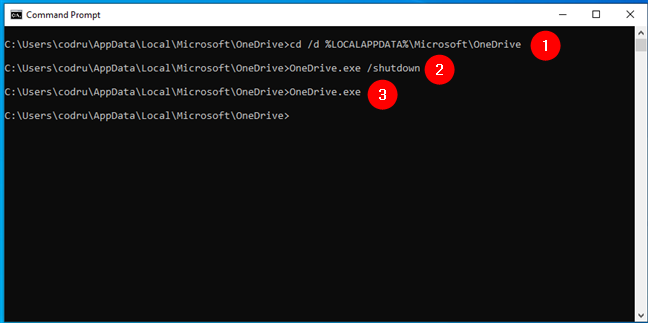
 OneDrive force sync commands in Windows 10
In both cases, the first command sets the working directory to the one where OneDrive is installed. The second command shuts down OneDrive, and the last one relaunches the app. The result is that the OneDrive app is restarted, which should force OneDrive to sync.
OneDrive force sync commands in Windows 10
In both cases, the first command sets the working directory to the one where OneDrive is installed. The second command shuts down OneDrive, and the last one relaunches the app. The result is that the OneDrive app is restarted, which should force OneDrive to sync.
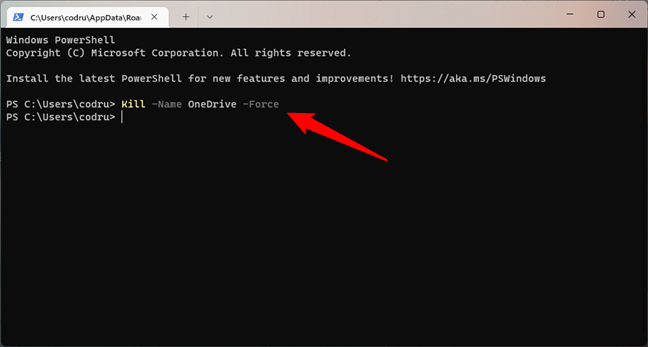
 Kill the OneDrive process from PowerShell
Then, if you use Windows 11, run the next command to relaunch OneDrive:
Kill the OneDrive process from PowerShell
Then, if you use Windows 11, run the next command to relaunch OneDrive:
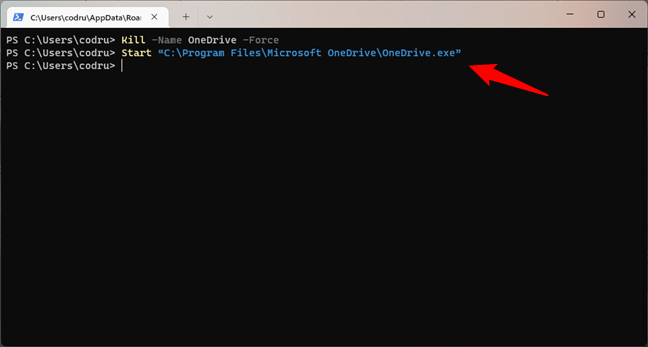 OneDrive force sync by launching OneDrive from PowerShell
If you use Windows 10, run this command instead:
OneDrive force sync by launching OneDrive from PowerShell
If you use Windows 10, run this command instead:
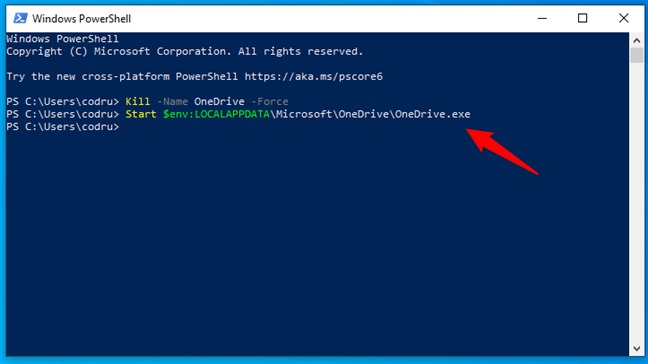
 OneDrive force sync in Windows 10 from PowerShell
Regardless of whether you use Windows 11 or Windows 10, now the app is restarted, which should force OneDrive to sync.
OneDrive force sync in Windows 10 from PowerShell
Regardless of whether you use Windows 11 or Windows 10, now the app is restarted, which should force OneDrive to sync.
How to see when OneDrive files were last synced
If it looks like OneDrive’s not syncing on your Windows 11 or Windows 10 computer, and you want to check when your files were last synchronized, click or tap once on the OneDrive icon from the taskbar notification area.How often does OneDrive sync?
In normal circumstances, the OneDrive application syncs your files continuously as soon as it detects a change, which it should do automatically. You don’t get any controls to force OneDrive to sync, and you don’t get any options related to the syncing process’s frequency. As we said, it’s all automatic, so there’s not much you can actually do if your OneDrive is not syncing in Windows 11 or Windows 10. However, you can do a OneDrive force sync by pausing and resuming the synchronization process or by restarting the app. Here are a few ways to do that:1. How to force OneDrive to sync using its “Pause syncing” feature
In either Windows 11 or Windows 10, forcing OneDrive to sync your files can be rather easy, although not exactly intuitive. All you have to do is “Pause syncing” and then “Resume syncing.” Here’s how to do it: Click or tap on OneDrive’s icon from the right side of the taskbar. Then, press the cogwheel button called “Help & Settings” from the top-right corner of OneDrive’s popup window.2. How to do a OneDrive force sync using its menu
An alternative way to do a OneDrive force sync is to stop the OneDrive app and then start it again. To stop it, right-click (or tap and hold) on its icon from the taskbar notification area, and press Quit OneDrive.3. How to force OneDrive to sync using Task Manager
Another way to force OneDrive to sync, both in Windows 11 and Windows 10, is to restart the OneDrive application using Task Manager. Open the Task Manager and select the Processes tab. Then, find the Microsoft OneDrive process, right-click (press-and-hold) on it and select End Task to stop its process.%programfiles%\Microsoft OneDrive\OneDrive.exe
%localappdata%\Microsoft\OneDrive\OneDrive.exe
4. How to do a OneDrive force sync using Command Prompt
Command Prompt also offers an alternative solution to the OneDrive not syncing problem. If you’re using Windows 11, open CMD and run the following commands, one after the other:cd /d %PROGRAMFILES%\Microsoft OneDrive
OneDrive.exe /shutdown
OneDrive.exe
cd /d %LOCALAPPDATA%\Microsoft\OneDrive
OneDrive.exe /shutdown
OneDrive.exe
5. How to do a OneDrive force sync using PowerShell
Finally, our final solution to the OneDrive not syncing issues is to restart OneDrive using PowerShell. Open PowerShell and run the following command to close the OneDrive app:Kill -Name OneDrive -Force
Start “C:\Program Files\Microsoft OneDrive\OneDrive.exe”
Start $env:LOCALAPPDATA\Microsoft\OneDrive\OneDrive.exe


Discussion (29)
Seems to be working… Thanks!
For me, pausing/resuming or quitting/restarting OneDrive does not start the syncing.
The only way it to unlink – ‘Unlink account’ and ‘unlink this PC’, then start OneDrive again, do the setting up steps again.
Wow. That’s weird, and most probably a bug. It should not behave this way. Don’t hesitate to report to Microsoft using the Feedback Hub app found in Windows.
Pause/Resume worked instantly. TOO EASY!
Thank you thank you thank you!
Glad to have helped. For more useful tutorials, don’t hesitate to subscribe to our free newsletter, here: https://www.digitalcitizen.life/newsletter/
I have a very large PST file. I want to keep a copy of this file on my hard drive and want to exclude it from being uploaded to OneDrive. However, I do want other files to be uploaded from my hard drive to OneDrive.
Is there a way to exclude a specific file or a specific folder from being uploaded to OneDrive.
I am using Windows 10.
Hi Michael. Check this guide on using File On Demand, in OneDrive and Windows 10: https://www.digitalcitizen.life/how-use-files-demand-windows-onedrive-file-explorer/
It is missing the most common error !
Go into your onedrive folder(d:/onedrive) and right-click on a folder and select “Always keep on this device” … immediately it will sync.
I probably have the same problems as many, it has been set up by an it-department, but when you are in an offline area, you need your files. It will sync automatically when you are online again, but you can work where ever you are.
Nice writeup. Too bad NONE of these procedures work.
Can you provide more details? What Windows you’re using? What OneDrive app version?
Helped. Thanks.
I need help with a phone having this ridiculous problem, not a computer.
Which smartphone?
One Drive should be a opt in instead of automatically signing you into it. It’s ridiculous that as soon as you sign into any Microsoft app it insists on signing you into One Drive or Mail, or Skype. There should be a opt in list that you could select which apps you want to be signed into. I pretty much backup locally, and could care less about handing Microsoft servers my files. I mean it seems like I read frequently about servers being hacked and information being breached. Same thing happens with Chrome OS, and Apple’s backup systems as well. Sign into your account and by default your entrenched into their ecosystem completely. Nobody is really sure where these servers are even located? Are they in the US? China? Who knows?
Restart Device.
One drive is not syncing from one of my laptops. It just says Processing 205 changes, then starts over again processing 11 changes, and keeps counting up to 205 over again. It lists the files it is uploading but they remain at 0.0 kb of whatever size they are.
I initially had Office 2013 and was saving pictures I edited on my editing software to OneDrive (Windows 7 OS). I upgraded to Office 365 and saved my pictures as always but now notice that my pictures are not being shared to all my devices. All my old stuff can be seen in other devices but anything new I saved to OneDrive is not; I can only see the newly saved pictures on my laptop where I originally saved them. In talking with Microsoft, they keep telling me to save in OneDrive.live.com. Is saving and sharing to other devices different from Office 2013 to Office 365? It is important to note that all my documents created in a Microsoft program (word, excel, etc) can be viewed in OneDrive on other devices- it is only other things like .jpeg files that are not. I’m thinking that saving a file to OneDrive in a folder I created is different in Office365.
This tutorial might help: Back up to OneDrive the pictures taken with your Android smartphone, in 4 steps.
My Windows 7 Onedrive has stopped syncing with my other devices and with Onedrive on the web.
I have tried closing & reopening, closing and reopening the process through Task Master and reinstalling, but it refuses to update my device files?
Actually, I followed your directions for manual update of files, exactly as described, and nothing happened. All files show as “sync pending,” as they did before I turned off onedrive and restarted it. No help, here… this is a terrible application. What was Microsoft thinking???
Did you sign into OneDrive with your Microsoft account? We never encountered the kinds of issues that you describe.
Followed all directions. Still not syncing. Size limit has not yet been reached. Do I have to have a microsoft account to use this?
OneDrive works with a Microsoft account or a business account that is registered to use OneDrive.
Thanks for the article concerning Sync with One Drive. I ran into a problem where my one drive was not synchronized with my work system and could not access files from a remote location (Old data on my one drive). After reading this article and performing he manual Sync, my files are not available on line.
This manual Sync will be a verification action I will perform daily to assure my files remain in Sync. Very valuable
Happy to help. 😉
This still doesn’t get my Onedrive to sync. Icon indicates Onedrive is up to date, but folder still shows versions of folders at least 2 years old rather than current.
Can’t you just right-click the OneDrive icon and choose exit? This works for me on Vista and Win 10. Then I just launch the app again when I want (at least on Vista, haven’t tried it on 10).
You’re right and I cannot see how I didn’t see that 🙂
Thanks a lot! We’ll update the tutorial very soon.
The tutorial was updated. Thanks again!