Windows 8 and Windows 8.1 are optimized for use on a wide range of devices. Whether you're using a desktop computer, a tablet or even a hybrid device, Windows 8 and 8.1 have you covered. While many features will be accessible across all platforms, some tasks may be easier done on one form of device or another. This can be seen with a task as simple as signing in. On a standard PC, you'll select your account and type in a password. Using a full-sized keyboard this is the fastest and easiest way to do the job. But what happens when you're on a tablet or touch screen? Suddenly, typing your secure password with varying cases, symbols and numbers is a bit of a headache. To alleviate this potential pain, Microsoft has included a number of sign-in options that you can configure. Read on to learn what these options are & how to take advantage of them.
How to Access User Settings
To get started, you need to access PC Settings. Here's how: Six Ways to Access PC Settings.
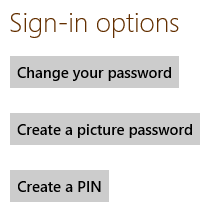
In Windows 8, go to the "Users" section in PC Settings and you're now ready to tweak your sign-in options.
Windows 8 , Windows 8.1, Sign-in options, log in, password, PIN, picture
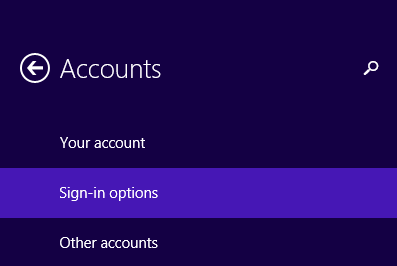
In Windows 8.1, go to Accounts and then to Sign-in options.
Windows 8 , Windows 8.1, Sign-in options, log in, password, PIN, picture
How to Change Your User Account's Password
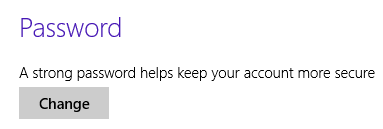
The default sign-in method will be to use the password you picked when you first created a Microsoft account or a local account on your Windows device. If you wish to change that password, click or tap "Change your password" in Windows 8, or the Change button, in the Password section, in Windows 8.1.
Windows 8 , Windows 8.1, Sign-in options, log in, password, PIN, picture
First, you are asked to enter the current password. Enter it!
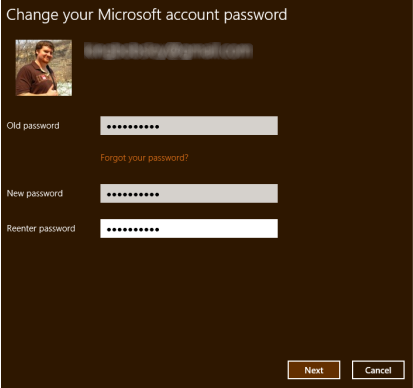
Then you are taken to the screen when you can change your password. Enter your old password and your new password in the spaces provided and click or tap "Next."
Windows 8 , Windows 8.1, Sign-in options, log in, password, PIN, picture
Provided you entered your information correctly, you'll receive a notification of success.
How to Create a Picture Password
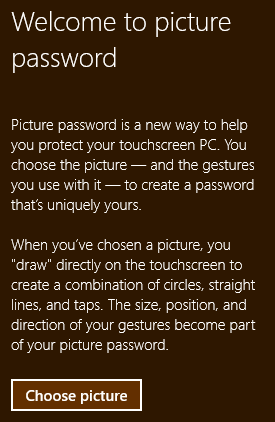
The second option that Windows 8 and Windows 8.1 provide for signing in to your account is the picture password. This option allows you to complete a series of three gestures, including lines, circles, taps or clicks, on an image of your choice rather than typing a password.
To set up this feature in Windows 8, click or tap "Create a picture password" from the Users section of PC Settings
In Windows 8.1 tap Add under Picture password.
Windows 8 , Windows 8.1, Sign-in options, log in, password, PIN, picture
Enter your account password when prompted.
Click or tap "Choose Picture" and browse through your pictures library for an image that you like.
Windows 8 , Windows 8.1, Sign-in options, log in, password, PIN, picture
Select your chosen image and click or tap "Open" to enlarge it on screen. Click or tap and drag it around the viewable window until you like the framing and click or tap "Use this picture."
Windows 8 , Windows 8.1, Sign-in options, log in, password, PIN, picture
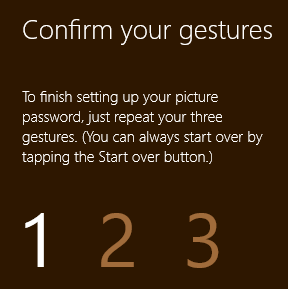
Complete a series of three gestures over your chosen image to form an unlock sequence. You can use a combination of lines, circles or taps anywhere on the image. Either click or tap and drag to create lines and circles or use your finger on a touch screen. Make sure to remember the gestures you use, their placement on the image and their order of completion. Complete the series of gestures again to prove you remember them and you're all set. If you messed up, don't panic. Just hit "Start over."
Windows 8 , Windows 8.1, Sign-in options, log in, password, PIN, picture
Click or tap "Finish" to return to PC Settings once you've successfully completed the procedure.
How to Create a PIN
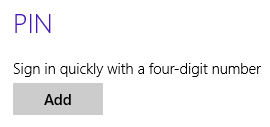
The third option for signing in to your Windows account in by way of a PIN. Just like on an ATM, your PIN number is a simple to remember four-digit number. It takes only seconds to enter whether you're using a physical keyboard or a touch screen.
To utilize this option in Windows 8, click or tap "Create a PIN" from the Users section of PC Settings.
In Windows 8.1, click or tap the Add button in the PIN section.
Windows 8 , Windows 8.1, Sign-in options, log in, password, PIN, picture
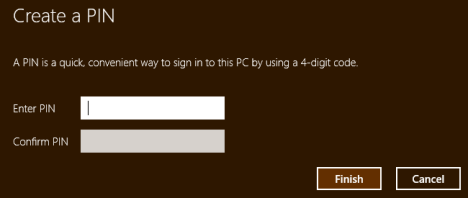
Enter your account password when prompted. Enter your chosen four-digit number in both of the provided fields and click or tap "Finish."
Windows 8 , Windows 8.1, Sign-in options, log in, password, PIN, picture
That's all there is to it.
How to Switch Between Sign-In Option
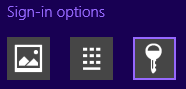
Now that you've configured a password, a picture password and a PIN, you'll be able to easily select which method you want to use each time you sign-in to your account. When you find yourself on the sign-in screen, click "Sign-in options" to display three icons.
Windows 8 , Windows 8.1, Sign-in options, log in, password, PIN, picture
Select the picture icon to use the picture password, the keypad icon for your PIN or the key icon to use your account password.
Windows 8 , Windows 8.1, Sign-in options, log in, password, PIN, picture
Conclusion
There you have it. Three options for signing in to your Microsoft account, no matter which sort of device you use. On a desktop or laptop, the traditional password is simple. The PIN works just as well on your desktop but is also just as easy on a touchscreen device. The picture password is perfect for your tablet or touch screen, but isn't going to win many followers on traditional PCs.
What do you think of these sign-in options? While they make life easier for cross-platform users, do you see the PIN or picture password as too simple to guess? Leave your comments or questions below.
I have forgotten my PIN number. It is appearing on several sites where I’m trying to change a program password. I want to get rid of the PIN number altogether, but would even use a different one if I could figure out what # I used to begin with. The Acct. # is fine, it’s just this stupid Pin # that stops me
paulee ·
fuck fuck fuck microsoft!!!!! I would like to have a login for the app store without changing my login for my computer.
shico ·
I don’t know how soon you will have to reply this but please, its urgent. I forgot my PC’s password (windows 8 to be precise) and I normally use the ‘sign-in options’ before to sign in using the 4digits codes. Now my PC is not showing the ‘sign-in options’ again, please how can I get to see the ‘sign-in option’ again so I would be able to insert the 4 digit code to unlock my PC. please help me. I use my PC for my business please…. I await your quick reply. Thank you and God bless you.
Nkuli ·
Hi I have the same problem I forgot my password and have been using my 4 digit pin to login now its no longer giving me login option- I’m using windows 8 aswell please help
Umair ·
Is there any way I can only use pin and disable password option… I have to click on enter pin button every time i login, and that one click is such a pain.. lol
David.Patow ·
Ah, ha! I un-installed the VPN software that my company uses, and the domain login problem went away. I then re-installed the software, and the problem returned. My guess is that the software was messing with (e.g.) the list of available credential providers, and the login screen didn’t like something about it, so the login screen chose its default behavior, rather than showing the last-known login. I’m satisfied with this analysis, but a little disappointed in the VPN software. I’ll have to live with this bad behavior.
William Jackson ·
Have a Dell Venue 11 Pro that had the same problem with the domain login. In my case it was the Dell Data Protection Security Authentication application that they installed. After removing the software the system resuming defaulting back to the domain login. I’m quite happy. Thanks for pointing me in the right direction.
Jerad Johnson ·
Hello David, I finally found the culprit that caused the strange issue in my scenario. The problem was with Kaspersky Endpoint Security for Workstations version 10. It’s a long story, but I was lucky to find the root of the issue. This software has a LOT of functionality, some of it we use and some we do not. I had performed a “Full” installation of the software, which includes some encryption modules. I was not using the encryption, and so was advised to remove the encryption modules. When I removed that part of the software the problem went away.
David.Patow ·
Hi, Jerad. Hmm… I’m using a bare-bones installation of McAfee VirusScan Enterprise 8.8, and I still see the problem. Also, I don’t see any related setting in Group Policy. I’ll keep looking.
David.Patow ·
Referring to Jerad Johnson’s recent post, is there any response? I’m also having this annoying behavior with the Windows 8.1 domain login, and I’d like to know if there is a way to make it remember the type of my last login, so that I don’t have to do the extra clicks.
Jerad Johnson ·
Hello, sorry to jump onto an old post here; but Google searches have turned up rather empty and this page is the closest thing I can find to what I’m searching for. I recently upgraded my work PC from Windows 7 to Windows 8 to test/learn the OS. It is joined to a domain, and so I log onto the system with domain credentials. Just last week “something” changed with the logon process. I now have to manually switch it to the domain login each time I reboot the PC. Previously it would “remember” that I log on with domain credentials and so I wouldn’t have to choose that option. Now each time I boot it reverts to wanting me to use a Microsoft account. This is very frustrating. If I were to have this in a live work environment it would be a support nightmare.
Do you know how to change this?
Geir S ·
I use a biometric face regognition software from Key Lemon, and ut is kind of neet not having to do anything 🙂
John Livingston ·
I followed Windows 8.1 instructions and sign into my PC through my Windows Live (Outlook.com) account. I don’t want to do this in case of a network or WIFI outage — want to sign in locally to the machine. How do I change this?
Ciprian Adrian Rusen ·
A working Internet connection is mandatory only when you are logging in for the first time to your Windows 8.1 PC. Then, your credentials are stored and encrypted on your PC so that you can connect to it even if a network connection is not available.
Ciprian Adrian Rusen ·
Also, please read these guides, to get a clearer picture about local accounts and Microsoft accounts:
I don’t want to have to enter a password anytime I use my laptop, because I’m always at home. What do I do to stop the system requiring me to enter one?
Hello , I can’t log in to my computer , I tried to remove my old password , and pressed “remove” on the sign in options , the “remove” button disappeared and then I loged out , now computer said wrong password . Please help me
Anju ·
Hi,
From last 2 weeks i was using windows 8 laptop.
I would like to change my old microsoft account to new microsoft account, if i do this is every thing same as old or not, any lost of applications or anything, plz le tme know ASAP..
Thanks
Anju
Wild.Stallion ·
I think the picture password feature is an innovative feature, and a much better choice for touchscreens. But the risk is that it is pretty easy to remember by someone who just ‘happened’ to glance over.




















Discussion (22)
I have forgotten my PIN number. It is appearing on several sites where I’m trying to change a program password. I want to get rid of the PIN number altogether, but would even use a different one if I could figure out what # I used to begin with. The Acct. # is fine, it’s just this stupid Pin # that stops me
fuck fuck fuck microsoft!!!!! I would like to have a login for the app store without changing my login for my computer.
I don’t know how soon you will have to reply this but please, its urgent. I forgot my PC’s password (windows 8 to be precise) and I normally use the ‘sign-in options’ before to sign in using the 4digits codes. Now my PC is not showing the ‘sign-in options’ again, please how can I get to see the ‘sign-in option’ again so I would be able to insert the 4 digit code to unlock my PC. please help me. I use my PC for my business please…. I await your quick reply. Thank you and God bless you.
Hi I have the same problem I forgot my password and have been using my 4 digit pin to login now its no longer giving me login option- I’m using windows 8 aswell please help
Is there any way I can only use pin and disable password option… I have to click on enter pin button every time i login, and that one click is such a pain.. lol
Ah, ha! I un-installed the VPN software that my company uses, and the domain login problem went away. I then re-installed the software, and the problem returned. My guess is that the software was messing with (e.g.) the list of available credential providers, and the login screen didn’t like something about it, so the login screen chose its default behavior, rather than showing the last-known login. I’m satisfied with this analysis, but a little disappointed in the VPN software. I’ll have to live with this bad behavior.
Have a Dell Venue 11 Pro that had the same problem with the domain login. In my case it was the Dell Data Protection Security Authentication application that they installed. After removing the software the system resuming defaulting back to the domain login. I’m quite happy. Thanks for pointing me in the right direction.
Hello David, I finally found the culprit that caused the strange issue in my scenario. The problem was with Kaspersky Endpoint Security for Workstations version 10. It’s a long story, but I was lucky to find the root of the issue. This software has a LOT of functionality, some of it we use and some we do not. I had performed a “Full” installation of the software, which includes some encryption modules. I was not using the encryption, and so was advised to remove the encryption modules. When I removed that part of the software the problem went away.
Hi, Jerad. Hmm… I’m using a bare-bones installation of McAfee VirusScan Enterprise 8.8, and I still see the problem. Also, I don’t see any related setting in Group Policy. I’ll keep looking.
Referring to Jerad Johnson’s recent post, is there any response? I’m also having this annoying behavior with the Windows 8.1 domain login, and I’d like to know if there is a way to make it remember the type of my last login, so that I don’t have to do the extra clicks.
Hello, sorry to jump onto an old post here; but Google searches have turned up rather empty and this page is the closest thing I can find to what I’m searching for. I recently upgraded my work PC from Windows 7 to Windows 8 to test/learn the OS. It is joined to a domain, and so I log onto the system with domain credentials. Just last week “something” changed with the logon process. I now have to manually switch it to the domain login each time I reboot the PC. Previously it would “remember” that I log on with domain credentials and so I wouldn’t have to choose that option. Now each time I boot it reverts to wanting me to use a Microsoft account. This is very frustrating. If I were to have this in a live work environment it would be a support nightmare.
Do you know how to change this?
I use a biometric face regognition software from Key Lemon, and ut is kind of neet not having to do anything 🙂
I followed Windows 8.1 instructions and sign into my PC through my Windows Live (Outlook.com) account. I don’t want to do this in case of a network or WIFI outage — want to sign in locally to the machine. How do I change this?
A working Internet connection is mandatory only when you are logging in for the first time to your Windows 8.1 PC. Then, your credentials are stored and encrypted on your PC so that you can connect to it even if a network connection is not available.
Also, please read these guides, to get a clearer picture about local accounts and Microsoft accounts:
https://www.digitalcitizen.life/introducing-windows-8-should-you-use-local-account-or-microsoft-account
https://www.digitalcitizen.life/how-create-new-user-account-windows-8
I’m on my home computer, I don’t want to use any kind of password, it’s annoying.
Read this guide:
https://www.digitalcitizen.life/log-automatically-windows-7-without-typing-your-password
I don’t want to have to enter a password anytime I use my laptop, because I’m always at home. What do I do to stop the system requiring me to enter one?
Try this: https://www.digitalcitizen.life/log-automatically-windows-7-without-typing-your-password
Hello , I can’t log in to my computer , I tried to remove my old password , and pressed “remove” on the sign in options , the “remove” button disappeared and then I loged out , now computer said wrong password . Please help me
Hi,
From last 2 weeks i was using windows 8 laptop.
I would like to change my old microsoft account to new microsoft account, if i do this is every thing same as old or not, any lost of applications or anything, plz le tme know ASAP..
Thanks
Anju
I think the picture password feature is an innovative feature, and a much better choice for touchscreens. But the risk is that it is pretty easy to remember by someone who just ‘happened’ to glance over.