




Wi-Fi 7 routers are becoming more affordable than ever, making it a great time to upgrade your network. One of the most budget-friendly options available on the market right now is the HUAWEI WiFi BE3. This dual-band, lightweight wireless router features Wi-Fi 7 connectivity and aims to deliver a good user experience at a very low price. But does this model provide fast and stable Wi-Fi? And, should you consider buying it? Read this review to find out:
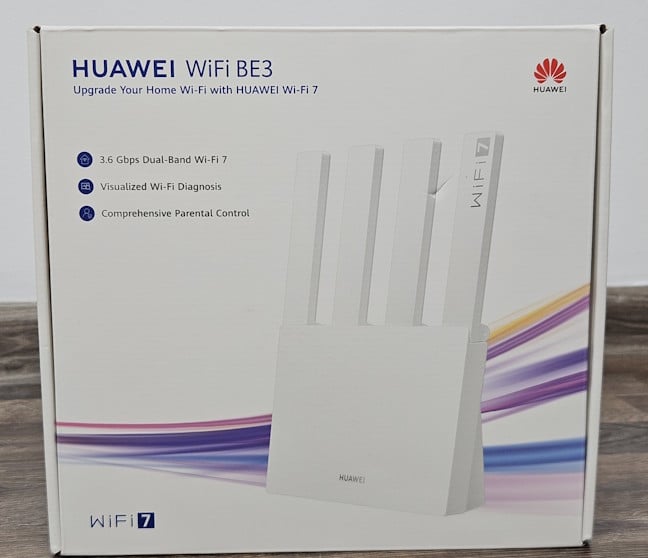
 HUAWEI WiFi BE3 comes in a small white cardboard box
The company provides more information about this product on the back of the box and its sides. So do take a peek if you’re curious to know more. When you open the box, you should find the following items: the router itself, its power adapter, a short CAT5e network cable, the user guide, warranty, and safety information.
HUAWEI WiFi BE3 comes in a small white cardboard box
The company provides more information about this product on the back of the box and its sides. So do take a peek if you’re curious to know more. When you open the box, you should find the following items: the router itself, its power adapter, a short CAT5e network cable, the user guide, warranty, and safety information.
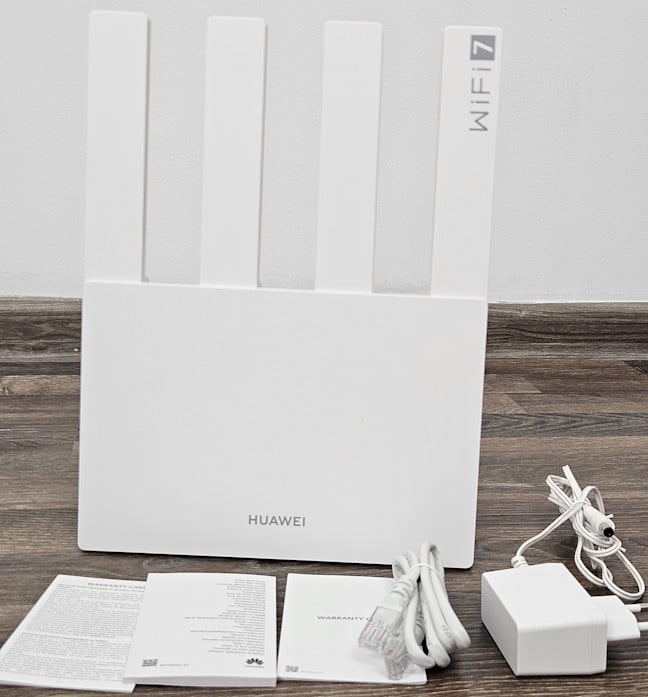
 This is what you get inside the packaging
Unboxing the HUAWEI WiFi BE3 is a quick and easy process. However, before you start configuring it, it’s a good idea to read the quick setup guide, so you know what steps are involved and what you should do.
This is what you get inside the packaging
Unboxing the HUAWEI WiFi BE3 is a quick and easy process. However, before you start configuring it, it’s a good idea to read the quick setup guide, so you know what steps are involved and what you should do.
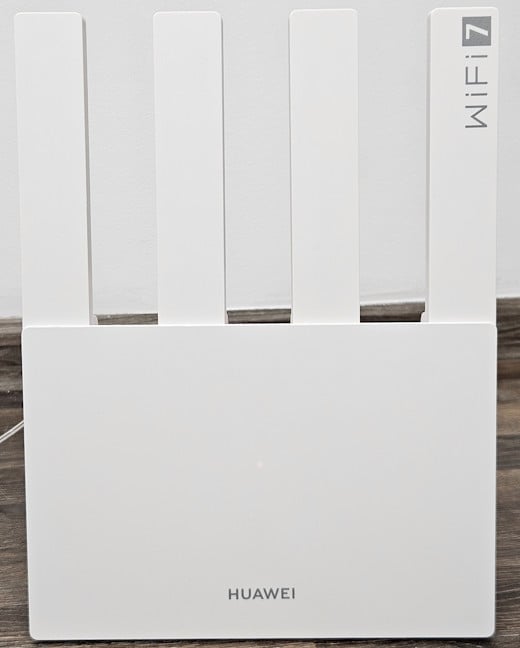
 HUAWEI WiFi BE3 has four external antennas
The HUAWEI WiFi BE3 is both thin and light. Its body is made of plastic, and it weighs just 436 grams, or approximately 15.37 ounces. When its antennas are unfolded, it measures 280 × 215 × 61.5 mm, or 11.02 × 8.46 × 2.42 inches in height, width, and depth. On the back of the router, you find several ventilation grids, the power jack, and four Ethernet ports that can be used for both WAN and LAN connections. One of them works at a speed of up to 2.5 Gbps, while the other three work at 1 Gbps. There’s also a WPS button and a Reset jack. Unfortunately, there’s no button for turning the router on and off. You have to unplug it to stop it from functioning.
HUAWEI WiFi BE3 has four external antennas
The HUAWEI WiFi BE3 is both thin and light. Its body is made of plastic, and it weighs just 436 grams, or approximately 15.37 ounces. When its antennas are unfolded, it measures 280 × 215 × 61.5 mm, or 11.02 × 8.46 × 2.42 inches in height, width, and depth. On the back of the router, you find several ventilation grids, the power jack, and four Ethernet ports that can be used for both WAN and LAN connections. One of them works at a speed of up to 2.5 Gbps, while the other three work at 1 Gbps. There’s also a WPS button and a Reset jack. Unfortunately, there’s no button for turning the router on and off. You have to unplug it to stop it from functioning.
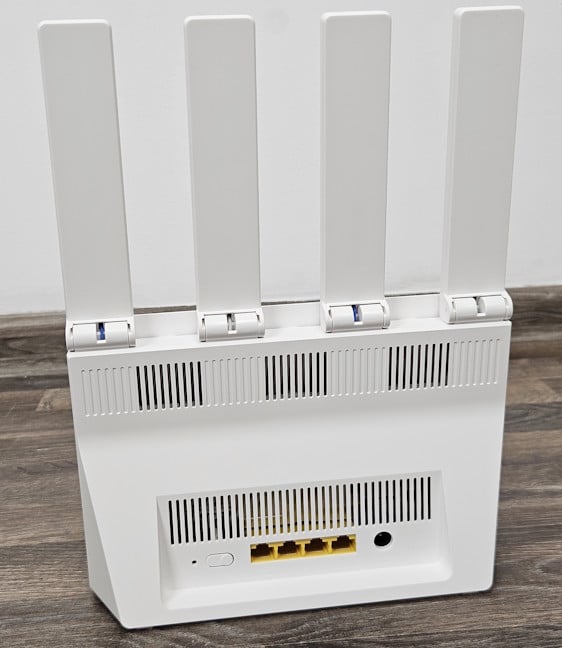
 The ports on the back of the router
At the bottom of the router, there are four plastic feet for holding it in place, additional ventilation grids, and a sticker with product information, including details on how to connect to it. On the sides of the HUAWEI WiFi BE3, there are no buttons or ventilation grids.
The ports on the back of the router
At the bottom of the router, there are four plastic feet for holding it in place, additional ventilation grids, and a sticker with product information, including details on how to connect to it. On the sides of the HUAWEI WiFi BE3, there are no buttons or ventilation grids.
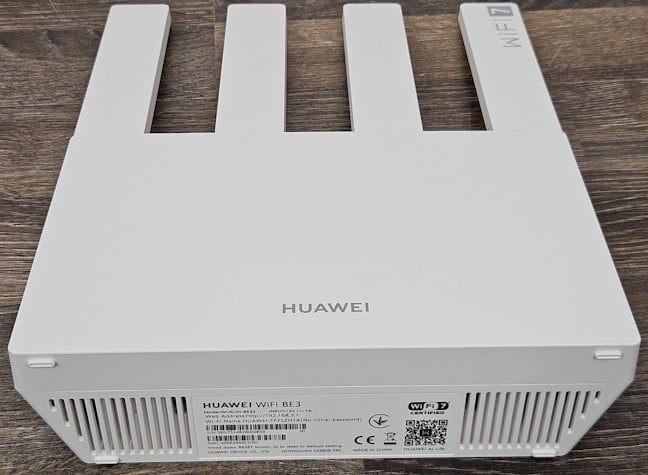
 Look on the bottom of the router for info on how to connect
There’s one LED indicator, however, hidden in the middle of the router. You can barely see it lit after plugging in the router, and it can only be lit in red or green. It becomes green only when the router is connected to the internet and is working properly. Otherwise, it’s either red or turned off.
Look on the bottom of the router for info on how to connect
There’s one LED indicator, however, hidden in the middle of the router. You can barely see it lit after plugging in the router, and it can only be lit in red or green. It becomes green only when the router is connected to the internet and is working properly. Otherwise, it’s either red or turned off.

 There's only one LED in the middle of the router
The HUAWEI WiFi BE3 is a dual-band Wi-Fi 7 router, clearly designed for home use. It can operate at temperatures ranging from 0℃ to 40℃ (32°F to 104°F), and it has a maximum theoretical bandwidth split as follows: 688 Mbps for the 2.4 GHz band and 2,882 Mbps for the 5 GHz band. You don’t get a third 6 GHz band, the channel bandwidth is capped at 160 MHz, and all wireless transfers are made using 2x2 MU-MIMO. The router utilizes HUAWEI’s universal HarmonyOS operating system, version 4.2.0, and offers WPA3 password encryption.
There's only one LED in the middle of the router
The HUAWEI WiFi BE3 is a dual-band Wi-Fi 7 router, clearly designed for home use. It can operate at temperatures ranging from 0℃ to 40℃ (32°F to 104°F), and it has a maximum theoretical bandwidth split as follows: 688 Mbps for the 2.4 GHz band and 2,882 Mbps for the 5 GHz band. You don’t get a third 6 GHz band, the channel bandwidth is capped at 160 MHz, and all wireless transfers are made using 2x2 MU-MIMO. The router utilizes HUAWEI’s universal HarmonyOS operating system, version 4.2.0, and offers WPA3 password encryption.
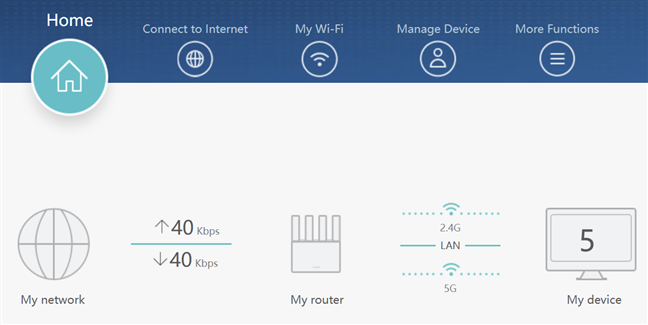
 HUAWEI WiFi BE3 comes with HarmonyOS
The HUAWEI WiFi BE3 is powered by a dual-core HiSilicon Hi5671 V700 processor, running at 1.15 GHz, and features 256 MB of RAM and 128 MB of storage space for firmware. I hadn’t tested wireless routers with this chip before, so I was eager to try it as soon as I received it.
The HUAWEI WiFi BE3 is an entry-level Wi-Fi 7 router, priced just below the $80 price point. It offers a sleek, minimalist design and decent hardware, which is sufficient for a small home network with a limited number of devices. But if you have a larger home or apartment with numerous devices connected to the Wi-Fi, the HUAWEI WiFi BE3 may be underpowered, and you may need a more expensive router with more powerful hardware. However, I'll discuss this further after I've thoroughly tested it. For more information, visit its official webpage: HUAWEI WiFi BE3.
HUAWEI WiFi BE3 comes with HarmonyOS
The HUAWEI WiFi BE3 is powered by a dual-core HiSilicon Hi5671 V700 processor, running at 1.15 GHz, and features 256 MB of RAM and 128 MB of storage space for firmware. I hadn’t tested wireless routers with this chip before, so I was eager to try it as soon as I received it.
The HUAWEI WiFi BE3 is an entry-level Wi-Fi 7 router, priced just below the $80 price point. It offers a sleek, minimalist design and decent hardware, which is sufficient for a small home network with a limited number of devices. But if you have a larger home or apartment with numerous devices connected to the Wi-Fi, the HUAWEI WiFi BE3 may be underpowered, and you may need a more expensive router with more powerful hardware. However, I'll discuss this further after I've thoroughly tested it. For more information, visit its official webpage: HUAWEI WiFi BE3.
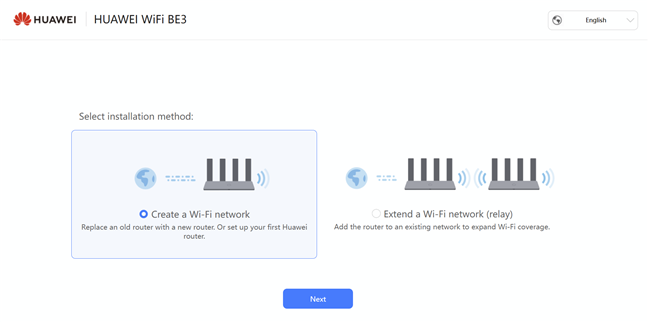
 HUAWEI WiFi BE3 can be set as a node in a mesh Wi-Fi network
As usual, the quick setup process requests details about your internet connection and then allows you to configure your Wi-Fi. Unfortunately, HUAWEI has opted for convenience at the expense of performance. In the setup wizard, you can set only one network name and password. This means that Smart Connect is enabled by default. From my experience, this feature makes it easier to manage your Wi-Fi and connect to it, but it also results in lower performance for users. Therefore, after completing the initial setup, I highly recommend that you modify the router’s advanced settings, disable Smart Connect, and use distinct names (and passwords) for the 2.4 GHz and 5 GHz wireless bands.
HUAWEI WiFi BE3 can be set as a node in a mesh Wi-Fi network
As usual, the quick setup process requests details about your internet connection and then allows you to configure your Wi-Fi. Unfortunately, HUAWEI has opted for convenience at the expense of performance. In the setup wizard, you can set only one network name and password. This means that Smart Connect is enabled by default. From my experience, this feature makes it easier to manage your Wi-Fi and connect to it, but it also results in lower performance for users. Therefore, after completing the initial setup, I highly recommend that you modify the router’s advanced settings, disable Smart Connect, and use distinct names (and passwords) for the 2.4 GHz and 5 GHz wireless bands.
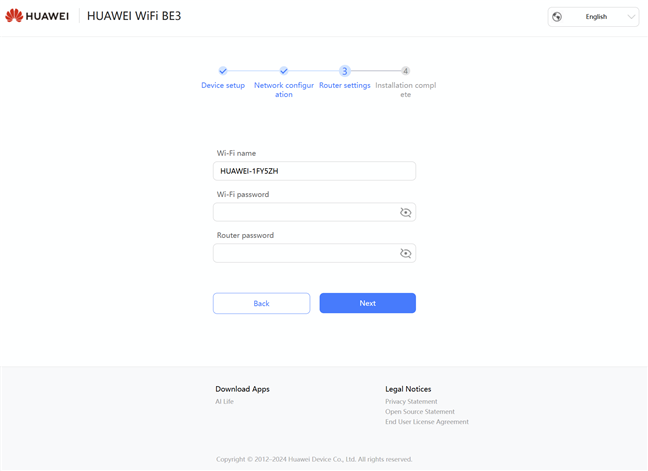
 Setting up the HUAWEI WiFi BE3
The user interface for managing the HUAWEI WiFi BE3 is relatively simple. The company puts front and center only the most basic settings that most people can understand, and leaves the router to handle the more advanced ones automatically. If you’re a technical user who wants to set up everything in detail, you can do so from the More Functions section of the user interface.
Setting up the HUAWEI WiFi BE3
The user interface for managing the HUAWEI WiFi BE3 is relatively simple. The company puts front and center only the most basic settings that most people can understand, and leaves the router to handle the more advanced ones automatically. If you’re a technical user who wants to set up everything in detail, you can do so from the More Functions section of the user interface.
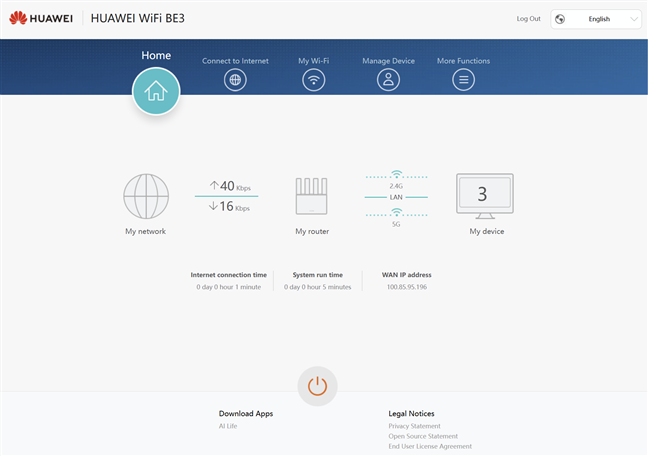
 The web admin user interface
One aspect that I appreciate is that HUAWEI has translated its user interface into more than 40 languages. While other vendors offer good multilingual support, few can match HUAWEI in terms of the variety of languages it covers. Kudos to them for doing this! 🙂
The web admin user interface
One aspect that I appreciate is that HUAWEI has translated its user interface into more than 40 languages. While other vendors offer good multilingual support, few can match HUAWEI in terms of the variety of languages it covers. Kudos to them for doing this! 🙂
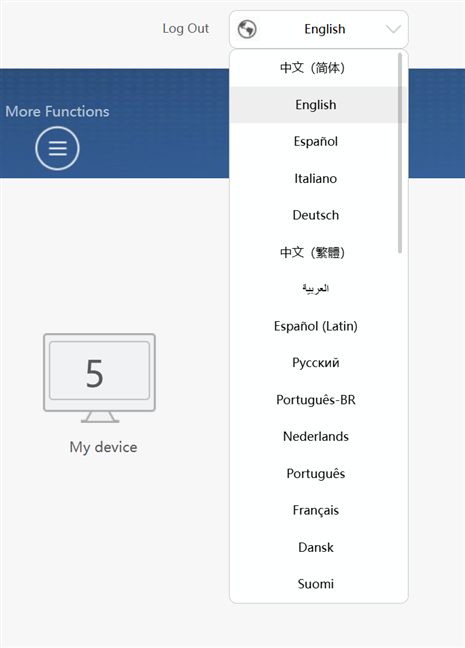
 The user interface is translated in more than 40 languages
The configuration options available cover most of the settings you expect from a wireless router. The language used by the company is mostly accessible and relatively easy to understand. Some of the more technical features are also explained, and you'll find useful links where you can learn more if you don’t understand something.
The user interface is translated in more than 40 languages
The configuration options available cover most of the settings you expect from a wireless router. The language used by the company is mostly accessible and relatively easy to understand. Some of the more technical features are also explained, and you'll find useful links where you can learn more if you don’t understand something.
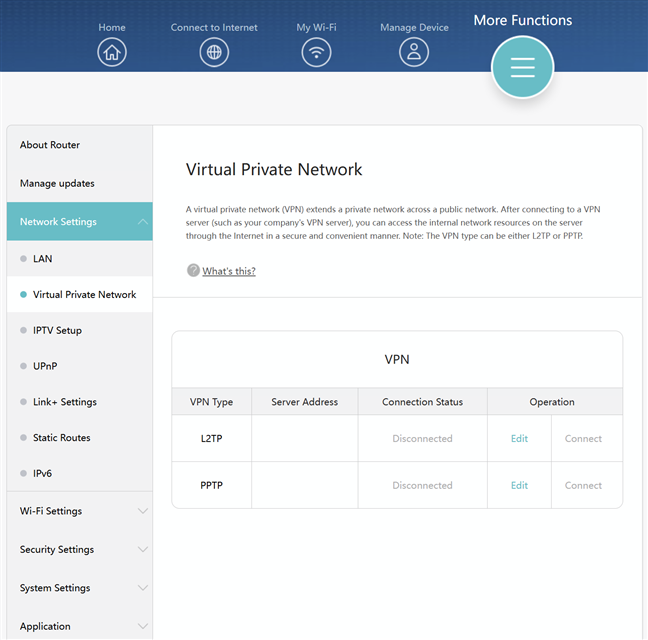
 The settings are explained clearly
You can also manage the HUAWEI WiFi BE3 from your smartphone, using the HUAWEI AI Life app, which is available on both Android and iOS. The app is easy to understand and use, but you don’t get access to many settings, highlighting the simplicity of this product. I found it amusing that you can only restart the HUAWEI WiFi BE3 from the mobile app. You don’t have a physical Restart button, and there’s no similar option in the firmware found on the router itself. It’s a minor and unusual shortcoming that HUAWEI should address in a future firmware update.
The settings are explained clearly
You can also manage the HUAWEI WiFi BE3 from your smartphone, using the HUAWEI AI Life app, which is available on both Android and iOS. The app is easy to understand and use, but you don’t get access to many settings, highlighting the simplicity of this product. I found it amusing that you can only restart the HUAWEI WiFi BE3 from the mobile app. You don’t have a physical Restart button, and there’s no similar option in the firmware found on the router itself. It’s a minor and unusual shortcoming that HUAWEI should address in a future firmware update.
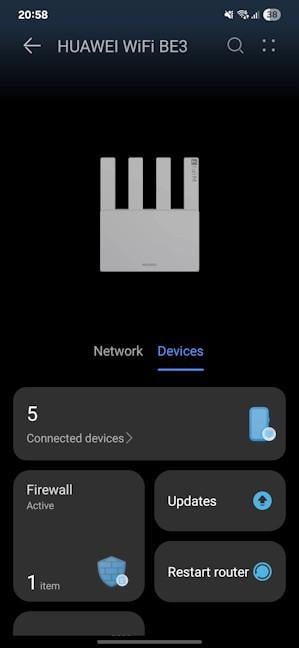
 You can reboot the HUAWEI WiFi BE3 only from the mobile app
Using the HUAWEI WiFi BE3 router was a generally simple and pleasant experience. However, I did find an annoying bug related to Wi-Fi calling. In the apartment I live in, the mobile signal is weak. Therefore, in order to take calls, I enabled Voice over Wi-Fi, which lets me make calls using the Wi-Fi network instead of the mobile network. It seems that the router’s compatibility with this feature isn’t great, as I was no longer able to initiate calls from my smartphone when I was connected to the Wi-Fi. However, I was able to answer the calls I received. The issue disappeared when I changed the router, and I couldn’t find any settings in the firmware of the HUAWEI WiFi BE3 to fix this problem. Hopefully, its manufacturer will address the issue in a future firmware update.
You can reboot the HUAWEI WiFi BE3 only from the mobile app
Using the HUAWEI WiFi BE3 router was a generally simple and pleasant experience. However, I did find an annoying bug related to Wi-Fi calling. In the apartment I live in, the mobile signal is weak. Therefore, in order to take calls, I enabled Voice over Wi-Fi, which lets me make calls using the Wi-Fi network instead of the mobile network. It seems that the router’s compatibility with this feature isn’t great, as I was no longer able to initiate calls from my smartphone when I was connected to the Wi-Fi. However, I was able to answer the calls I received. The issue disappeared when I changed the router, and I couldn’t find any settings in the firmware of the HUAWEI WiFi BE3 to fix this problem. Hopefully, its manufacturer will address the issue in a future firmware update.
 Wi-Fi Calling doesn't work well with HUAWEI WiFi BE3
Having tested wireless routers and mesh Wi-Fi systems for many years, I’m also curious about the advanced tools and features they offer. However, the HUAWEI WiFi BE3 is an entry-level router that’s designed to be affordable, so I had low expectations in this regard. That being said, let’s see what the advanced features are.
Wi-Fi Calling doesn't work well with HUAWEI WiFi BE3
Having tested wireless routers and mesh Wi-Fi systems for many years, I’m also curious about the advanced tools and features they offer. However, the HUAWEI WiFi BE3 is an entry-level router that’s designed to be affordable, so I had low expectations in this regard. That being said, let’s see what the advanced features are.
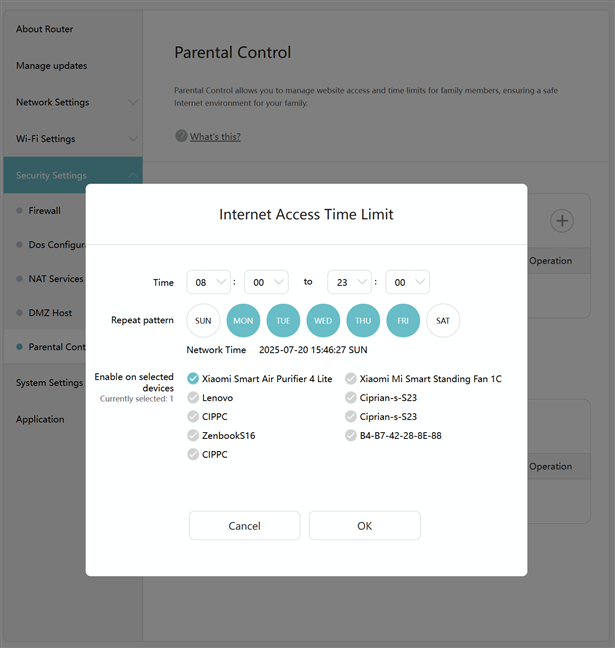
 The Parental Controls are quite limited
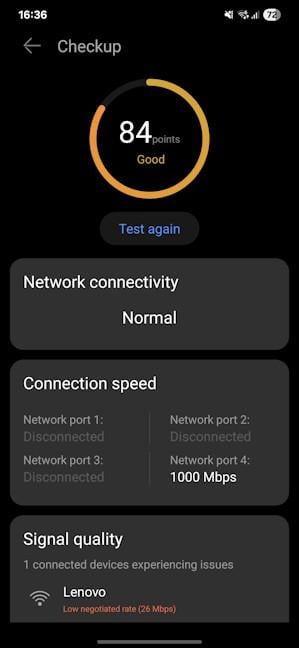 The smart diagnosis can be useful
Now that you know what the HUAWEI WiFi BE3 can and can’t do from a features perspective, let’s see how well it performs. Go to the next page to see details about its signal strength, wireless, and Ethernet performance.
The smart diagnosis can be useful
Now that you know what the HUAWEI WiFi BE3 can and can’t do from a features perspective, let’s see how well it performs. Go to the next page to see details about its signal strength, wireless, and Ethernet performance.
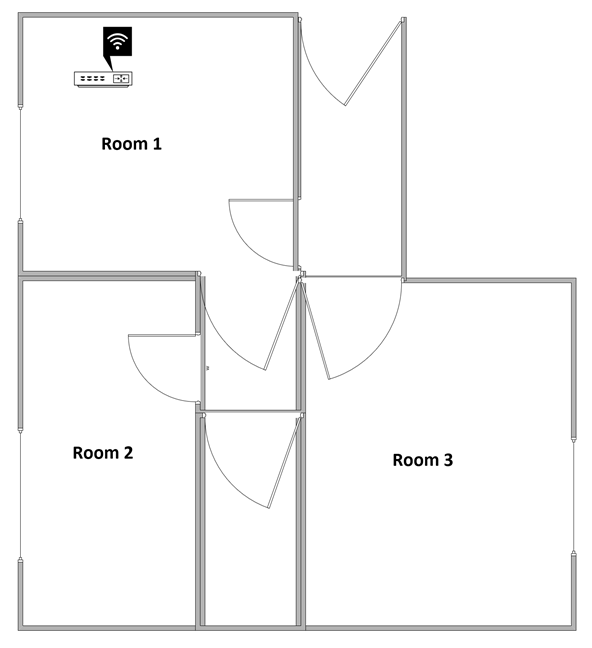
 The apartment where I've tested the HUAWEI WiFi BE3
I evaluated the quality of the wireless network managed by this router through measurements made in three different places:
The apartment where I've tested the HUAWEI WiFi BE3
I evaluated the quality of the wireless network managed by this router through measurements made in three different places:
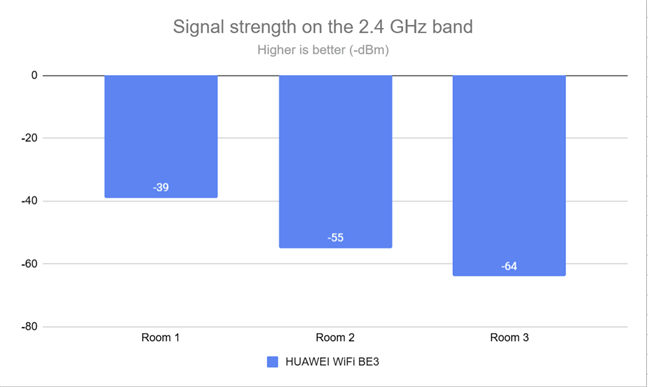
 The signal strength on the 2.4 GHz wireless band
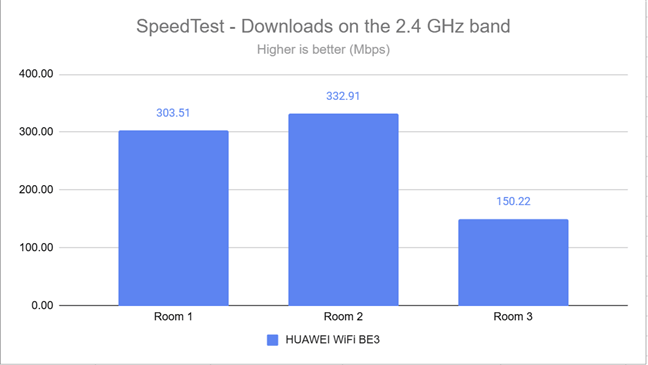
Then, I ran SpeedTest to see how fast internet data transfers are made on the 2.4 GHz wireless band. As you can see below, download speeds were surprisingly high for a router this affordable in the first two rooms. However, the download speed dropped sharply in Room 3.
The signal strength on the 2.4 GHz wireless band
Then, I ran SpeedTest to see how fast internet data transfers are made on the 2.4 GHz wireless band. As you can see below, download speeds were surprisingly high for a router this affordable in the first two rooms. However, the download speed dropped sharply in Room 3.
 SpeedTest - The download speed on the 2.4 GHz band
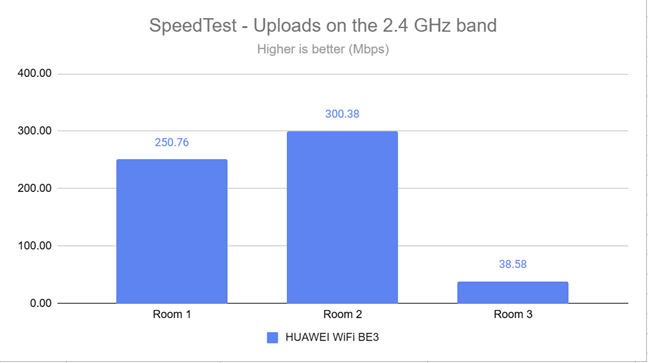
When measuring the upload speed, I noticed a similar trend, with the notable exception that in Room 3, transfers were surprisingly slow.
SpeedTest - The download speed on the 2.4 GHz band
When measuring the upload speed, I noticed a similar trend, with the notable exception that in Room 3, transfers were surprisingly slow.
 SpeedTest - The upload speed on the 2.4 GHz band
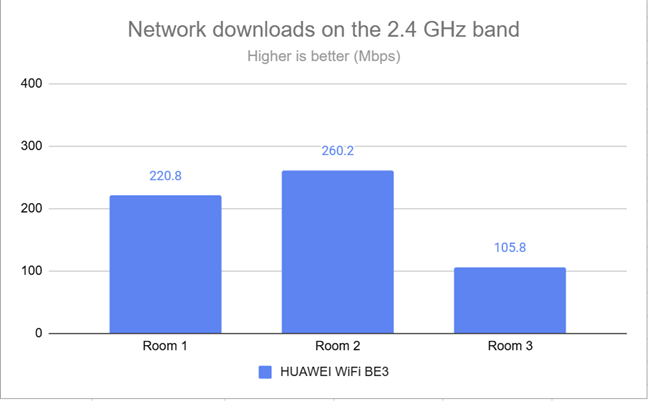
I moved on to the PassMark Performance Test and transferred data between two computers connected to the network. One was the laptop I used for testing, connected over Wi-Fi on the 2.4 GHz band, and the other was a desktop computer connected to the router through an Ethernet cable. This test measures the speeds you achieve when transferring data over your network. I was happy with the average download speed in rooms 1 and 2. In Room 3, the HUAWEI WiFi BE3 struggled a bit, but it still managed to deliver reasonably fast downloads.
SpeedTest - The upload speed on the 2.4 GHz band
I moved on to the PassMark Performance Test and transferred data between two computers connected to the network. One was the laptop I used for testing, connected over Wi-Fi on the 2.4 GHz band, and the other was a desktop computer connected to the router through an Ethernet cable. This test measures the speeds you achieve when transferring data over your network. I was happy with the average download speed in rooms 1 and 2. In Room 3, the HUAWEI WiFi BE3 struggled a bit, but it still managed to deliver reasonably fast downloads.
 Download speed over Wi-Fi on the 2.4 GHz band
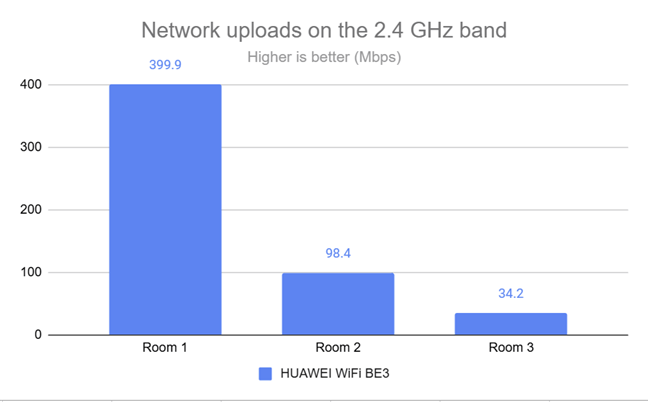
The upload speed was spectacular in the router’s room, yet it was very slow in Room 3.
Download speed over Wi-Fi on the 2.4 GHz band
The upload speed was spectacular in the router’s room, yet it was very slow in Room 3.
 Upload speed over Wi-Fi on the 2.4 GHz band
The performance of the HUAWEI WiFi BE3 on the 2.4 GHz wireless band is good. However, it’s not capable of providing fast Wi-Fi in larger living spaces with thick walls. Therefore, the speed you get drops relatively quickly as you move further away from the router.
Upload speed over Wi-Fi on the 2.4 GHz band
The performance of the HUAWEI WiFi BE3 on the 2.4 GHz wireless band is good. However, it’s not capable of providing fast Wi-Fi in larger living spaces with thick walls. Therefore, the speed you get drops relatively quickly as you move further away from the router.
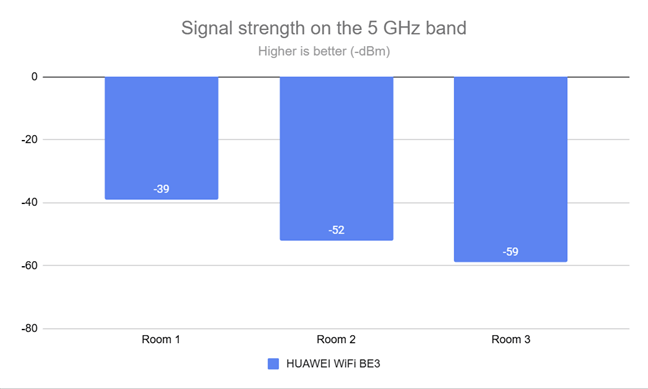
 The signal strength on the 5 GHz wireless band
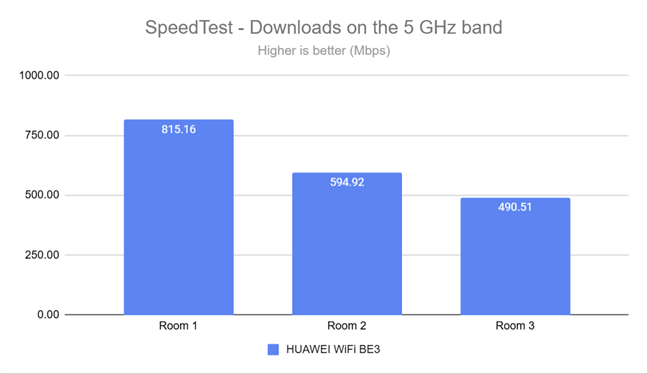
I also used SpeedTest to determine the speed I could achieve over Wi-Fi when uploading and downloading data to and from the internet. My new internet connection allows a maximum speed of 1 Gbps (usually around 900 Mbps) for both downloads and uploads. The HUAWEI WiFi BE3 reached a maximum download speed of 815.16 Mbps, but only in the room where it was placed.
The signal strength on the 5 GHz wireless band
I also used SpeedTest to determine the speed I could achieve over Wi-Fi when uploading and downloading data to and from the internet. My new internet connection allows a maximum speed of 1 Gbps (usually around 900 Mbps) for both downloads and uploads. The HUAWEI WiFi BE3 reached a maximum download speed of 815.16 Mbps, but only in the room where it was placed.
 SpeedTest - The download speed on the 5 GHz band
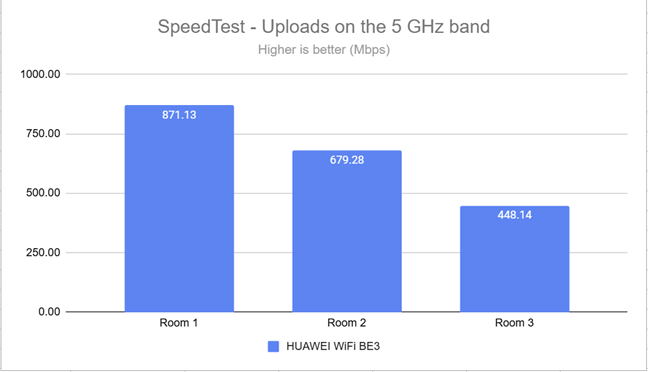
I was surprised to see that the upload speed was generally faster than the download speed, except for Room 3. This is a good result for people who need to upload large amounts of data to the internet and back up their data to the cloud.
SpeedTest - The download speed on the 5 GHz band
I was surprised to see that the upload speed was generally faster than the download speed, except for Room 3. This is a good result for people who need to upload large amounts of data to the internet and back up their data to the cloud.
 SpeedTest - The upload speed on the 5 GHz band
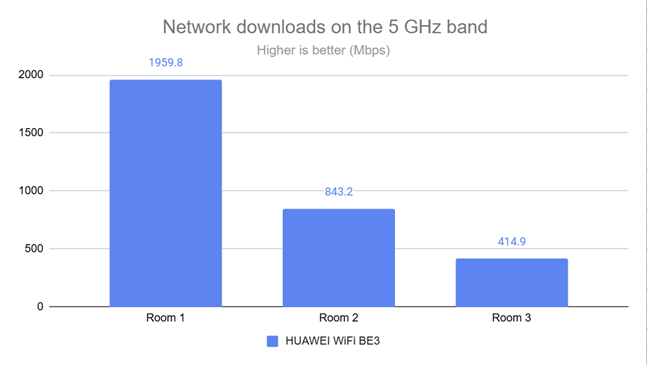
Switching to the PassMark Performance Test revealed that the HUAWEI WiFi BE3 can offer Wi-Fi transfers close to the 2 Gbps mark, but only in the room where it is placed. As soon as you enter another room, the download speed decreases significantly.
SpeedTest - The upload speed on the 5 GHz band
Switching to the PassMark Performance Test revealed that the HUAWEI WiFi BE3 can offer Wi-Fi transfers close to the 2 Gbps mark, but only in the room where it is placed. As soon as you enter another room, the download speed decreases significantly.
 Download speed over Wi-Fi on the 5 GHz band
The upload speed followed a similar trend. You experience excellent performance in the room where the HUAWEI WiFi BE3 is placed, but much slower uploads if you move into a different room.
Download speed over Wi-Fi on the 5 GHz band
The upload speed followed a similar trend. You experience excellent performance in the room where the HUAWEI WiFi BE3 is placed, but much slower uploads if you move into a different room.
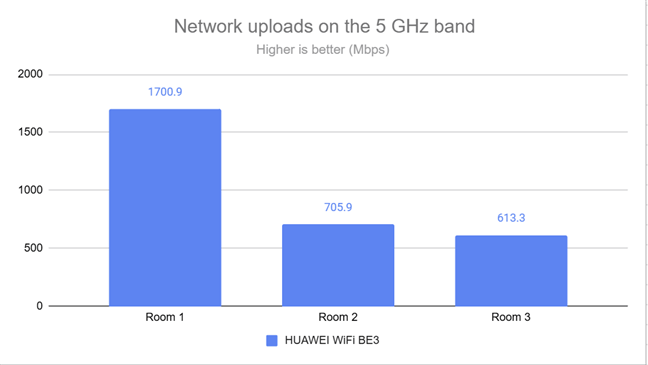 Upload speed over Wi-Fi on the 5 GHz band
While the HUAWEI WiFi BE3 can offer speeds that approach the 2 Gbps mark when using Wi-Fi on the 5 GHz band, it can sustain such speeds only in its immediate vicinity. As soon as you move around your living space and the Wi-Fi has to deal with walls, the speed you get lowers significantly. However, this isn’t unexpected, and we must remember that the HUAWEI WiFi BE3 costs just 80 USD. Therefore, its performance level is to be applauded, as very few routers at this price point can outmatch it in terms of speed.
Upload speed over Wi-Fi on the 5 GHz band
While the HUAWEI WiFi BE3 can offer speeds that approach the 2 Gbps mark when using Wi-Fi on the 5 GHz band, it can sustain such speeds only in its immediate vicinity. As soon as you move around your living space and the Wi-Fi has to deal with walls, the speed you get lowers significantly. However, this isn’t unexpected, and we must remember that the HUAWEI WiFi BE3 costs just 80 USD. Therefore, its performance level is to be applauded, as very few routers at this price point can outmatch it in terms of speed.
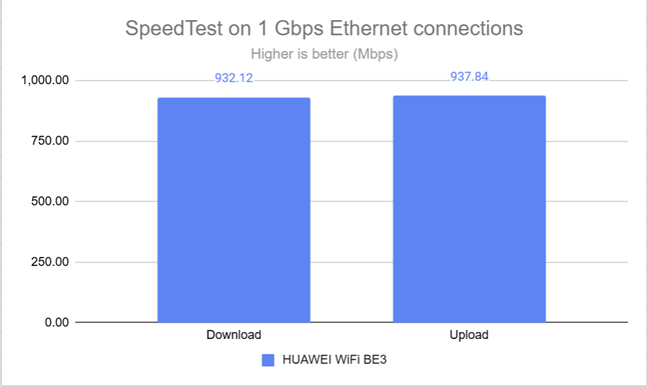 The speed when using Ethernet connections
My conclusion is that the HUAWEI WiFi BE3 works great with 1 Gbps internet connections.
The speed when using Ethernet connections
My conclusion is that the HUAWEI WiFi BE3 works great with 1 Gbps internet connections.
HUAWEI WiFi BE3: Who is it good for?
This wireless router is a smart choice for:- Two-bedroom apartments and small one-floor homes
- Internet connections up to 1 Gbps
- People who want to extend their Wi-Fi and are using other HUAWEI routers
Pros and cons
Here are the things I like about the HUAWEI WiFi BE3 :- Excellent price
- Solid Wi-Fi performance for small living spaces
- Easy-to-use mobile app
- Excellent multilingual support
- The parental controls require manual configuration
- Wi-Fi calling doesn’t work well with this router
- No USB port
Verdict
The HUAWEI WiFi BE3 has several good things going for it, with its best feature being the price. It’s hard to find more affordable Wi-Fi 7 routers. However, a low price also means compromises, and the most significant one that HUAWEI had to make was to reduce the number of advanced features and use less powerful hardware for this model. Luckily, these compromises don’t make it a bad router. If all you need is a simple router that provides Wi-Fi 7 connectivity for a two-bedroom apartment or a small single-story home, with only a few connected devices, the HUAWEI WiFi BE3 is an excellent choice. For anything beyond that, consider a more expensive model with more powerful hardware and additional features.Unboxing the HUAWEI WiFi BE3 router
The HUAWEI WiFi BE3 arrives in a white cardboard box, featuring a big picture of the router on the top cover, alongside its product name, the company logo, and a summary of its most important features.Hardware specifications and design
The HUAWEI WiFi BE3 impresses with its minimalistic design. The router is all white and, at first glance, it doesn’t have any visible LEDs. You see only the company logo and the Wi-Fi 7 branding. Its four external antennas can be rotated up and down. However, you can fold them only vertically, not horizontally.Setting up and using the HUAWEI WiFi BE3
The quick setup process for the HUAWEI WiFi BE3 starts by accepting the license terms for this router and then choosing whether you want to create a new Wi-Fi network and have it work as a router, or you want to extend an existing Wi-Fi network and use the HUAWEI WiFi BE3 as a node in a mesh Wi-Fi system. Unfortunately, the company doesn’t communicate this last option in its presentation, but it’s excellent that it's available. So, if you already own a HUAWEI router, you can use the HUAWEI WiFi BE3 to extend the coverage of your existing network.Advanced features
The HUAWEI WiFi BE3 is a wireless router designed for ease of use and convenience. While it lacks advanced features, it provides essential tools for managing your Wi-Fi network. You can schedule its operation, enable IPv6 support, adjust the protocols used, increase its transmission power, and adjust other basic settings. If you are looking for advanced features, this router is not the device that you should buy. However, for those curious about the tools and features it offers, here’s what you get:- Parental controls - this is one of the few advanced features available on both the router’s firmware and the mobile AI Life app. Unfortunately, all you can do with it is select which devices your children use and set a schedule for when they can access the internet, as well as manually block websites you don’t want them to access. This approach is rather inefficient and requires a significant amount of manual configuration.
- Guest Wi-Fi - you can add a separate wireless network for your guests and set how much time they’re allowed to use it, speed limits, and other rules.
- VPN - you can set your HUAWEI WiFi BE3 to connect to a VPN server outside your network using the L2TP and PPTP protocols. Unfortunately, you can’t use the router as a VPN server. And even if you did, it wouldn’t work very well because its hardware configuration is underpowered for such a task.
- House layout - You can edit your house layout, set the location of the HUAWEI WiFi BE3, create a heat map with the Wi-Fi signal in each room, and then use the map for various automations.
- Smart diagnosis - a useful collection of Wi-Fi analysis and troubleshooting tools that helps you fix problems when they appear, so that you get stable and speedy Wi-Fi coverage for all your devices.
Wireless network performance
A couple of months ago, I moved into a new apartment with a layout similar to the one shown in the diagram below. I’ve placed the HUAWEI WiFi BE3 in one of the rooms where I spend most of my time. However, it’s not an ideal location, and the Wi-Fi signal is usually weaker in Room 3. This is an intentional choice, as I want to test and see whether the routers I’m reviewing offer good signal strength, steady data transfers, and a wide wireless coverage.- Room 1 - I record the maximum speeds when no walls absorb the wireless signal in the room where the router is placed.
- Room 2 - is separated by one wall from the router, so the wireless signal and the Wi-Fi speed I get should be lower here.
- Room 3 - is positioned at a difficult angle for most wireless routers, and Wi-Fi performance tends to be lower, regardless of which router I’m using.
How the HUAWEI WiFi BE3 performs on the 2.4 GHz band
I first measured the signal strength, using the NetSpot app on my laptop, while connected to the 2.4 GHz wireless band. The signal strength delivered by HUAWEI WiFi BE3 was good, especially in the router’s room.How the HUAWEI WiFi BE3 performs on the 5 GHz band
I switched to the 5 GHz band and repeated the same measurements. The signal strength measured by NetSpot was excellent in all rooms, one of the best I’ve seen since testing Wi-Fi 7 routers. However, a good signal strength doesn’t necessarily translate into excellent Wi-Fi performance. So let’s continue with the other measurements.Wired network performance
I also wanted to verify how the HUAWEI WiFi BE3 performs when using Ethernet connections. Again, my internet connection offers a maximum of 1 Gbps for both download and upload speeds. I ran a quick SpeedTest, and the HUAWEI WiFi BE3 got very close to the maximum potential of my internet connection.

Discussion (2)
Love Digital Citizen long time. Appreciate the expertise for all computer (even older OSes, all phone and MAC, hardware, software, networking etal .. related matters and professional guidance, tips and reviews.
My setup with Sparklight, formerly CableOne has always been using ethernet only cable connection. They went from supplying all manner of modem router combo to recent (approved only by CableOne) Hitron modem with one ethernet port. I added a wireless capable desktop computer 2 years ago. They then require last year that to be connected the use of Eero app is mandatorily required using their app on my Android Phone. However the ethernet connected desktop show no security and I am unable to set my password for the network profile. Sparklight suggested using a switch with 4-port ethernet connectors. I have yet to set it up because they say since the Hitron modem has one ethernet port, the Eero device has to be plugged into the switch which must be plugged into the modem first. I have no idea how to set this up for my ethernet only desktop. Can you look into this and write an article on this? Would be great. So far the article I’m reading now from you sounds easy but I’m reluctant to mess up this ethernet only desktop (Windows 7 Home Premium 64bit) with a second hard drive (4 TB) and other portable external drives, each mostly (1 TB) that I use for storing a lot of large files.
Have a good day
Hi. Unfortunately, we don’t live in the USA and are not familiar with Sparklight and their specific technical setup. Your best bet is to ask for help from their tech support service. Sorry!