



Cydia lets you unlock deeper customization and advanced features on your iPhone by installing apps and tweaks outside the App Store. Many users download Cydia to personalize their device, improve productivity, or enable features Apple normally restricts. At the time of writing, you can install Cydia on multiple Apple devices, including iPhone, iPad, and iPod touch, using jailbreak and no-jailbreak methods.
This guide explains how to download Cydia on iPhone safely, the differences between jailbreak and non-jailbreak Cydia installers, how tools like Cydia Guru work, and what to expect once Cydia is installed. After the short intro, you can jump straight into the steps.
Steps To Download Cydia On iPhone
You can install Cydia on iPhone using a traditional jailbreak or through a lighter installation method like Cydia Guru. Both paths help you access Cydia apps, themes, and system tweaks, but jailbreak provides the fullest customization.
Method 1: Install Cydia Using A Jailbreak Tool
Jailbreaking gives you complete access to Cydia on iPhone, iPad, and iPod touch. This approach works on a wide range of iOS versions, including older devices and modern versions supported by tools like Unc0ver and Checkra1n.
- Back up your device using iCloud or Finder to protect your data.
- Download a compatible jailbreak tool such as Unc0ver, Checkra1n, Chimera, or Electra based on your iOS version.
- Connect your device to your Mac or PC if the tool requires a computer.
- Run the jailbreak tool and follow the on-screen instructions.
- Wait for your device to reboot and look for the brown Cydia icon on the Home Screen.
- If you do not see Cydia after jailbreaking, restart your device to refresh the installation.
- Open Cydia and allow it to prepare its file system. This may take a moment.
Once Cydia loads, you can install themes, tweaks, utilities, performance tools, and advanced settings not available through the App Store.
Method 2: Download Cydia Without Jailbreaking (Cydia Guru)
If you want Cydia-style features without a full jailbreak, Cydia Guru provides a no-computer, browser-based option. It adds a Cydia-like installer to your device but with more limited access than a true jailbreak.
- Open Safari on your iPhone, iPad, or iPod touch.
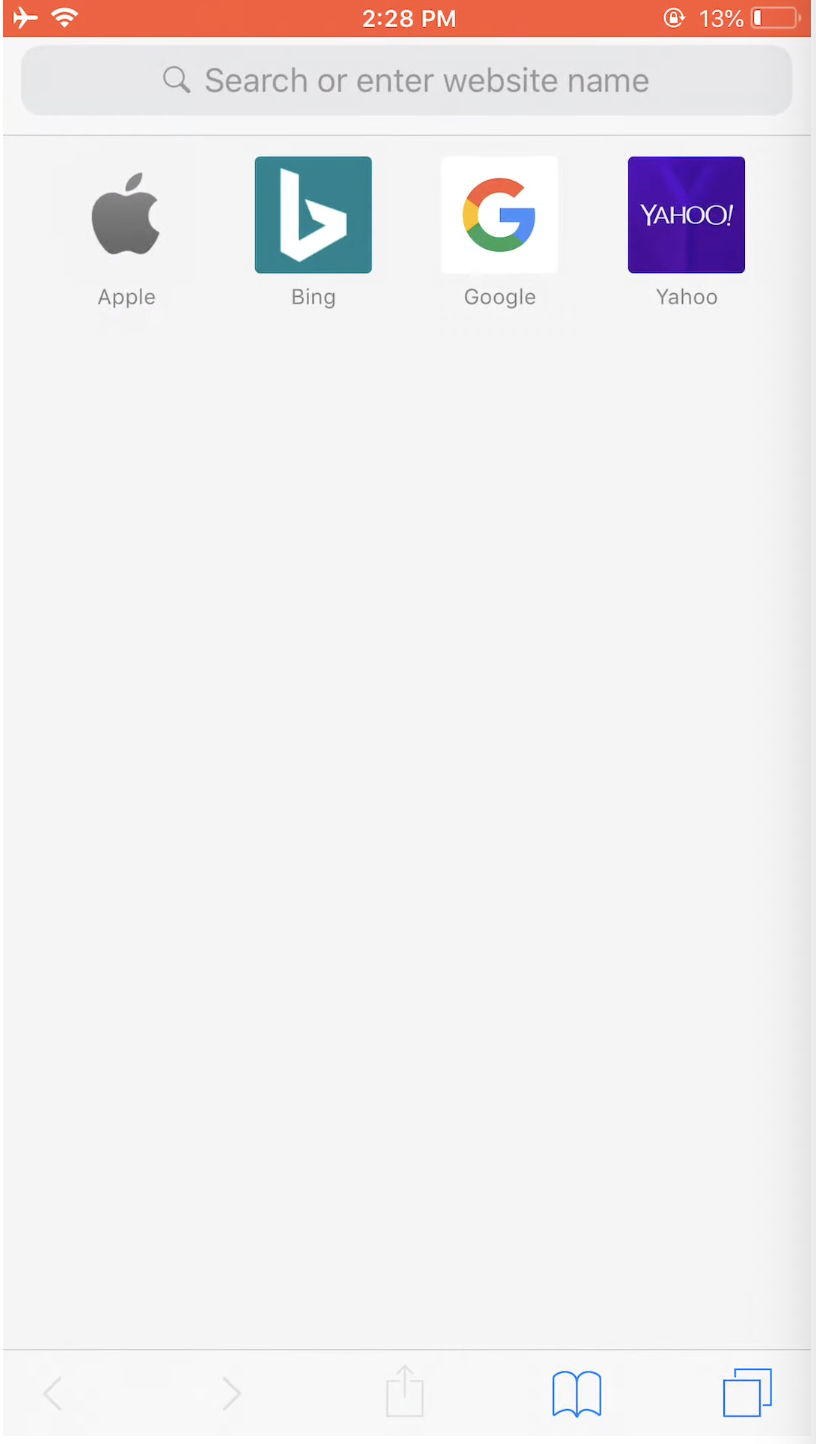
- Go to www.cydiaguru.com.
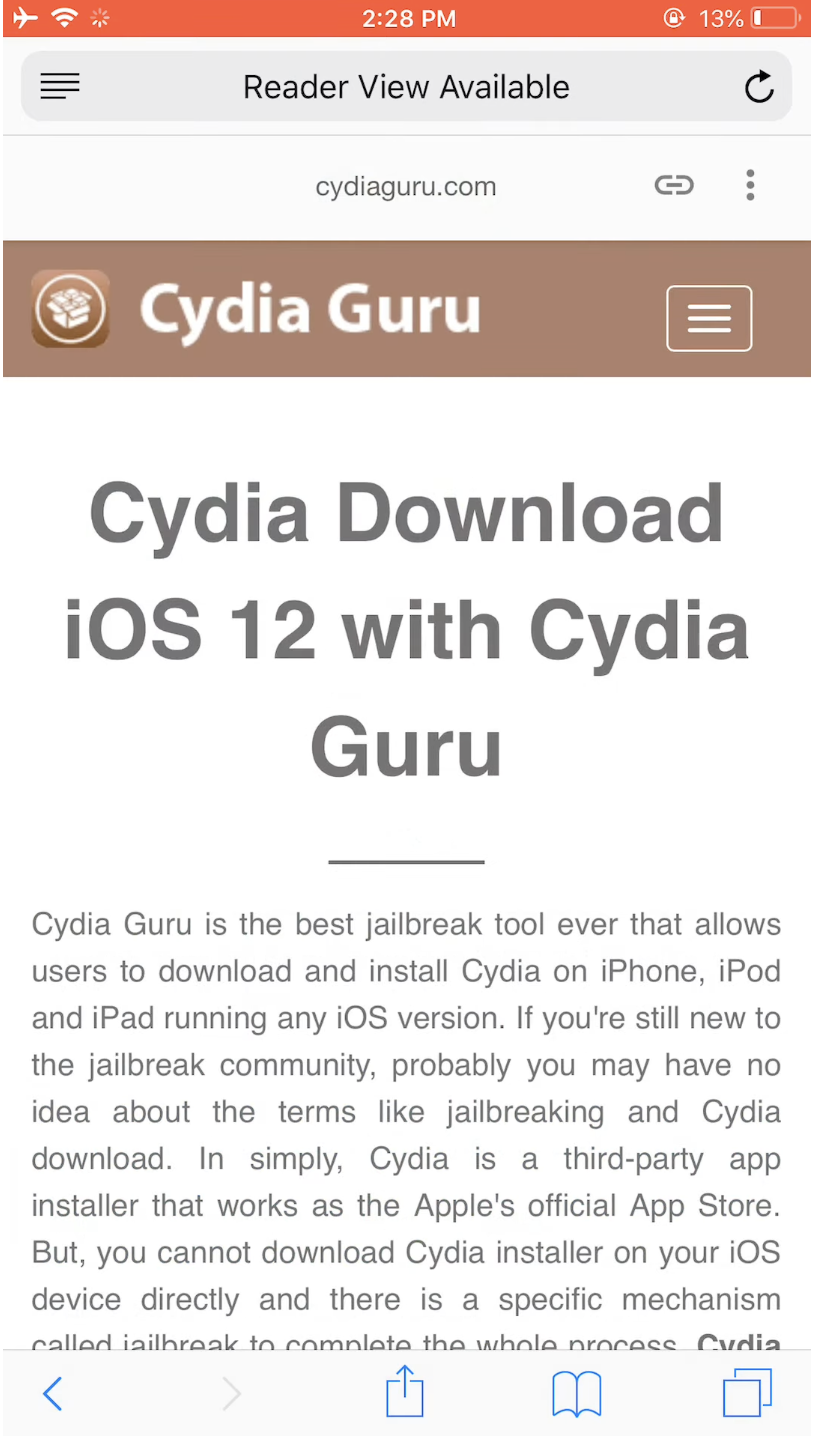
- Tap the Cydia Download button to start device detection.
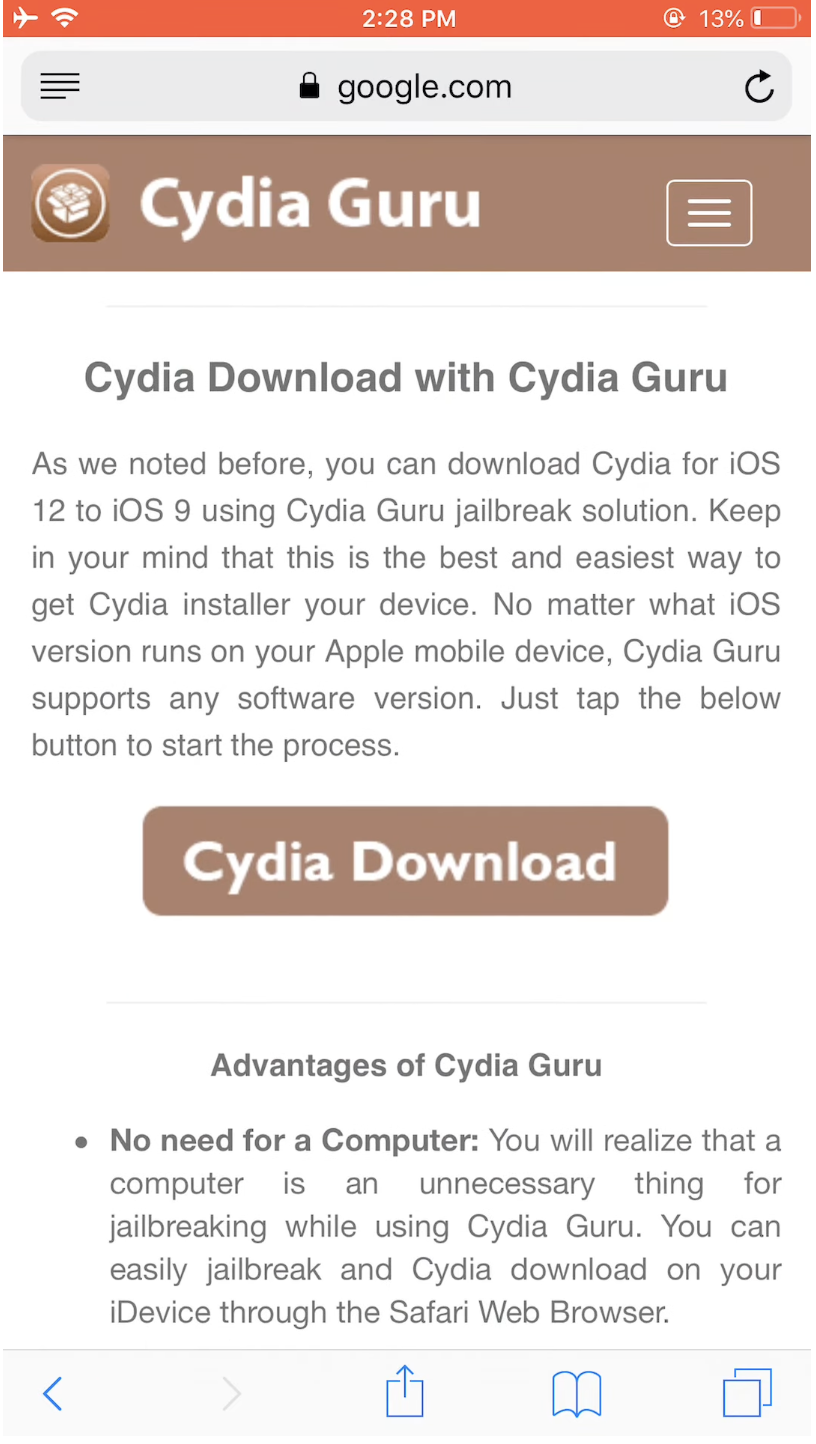
- Wait while the system identifies your model and iOS version.
- Tap Start to begin the installation process.
- When the profile screen appears, tap Install in the top right corner.
- Enter your device passcode when prompted.
- Tap Install again to finalize the configuration profile.
- Return to the Home Screen and look for the Cydia installer icon.
This method works on a wide range of devices, including iOS 9 through iOS 16. Features are more limited than full jailbreak Cydia, but it is safer, warranty-friendly, and requires no computer.
Best Cydia Apps And Tweaks To Try
Once you download Cydia on iPhone, you can expand your device with tweaks and utilities that improve usability and performance. Popular categories include themes, widgets, control center tools, navigation shortcuts, and productivity enhancements.
- Theme engines to redesign your icons, dock, and system UI.
- Control Center shortcuts for quick access to advanced features.
- Performance tweaks to speed up animations and background tasks.
- File managers that give deeper access to your storage system.
- Notification tools to customize alerts and lock screen behavior.
Not every tweak supports all iOS versions, so check compatibility before installing.
Troubleshooting Common Problems
- Cydia not appearing: Restart your device after jailbreaking. If the issue persists, repeat the jailbreak process.
- App crashes after installing tweaks: Remove the last tweak you installed to identify conflicts.
- Jailbreak failed: Reboot your device and re-run your jailbreak tool. Ensure your iOS version is supported.
- Cydia Guru not installing: Verify you are using Safari. Profiles cannot install from other browsers.
- Certificate revoked: For no-jailbreak methods, wait for the installer service to renew its certificate.
Tips
- Back up your device before installing Cydia or any jailbreak tool.
- Install tweaks from reputable repos to avoid unstable packages.
- Restart your device after major changes to stabilize performance.
- Keep jailbreak tools updated for the best compatibility.
- Use no-jailbreak options only if you want lighter customization.
FAQ
Can I install Cydia on iPad or iPod touch? Yes. Both jailbreak and Cydia Guru methods work on iPad and iPod touch models.
Is jailbreaking legal? Yes, but it may void your warranty. Always check local regulations.
Is Cydia free? Yes, Cydia itself is free, but some tweaks are paid.
Can I remove Cydia? Yes. Factory reset your device or update to the newest iOS firmware to remove it.
Does Cydia work on the latest iOS? Many no-jailbreak installers work immediately, while jailbreak tools may take longer to update.
Summary
- Choose whether you want a full jailbreak or a no-jailbreak method.
- Use a jailbreak tool like Unc0ver or Checkra1n for full Cydia access.
- Use Cydia Guru for a safer, quicker installation without a computer.
- Install tweaks and themes carefully and verify compatibility.
- Troubleshoot issues by restarting, removing tweaks, or re-running installers.
Conclusion
Cydia opens the door to extensive customization and deeper functionality on your iPhone. Whether you choose a full jailbreak or a lighter Cydia Guru installation, you gain the ability to personalize your device far beyond Apple’s defaults. Use these tools responsibly and enjoy the expanded features that Cydia brings to iOS.


Discussion (0)
Be the first to comment.