




Typing the degree symbol on a Windows 10 laptop helps you enter temperatures, angles, and scientific values accurately. Compact laptop keyboards often hide the keys needed for shortcuts, so you need a few reliable methods.
Below are step-by-step instructions that work on any Windows 10 laptop, including models without a dedicated numeric keypad.
1) Use the Alt code (°)
This method works when your laptop supports numeric input. Hold Alt and type 0176 on the numeric keypad. Now, release Alt to insert °.
If your laptop hides the numpad inside letter keys, you need to activate the embedded layout first.
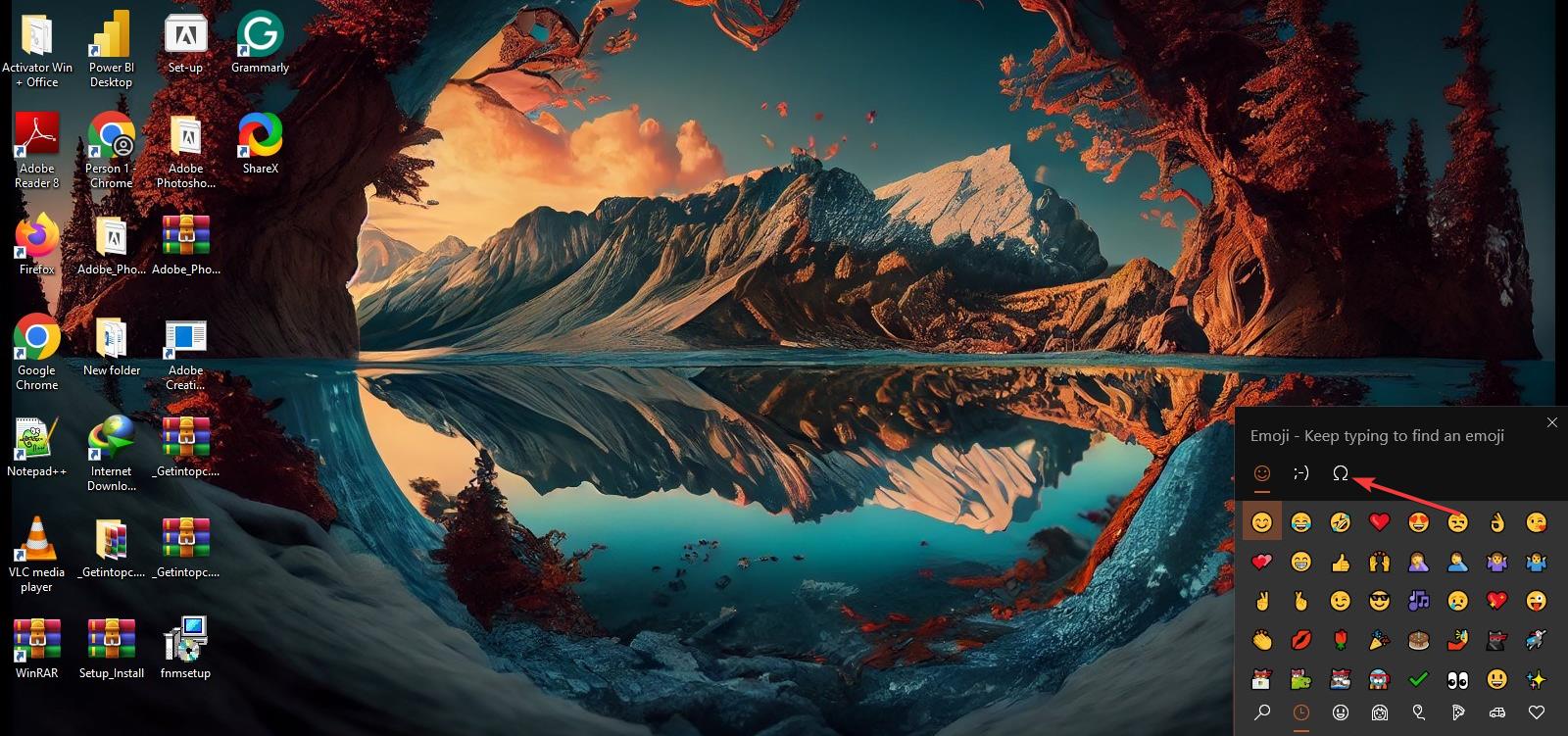
2) Use the Windows emoji panel
This method works on every Windows 10 laptop. Press Windows key + . (period). Next, select the Symbols tab and click the degree symbol to insert it.
3) Copy and paste the degree symbol
If you can't type the degree symbol on your keyboard, you can copy the symbol below and paste it anywhere: (°)
This method helps when shortcuts or numpad functions do not respond.
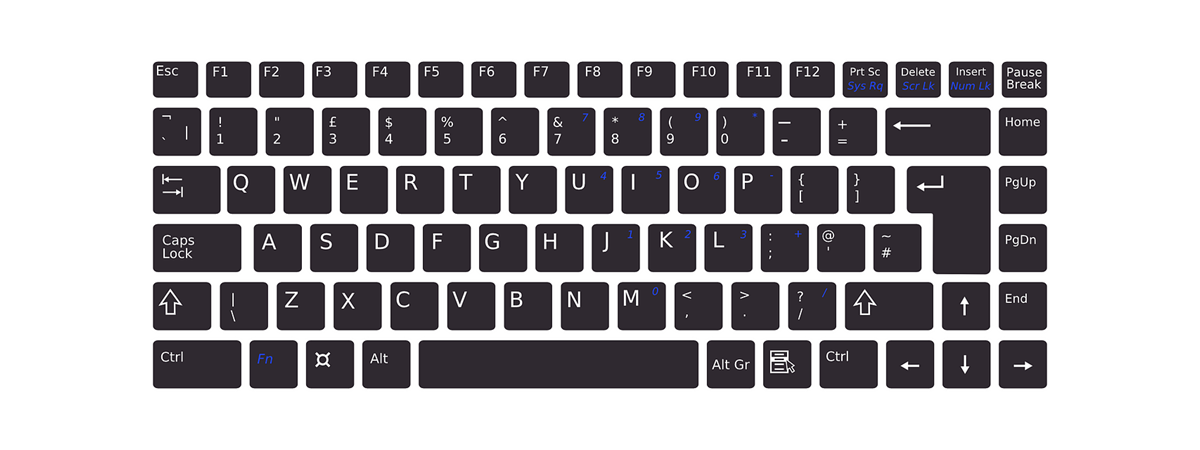
4) Enable the hidden numeric keypad
Some laptops include numbers inside the letter keys. If you use these types of laptops, press Fn + NumLock to enable the embedded numpad. Next, hold Alt and type 0176 using the activated numpad.
Lastly, Press Fn + NumLock again to disable it when done.
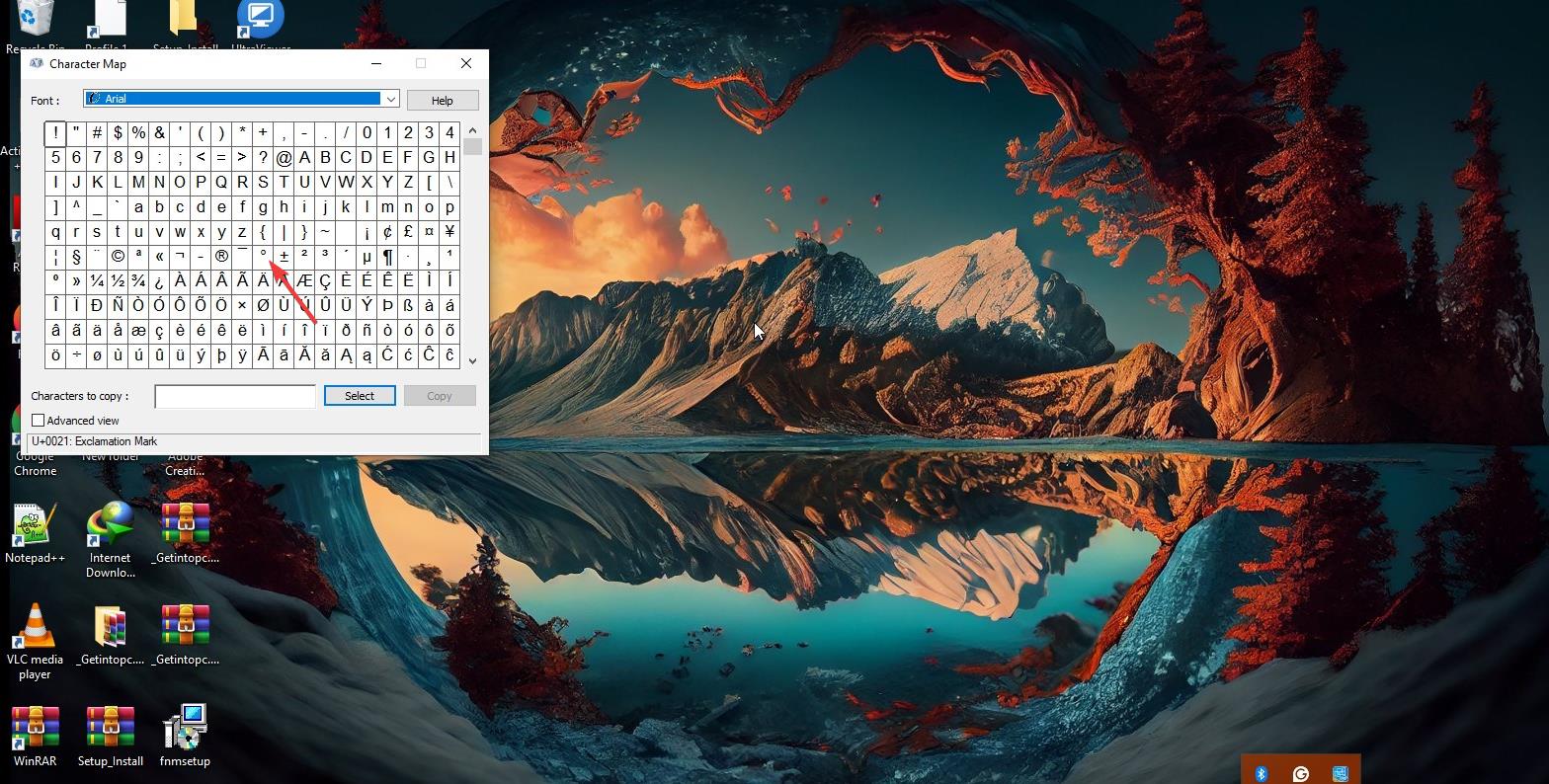
5) Use Character Map
Character Map lets you insert any symbol regardless of keyboard layout. Just press the Windows key and type Character Map. Next, select Advanced view and search for degree. Lastly, click Copy and paste it into your document.
6) Use keyboard layouts with °
Switching to US-International or UK layouts gives you easier access to symbols. Open Settings > Time & Language > Language. Now, add a layout with enhanced symbol access.
7) App-specific ways to insert the degree symbol
Insert the degree symbol in Word and PowerPoint
Open Insert > Symbol > More Symbols and select Latin-1 Supplement from the subset list. Next, click the degree symbol and choose Insert.
Insert the degree symbol in Excel
Select a cell and go to Insert > Symbol. Next, click the degree symbol, then click Insert.
Insert the degree symbol in Google Docs
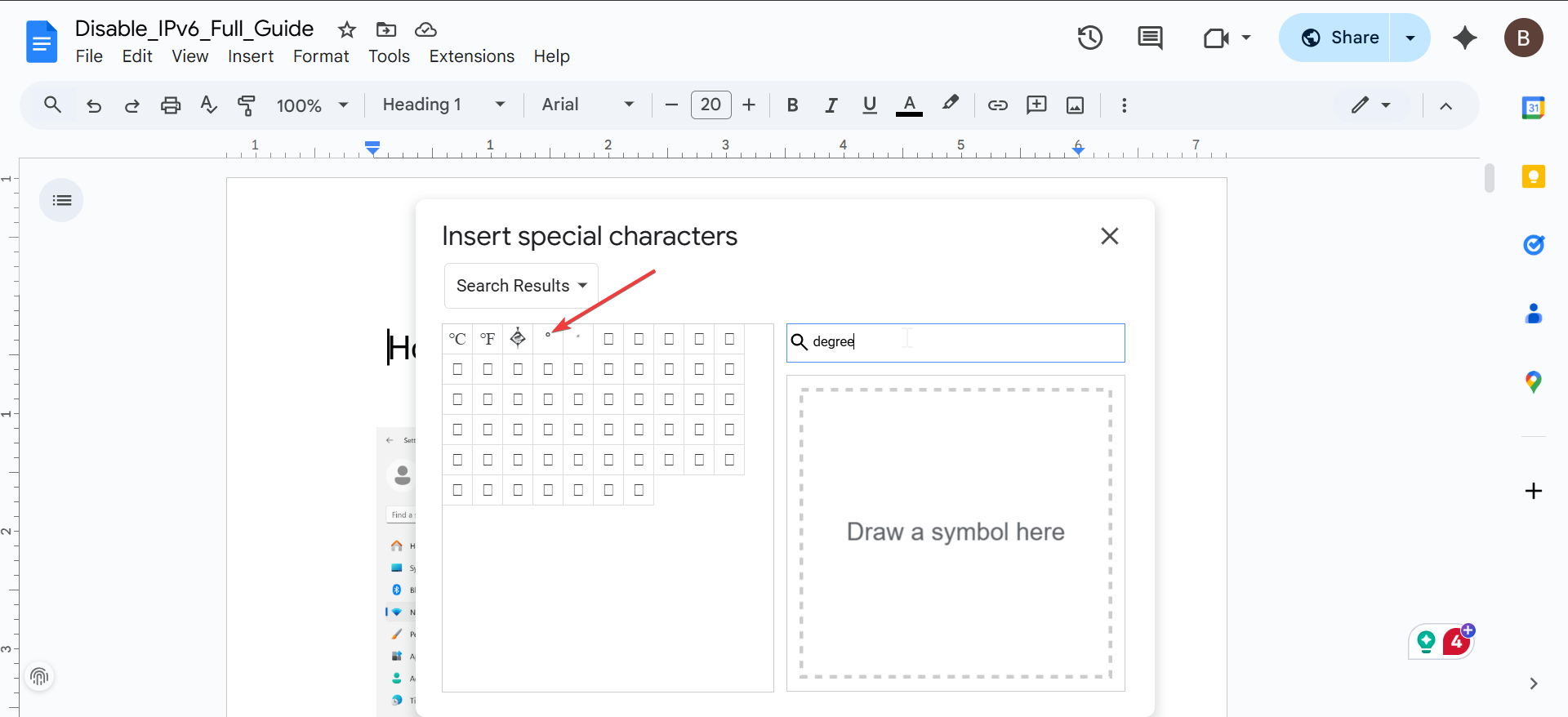
Open Insert > Symbol > Special characters and search for degree. Click the ° symbol to add it.
8) Troubleshooting when the degree symbol will not type
- Check if Alt codes are enabled: Some layouts block Alt codes. Switch to a standard US layout before trying again.
- Confirm NumLock or Fn-NumLock status: Embedded numpads require NumLock to activate number keys. Turn it on and retry the Alt code.
- Switch to a different keyboard layout: Layouts like US-International and UK handle symbol entry differently. Try each to confirm what works best.
- Use Unicode insert in supported apps: Programs such as Word accept Unicode shortcuts. Type 00B0, then press Alt + X to convert it into °.
Additional tips for faster degree symbol typing
- Create an AutoCorrect shortcut in Word: Replace a short code like deg with ° to automate symbol insertion.
- Add ° to Windows Clipboard History: Press Windows key + V to enable Clipboard History, then keep ° saved for repeated use.
- Save the symbol in a snippet tool: A text expander or notes widget keeps ° ready whenever you need it.
FAQs
Why does Alt + 0176 not work on my laptop? Your laptop may not have an active numeric keypad, or NumLock may be disabled. Some keyboard layouts also block Alt codes.
Can I type the degree symbol without any codes? Yes. The Windows emoji and symbol panel inserts ° with two clicks.
Does switching keyboard layouts help? Yes. Several layouts handle special characters differently, so switching can restore the symbol.
Can I use ° in any application? Yes. Copy-paste and Character Map work in every Windows 10 app, including legacy programs.
Summary
- Use Alt + 0176 when your laptop supports numeric input.
- Press Windows key + . to select ° from the emoji and symbol panel.
- Copy and paste the ° symbol when shortcuts fail.
- Enable the embedded numpad for laptops without a numeric keypad.
- Insert ° through Word, Excel, PowerPoint, or Google Docs menus.
Conclusion
You can type the degree symbol on any Windows 10 laptop using a mix of shortcuts, built-in tools, and app-specific menus. When Alt codes fail, the emoji panel, Character Map, or copy-paste method gives you instant results.
With these steps, you can enter temperatures, angles, and scientific notation quickly and consistently on any laptop model.

Discussion (0)
Be the first to comment.