




The degree symbol (°) is commonly used for indicating temperature, angles, and other scientific measurements. Whether you're writing a report, composing an email, or coding, knowing how to type the degree symbol on your keyboard can save you time. Below are step-by-step methods for making the degree symbol on various devices and operating systems.
1) Using keyboard shortcuts (Windows)
On a Windows PC, you can quickly type the degree symbol using the Alt code. This is a straightforward method, especially for those who have a numeric keypad.
Just hold down the Alt key and type 0176 on the numeric keypad. Once you release the Alt key, the degree symbol will appear.
Tip: Ensure that NumLock is enabled on your keyboard. Without it, the numeric keypad won’t function.
2) Using keyboard shortcuts (Mac)
Mac users can access the degree symbol with a simple keyboard shortcut, making it easy to insert into any document or application. Press Option + Shift + 8 simultaneously to type the degree symbol.
3) Using Character Map (Windows)
If you're on a Windows PC without a numeric keypad, you can use the built-in Character Map tool to find and insert the degree symbol. To use this, open the Character Map by searching for it in the Start menu.
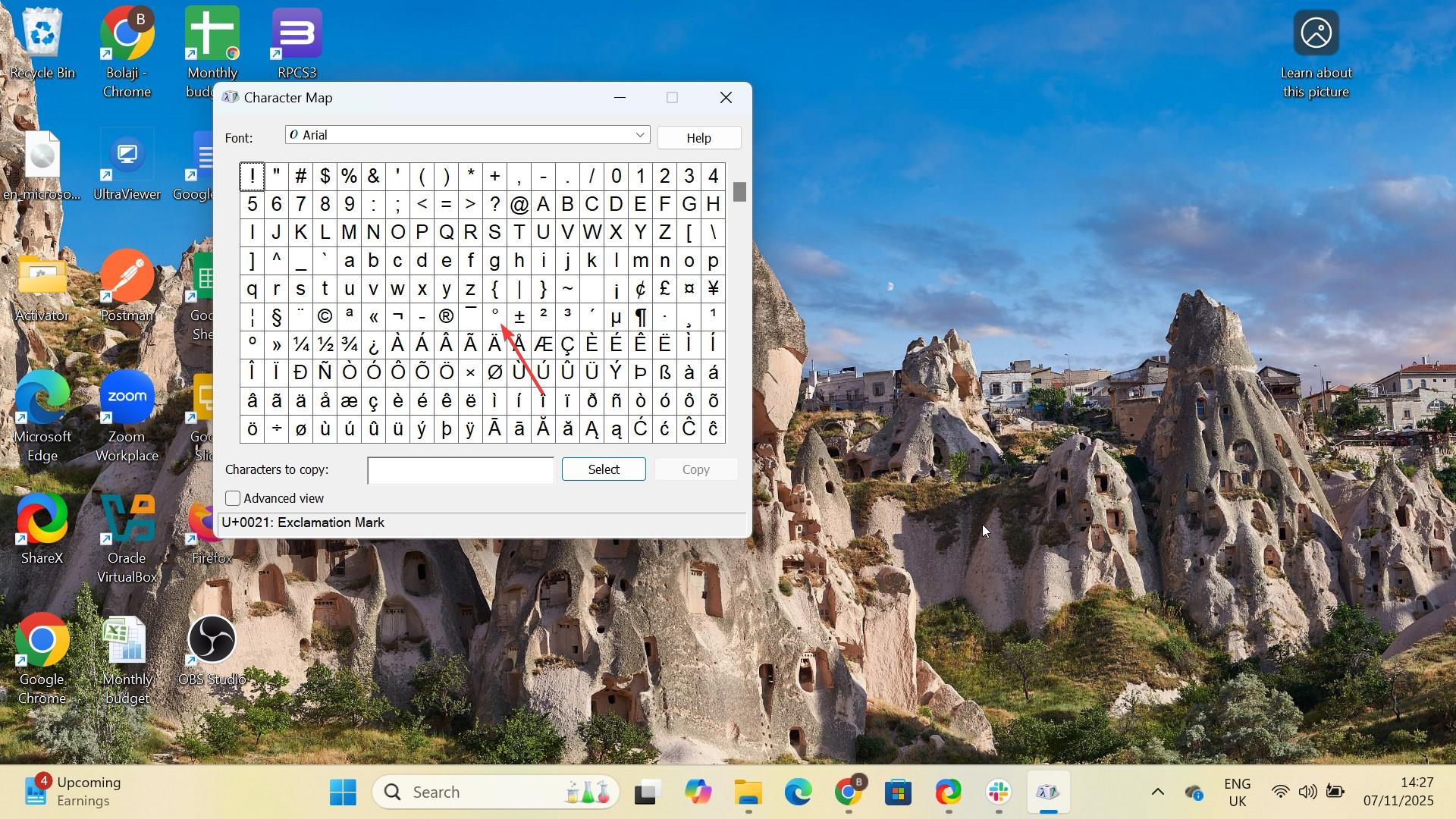
Next, scroll down to find the degree symbol (°), click on it, and then select Copy. Finally, paste the symbol wherever you need it in your document.
The Character Map offers additional symbols and characters that you might need in the future, so it’s worth becoming familiar with it.
4) Using emoji & symbol panel (Mac)
Press Control + Command + Space to open the emoji and symbol panel. Next, type degree in the search bar or scroll to find the symbol. Finally, double-click the degree symbol (°) to insert it.
5) On mobile devices
Open the keyboard on your iPhone, iPad, or Android and hold down the 0 key. After a moment, the degree symbol (°) will appear. Now, slide your finger over the degree symbol and release to insert it.
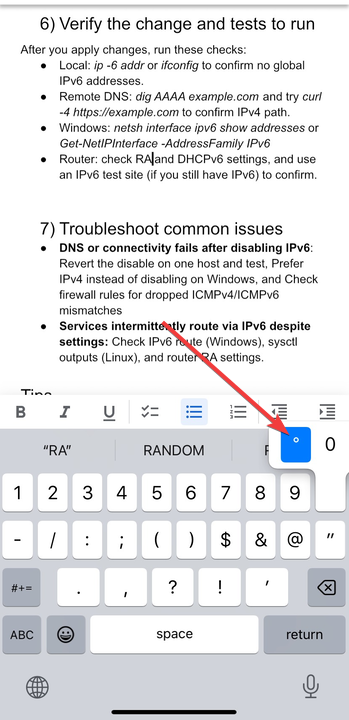
This shortcut works in messages, emails, and other apps where you can input text.
6) Using Google Docs or Microsoft Word
Both Google Docs and Microsoft Word make it easy to insert the degree symbol, even without keyboard shortcuts.
On Google Docs, go to Insert > Symbols > Special characters. In the search box, type degree and select the symbol to insert.

In Microsoft Word, press Ctrl + Shift + @, followed by a space to insert the degree symbol. Both applications also allow you to use custom shortcuts or copy-paste from a character map, making them versatile for document creation.
Troubleshooting common issues
If you're having trouble making the degree symbol appear, try the following solutions:
- Make sure NumLock is on if you're using the
Altcode method. - Verify that you are using the correct keyboard layout for your region. Some layouts may require a different shortcut.
- For touchscreen devices, ensure your keyboard settings are set to the correct language or region.
Tips
- Use a Numeric keypad
- Customize shortcuts
- Access via emojis on mobile
- Try the character map on Windows
- Unicode and HTML codes
FAQs
How do I type the degree symbol on a laptop without a numeric keypad? Use the Character Map tool on Windows or the emoji & symbol panel on Mac to insert the degree symbol without needing a numeric keypad.
Can I type the degree symbol on an iPhone or Android device? Yes, by holding the 0 key on the keyboard for a moment, the degree symbol will appear as an option for insertion.
How can I insert the degree symbol in Microsoft Word? Press Ctrl + Shift + @, then hit the spacebar to insert the degree symbol directly in Word.
Can I use a custom shortcut for the degree symbol on my Mac? Yes, you can customize your own shortcut by going to System Preferences > Keyboard > Shortcuts on macOS.
Summary
- Windows: Use the
Altcode (Alt + 0176) on a numeric keypad to type the degree symbol. - Mac: Press
Option + Shift + 8to insert the degree symbol. - Mobile devices: On iPhone or Android, hold the
0key to bring up the degree symbol. - Character map: Use Windows' Character Map for inserting the degree symbol without a numeric keypad.
- Unicode/HTML: Use
U+00B0for Unicode or°in HTML for web development. - Custom Shortcuts: Create your own keyboard shortcut on Mac through the system settings for faster access.
Conclusion
Typing the degree symbol is simple once you know the right method for your device or operating system. Whether you’re using a keyboard shortcut, a character map, or mobile shortcuts, you can easily insert this essential symbol in your documents, messages, and web pages. Keep these methods in mind the next time you need to quickly type the degree symbol, and save yourself valuable time.

Discussion (0)
Be the first to comment.