




Windows 11 lets you set volume levels for each app and choose which audio devices they use. You can lower music apps while keeping meeting alerts loud. You can pick output devices like speakers or headsets per app. These settings live in Sound settings under Advanced sound options.
You access them from the taskbar or the Settings menu. Once open, you adjust volume sliders and choose preferred devices for output and input. Windows saves these preferences so apps use them next time you open them.
These controls give you stronger audio customization than the standard master volume. You can silence notifications while keeping media and calls at the level you want.
How These Controls Work
Volume Mixer
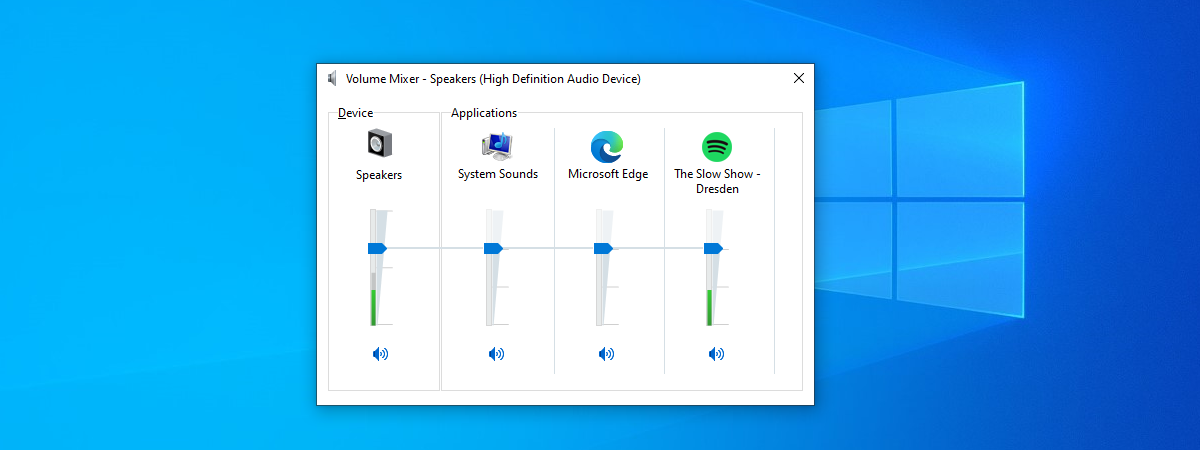
This panel shows volume sliders for Windows and apps currently playing audio. You adjust audio level per app here.
App Volume and Device Preferences
This screen lets you set output devices such as headsets or speakers and input devices such as microphones per app. It also stores per app volume levels for future use.
Step-by-Step Guide
Method 1: From Taskbar
- Right-click the speaker icon on the taskbar.
- Choose Open Sound settings or Volume mixer.


- For per-app volume, open the mixer and move sliders.
- For device preferences, open Sound Settings and scroll down to Advanced sound options.
- Select App volume and device preferences.


- Change the output or input device from the dropdown beside each app.
Method 2: From Settings
- Press Windows key + I to open Settings.
- Go to System > Sound.
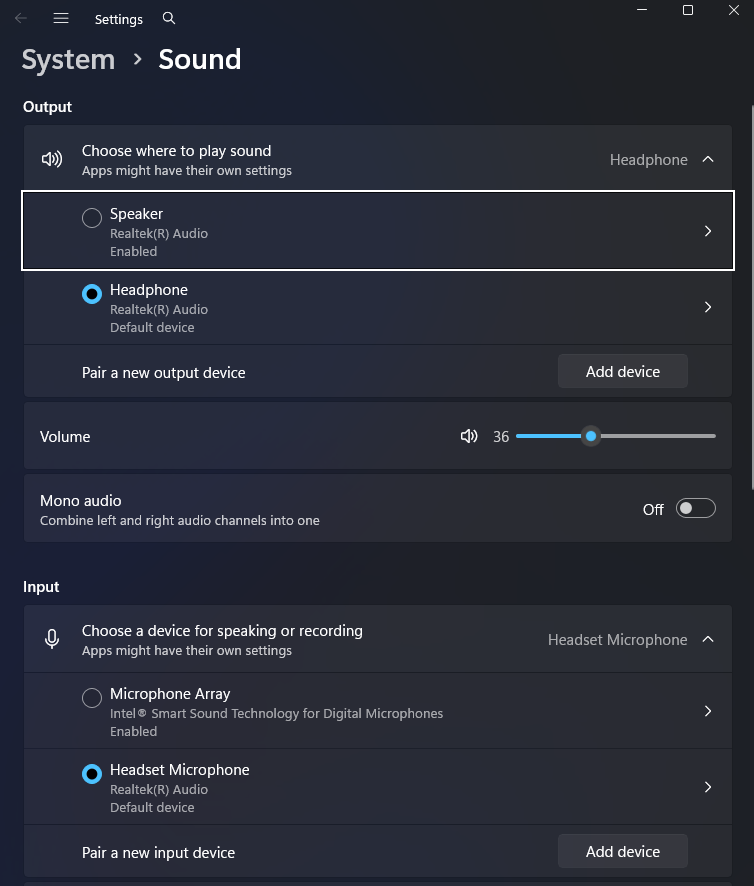

- Scroll to Advanced sound options.
- Select App volume and device preferences.
- Adjust sliders and device dropdowns as needed.
Keyboard Shortcut (Quick Volume)
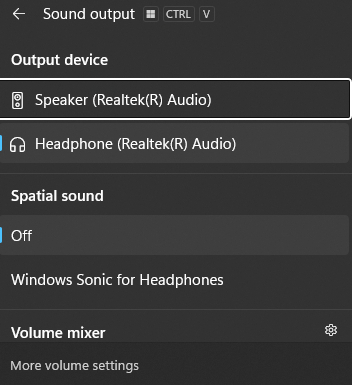
Press Ctrl + Windows + V to open the volume mixer quickly. You can adjust app volumes without going deep into settings.
What You Can Change Here
| Setting | What It Does |
|---|---|
| App volume slider | Raises or lowers specific app volume |
| Output device | Sends app audio to headphones, speakers, or other device |
| Input device | Selects which microphone the app uses |
| Master volume | Controls overall system volume |
Tips to Use These Controls Well
- If an app does not show up, start audio playback in it first. Windows only lists apps that have made a sound recently.
- Windows may not show live volume bars for each app like it did in Windows 10. Some visual feedback is limited in Windows 11.
- If preferences reset after restart, check for updates or reboot the audio service.
Common Issues
App Settings Not Saved
Windows may fail to remember per app defaults. You can try enabling exclusive audio control in device properties.
Incorrect Output Device
Some system sounds do not allow device switching. They use the global default device only.
Mixing USB and Bluetooth Devices
Windows may switch devices automatically if one is disconnected. You can disable unused devices or manage settings in the Sound Control Panel.
Frequently Asked Questions
Do these settings work for all apps?
Yes. Most apps that use Windows audio accept volume and device preferences. Some apps manage audio themselves.
Will Windows remember these per app settings?
Usually yes. Windows stores your choices and applies them when the app runs again. If settings reset, check for updates and confirm audio drivers are current.
Can I use a third-party tool?
Third-party apps offer a faster volume interface. Microsoft’s built-in tools cover most needs.
Why don’t I see an app in the mixer?
An app only appears after it plays a sound. Play audio and reopen the mixer.
Summary
Windows 11 gives you control over volume and audio devices per app. You adjust settings from the taskbar or Sound settings. The Volume Mixer handles per-app volume. The App volume and device preferences panel assigns output and input devices. These tools help you fine-tune your audio setup for work, media, and communication.
Discussion (0)
Be the first to comment.