




Instagram stores years of photos, videos, and Stories that often feel like a digital memory book. Instead of scrolling endlessly through your profile, Instagram Memories and archive tools let you revisit posts from specific dates and past years.
At the time of writing, Instagram offers several built-in ways to view memories, including archives, notifications, and story creation tools. These features work directly inside the app and do not require third-party services.
View Instagram Memories From The Archive
The Archive section is the main place where Instagram stores your past Stories, posts, and live videos. It also surfaces On This Day memories when available.
- Open the Instagram app
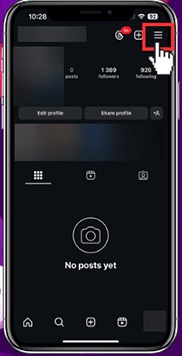
- Go to your profile
- Tap the menu icon in the top-right corner
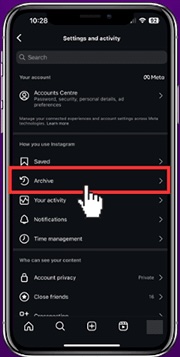
- Select Archive
- Tap the drop-down menu at the top to switch between archives
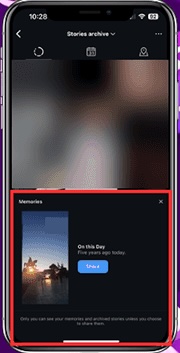
The Stories Archive shows previously shared Stories, the Posts Archive shows archived posts, and the Live Archive displays past live videos.
Check Instagram On This Day Memories
If you shared content on the same date in previous years, Instagram highlights it as an On This Day memory. These reminders appear automatically inside the archive.
When available, On This Day memories appear near the bottom of the archive view, making them easy to find without searching manually.
Find Instagram Memories Through Notifications
Instagram also sends memory reminders as notifications. These alerts help surface memories you might otherwise miss.
- Tap the Activity or heart icon
- Scroll through recent notifications
- Look for memory or On This Day alerts
Tapping a memory notification opens the archived post or story directly.
Use Create Story To View Past Instagram Memories
The story creation screen includes a dedicated On This Day option that pulls up memories from the same date in previous years.
- Open your profile
- Tap the + icon
- Select Story
- Choose Create
- Swipe until you see On This Day
Instagram displays eligible posts and Stories that you can view or reshare.
Turn On Instagram Memories And Archiving
If you do not see any memories, archiving may be disabled. Instagram only shows memories for content saved to the archive.
- Go to your profile
- Tap the menu icon
- Select Settings And Privacy
- Choose Archiving And Downloading
- Enable Save Story To Archive
Once enabled, Instagram automatically saves Stories and enables memory reminders.
Troubleshooting Common Problems
If Instagram Memories are missing, check that archiving is turned on and that the app is updated. Older posts will not appear if they were deleted.
Some memories may not show if content privacy settings were restricted or if posts were removed.
Tips
- Keep story archiving enabled to preserve future memories
- Check notifications regularly for On This Day reminders
- Use the Create Story tool to surface hidden memories
- Archive posts instead of deleting them
FAQ
Can I turn off Instagram Memories?
Yes. You can disable memory notifications by turning off archiving settings.
Can I share Instagram Memories again?
Yes. Memories can be reshared as Stories directly from the archive.
Does deleting Instagram remove archived posts?
Deleting the app does not remove content. Deleting the account removes everything.
Why do some years not show memories?
Instagram only shows memories for dates when content exists.
Summary
- Instagram Memories are stored in the Archive section
- On This Day highlights posts from previous years
- Notifications help surface memories automatically
- Archiving must be enabled for memories to appear
Conclusion
Instagram Memories make it easy to revisit moments without scrolling endlessly through your profile. With archives, notifications, and story tools, Instagram keeps past content accessible and organized.
Once archiving is enabled, memories continue to appear automatically, helping you relive important moments whenever they resurface.


Discussion (0)
Be the first to comment.