




Screen casting lets you view your phone or computer’s screen on a larger display without extra hardware. A few quick settings help most users connect their devices to a Smart TV in less than a minute. This guide will walk you through to screen cast to a smart TV from different and show an alternative your TV does not support casting.
But before you start, note that screen casting depends on the right network and TV features. To avoid issues, ensure that both devices use the same Wi-Fi network and your Smart TV has its casting mode enabled.
1) Cast from an Android phone
Open Quick Settings and tap the Cast or Smart View tile to effectively mirror your Android to the TV. Select your TV and wait a few seconds for the screen to appear on the display.

Also, apps like YouTube or streaming services include their own dedicated cast button. Tap the icon inside the app to send content directly to the TV with better stability.
2) Cast from an iPhone or iPad
Open Control Center and tap Screen Mirroring. Choose your Smart TV from the list and confirm the connection.

Also, many iOS apps include an AirPlay button for direct video or audio casting. This provides smoother playback than full screen mirroring.
3) Cast from a Windows PC
Use the Windows cast or project menu
Press Windows + K and choose your Smart TV. If your TV supports Miracast, your desktop mirrors immediately.

You can cast from Chrome and Edge browsers. They include a Cast option in the menu and you can send a tab, a video file, or your full desktop.
4) Cast from a Mac
Click the AirPlay icon in the macOS menu bar and choose your TV. Now, adjust mirroring or extending options.
If you want, you can also use compatible apps that include an AIrPlay icon for video and music casting. This option gives you better picture quality.
5) Brand-specific Smart TV instructions
- Samsung (Tizen): Samsung TVs support both Smart View and AirPlay. Open Settings > Connection > Screen Mirroring to enable detection.
- LG (webOS): LG TVs use Screen Share for Miracast and also support AirPlay. You can enable these options under Connection or AirPlay Settings.
- Sony / Google TV: Sony TVs with Google TV include Chromecast Built-In by default. Casting works immediately from Android phones and Chrome-based browsers.
- Vizio SmartCast TVs: Vizio SmartCast includes both Chromecast and AirPlay. You can cast from nearly any mobile device without special setup.
Use a streaming device when your TV isn’t compatible
Chromecast
Chromecast works with Android, iPhone, and desktop browsers. Choose the cast icon and select your Chromecast device.
Roku
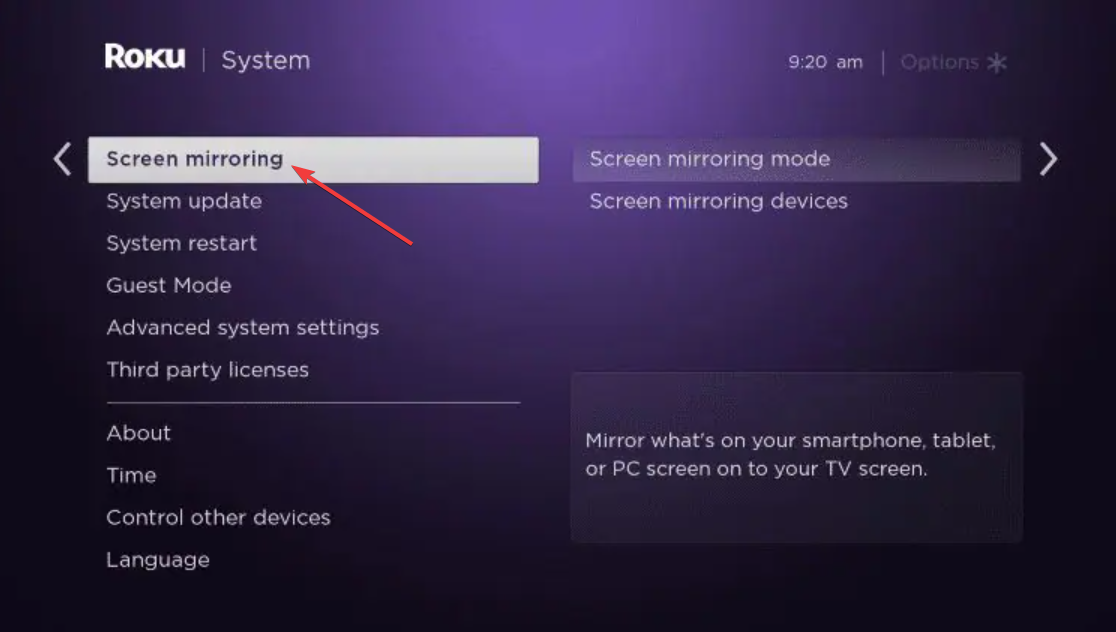
Many Roku models include screen mirroring support. You enable it from Roku Settings > System > Screen Mirroring.
Fire TV
Fire TV devices use Miracast. Android phones and Windows PCs connect without extra apps.
Troubleshooting screen casting problems
- Cast icon not appearing: Verify both devices are on the same Wi-Fi network and the TV’s casting mode is enabled. Restarting the router or TV often helps.
- Video freezing or lagging: Switch to a 5GHz Wi-Fi network or move closer to the router. Wireless interference causes delays and frame drops.
- No sound on the TV: Check if the audio output is set to your Smart TV. Some devices keep audio routed to the phone by default.
- TV not detecting your device: Update your TV’s firmware, restart the phone or computer, and try reconnecting. Compatibility issues often resolve after a reboot.
FAQs
Why doesn’t my Smart TV show up when I try to cast? Your devices may be on different Wi-Fi networks or the TV’s casting mode may be disabled. Updating the TV’s software can also restore detection.
Do I need an app to screen cast? Most devices include built-in casting tools. You only need an app if your TV doesn’t support the required casting technology.
Why is the video lagging? Weak Wi-Fi or interference causes slow video. Switching to 5GHz or using a wired connection reduces lag.
Can I cast to an older TV? Yes. A streaming device such as a Chromecast or Roku provides modern casting features over HDMI.
Summary
- Connect your phone or computer and Smart TV to the same Wi-Fi network.
- Enable the casting mode on your TV.
- Use built-in casting tools on Android, iPhone, Windows, or Mac.
- Try brand-specific casting settings if detection fails.
- Use a streaming device when your TV lacks native support.
- Switch to wired connections if wireless casting lags or disconnects.
Conclusion
Screen casting works smoothly once you connect your device and TV to the same network and enable the right features. Android, iPhone, Windows, and Mac devices all provide built-in tools that make wireless casting quick and reliable.
If your TV doesn’t support these options, streaming devices or wired connections offer dependable alternatives. After setting things up once, you can mirror your screen or stream content to your Smart TV in just a few taps.


Discussion (0)
Be the first to comment.