



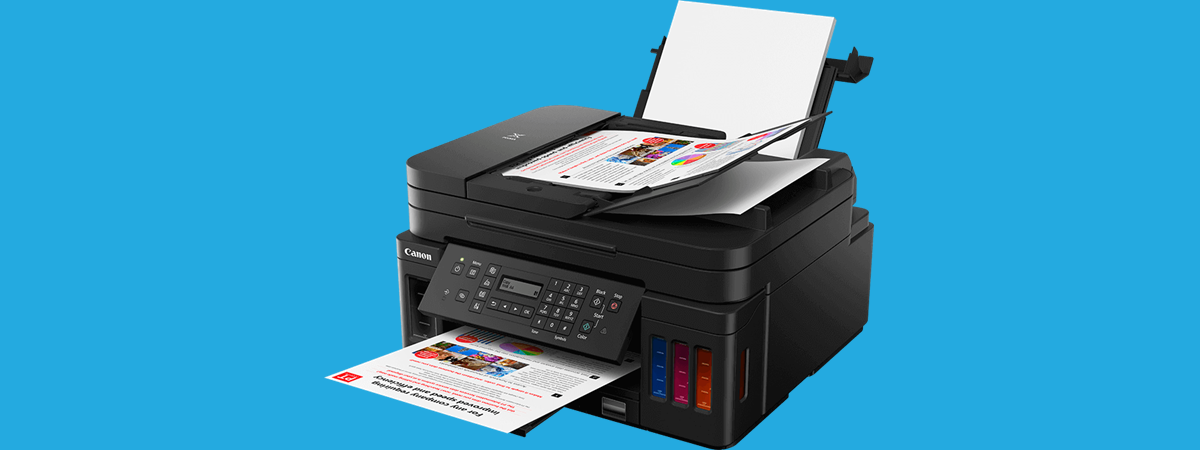
Printing a test page helps you check whether your printer is working properly. It can identify issues with ink, toner, alignment, connectivity, or driver installation.
This guide explains how to print a test page in Windows 10 and Windows 11.
Largely this works across all the printer brands.
Why Print a Test Page
A test page helps you:
- Confirm printer connectivity
- Check ink or toner levels
- Identify alignment issues
- Verify driver installation
- Troubleshoot printing problems
It is often the first step when diagnosing printer issues.
Method 1: Print Test Page from Settings (Windows 11)
Follow these steps:
- Press Windows + I
- Click Bluetooth & devices
- Select Printers & scanners
- Click your printer name
- Select Printer properties
- Click Print Test Page
The printer will print a Windows test page.
Method 2: Print Test Page from Settings (Windows 10)
Steps for Windows 10:
- Press Windows + I
- Click Devices
- Select Printers & scanners
- Click your printer
- Select Manage
- Click Printer properties
- Click Print Test Page
Method 3: Print Test Page from Control Panel
This method works in both Windows 10 and Windows 11.
- Press Windows + R
- Type:
control printers
- Press Enter
- Right-click your printer
- Select Printer properties
- Click Print Test Page
This is a quick shortcut method.
What Does the Test Page Show
The Windows test page usually includes:
- Printer model name
- Driver version
- Color test patterns
- Text samples
- System information
If colors are missing or text is faded, it may indicate cartridge or alignment problems.
If the Test Page Does Not Print
Try these fixes:
- Check printer power and cable connections
- Restart your printer
- Restart your computer
- Clear the print queue
- Update printer drivers
- Restart the Print Spooler service
To restart Print Spooler:
- Press Windows + R
- Type:
services.msc
- Find Print Spooler
- Right-click and select Restart
Print a Test Page Directly from the Printer
Some printers have built-in test page options.
Check your printer’s control panel menu for:
- Maintenance
- Tools
- Print Quality Test
- Self Test
This works even without a computer.
Final Thoughts
Printing a test page in Windows 10 or Windows 11 is simple and useful for troubleshooting printer problems. Whether using Settings or Control Panel, the test page helps confirm that your printer, drivers, and ink system are functioning correctly. If issues appear on the test page, it may indicate hardware or cartridge problems that require attention.
FAQs
How do I print a test page quickly
Use the Run command control printers and select Print Test Page.
Why is my test page not printing
It could be due to connection issues or driver problems.
Does Windows 11 support test page printing
Yes, the feature is available in both Windows 10 and Windows 11.
Can I print a test page without a computer
Yes, many printers have built-in self-test options.
What if colors are missing on the test page
You may need to clean or replace ink cartridges.



Discussion (0)
Be the first to comment.