



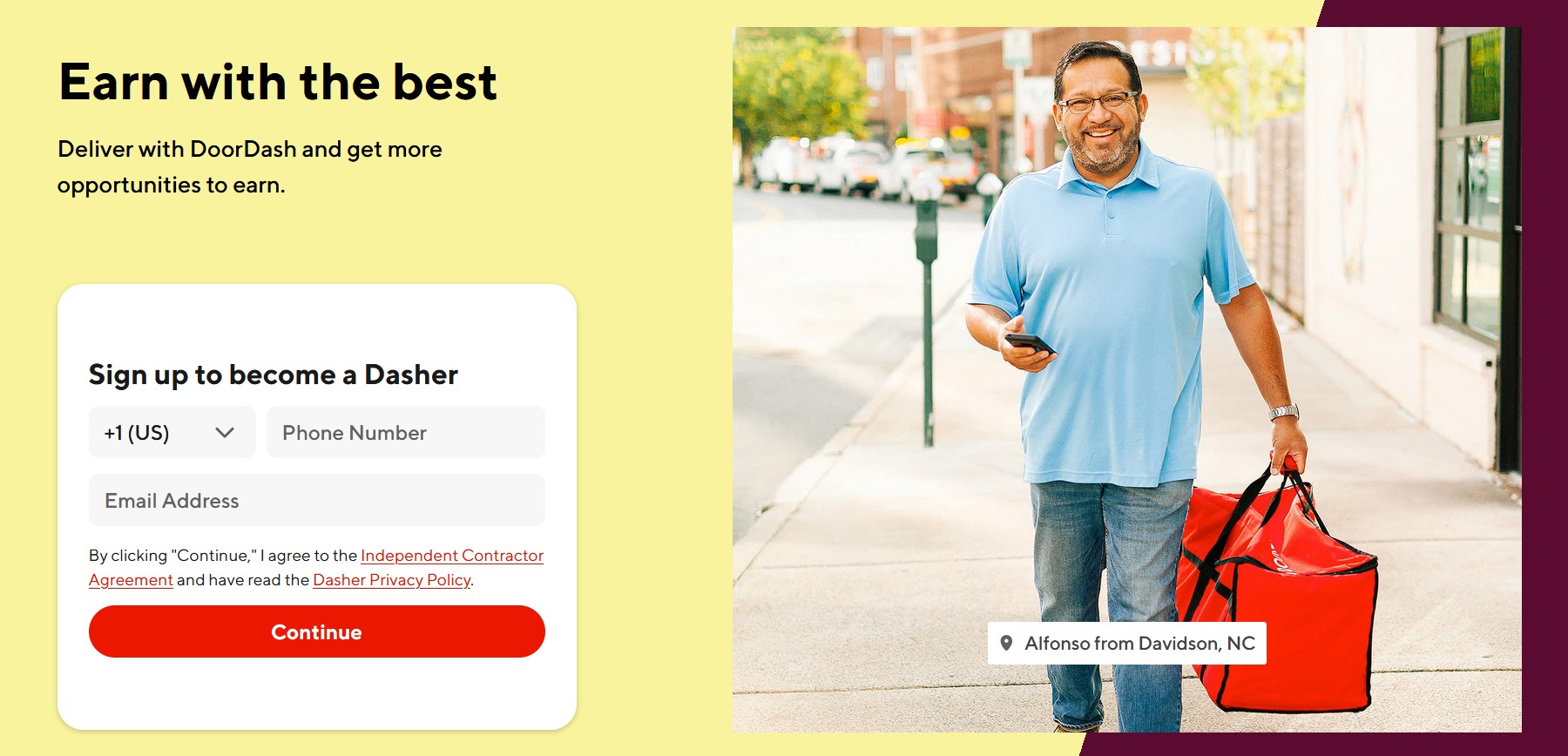
If the DoorDash “Become a Dasher” sign‑up doesn’t load, buttons don’t respond, or you’re stuck in a loop, the culprit is usually cached site data, a bad extension, or a flaky connection. Follow these practical steps on Android, iPhone, Windows, and macOS.
Before you start
- Test the link in a private/incognito tab.
- Turn off VPN/proxy and ad‑blocking for the page.
- Try mobile data vs Wi‑Fi (and the other way around).
1) Hard refresh or use a private window
A hard refresh forces the latest version of the page to load. On Mac, see our guide to hard refresh in your browser. On Windows, use Ctrl + F5 or open an InPrivate/Incognito window and try again.
2) Clear cookies and cached files
Corrupted cookies often break logins and forms. Use these tutorials to clear data, then reload the page: clear cookies in Google Chrome and clear cookies in Microsoft Edge. On Android, follow clear cookies on Android.
3) Disable or remove problematic extensions
Extensions can block scripts that power sign‑up forms. Disable all of them, test the page, then re‑enable one by one.
4) Fix slow or unreliable internet
If pages time out or stall, stabilize your connection. Start with our guides to fix slow Wi‑Fi on PC and troubleshoot network problems in Windows. Switch between Wi‑Fi and mobile data on your phone and try again.
5) Reset DNS and network stack (PC)
DNS and sockets can get stuck after software changes. Open Windows Terminal (Admin) and run these, then restart:
ipconfig /flushdns
netsh winsock reset
netsh int ip reset
For more background on cookies and why clearing them helps, read what cookies are and what they do.
6) Try another device or browser
If it works on a different phone or browser, the issue is local to your original setup (profile data, extensions, or settings).
Tips
- Keep the date/time automatic on your devices.
- Close background apps and downloads while applying.
- If the page remains blank, turn off hardware acceleration in your browser settings and reload.
FAQs
Do I need to clear all browsing data? Start with site‑specific cookies and cached images/files. If that fails, clear for the last 7 days.
Is DoorDash down? If multiple devices and browsers fail at the same time, it’s likely a temporary DoorDash issue. Try again in a few minutes.
Summary
- Hard refresh or use private/incognito.
- Clear cookies/cache and disable extensions.
- Fix Wi‑Fi/network and reset DNS (PC).
- Try another device/browser and retry later if service issues persist.
Conclusion
In most cases, “Become a Dasher” starts working after you clear site data and disable extensions. If the page still won’t load, reset DNS on PC and switch networks on your phone. When none of these help, the problem is usually on DoorDash’s side—wait a bit and retry.


Discussion (0)
Be the first to comment.