




Playing games on a smart TV gives you a bigger screen and a more relaxed setup without needing a console. Most TVs let you install apps, stream games from the cloud, cast from your phone, or connect hardware through HDMI.
Smart TVs also support Bluetooth controllers, making the experience feel closer to console gaming. This guide explains every method step-by-step so you can choose the one that fits your setup.
1) Play games using built-in smart TV apps
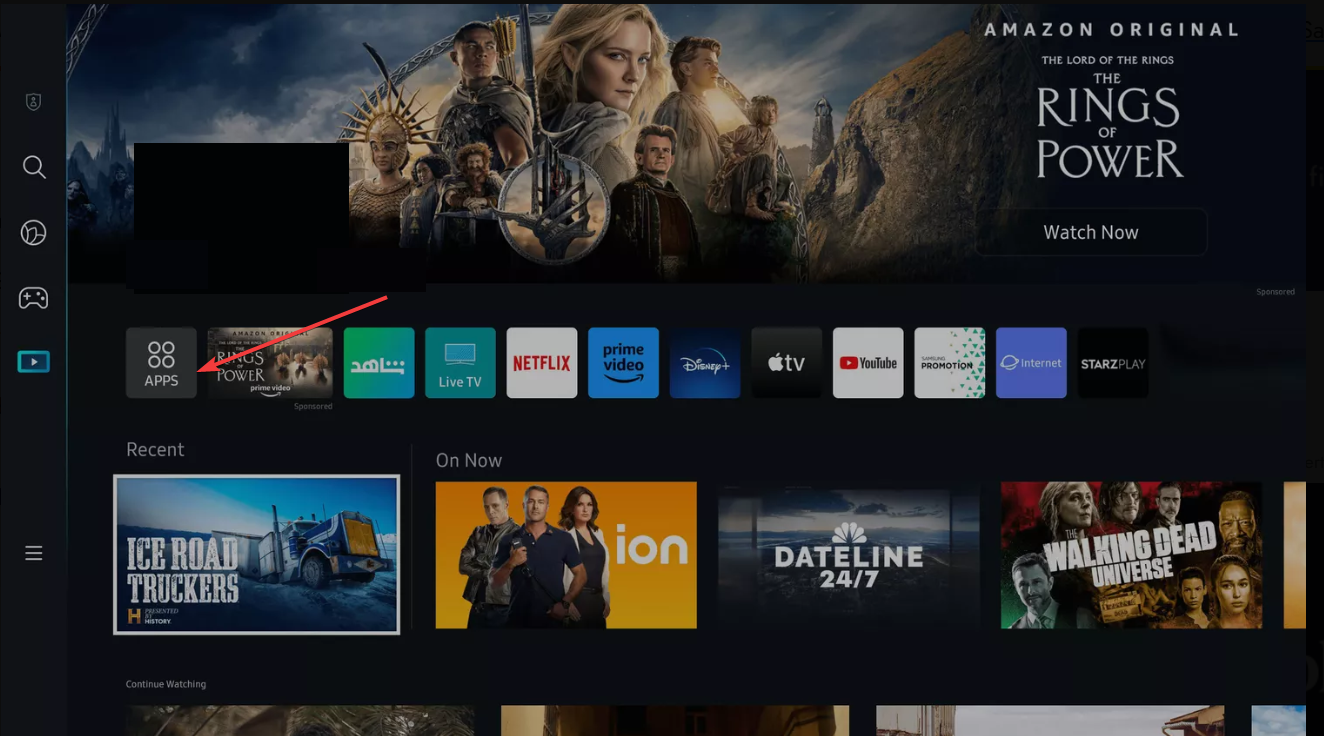
Open your TV’s app store and use the search bar to look for available games. Brands like Samsung, LG, and Google TV list casual, family, and puzzle titles you can install in seconds.
Next, open the Apps or Library section to access your installed games. Update outdated apps and remove unused ones to keep performance smooth.
2) Play games through cloud gaming services
Cloud gaming delivers console-quality titles streamed over the internet. You avoid large downloads because the processing happens on remote servers.
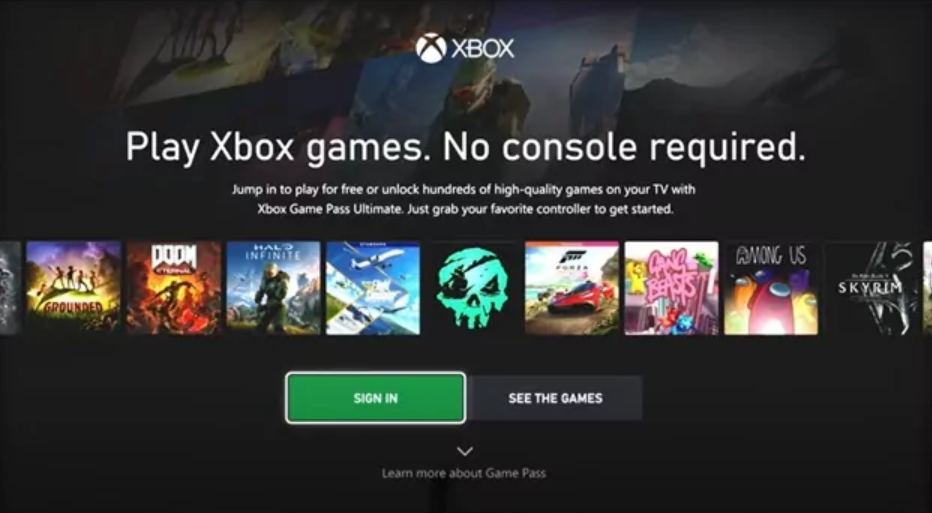
Open your TV’s app store and search for cloud gaming apps. Next, install the platform (Xbox, GeForce NOW, Luna) you use, sign in, and let the service sync your game library.
Tip: To reduce input lag and boost streaming quality, use 5 GHz Wi-Fi for faster speeds and lower interference. Close unused apps and enable Game Mode on your TV to lower latency.
3) Cast or mirror games from your phone
Screen casting lets you play mobile games on a bigger screen. It also works well for party games or casual titles.
Cast from Android using Chromecast or built-in casting
To mirror your Android phone to your TV, swipe down from the top of your phone, tap Cast, Smart View, or Screen Share. Choose your smart TV, rotate your phone if needed, and start your game.

Mirror an iPhone to a smart TV using AirPlay
Open Control Center and tap Screen Mirroring. Pick your TV from the list and wait a moment for the connection to start. Launch your iOS game once mirroring begins.
Internal link placeholder: [iPhone screen mirroring troubleshooting – insert internal link]
4) Connect external devices to play games on your TV
Any HD or 4K smart TV with HDMI can run console or PC games. This method gives you the most power and the best frame rates.
Use a console like Xbox, PlayStation, or Nintendo Switch
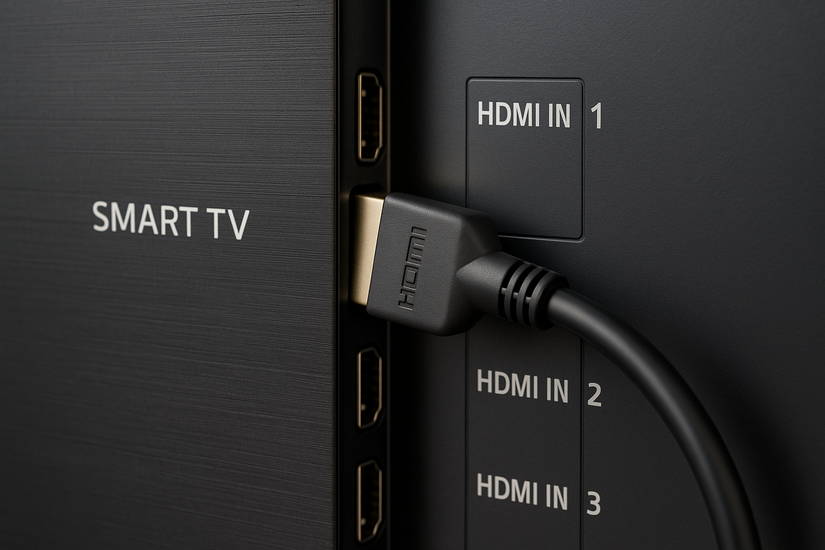
Plug the console’s HDMI cable into your TV and switch to the correct input. Turn on Game Mode to improve responsiveness.
Play PC games on a smart TV
Connect your PC through HDMI or use apps like Steam Link if your TV supports it. Lower your resolution from the PC settings if the display looks stretched or blurry.
5) Pair a Bluetooth controller with your smart TV
A wireless controller improves accuracy and makes movement smoother than using the TV remote.
Start by holding the pairing button on your Xbox or PlayStation controller until the indicator flashes. Next, open your TV’s Settings, choose Bluetooth, and pick the controller from the available devices. If the controller does not appear, restart Bluetooth and try again.
Troubleshoot common gaming issues on smart TVs
- Fix controller pairing or connection problems: Move closer to the TV and remove sources of interference like routers or thick walls. Replace the controller batteries or recharge the unit if it disconnects often.
- Reduce lag, audio delay, or frame drops: Turn on Game Mode and switch to 5 GHz Wi-Fi. If possible, connect your TV with Ethernet for the most stable performance.
- When games will not open or install: Restart your TV and clear the app store cache from the settings menu. Update the TV’s firmware to avoid compatibility issues with new game releases.
Tips for a better smart TV gaming experience
- Use an Ethernet cable for smoother cloud gaming.
- Keep your TV firmware updated to avoid app crashes.
- Try a Bluetooth controller for better gameplay precision.
- Enable Game Mode whenever available.
- Close background apps to free up memory.
FAQs
How do I know if my smart TV supports cloud gaming? Most TVs with app stores include platform pages that list supported cloud gaming apps.
Can I use a wired controller? Some TVs support wired controllers through USB ports, but compatibility varies by brand.
What if my TV does not support Bluetooth controllers? You can use casting, cloud gaming through supported apps, or connect a console via HDMI.
Do all mobile games work through casting? Most do, but titles that block screen recording may not display on the TV.
Summary
- Smart TVs let you play games through native apps, cloud services, casting, or HDMI devices.
- Built-in apps offer quick access but limited performance.
- Cloud gaming delivers high-quality titles with a strong internet.
- Phone casting works for casual gaming.
- HDMI consoles and PCs provide the best performance.
Playing games on a smart TV gives you plenty of choices, from native apps to full consoles. Pick the method that matches your TV model and gaming style for the best experience.


Discussion (0)
Be the first to comment.