




If you want groceries or small essentials in minutes instead of hours, learning how to order Walmart drone delivery helps you save time on urgent trips. Walmart now partners with drone operators in select U.S. cities, so eligible customers can receive lightweight orders by air in as fast as half an hour at the time of writing.
This guide shows you step by step how to place a Walmart drone delivery order, which apps you can use, and what limitations apply, so you know exactly what to expect before your first flight.
What You Need Before You Order Walmart Drone Delivery
Walmart drone delivery works a lot like regular delivery, but the service follows extra rules for safety and weight. Before you place an order, make sure you understand the basic requirements.
- You must have a Walmart account with a valid U.S. address inside an eligible drone delivery zone.
- Your order must only include items that qualify for Walmart drone delivery and respect weight and size limits.
- You need a clear outdoor drop-off spot where the drone can lower the package safely.
- You must keep people and pets away from the delivery area while the drone approaches and lowers the package.
- You should use the Walmart app, Walmart.com, or the partner drone delivery app that serves your city.
Step One Check If Your Address Supports Walmart Drone Delivery
Before you learn how to order Walmart drone delivery in detail, you need to confirm that drones actually serve your neighborhood. Walmart only offers the drone service from specific stores and within a certain range around each location.
- Open the Walmart Drone Delivery page or the dedicated drone partner page for your city.
- Enter your home address or ZIP code to check eligibility.
- Sign in to your Walmart account and start a test order to see if drone delivery appears at checkout for your address.
- Download the Wing Drone Delivery app if Wing operates in your city and run the built-in address checker.
- Turn on notifications in the app so you receive alerts when Walmart drone delivery expands to your area.
If the checker reports that Walmart drone delivery is not available yet, you can still use standard Walmart home delivery or pickup until the drone network grows.
Step Two Create Or Sign In To Your Walmart Account
You need a Walmart account to place any drone order. The account stores your address, payment details, and order history across the Walmart app, website, and partner services.
- Open the Walmart app or go to the Walmart website in your browser.
- Click or tap “Sign In” and choose “Create Account” if you do not already have one.
- Enter your name, email address, and a strong password that you do not use elsewhere.
- Verify your email address if Walmart sends a confirmation link.
- Add your main delivery address, including apartment details or gate codes if needed.
Once you sign in, keep your Walmart login details secure, since anyone who can access your account can place orders with your saved payment methods.
Step Three Add Drone Eligible Items To Your Cart
Not every item works with Walmart drone delivery. The service focuses on small, lightweight products such as snacks, ice cream, over-the-counter medicine, pet food, and other quick essentials that fit inside the drone’s cargo box.
- Search for items in the Walmart app or on Walmart.com as you normally would.
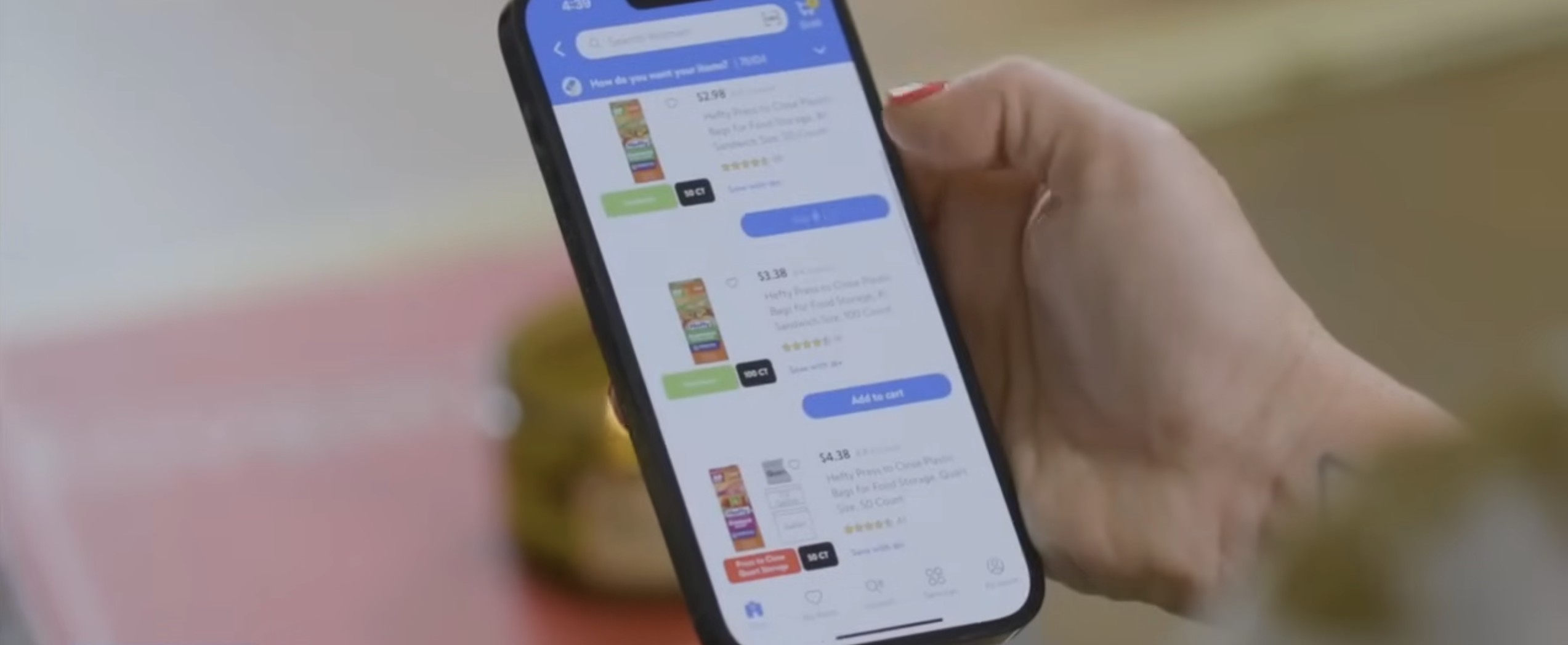
- Look for labels or filters that highlight items available for Walmart drone delivery in your area.
- Choose smaller products that weigh only a few pounds in total; avoid bulk packs or heavy hardware.
- Open the product page and check for any delivery restrictions before you add the item to your cart.
- Remove items that show as ineligible for drone delivery if you want the entire order delivered by drone.
When you keep your Walmart drone delivery order light and compact, you avoid last-minute errors at checkout and help the drone stay within its safe weight limits.
Step Four Choose Drone Delivery At Checkout
Once you fill your cart with eligible items, you can move through checkout and choose Walmart drone delivery as the method for your order. The interface looks slightly different between the app and the website, but the options stay similar.
- Open your cart and confirm that every item shows as available for delivery from your local store.
- Tap “Checkout” and select your verified home address as the destination.
- Choose “Delivery From Store” as the fulfillment method when the app asks how you want to receive your order.
- Look for the “Drone Delivery” option next to other choices such as standard delivery and pickup.
- Select Walmart drone delivery and review any estimated delivery window or service fee before you continue.
Walmart often offers free drone delivery for Walmart Plus members for a limited time, while non-members usually pay a per-order fee, so check the price carefully before you confirm.
Step Five Confirm Your Drop Off Zone
Drone deliveries follow strict Federal Aviation Administration safety guidelines, so Walmart and its partners need a precise, safe spot on your property for each flight. You choose this spot during checkout or inside the partner app.
- Use the on-screen map or satellite view to mark your preferred drop-off location, such as a backyard, driveway, or open patio.
- Pick an area that sits away from trees, power lines, parked vehicles, and loose items that wind from the drone could disturb.
- Make sure the ground under the drop zone stays level and clear of obstacles like lawn furniture or toys.
- Plan a safe viewing point at least a few car lengths away so you can watch the delivery without standing under the drone.
- Tell everyone in your household to keep pets and children inside or well away from the drop zone during the delivery window.
The drone usually hovers above your property and lowers the package on a tether, so clearance above the drop zone matters just as much as the space on the ground.
Step Six Place Your Order And Track The Drone
After you choose Walmart drone delivery and confirm the drop-off area, you can finalize your order. The app then routes your request to the nearest drone-enabled store and prepares the items for loading.
- Review your full order summary, including items, address, drone delivery method, and total cost.
- Choose your payment method and complete the purchase through the Walmart checkout screen.
- Open your order history in the Walmart app to see the current status of your drone delivery order.
- Watch for notifications that show when the drone launches and when it approaches your home.
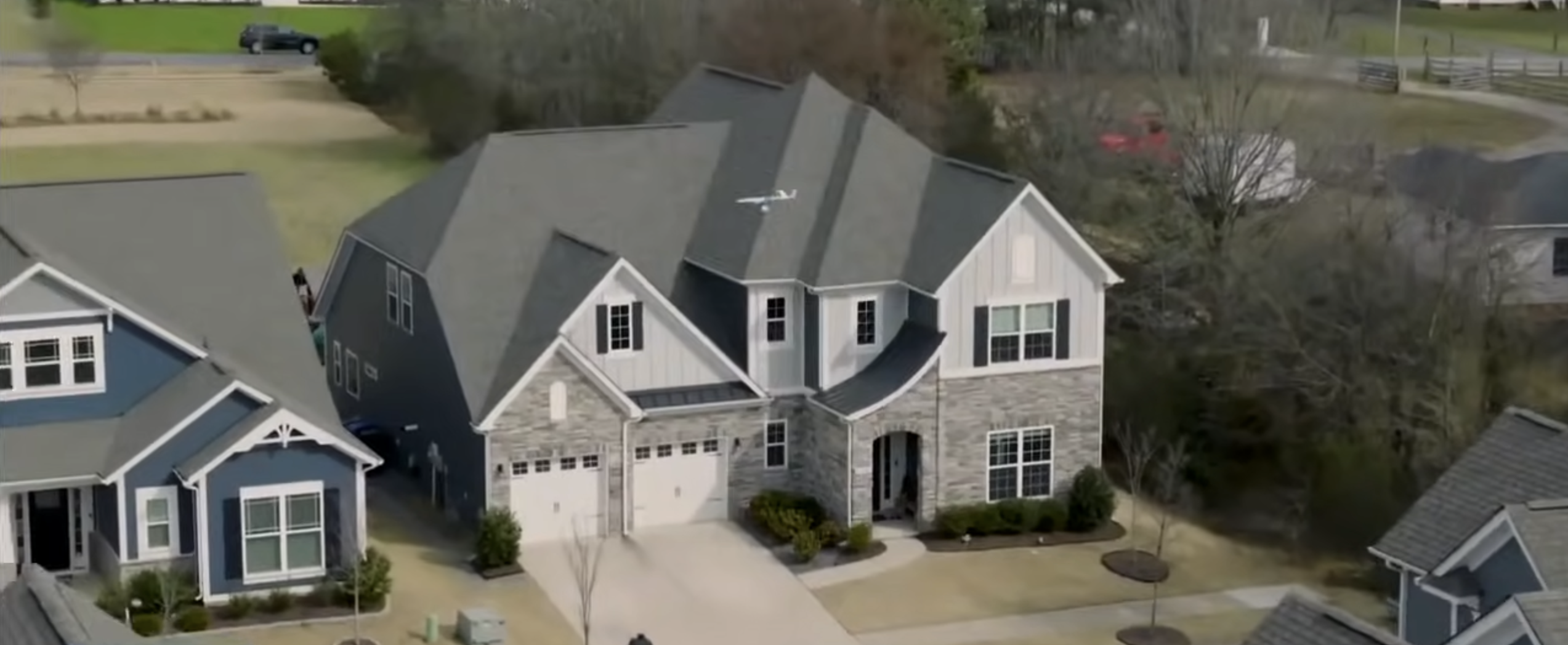
- Move to your safe viewing spot and keep the drop zone clear until the drone releases the package and flies away.
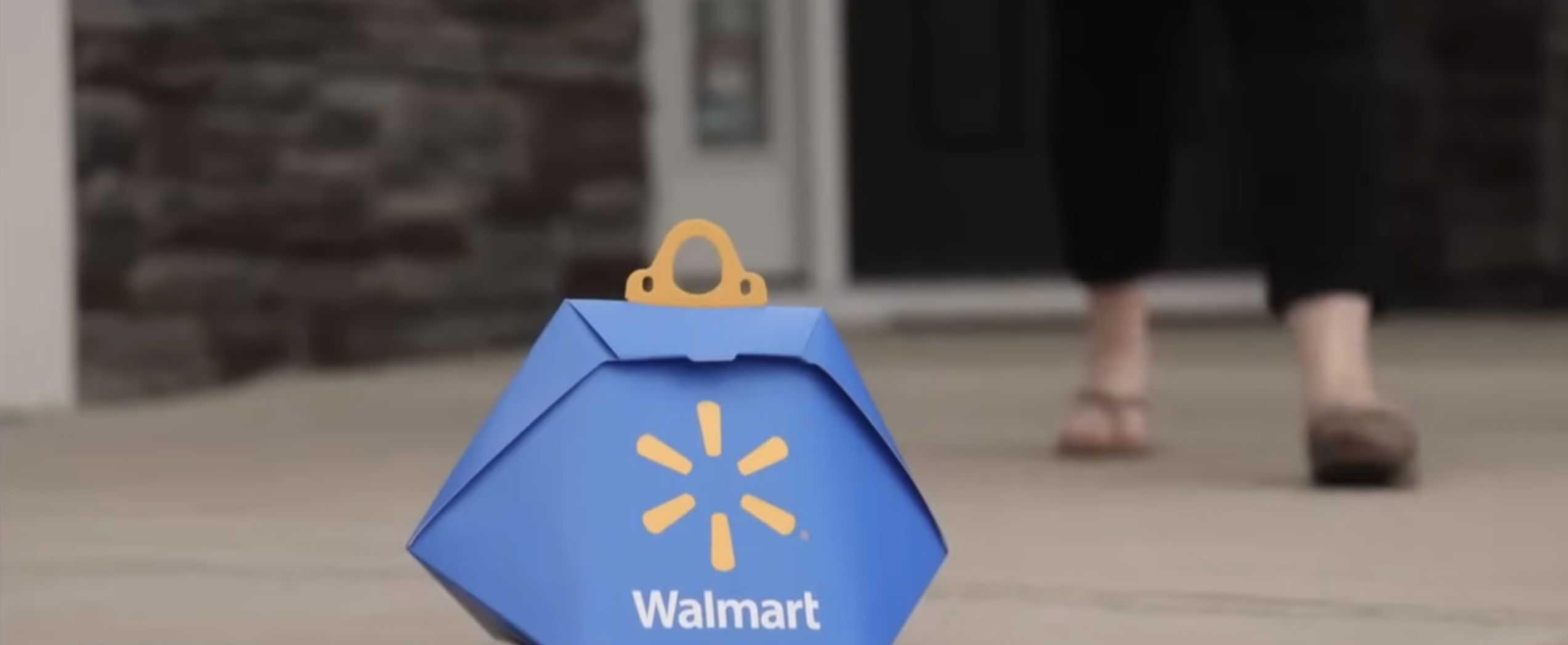
Most drone deliveries aim to arrive in minutes rather than hours, so stay close to home once the app reports that your order is on its way.
How Walmart Drone Delivery Works Behind The Scenes
Walmart drone delivery combines the retailer’s local stores with specialized aircraft from partners like Wing and other drone operators. Each drone follows a programmed route and flies within a defined radius from its launch site.
- Store staff pick and pack your Walmart drone delivery order in a dedicated staging area.
- A trained operator loads the package into a secure drone delivery box.
- The drone lifts off from a platform near the store and climbs to a safe cruising altitude.
- Navigation systems guide the drone along an approved path to your drop-off zone.
- The drone hovers and lowers the package on a tether, then climbs back to altitude and returns to the store.
Because the drone follows this route automatically under close supervision, Walmart can deliver many small orders quickly without sending a driver across town for each one.
Tips For Safe And Smooth Walmart Drone Delivery
Walmart drone delivery relies on both technology and cooperation from customers. A few simple habits will help every flight stay safe and efficient.
- Confirm that your address, phone number, and drop-off instructions stay accurate in your Walmart account.
- Keep trees trimmed and move tall objects away from your chosen drop-off zone.
- Bring pets indoors before the delivery window so they do not run toward the drone.
- Pick up the package quickly after the drone leaves to avoid damage from weather or curious animals.
- Use Walmart drone delivery for quick runs and last-minute essentials instead of heavy weekly stock-up orders.
Frequently Asked Questions About Walmart Drone Delivery
Is Walmart Drone Delivery Available Everywhere?
No. Walmart drone delivery currently operates from select stores and only serves addresses inside each drone’s service radius. You must check your address in the Walmart app or partner app to see if the service covers your home.
How Much Does Walmart Drone Delivery Cost?
Pricing can change, but at the time of writing Walmart often offers free drone delivery for Walmart Plus members for a promotional period, while non-members typically pay a per-order fee. Always review the fee listed at checkout before you place your drone delivery order.
What Can I Order With Walmart Drone Delivery?
You can usually order small, lightweight items such as groceries, snacks, household supplies, and over-the-counter medicine. Large, heavy, or bulky products do not qualify for drone delivery and must ship through standard Walmart delivery options.
How Fast Does Walmart Drone Delivery Arrive?
Walmart and its partners aim to deliver drone orders in minutes rather than hours once the store prepares the package. Exact timing depends on local demand, store workload, and weather conditions along the drone’s route.
Conclusion
Now you know exactly how to order Walmart drone delivery, from checking your address and selecting eligible items to choosing the drone option at checkout and confirming your drop-off zone. The process feels familiar if you already use Walmart delivery or pickup, but drones shorten the wait dramatically when you only need a few items fast.
As Walmart expands its drone delivery service to more locations, you can lean on this guide whenever the feature reaches your neighborhood so you feel confident placing your first Walmart drone delivery order.


Discussion (0)
Be the first to comment.