




When you buy a digital product on Amazon, it doesn’t arrive in a box - it lands in your account. Whether it’s a Kindle book, Prime Video, music, or software, you can download each one in a few clicks. This guide shows how to locate, download, and back up every type of Amazon digital order on desktop and mobile.
Step 1: Locate your digital orders on Amazon
Your digital items stay linked to the Amazon account you used for purchase. Access them from the Digital Orders section on desktop and mobile.

On a desktop browser, sign in to your Amazon account and click Accounts & Lists at the top right. Next, select Your Orders and open the Digital Orders tab. Finally, review the list to download, stream, or install items. Use filters to narrow by date or category.

On the Amazon mobile app, open the Amazon app and sign in. Next, tap the Profile icon on the bottom bar. Finally, tap Your Orders, then switch to Digital Orders.
Step 2: Download your digital purchases by category
Each content type uses its own download method. Follow the steps for your purchase type.
Kindle Books and eBooks: Open Manage Your Content and Devices in your account, select the Books tab, and choose your title. Next, click Deliver or Remove from Device to save it for offline reading.
Alternatively, use the Kindle app and double-tap the cover to download, or use Send to Kindle to deliver files to your device.
Prime Video purchases: Open the Prime Video app on Windows, Fire tablet, iPhone, or Android. Then, go to My Stuff → Purchases. Lastly, tap the download icon beside the title to save it for offline playback.
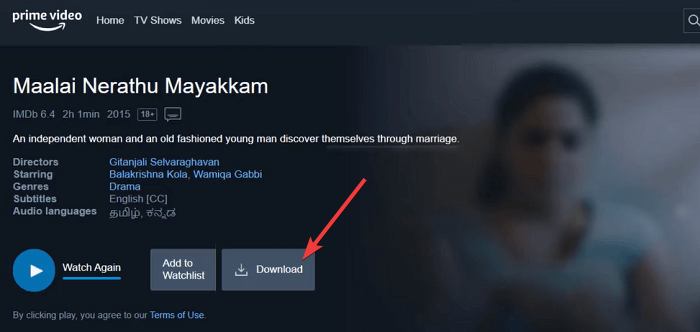
Note that browser streaming doesn’t support local downloads. Use the Prime Video app to store movies or TV shows offline.
Digital music and audible audiobooks: To download your music on Amazon, open Amazon Music Library → Purchased, and select Download to save MP3 files. For Audible, open your Library, click the three horizontal dots next to the book, and select Download next to each title to get .AAX files for the Audible app or supported players.
Software, games, and gift Codes: Open the Games & Software Library from your account menu. Retrieve activation codes, installation files, and system requirements. Click Download or copy the product key if the publisher requires activation on their site.
Step 3: Export or download your entire digital order history
Need a complete record of every digital purchase? Request a downloadable report from your account settings. To do this, open your account’s Request My Data page and choose Digital Orders as the category.

Now, submit the request and wait for Amazon’s email notification. Amazon delivers a ZIP file containing one or more CSVs that include order ID, product name, category, date, and amount. Open it in Excel or Google Sheets to track expenses or verify ownership for support cases.
Troubleshooting download issues
- Digital item unavailable or removed: If an item shows as unavailable, the publisher may have delisted or changed licensing. Contact Amazon’s Digital Services support to check re-download options.
- Download not working on mobile: When downloads stall, clear the app cache, restart the device, or switch to Wi-Fi. Update the Amazon app and your OS to the latest version.
FAQs
Can I transfer digital orders to another account? No. Digital purchases stay tied to the original Amazon account.
Do downloads use device storage? Yes. Files are saved to local storage or app data. Delete them later to free space.
Why can’t I download Kindle books on a PC? Amazon phased out some USB transfer options for older desktop apps. Use Send to Kindle or mobile downloads instead.
Summary
- Open Your Orders → Digital Orders.
- Select your item and choose Download.
- Use the Kindle, Music, Audible, or Prime Video app for app-only downloads.
- Export all purchases from Request My Data → Digital Orders.
- Back up files locally for long-term access.
Conclusion
Downloading your Amazon digital orders protects access to the content you paid for. This guide has covered how you can get different digital orders and save them locally. Ensure to back up important files and review your order history regularly for clean records.



Discussion (0)
Be the first to comment.