




Amazon Music lets you save your favorite songs and albums in playlists so you can replay them anytime. But many users struggle to find where those playlists are stored, especially after switching devices or reinstalling the app. Here’s how to locate your playlists on any platform and fix missing ones fast.
1) How to find your Amazon Music playlists
On Android or iPhone
Open the Amazon Music app and tap Library at the bottom of the screen. Choose Playlists from the top menu to see every playlist you’ve created or followed. You can also search by name using the magnifying glass icon.
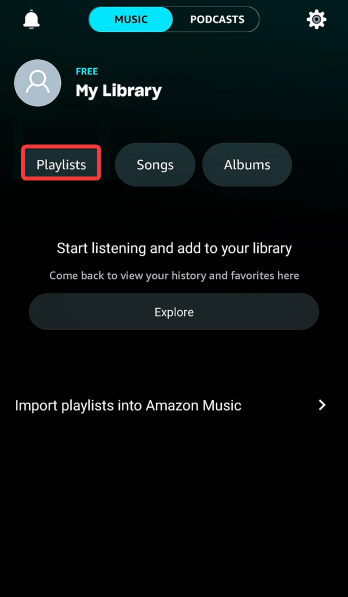
If your playlist doesn’t appear, refresh the view by pulling down the screen. This forces the app to resync your latest library data.
On Windows or Mac
In the Amazon Music desktop app, click Library on the left sidebar, then select Playlists. Here you’ll see your Created and Followed playlists sorted alphabetically. You can click any playlist to open it or use the search bar in the top-right corner to filter results.
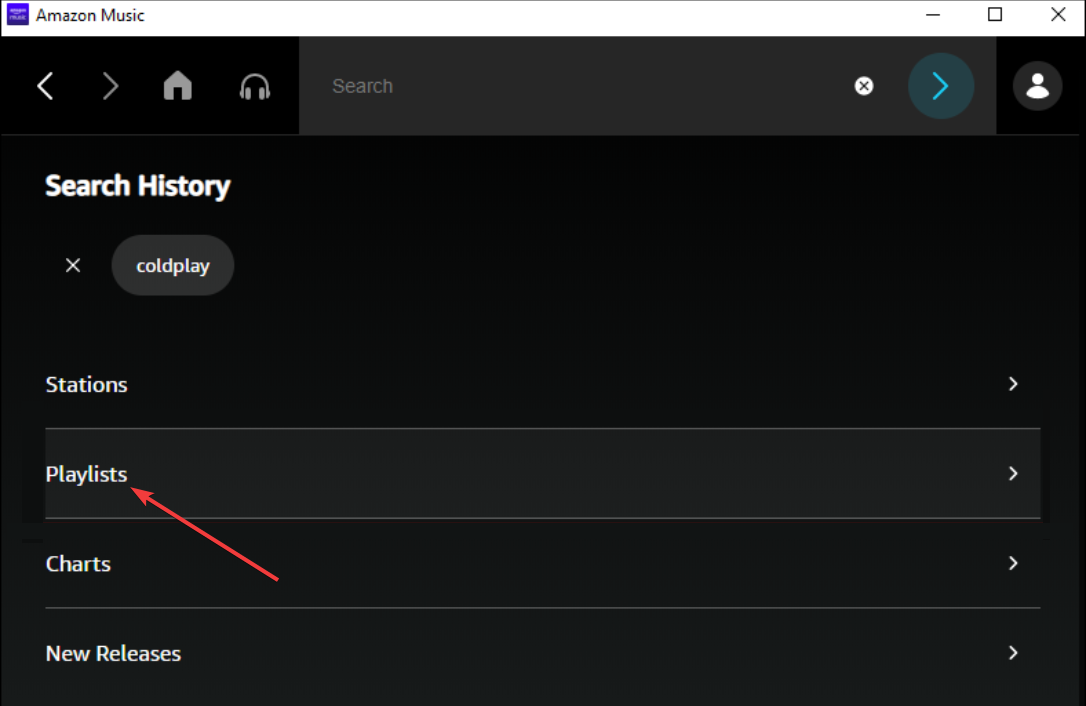
Desktop users can also drag and drop songs between playlists for faster organization. If you prefer a larger interface, use the app in full-screen mode for a cleaner view.
On the Amazon Music web player
Go to the Amazon Music web player and sign in with your account credentials. Click Library at the top, then choose Playlists from the left sidebar. All your playlists will appear in a scrollable list, along with sorting options like Recent and Downloaded.
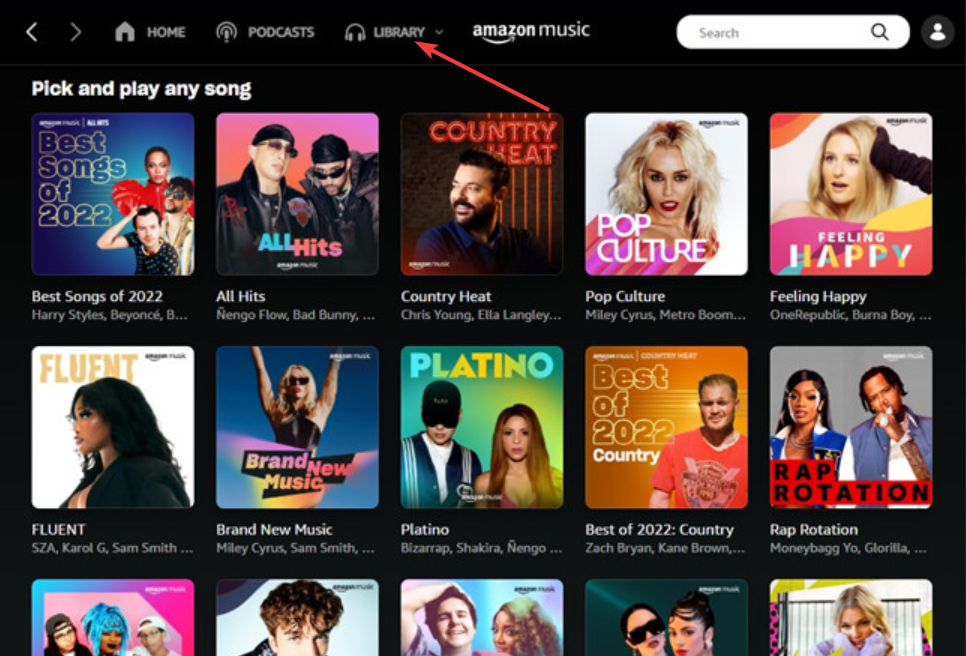
This view syncs automatically with your mobile and desktop apps, so any new playlist created elsewhere should appear here instantly.
On Echo and Alexa devices
Alexa can access your playlists without needing the app open. Try saying, “Alexa, play my Chill Vibes playlist on Amazon Music.” If you have multiple accounts linked, make sure you’re using the correct Amazon profile. You can also ask, “Alexa, what playlists do I have?” to hear a full list of available options.
Voice control works for both personal and followed playlists, so you can start playback hands-free.
2) Manage and organize your playlists
Rename or reorder songs
To rename a playlist, open it and tap the three-dot menu. Choose Edit, type a new name, and press Save. You can also drag tracks up or down to reorder them. A clean playlist makes it easier to navigate, especially for long mixes or mood collections.
Search inside a playlist
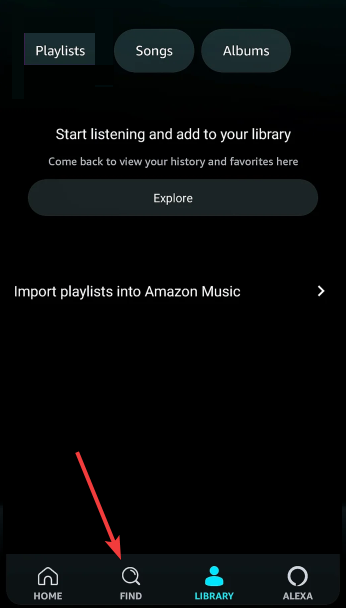
Use the in-app Find option to look for songs or artists within a playlist. This helps when you want to check if a track is already added. Type part of the song title or artist name and review results without scrolling manually.
Download playlists for offline use
If you travel or have limited connectivity, toggle the Download switch at the top of your playlist. The app saves all songs locally for offline playback. Once downloaded, playlists appear under Library → Playlist → Downloaded.
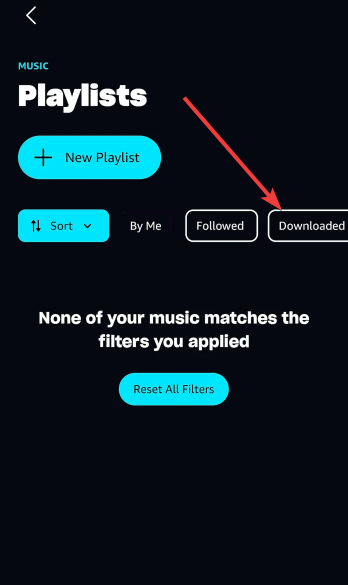
3) Troubleshooting missing or hidden playlists
- Check your login and subscription: Amazon Music has different tiers (Free, Prime, and Unlimited), and some playlists are only visible with an active subscription. Switch to the right profile or verify your subscription status from your account settings.
- Refresh your library: On mobile, swipe down on the playlist screen to trigger a refresh. On the desktop, close and reopen the app to force a data update. If the list still doesn’t appear, clear the app cache under Settings → Storage → Clear Cache.
- Reinstall or update the app: Uninstall the Amazon Music app, restart your device, and download the latest version from the store. Log in again and open Library → Playlists to restore your list. Most playlists reappear once the app refreshes your account data.
- Contact Amazon support: If playlists are still missing, go to Settings → Help → Contact Us inside the app. Choose Amazon Music and start a chat or call request. Support can verify your account and help restore playlists tied to your library history.
Tips for easier playlist access
- Pin your favorite playlists to the top for quick access.
- You can also follow playlists created by friends or artists to grow your library.
- For recently played lists, open Home → Recently Played and tap any entry to resume instantly.
- Consider creating themed playlists, such as “Workout Mix” or “Road Trip,” to make them easier to recognize at a glance. Consistent naming helps when using Alexa voice commands later.
FAQs
Why did my playlist disappear on Amazon Music? Playlists can vanish due to expired subscriptions, app updates, or signing into the wrong account. Always verify your profile and refresh your Library view before assuming they’re deleted.
Can I see the playlists I followed or shared with me? Yes. Go to Library → Playlists → Followed to view any shared or subscribed lists. You can follow or unfollow them anytime, depending on your preferences.
How do I access my playlists on a Fire TV or Echo Show? On Fire TV, open the Amazon Music app and select Library → Playlists. On Echo Show, say "Alexa, show my playlists", and tap the one you want to play. Both devices sync automatically with your main Amazon account.
Summary
- Go to Library → Playlists on any device to view your lists.
- Check account details if playlists go missing or fail to sync.
- Use Alexa or Fire TV for quick voice access to playlists.
- Keep playlists organized and backed up by regularly syncing the app.
Conclusion
Finding your playlists on Amazon Music doesn’t have to be complicated. Whether you’re using a phone, computer, or Alexa device, the Library → Playlists section is the key to accessing all your saved and followed lists. If they ever go missing, a quick refresh or reinstall usually brings them back.
Keep your playlists organized and synced across devices for the best experience. With a few quick steps, you’ll always have your favorite tracks ready to play wherever you are.


Discussion (0)
Be the first to comment.