




Amazon Music lets you listen to songs online or save them offline for times you don’t have an internet connection. Whether you use Amazon Music Free, Prime, or Unlimited, the process to download music depends on your plan and device.
This guide walks you through how to download songs and albums on every platform - plus how to find your files, manage storage, and fix common issues.
1) Check which music you can download
Amazon offers three main options:
- Purchased Music - MP3s you buy individually; yours to keep.
- Prime Music - Included with Amazon Prime; songs can be downloaded, but playback only works within the app.
- Amazon Music Unlimited - Paid tier with full offline access and higher audio quality.
Tip: You can’t export or copy offline songs from Prime or Unlimited outside the Amazon Music app due to DRM restrictions.
2) Download music on Windows or Mac
Open the Amazon Music app and sign in. Select Library → Songs or Albums. Now, hover over a song and click the three vertical dots (⋮).
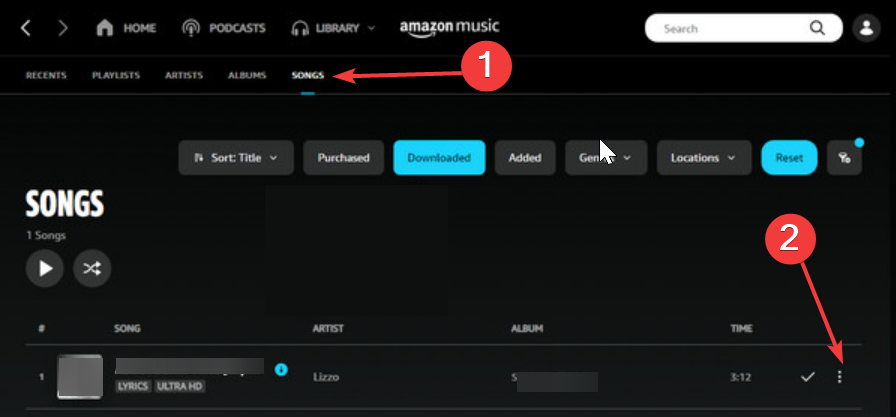
Choose Download and wait for the download icon to complete; downloaded tracks appear under Library → Downloads. Purchased MP3s, on the other hand, are saved to your computer’s Music → Amazon Music folder. Lastly, subscription downloads stay inside the app cache and can’t be copied.
3) Download on mobile phones
Open the Amazon Music app on your Android, iPhone, or iPad and sign in. Next, find a song, album, or playlist, and tap the three dots (⋮) next to it. Now, tap Download and wait till the download is complete.

You’ll see a check mark once the download is finished. Songs stay playable only within the app while your subscription is active on iOS, while you can access the downloaded song on your Internal Storage on Android. Deleting and reinstalling the app removes offline tracks. To access your offline songs, go to Library → Downloaded.
Tip: You can enable Download using Wi-Fi only under Settings → Streaming & Download to save data.
4) Download purchased music from the browser
Open Amazon.com → Returns & Orders → Digital Orders. Select your purchased album or track and click Download Purchases. Now, choose Save File when prompted by your browser, and the files will be saved as standard MP3s that you can copy or transfer anywhere.
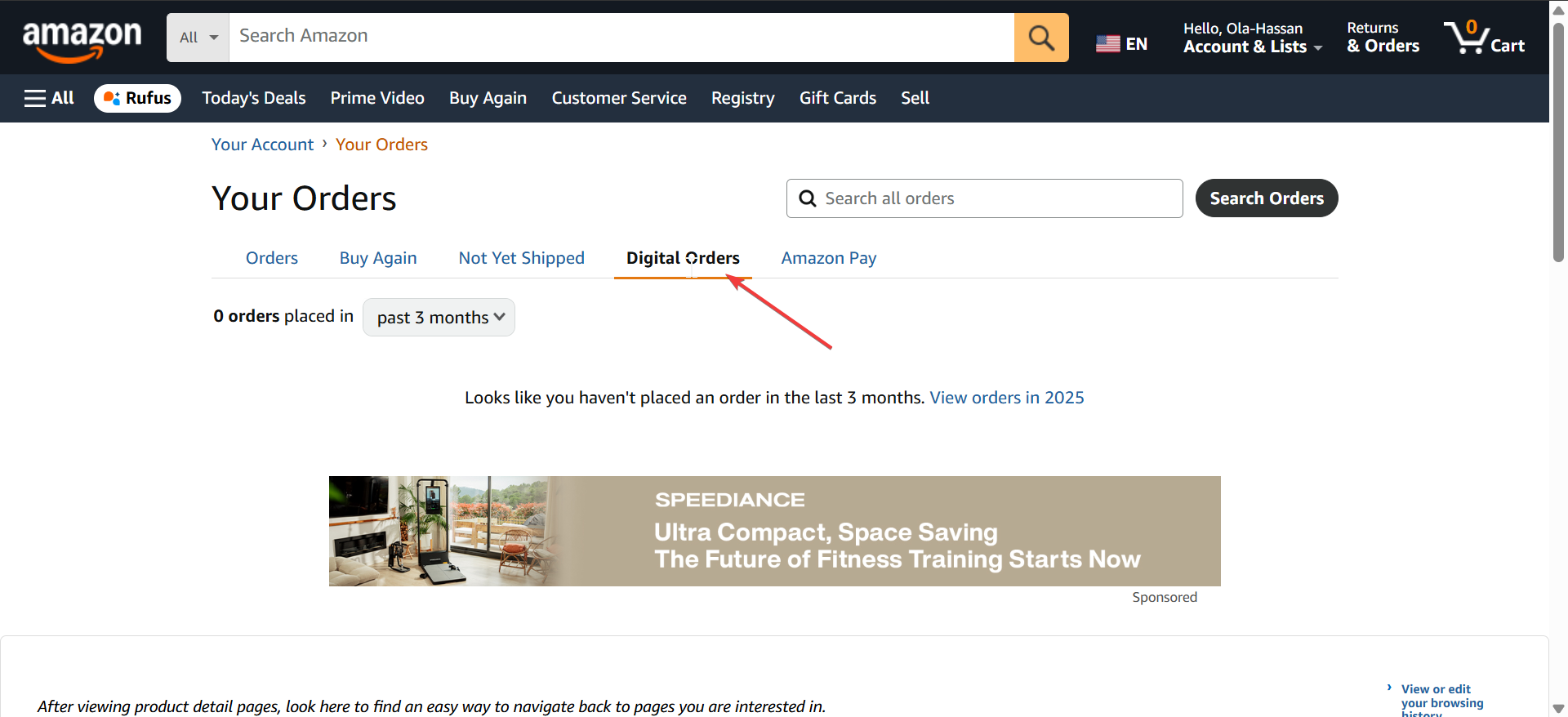
Tip: Purchased songs never expire and aren’t affected by subscription status.
5) Manage and locate downloaded files
- Windows/Mac: Open File Explorer → Music → Amazon Music.
- Android: Internal Storage → Android/data/com.amazon.mp3/files/Music.
- iOS: Files remain protected inside the Amazon Music app; not accessible via the Files app.
Clearing the cache or uninstalling the app removes downloaded music from Prime or Unlimited plans.
6) What happens when you cancel Amazon Music
If you cancel Amazon Music Unlimited or Prime, all downloaded songs become unavailable for playback. Purchased music remains available under Digital Purchases, even without an active subscription.
To reactivate access to offline songs, simply resubscribe to Amazon Music Unlimited or Prime.
7) Legal and usage notes
- Downloaded subscription tracks are encrypted and for personal use only.
- Transferring or converting them to MP3 using third-party tools may violate Amazon’s Terms of Service.
- Purchased MP3s are the only files that can be freely transferred or used with other media players.
- For safe offline playback, always use the official Amazon Music app.
8) Troubleshooting download problems
If your Amazon Music downloads get stuck or disappear:
- Restart your device and reopen the app.
- Check your Wi-Fi or data connection.
- Ensure Amazon Music is updated to the latest version.
- Log out and back in to refresh your library.
- Verify you’re within the device limit (10 max for offline downloads).
- If you still can’t download, delete old downloads to free space or reinstall the app.
Tips for Better Download Management
- Use SD card (Android)
- Download only high-quality tracks by choosing Best Available quality for improved audio.
- Keep playlists small by downloading in batches to avoid app freezes.
- Disable battery saver, as it can pause long downloads in the background.
FAQs
Can I transfer Amazon Music downloads to another device? Only purchased MP3s can be copied. Offline tracks from Prime or Unlimited can’t be exported.
Why can’t I find the download button? Make sure you’re using the desktop or mobile app. The web player doesn’t support offline downloads for streaming tracks.
Does Amazon Music support downloads on multiple devices? Yes, but you can only keep offline tracks on up to 10 devices at a time.
Summary: How to download music from Amazon Music
- Use the Amazon Music app on desktop or mobile.
- Tap or click the Download icon next to songs or albums.
- Purchased MP3s save locally and can be transferred.
- Subscription downloads work only within the Amazon Music app.
- Manage and locate your files under Library → Downloads.
Conclusion
Downloading music from Amazon Music is quick once you understand how your plan works. Prime and Unlimited members can enjoy offline listening inside the app, while purchased songs remain yours forever. Keep your app updated and manage storage to ensure smooth downloads across all your devices.



Discussion (0)
Be the first to comment.