




Amazon Music lets you stream millions of tracks, but sometimes you just want offline access. Whether you’ve purchased songs or want to convert your playlists, learning how to download music from Amazon Music to MP3 helps you keep your favorite tracks handy on any device.
Why Download Music from Amazon Music to MP3?
MP3 is a universal format that plays on nearly every phone, computer, or MP3 player. Converting or downloading Amazon Music to MP3 ensures you can listen without the app or an internet connection. It’s ideal for travel, saving data, or backing up your music library.
Step 1: Open Amazon Music on Your Computer
Start by opening Amazon Music in your web browser or the Amazon Music desktop app. Sign in with your Amazon account to access your music library. If you’re downloading purchased songs, you can also use the Amazon website to access them directly under Library > Purchased.
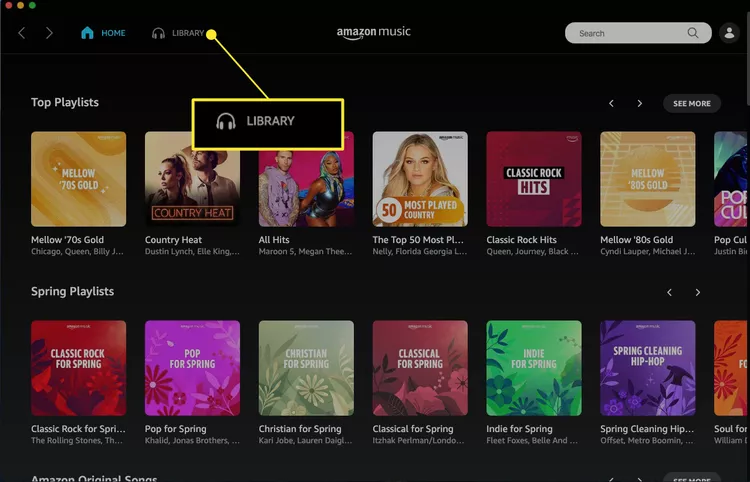
Step 2: Go to Your Library
Click the Library tab at the top of the screen. You’ll see categories like Playlists, Songs, Albums, Artists, and Purchased. Choose Purchased to view all the songs and albums you own. This is where you’ll find music eligible for direct download in MP3 format.
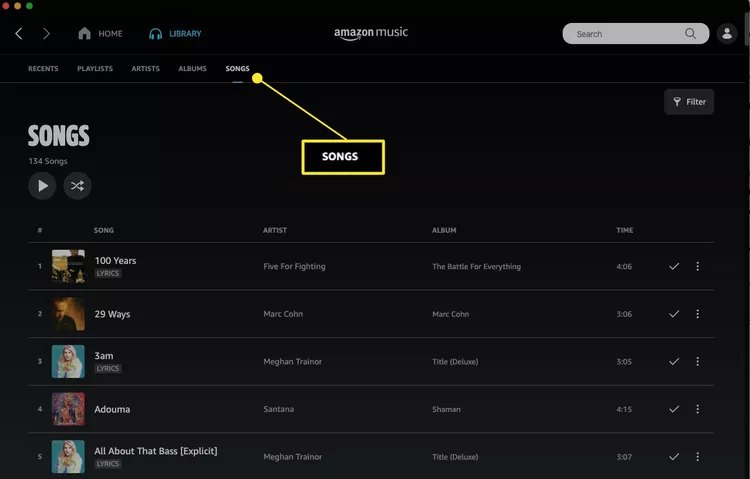
Step 3: Download Purchased Music from Amazon
Next, locate the songs or albums you want. Select the three-dot menu next to the title and choose Download. Your purchased tracks will download as MP3 files to your computer’s default music folder. You can then transfer them to your phone or an MP3 player.
Tip: You can download multiple items at once. If you’re using the browser version, Amazon may ask you to confirm the download or select a folder location.
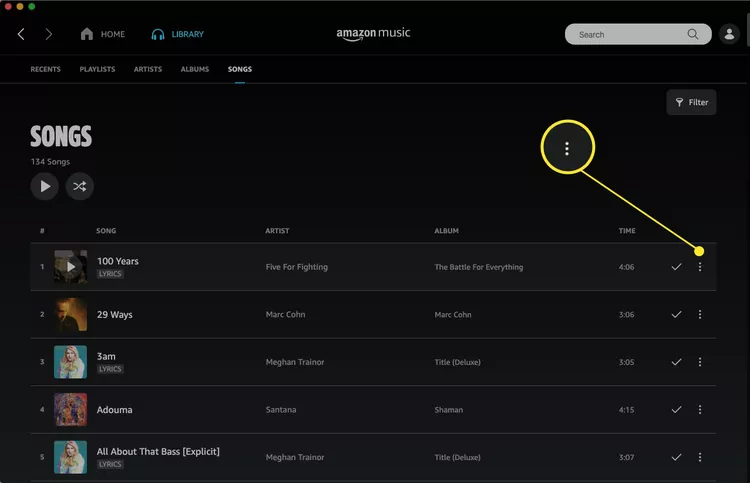
Step 4: Use the Amazon Music App for Offline Playback
If you’re an Amazon Prime or Amazon Music Unlimited subscriber, you can save songs for offline listening inside the app. These songs aren’t stored as MP3s but can still be accessed without an internet connection through the app. For true MP3 files, you’ll need to convert Amazon Music to MP3 using approved methods.
Step 5: Convert Amazon Music to MP3 (for Streaming Tracks)
Subscription downloads from Amazon Music are encrypted, meaning they can’t be copied directly. However, you can use official tools like the Amazon Music Downloader or third-party converter apps such as NoteBurner or TuneFab. These tools let you select your preferred output format and convert streaming songs from Amazon Music to MP3 for offline use.
To convert:
- Launch your converter and sign in to your Amazon Music account.
- Add the tracks, playlists, or albums you want to convert.
- Select MP3 as the output format.
- Click Convert or Download to start the process.
Once finished, your converted MP3s can be found in the output folder you selected. These files can be played on any music player or device.
Step 6: Transfer MP3 Files to Other Devices
After downloading or converting your songs, connect your phone or MP3 player to your computer. Copy the files from your music folder and paste them into your device’s Music directory. Disconnect safely once the transfer completes, then play your tracks offline anytime.
Troubleshooting Tips for Amazon Music Downloads
- Downloads not starting? Clear your browser cache or restart the Amazon Music app.
- Missing files? Check your default download folder or use the search function to locate them.
- Low quality MP3s? Ensure your converter is set to a higher bitrate (at least 256 kbps).
- Device can’t play MP3s? Try a universal player like VLC or Windows Media Player.
FAQs
Can I download Amazon Prime Music to MP3?
Not directly. Prime Music songs can only be played offline inside the Amazon Music app. You’ll need a converter to save them as MP3 files.
Where are my downloaded Amazon Music files saved?
On Windows and macOS, they’re usually in the Music > Amazon Music folder. You can change this in the app’s settings.
Can I transfer downloaded music to an MP3 player?
Yes. Once you have the songs in MP3 format, copy them to your MP3 player using a USB connection.
Is it legal to convert Amazon Music to MP3?
Converting purchased tracks is fine for personal use. However, sharing or redistributing them may violate copyright laws.
Summary
- Open Amazon Music on your browser or app.
- Go to Library → Purchased.
- Download your purchased music as MP3.
- Use offline mode for streaming songs.
- Convert subscription music to MP3 using approved tools.
- Transfer your MP3s to other devices.
Conclusion
Learning how to download music from Amazon Music to MP3 gives you full control over your favorite songs. Whether you’re saving purchased tracks or converting subscription music, MP3 files make your playlists portable and easy to manage. With a few quick steps, you can build your personal collection and enjoy it offline, anytime, anywhere.



Discussion (0)
Be the first to comment.