




Want hands-free music at home? This guide shows you exactly how to play Amazon Music on Alexa Echo, from linking services to using voice commands, multi-room music, and simple fixes when playback won’t start.
What You Need
You’ll need an Alexa Echo device on Wi-Fi, the Alexa app on iOS or Android, and an Amazon account. At the time of writing, Amazon Music Free, Prime Music, and Amazon Music Unlimited all work with Alexa, but Unlimited unlocks the full catalog on Echo.
Step 1: Link Amazon Music to Alexa
Linking the service is the key to reliable playback and clean voice control.
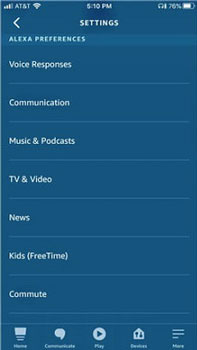
- Open the Alexa app → More → Settings → Music & Podcasts.
- Tap Link New Service and choose Amazon Music.
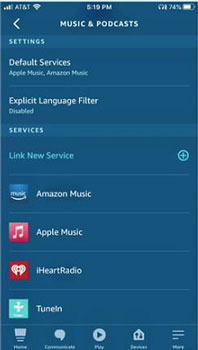
- Sign in if prompted and complete the on-screen steps.
Tip: If you use other providers (Apple Music, Spotify), link them here too so you can switch by name in voice commands.
Step 2: Make Amazon Music the Default
Setting a default lets you just say “Alexa, play music” without naming a service.
- In Music & Podcasts, tap Default Services.
- Set Amazon Music for Music and, if you want, for Artist and Genre Stations.
Step 3: Try These Core Voice Commands
- Play music: “Alexa, play music.”
- By artist/song/album: “Alexa, play [song] by [artist].”
- Playlists: “Alexa, play my playlist.”
- Control: “Alexa, pause,” “Alexa, resume,” “Alexa, next,” “Alexa, volume 4.”
- Shuffle & repeat: “Alexa, shuffle,” “Alexa, repeat.”
- What’s playing: “Alexa, what song is this?”
Step 4: Create and Manage Playlists
- Create: “Alexa, create a new playlist.” Name it when asked.
- Add a song: “Alexa, add this song to .”
- Play a list: “Alexa, play my playlist.”
- Remove a song: “Alexa, remove this song from .”
Step 5: Play Amazon Music on All Echo Devices
Set up Multi-Room Music to sync audio across rooms.
- Alexa app → Devices → + → Combine Speakers → Multi-Room Music.
- Create a group (for example, “Downstairs”) and pick the Echo devices to include.
- Say, “Alexa, play Amazon Music on Downstairs.”
Optional: Stream From Your Phone
Use Bluetooth when you want to play audio from apps that aren’t linked to Alexa. This method works perfectly with Apple Music, YouTube, or any local music files on your device.
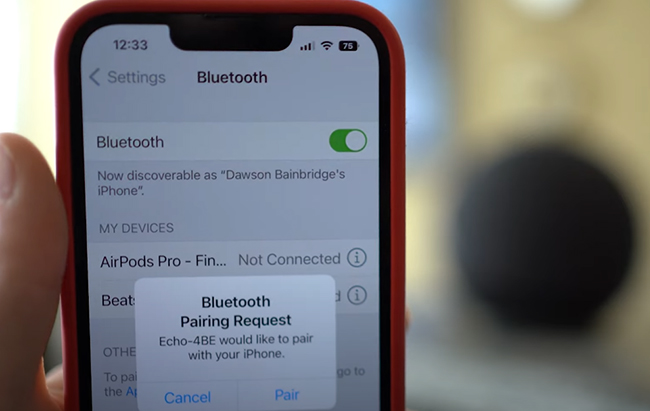
- Turn on Bluetooth pairing on the Echo. Say “Alexa, pair.” Your Echo will enter Bluetooth mode.
- Pair your phone or computer. Keep the device close to the Echo. Open Settings > Bluetooth, find your Echo under Available devices, and tap it to connect. You can also say “Alexa, connect to Bluetooth.”
- Start streaming Apple Music. Play any song or playlist on your phone or computer, and the audio will automatically stream through your Echo.
- Disconnect when done. Say “Alexa, disconnect” to disconnect from Bluetooth.
Troubleshooting: Alexa Won’t Play Amazon Music
- Service not linked: Revisit Music & Podcasts → ensure Amazon Music is linked and set as default.
- Account mismatch: Make sure the Alexa app and Amazon Music use the same Amazon account.
- Subscription limits: Prime Music has a smaller catalog. If a track won’t play, try another version or upgrade to Unlimited.
- Wi-Fi hiccups: Reboot the router and Echo. Move the Echo away from thick walls or microwaves.
- Device target: If music plays on a different Echo, specify the device or group: “on [device/group].”
- Clear confusion: Say the full command: “Alexa, play [song] by [artist] on Amazon Music.”
- App refresh: In the Alexa app, disable and re-enable Amazon Music under Link New Service.
Smart Extras: Alarms, Timers, and Routines
- Music alarm: “Alexa, set an alarm for 7 a.m. with Amazon Music.”
- Timer with music: “Alexa, set a 20-minute timer and play jazz.”
- Routines: In the Alexa app, add a Routine to start a playlist when you say “Good morning.”
FAQs
Do I need Amazon Music Unlimited? No. Amazon Music Free and Prime Music work, but Unlimited gives the broadest selection and fewer blocks during requests.
Can I use other services? Yes. Link services in Music & Podcasts. You can set a different default or say the service name in your command.
How do I play on a specific Echo? Add the device name: “Alexa, play lo-fi on Amazon Music on Kitchen Echo.”
Summary
- Open Alexa app → Music & Podcasts → link Amazon Music.
- Set Amazon Music as the default for music and stations.
- Use clear voice commands for songs, artists, albums, and playlists.
- Create Multi-Room Music groups to play across your home.
- Fix issues by relinking, targeting the right device, and checking Wi-Fi.
Conclusion
You now know how to play Amazon Music on Alexa Echo the right way. Link services, set Amazon Music as default, use simple voice commands, and turn on Multi-Room Music for whole-home sound. At the time of writing, these steps deliver the fastest setup and the fewest playback errors.


Discussion (0)
Be the first to comment.