




Watching your favorite Prime Video shows on a big screen is simple once you’re logged in. While the steps vary slightly depending on your TV model, the process is straightforward. Here’s how to sign in to Amazon Prime Video on any TV quickly and fix common login issues if you’re stuck.
1) Sign in directly on the TV app

Open the Prime Video app on your TV and select Sign In from the menu. Next, use your remote to enter your Amazon email and password. Finally, confirm the login and your Prime Video home screen should now display your account’s watchlist and recommendations.
2) Sign in using a code on another device
Open the Prime Video app on your TV and select Sign In and Start Watching. A six-digit registration code will appear on the screen. Now, open your phone or computer browser and visit the Amazon device registration page, sign in your account, and enter the code.

Once confirmed, your TV will automatically sign in to your account.
3) Brand-specific login instructions
Samsung Smart TV (Tizen OS)
Press the Home button on your remote and open Apps. Locate Prime Video and launch it. Choose Sign In and either enter your credentials or use the registration code shown. If the app doesn’t appear, update your TV firmware first.

LG Smart TV (webOS)
From your home screen, go to the LG Content Store, find and install the Prime Video app, then open it. Select Sign In and follow on-screen prompts to log in or link your account using a code.
Android TV and Google TV
Navigate to the Google Play Store and install Prime Video if it isn’t preloaded. Launch the app and log in using your Amazon account credentials or linking code. Google TV may auto-fill your details if you’ve previously linked an Amazon service.
Fire TV and Fire TV Stick
Most Fire TV devices are pre-signed into your Amazon account. To switch users, go to Settings > Account & Profile Settings > Amazon Account and choose Deregister. Then log in again with your preferred credentials.
Roku TV and Apple TV
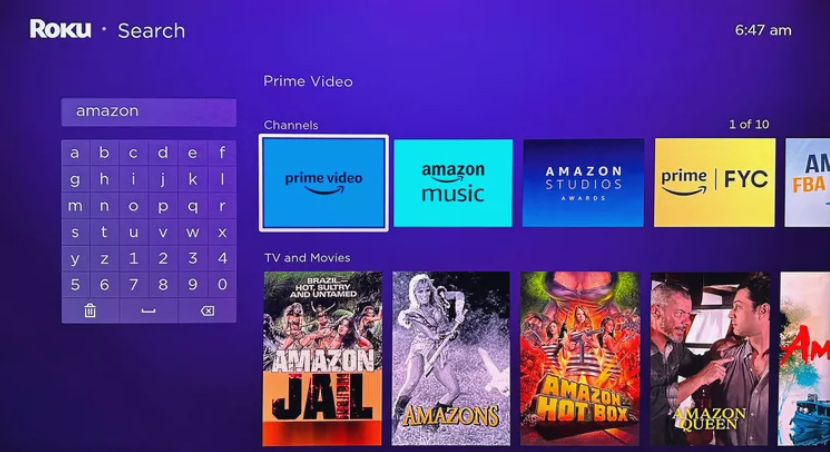
Search for Prime Video in the Channel Store or App Store, install it, then open it. Select Sign In and use either your Amazon login details or the on-screen registration code to link your account.
4) Can I log in to Amazon Prime without a Smart TV?
Yes. You can stream Prime Video on non-smart TVs using external devices like the Fire TV Stick, Roku, Chromecast, or game consoles. Connect the device via HDMI, open the Prime Video app, and sign in using one of the two methods mentioned earlier.
5) Troubleshooting login issues
- TV Shows Unable to Connect or Code Expired: Restart your TV, reopen the Prime Video app, and request a new code. Make sure your Wi-Fi is stable and your TV’s date and time settings are correct.
- Prime Video app missing or outdated: Check for available system updates under your TV’s settings. If needed, uninstall and reinstall the Prime Video app to restore proper login functions.
- Signed into the wrong account: Go to Settings > My Account > Deregister to sign out, then log back in with the correct credentials. This is useful if your TV is showing another household member’s account.
- Playback works on other devices but not TV: This may happen if your subscription expired or your TV’s app cache is corrupted. Restart the TV and confirm that your Prime membership is active before trying again.
Tips for a smooth sign-in
- Update your TV’s firmware regularly.
- Ensure your internet connection is strong and stable.
- Use the registration code method if typing is slow.
- Clear the app cache if the login screen doesn’t load.
- Keep your Amazon credentials secure and avoid using public Wi-Fi.
FAQs
Why does Prime Video keep asking me to sign in again? This usually happens if your TV clears its app cache or your device was deregistered from Amazon’s account list. Re-linking the device should fix it.
Can I use multiple Amazon accounts on one TV? Yes, but only one can be active at a time. You can switch profiles or sign out and sign in again to access different accounts.
Where can I find my TV’s registration code? Open the Prime Video app, select Sign In, and choose Register on Amazon Website. The code will display immediately on your TV screen.
Summary
- Install the Amazon Prime Video app
- Choose either the manual or code-based login method
- Confirm your connection
- If sign-in fails, update your TV, check your internet, or deregister and log in again.
Conclusion
Logging into Amazon Prime Video on your TV is a quick process whether you’re entering your credentials directly or using a registration code. By following the steps outlined for your specific TV brand, you can start streaming in no time. If you run into any issues, troubleshooting tips like updating the app, checking your network, or re-entering your login details should resolve most problems. Now you're ready to enjoy your favorite shows and movies right from the comfort of your living room!



Discussion (0)
Be the first to comment.