




Welcome to the world of Amazon Music! As a user of Amazon Music, understanding how to access and customize your settings is crucial. Whether you're looking to change streaming quality, adjust playback settings, or manage notifications, Amazon Music offers a range of options that help you personalize your music experience.
In this guide, we will show you exactly how to find and modify your Amazon Music settings, whether you're using the desktop version or the mobile app. These settings give you full control over your listening experience, allowing you to fine-tune preferences such as audio quality, notifications, and music recommendations.
By the end of this article, you'll know how to navigate through the settings to optimize your Amazon Music experience, from customizing playback preferences to managing offline playback and content filters.
Understanding Amazon Music Settings
Before we dive into how to find your Amazon Music settings, it’s important to understand what these settings entail and how they enhance your overall music streaming experience. Amazon Music settings allow you to personalize various aspects of your music playback, discover new music, and manage your account preferences. These settings are designed to make your listening experience more enjoyable and tailored to your individual preferences.
Some key settings you can customize include:
- Streaming Quality: Choose from different quality levels based on your data or audio preferences. Options include “Auto,” “Good,” “Better,” or “Best” for high-quality streaming.
- Playback Preferences: Customize your playback with features like gapless playback or crossfade for smoother transitions between songs.
- Lyrics: Enable lyrics display to sing along or follow the words while listening to your favorite tracks.
- Equalizer: Adjust the equalizer to fine-tune your sound to your liking, whether you prefer boosted bass or enhanced treble.
- Offline Playback: Manage and store downloaded music so you can enjoy it even without an internet connection.
- Explicit Content Filter: Control the level of explicit content you encounter by enabling or disabling filters for clean content.
- Notifications: Choose which notifications you want to receive, such as new releases or personalized playlist recommendations.
Now that you understand the different settings available, let's walk through how to find and access them on both desktop and mobile platforms.
How Do I Find My Amazon Music Settings on Desktop?
If you're using Amazon Music on your desktop, accessing the settings menu is quick and easy. Here’s how you can do it:
- Open Your Browser: Navigate to music.amazon.com.
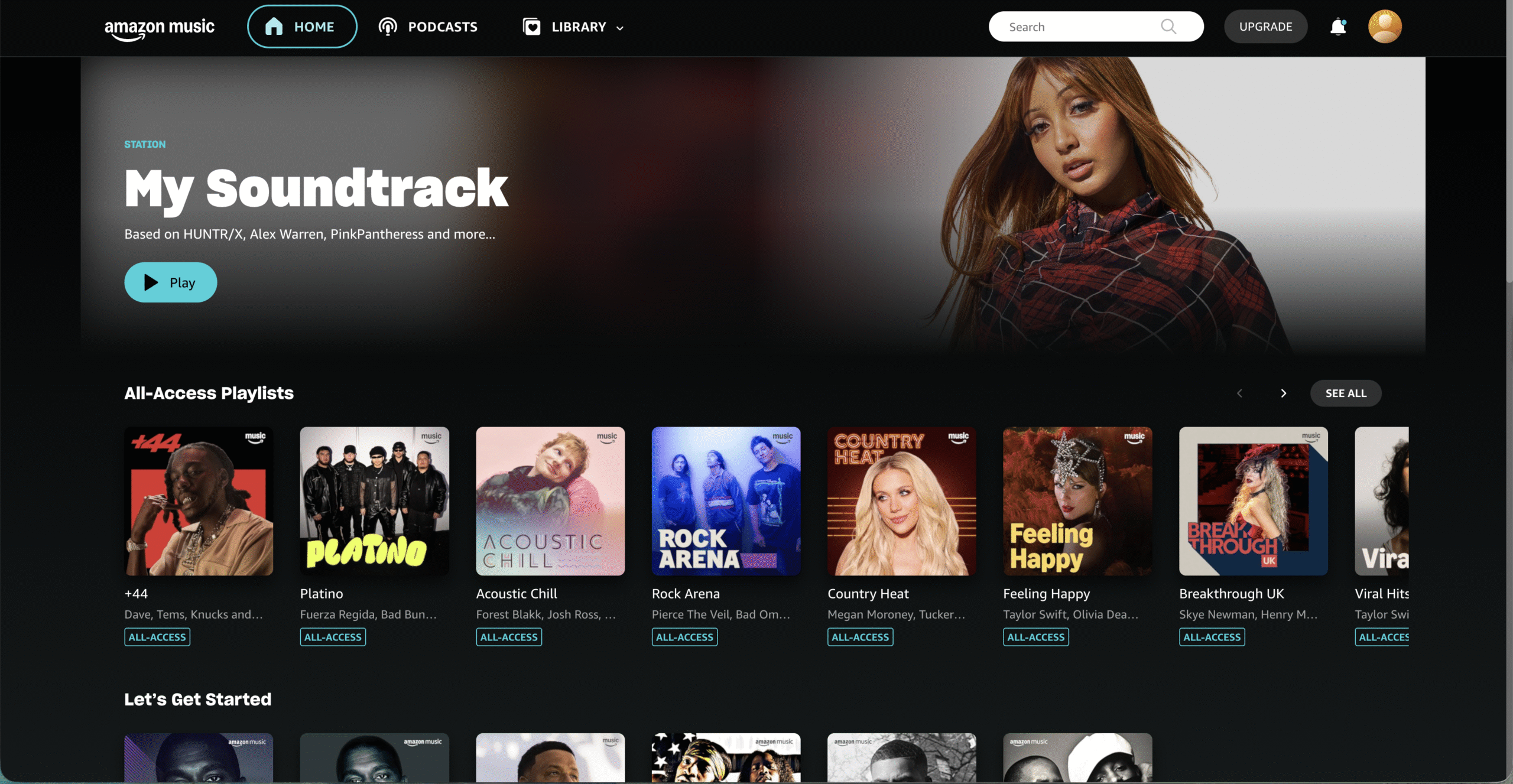
- Sign In: Log into your Amazon Music account using your credentials.
- Access Settings: In the top-right corner of the Amazon Music homepage, click on the gear icon to open the "Your Amazon Music Settings" menu.
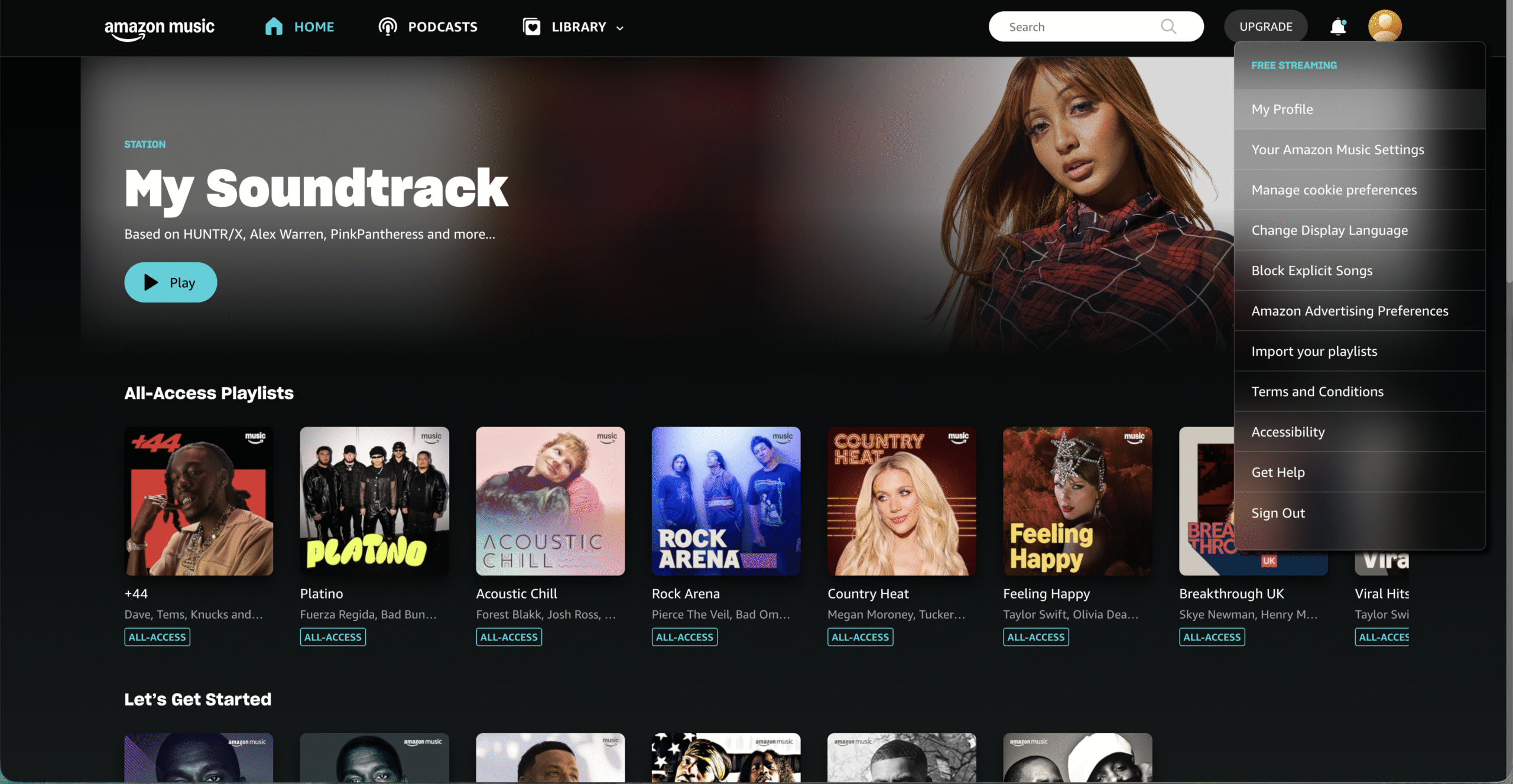
- Explore Settings: A drop-down menu will appear. Click "Settings" to enter the settings page where you can modify various account preferences and playback settings.

On the settings page, you'll find several tabs for customizing your Amazon Music experience. These may include "Account Settings," "Playback Settings," "Download Settings," and more. Each tab offers different options that you can explore and adjust.
How Do I Find My Amazon Music Settings on Mobile?
If you prefer to listen to Amazon Music on your mobile device, here's how to access your settings on the mobile app:
- Open the Amazon Music App: Launch the Amazon Music app on your mobile device.
- Tap the Hamburger Icon: In the bottom-right corner of the screen, tap the three-line hamburger icon to open the main menu.
- Navigate to Settings: Scroll down in the menu and tap on “Settings” to open the settings page.
- Customize Settings: On the settings page, you'll find tabs that allow you to adjust settings such as streaming quality, notifications, equalizer, and more.
With these steps, you can easily find and modify your Amazon Music settings on both desktop and mobile platforms, giving you full control over your listening experience.
Common Amazon Music Settings and How to Customize Them
Now that you know how to access your settings, let’s look at some of the most commonly customized Amazon Music settings and how to adjust them:
- Streaming Quality: Under “Settings” > “Playback Settings,” you can adjust the streaming quality. Choose between “Auto,” “Good,” “Better,” or “Best” to optimize for your data usage or audio preference.
- Playback Preferences: Enable features like gapless playback and crossfade for smooth transitions between tracks. You’ll find these options under “Settings” > “Playback Settings.”
- Equalizer: Fine-tune your audio by adjusting the equalizer settings under “Settings” > “Equalizer.” You can adjust the sliders for bass, treble, and overall sound balance.
- Offline Playback: Manage your downloaded music under “Settings” > “Download Settings.” You can choose where to store downloaded content for offline listening.
- Explicit Content Filter: Enable or disable the explicit content filter under “Settings” > “Content Settings” to control the level of explicit content in your music selection.
Troubleshooting: Issues with Amazon Music Settings
If you're encountering issues with your Amazon Music settings, here are some common troubleshooting tips to help resolve problems:
- Ensure you're signed into your Amazon Music account and that your app is updated.
- If your settings are not saving, check if you are clicking “Save” after making changes. Try logging out and back in to see if settings are saved.
- For playback issues, verify your internet connection is stable and adjust your streaming quality settings.
- If you can't find specific settings, use the search or filter options in the settings menu to narrow down the options.
- For app crashes or freezes, close and restart the app or reinstall it to ensure you’re using the latest version.
If these tips don't resolve the issue, you may want to contact Amazon Music support for further assistance.
Conclusion
Understanding and customizing your Amazon Music settings enhances your music streaming experience. Whether you're using the desktop or mobile app, accessing the settings is simple and provides you with a wide range of options to optimize your playback, quality, and notifications. By customizing these settings, you can tailor your experience to suit your preferences and enjoy music the way you want.
Explore these settings today and take control of your Amazon Music account to ensure an optimal and personalized listening experience.


Discussion (0)
Be the first to comment.