




A wired Ethernet connection still beats Wi-Fi for stable speed, low latency, and security. The problem comes when the router sits in one corner of the home and your PC, console, or smart TV lives in another room. That is when you need to know how to extend Ethernet cable safely without turning your network into a bottleneck.
This guide explains how to extend Ethernet cable length, what the real Ethernet cable length limit is for Cat5e and Cat6, and which method fits homes, apartments, and small offices. You will see where an Ethernet coupler works, when to add a switch, and when you should use powerline adapters, a wireless bridge, or a dedicated Ethernet extender.
What Ethernet Cable Length Limit Really Means

Standard copper Ethernet cabling such as Cat5e and Cat6 supports runs up to about 100 meters (around 328 feet) between network devices. Within that distance you normally keep full speed for 1 Gbps links and even multi-gigabit standards on quality cable.
When you extend Ethernet cable beyond that point, the signal starts to weaken. You may see random disconnects, lower throughput, or errors on the network card. Instead of trying one extremely long cable, you usually extend Ethernet cable length by adding powered network gear that regenerates the signal on the way.
When You Should Extend Your Ethernet Cable
You can extend an Ethernet run for many reasons. Typical scenarios include:
- You move your gaming PC, console, or smart TV to another room and still want a wired connection.
- You build a home office in the attic, basement, or garage where Wi-Fi feels slow or unstable.
- You need to connect IP cameras, access points, or network printers in distant corners of the property.
- You want to backhaul mesh Wi-Fi nodes using Ethernet instead of a wireless link.
Before you extend Ethernet cable, decide how far you need to go, how much speed you want to keep, and how much effort you want to spend running new cable or installing adapters.
How To Extend Ethernet Cable Safely
Several methods let you extend Ethernet cable length. Each option balances cost, performance, and installation effort. Start with the simplest solution that still meets your speed and reliability needs.
Use An Ethernet Coupler For Short Extensions
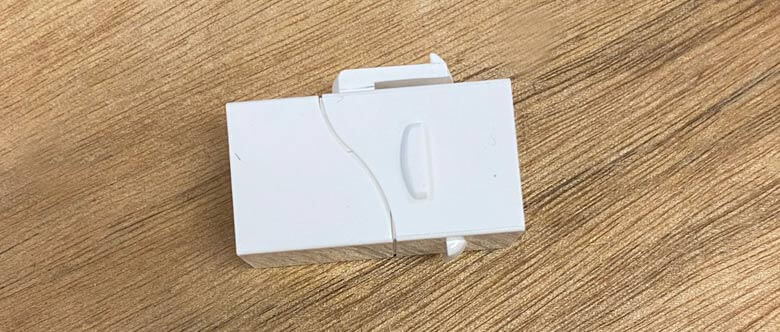
An Ethernet coupler is the quickest way to extend Ethernet cable when you only need a few extra feet. It joins two patch cables into one longer run.
To extend Ethernet cable with a coupler:
- Pick a quality RJ45 Ethernet coupler that matches your cable category, such as Cat5e or Cat6.
- Unplug the existing Ethernet cable from your device or wall jack.
- Push that cable firmly into one side of the coupler until it clicks.
- Plug a second Ethernet cable into the other side of the coupler.
- Connect the free end of the new cable to your device or wall plate.
This method works best for short extensions within the 100-meter Ethernet cable length limit. If you chain several couplers and many cables, you increase the chance of signal loss and physical failure, so keep it simple.
Add A Network Switch To Extend Ethernet Runs

A small unmanaged Ethernet switch acts like a signal booster and splitter. It regenerates the data at full strength and lets you branch out to more devices at the same time.
To extend Ethernet cable using a switch:
- Place a gigabit or multi-gigabit switch roughly in the middle of the run or in the room where several devices need Ethernet.
- Run one Ethernet cable from your router or main switch to any port on the new switch.
- Connect another Ethernet cable from a different port on the new switch to your PC, console, TV, or access point.
- Power on the switch and confirm that link lights appear on the ports you use.
This setup lets you extend Ethernet cable length in segments, each up to 100 meters, instead of one long run. It also adds extra ports, which helps when you want wired connections for multiple devices in the same room.
Use Powerline Adapters Over Electrical Wiring
Powerline adapters send network traffic over the existing electrical wiring in your home. They work well when you cannot run Ethernet cable through walls but still want something more stable than Wi-Fi.
To extend Ethernet with powerline adapters:
- Buy a pair of compatible powerline adapters rated for at least the speed of your internet plan.
- Plug the first adapter into a wall outlet near your router, then connect it to the router with a short Ethernet cable.
- Plug the second adapter into a wall outlet near your distant device.
- Use another Ethernet cable to connect the second adapter to your PC, console, TV, or switch.
- Press the pair or sync buttons if the adapters require pairing, then check that the link lights show a good connection.
Powerline performance depends on the quality and layout of your electrical wiring. Avoid surge protectors and long extension cords, and plug the adapters directly into wall outlets for the best throughput.
Create A Wireless Bridge When You Cannot Run Cable
A wireless bridge joins two network segments over Wi-Fi while still giving you Ethernet ports on the far side. It helps when you need to extend Ethernet cable across a driveway, into an outbuilding, or into a rented space where you cannot open walls.
To extend Ethernet using a wireless bridge:
- Get two compatible devices that support bridge mode or dedicated point-to-point links, such as outdoor Wi-Fi bridge kits or access points with wireless bridge features.
- Connect the first bridge device to your main router with Ethernet and place it where it has clear line of sight to the second device.
- Mount the second bridge device near the remote room or building and power it up.
- Use the web interface or mobile app to set both devices into bridge mode and link them with the same wireless channel and security settings.
- Connect an Ethernet cable from the second bridge device to a switch or directly to your remote device.
A wireless bridge avoids long runs of cable but still delivers a wired Ethernet port at the remote location. It works best when the bridge devices have strong antennas and minimal obstacles between them.
Use Ethernet Extenders Or Fiber Media Converters
When you must extend an Ethernet run well beyond 100 meters, consumer tricks stop helping. In that case you use dedicated Ethernet extenders or convert the link to fiber optics for the long part of the journey.
To extend Ethernet with extenders or media converters:
- Choose a matched pair of Ethernet extenders or fiber media converters rated for the speed and distance you need.
- Connect a short Ethernet cable from your router or core switch to the first extender or converter.
- Run the long segment of cable between locations. Use shielded twisted pair or fiber if you need to cross long distances, outdoor paths, or electrically noisy areas.
- At the far end, connect the long cable to the second extender or converter.
- Use another short Ethernet cable from that device to your remote switch, PC, or access point.
Ethernet extenders and fiber links cost more and require a bit more setup, but they handle long Ethernet runs cleanly while keeping latency low and throughput high.
Tips To Keep Your Extended Ethernet Connection Fast
Whichever method you pick, a few best practices help your extended Ethernet cable stay fast and reliable.
- Use good quality Cat5e or Cat6 cables from reputable brands, not unknown ultra-cheap options.
- Keep total copper cable length under about 100 meters between active devices whenever possible.
- Route cables away from power lines, fluorescent lights, and large motors to reduce interference.
- Crimp or terminate connectors carefully and avoid sharp bends or kinks in the cable.
- Label each cable and device so you can troubleshoot the extended Ethernet run easily later.
Common Mistakes When Extending Ethernet Cable
- Chaining several cheap Ethernet couplers and cables instead of using one proper switch or extender.
- Exceeding the recommended Ethernet cable length limit and then wondering why speeds drop.
- Running Ethernet outdoors without proper outdoor-rated or shielded cable and weather protection.
- Plugging powerline adapters into surge protectors, which can severely cut throughput.
- Mixing old 10/100 switches with gigabit or multi-gigabit gear and creating slow bottlenecks.
FAQs About Extending Ethernet Cables
Can I Just Use A Very Long Single Ethernet Cable?
You can run one long cable as long as you stay within the 100-meter guideline and use quality Cat5e or Cat6. For longer distances, you should insert a switch, Ethernet extender, or media converter instead of pushing copper beyond its comfort zone.
Does Extending Ethernet Cable Always Reduce Speed?
If you extend Ethernet cable with proper switches, extenders, or powerline adapters, you usually keep close to your original speed. Problems mostly show up when you exceed distance limits, use poor connectors, or run through noisy electrical environments.
Is Powerline Better Than Wi-Fi For Long Runs?
Powerline adapters often feel more stable than weak Wi-Fi in distant rooms, especially for streaming and casual gaming. However, a clean Ethernet cable run or fiber extension still offers the most consistent performance when the building layout allows it.
When Should I Use Fiber Instead Of Copper Ethernet?
Use fiber when you need to span long distances between buildings, cross areas with heavy electrical interference, or plan for very high speeds and future upgrades. Media converters let you switch from copper to fiber for the long stretch and back to copper at the destination.
Summary And Conclusion
Once you understand how to extend Ethernet cable correctly, you can bring stable wired networking to any room. For short gaps, an Ethernet coupler works. For rooms full of devices, add a network switch. When you cannot run cable, lean on powerline adapters or a wireless bridge. For very long Ethernet runs, use Ethernet extenders or fiber media converters.
Choose the method that matches your distance, speed needs, and budget, and follow basic cabling best practices. With a little planning, you extend your Ethernet cable length cleanly and keep gaming, streaming, and remote work running smoothly across your entire space.


Discussion (0)
Be the first to comment.