




Google Photos includes a built-in movie creation feature that lets you turn photos and videos into a shareable movie in minutes. You can create a movie directly from an album or selected clips without installing third-party video-editing apps.
At the time of writing, the full movie creation tool is available on Android, while iPhone users use the Highlight Video feature, which offers a similar but more limited experience. Below, we explain how both options work, what to expect, and how to get the best results.
How To Make A Movie Using Google Photos On Android
On Android, Google Photos still includes the Movie creation tool. You can use preset themes or build a movie manually from photos and videos stored in your library.
- Open the Google Photos app.
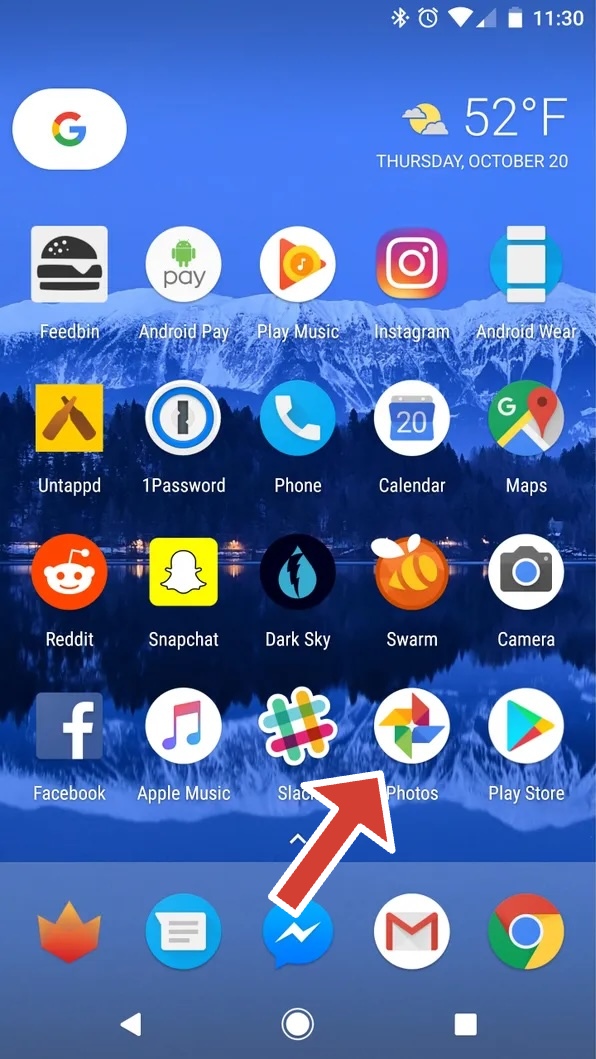
- Select the photos you want to use.
- Tap the + icon at the top and select Movie.
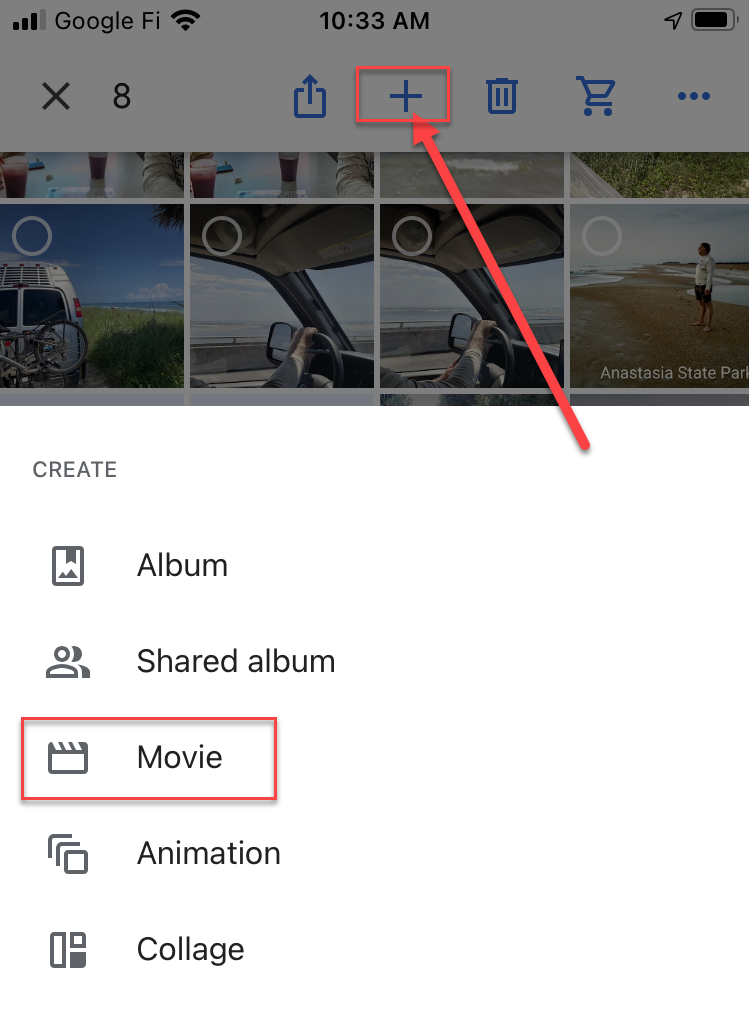
- Choose a preset theme or select photos and videos manually.
- Tap Create and wait for the movie to generate.
- Edit clip order, trim footage, or add music.
- Tap Save to store the movie in Google Photos. You can also save it in vertical or horizontal orientation.
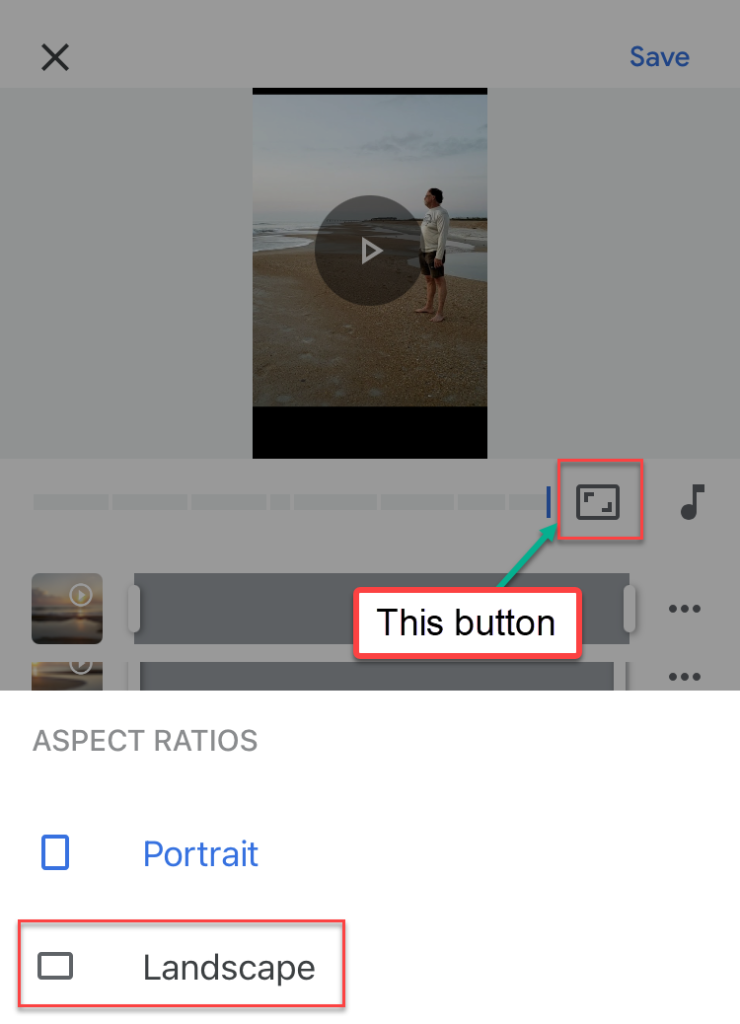
You can add custom music, rearrange clips, trim videos, and apply basic motion effects. Once saved, the movie appears in your Photos library and can be shared instantly.
How To Create A Highlight Video In Google Photos On iPhone
The Movie tool has been replaced on iOS by Highlight Videos. This option focuses on simplicity and quick results, but does not support themes or custom audio.
- Open the Google Photos app.
- Tap the + icon.
- Select Highlight Video.
- Choose photos and videos from your albums or library.
- Tap Create.
- Trim clips and adjust the soundtrack.
- Tap Save when finished.
The final video saves automatically to Google Photos and can be shared through messaging apps, email, or social media.
What You Can And Cannot Do With Google Photos Movies
Google Photos movies are designed for speed and ease, not advanced editing. Android offers more flexibility, while iOS focuses on quick highlights.
- Android supports custom music and preset movie themes.
- iPhone supports trimming and built-in soundtracks only.
- Both platforms allow sharing via link, email, or social apps.
Troubleshooting Common Problems
If the Movie or Highlight option does not appear, update the Google Photos app to the latest version. Some features roll out gradually by region.
If movie generation fails, reduce the number of clips or avoid very long videos. Large files may take longer to process or fail on slower connections.
Tips
- Use short video clips for smoother playback.
- Group photos into albums before creating a movie.
- Preview the movie fully before saving.
- Use landscape videos for better full-screen results.
- Keep edits minimal for faster export times.
FAQ
Can I add my own music to a Google Photos movie?
On Android, yes. On iPhone, only built-in soundtracks are available.
Is there a limit to how many photos or videos I can use?
There is no fixed limit, but performance may drop with very large selections.
Can I edit a movie after saving it?
You can reopen and edit the movie as long as it remains in your Google Photos library.
Can I create movies on a tablet or Chromebook?
Yes, as long as the device supports the Google Photos app.
Summary
- Google Photos lets you create movies quickly without extra apps.
- Android offers full movie creation with themes and custom music.
- iPhone uses Highlight Videos with limited editing options.
- Movies save directly to your Google Photos library.
Conclusion
Google Photos makes it easy to turn everyday memories into short movies you can share instantly. While Android users get more creative control, iPhone users still benefit from fast, automatic highlight videos. For quick, no-frills video creation, Google Photos remains one of the simplest tools available.


Discussion (0)
Be the first to comment.